How to Reboot Modem and Router: Step-by-Step Guide
Learn the safe, proven method to reboot your modem and router. This guide covers why rebooting helps, the correct power-cycle sequence, testing connectivity, and next steps when issues persist.


Learn how to reboot modem and router safely and effectively. This quick guide shows you when a reboot is appropriate, the correct power-cycle sequence for both devices, and how to verify connectivity after the restart. Follow these steps to resolve common outages without unnecessary frustration.
Why rebooting resolves many home-network hiccups
According to Modem Answers, rebooting is a simple, effective remedy for many common home-network issues. If your devices drop Wi-Fi, pages load slowly, or streaming buffers, a well-timed restart can clear temporary glitches and refresh network settings. When you search for how to reboot modem and router, the most reliable approach is to power-cycle both devices in the correct order. This guide provides a clear, step-by-step method to perform a safe reboot that minimizes risk to your network. No advanced tools are required, and the process can typically be completed in just a few minutes. Follow these steps to diagnose the root cause, reset cache, and verify that your devices reconnect properly. Durable, simple, and effective. This approach aligns with Modem Answers best practices and is designed for homeowners and renters seeking reliable connectivity.
Understanding the roles: modem vs. router
Your home network rests on two core devices: the modem and the router. The modem connects your home to your Internet Service Provider (ISP) and translates the signal into a format your devices can understand. The router distributes that connection to your devices, either wired or wirelessly. When you reboot, you’re restarting both devices so the provider can re‑issue a clean connection and your local network can re‑establish its internal routes. For many households, a single reboot of both in the correct order solves most issues without additional steps.
When reboot helps—and when it doesn’t
Rebooting is most effective for issues like slow pages, dropped Wi‑Fi, inconsistent DNS resolution, or devices that won’t connect after an outage. It may not fix problems caused by a service outage in your area, a faulty modem cable, or hardware failure. Before you jump into a reboot, confirm there’s no ongoing outage in your area by checking your ISP status page or a trusted outage tracker. If lights on the modem or router blink unusually or you see error codes, note them; they can guide further troubleshooting and support calls.
Best practices for a safe reboot
Start with a plan and a quick checklist: power down in the correct order, observe the startup lights, and test with a wired device if possible. Avoid pressing the reset button unless you intend to restore factory settings. Keep a record of SSID names and passwords in case you need to reconfigure after setup. If you rely on smart home devices, reboot them separately to see if they regain connections after the network restarts. Overall, a methodical reboot usually yields reliable improvements without risk to your data.
How to verify connectivity after reboot
Once the devices have booted, confirm your Internet connection by loading a web page, streaming a video, or running a basic speed test. Check for stable Wi‑Fi across multiple devices and ensure your devices obtain IP addresses from the router. If you still encounter issues, try testing with a wired connection to rule out Wi‑Fi range problems. Finally, check for firmware updates on both devices; updating can fix known bugs and improve stability. If problems persist, contact your ISP to rule out service-side issues.
Tools & Materials
- Modem power supply(Use the original power adapter; avoid third-party adapters that may damage the device.)
- Router power adapter(If you have a separate router, have its adapter ready.)
- Ethernet cable (Cat5e/Cat6) for testing(Helpful for testing a wired connection during troubleshooting.)
- Smartphone, tablet, or computer with internet access(Use it to access the admin page or test connectivity.)
- Notebook or notes app(Record reboot times, observed behavior, and results.)
- Surge protector (optional)(Using a surge protector reduces risk from power spikes.)
Steps
Estimated time: 6-9 minutes
- 1
Prepare and document current status
Note the devices currently connected to your network, including any active wired clients. Write down the SSID name and password, and check for any ongoing outages. This helps you compare results after the reboot and ensures you don’t need to reconfigure settings later.
Tip: Using a quick checklist before reboot reduces confusion if you need to reconfigure afterward. - 2
Power down the modem
Unplug the modem from the power outlet. If possible, unplug it completely for 15–30 seconds to clear internal caches. Reconnect the power when ready and allow the modem to start its boot sequence.
Tip: Avoid using the wall switch if you can; unplugging directly from the outlet ensures a full cycle. - 3
Power down the router
Unplug the router’s power adapter. If you’re using a separate router, disconnect it for about 10–15 seconds to ensure a clean reset of the local network routing functions.
Tip: If you have many connected devices, this pause helps prevent stale DHCP leases from lingering. - 4
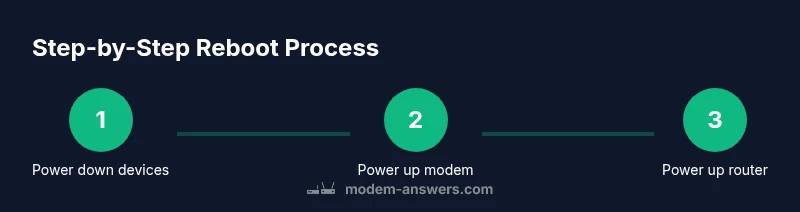
Power up the modem first
Plug the modem back in and wait until the lights indicate it has established a basic connection to your ISP. This usually takes about 1–2 minutes. Avoid turning on other devices during this window.
Tip: A brief delay between devices helps ensure the ISP assigns a fresh IP lease cleanly. - 5
Power up the router
Connect the router and wait for its lights to stabilize. This can take another 1–2 minutes. The router will re-establish local network settings and begin broadcasting Wi‑Fi again.
Tip: If you opt for wired testing, connect a device via Ethernet now to verify the network is reachable. - 6
Test connectivity and verify
Open a webpage or run a speed test on multiple devices to confirm internet access. If a wired test works but Wi‑Fi remains flaky, try reconnecting to the Wi‑Fi network or changing the channel in the router settings.
Tip: Document the results so you can compare against future reboots.
FAQ
What is the difference between rebooting and factory resetting?
Rebooting simply restarts the devices to clear temporary glitches and refresh connections. A factory reset wipes all custom settings and returns the device to its original state, which should only be used if you cannot recover the configuration.
Reboot just restarts the device; a factory reset erases all settings.
Should I reboot both modem and router at the same time?
Yes. Reboot the modem first to reestablish the Internet connection, then reboot the router to reset the local network and Wi‑Fi.
Reboot the modem first, then the router.
How long does a reboot take to complete?
Most reboot sequences take about 2–5 minutes for devices to boot and re-establish connections.
Usually a few minutes, depending on device models.
What should I do if rebooting doesn’t fix the problem?
Check for service outages, verify cabling, test with a wired connection, and consider firmware updates. If issues persist, contact your ISP.
If reboot doesn’t help, check outages and firmware; contact ISP if needed.
Is remote reboot via an app safe?
Remote reboot is safe if you trust the device app and follow the manufacturer’s instructions. Ensure your network is secure before using remote features.
Yes, if trusted and properly configured.
Can rebooting fix DNS resolution problems?
A reboot can clear cached DNS data and help restore resolution, but persistent DNS issues may require changing DNS settings or contacting your ISP.
Reboot can help DNS, but deeper changes may be needed.
Watch Video
Key Takeaways
- Power cycle both devices in the correct order.
- Verify connectivity with multiple devices after reboot.
- Document settings before and after reboot for easy recovery.
- Rule out outages and firmware updates if issues persist.
- Use wired tests to isolate Wi‑Fi problems.