When Restarting Modem and Router: A Practical How-To
Learn when and how to safely restart your modem and router to fix slow connections, outages, or changes. This Modem Answers guide walks you through steps, checks, and tips for reliable home networking.


When restarting modem and router, you’ll typically fix slow speeds, dropouts, and stuck devices. This guide walks you through a safe, step‑by‑step process that minimizes downtime. You’ll need a power source, a few minutes, and access to your modem and router admin pages. The goal is a clean reset, followed by a quick connectivity check.
Why restarting helps and when to do it
According to Modem Answers, a calm restart can clear temporary faults, refresh network paths, and re‑establish device sessions. Restarting is often the first step when you notice slow speeds, random disconnects, or devices that won’t connect. The decision to restart should balance urgency and impact: save critical work, perform the reset during a time when every device can re‑connect, and avoid doing this during a known outage window. The basic concept is simple: you’re forcing the network hardware to re‑initialize all internal components so the path from your devices to your Internet service provider is renewed. For most households this straightforward action resolves many common issues.
Quick checks before you restart
Before you touch power, verify a few basics. Confirm you have a current plan from your ISP, note any outages in your area, and check that you know how to access the modem and router admin pages. If you rely on a mesh system, understand which unit is the primary hub. Having a simple checklist helps prevent accidental misconfigurations and ensures a smoother cycle after reboot. Remember to back up custom settings if your devices support it, so you can recover quickly if needed.
What a restart does for your home network
A proper restart clears cached data and resets active sessions, which can clear stuck connections and improve routing. Modern home networks rely on multiple layers: the modem connects you to your ISP, while the router assigns local IPs and manages Wi‑Fi. Restarting both devices in sequence can re‑establish a clean control plane and data plane, potentially resolving issues that a single device reboot cannot fix. While a reboot won’t fix hardware problems or persistent outages, it often resolves software glitches that accumulate over time.
Troubleshooting post‑restart
After powering everything back up, confirm you can reach common services (web pages, email, streaming). If issues persist, test with a wired connection to rule out wireless problems. Re‑check your Wi‑Fi password, band settings (2.4 GHz vs 5 GHz), and channel selection. If you have a dynamic IP from your ISP, you may need to release/renew the IP via the router interface. Document any persistent symptoms, including error messages and LED indicators, to help support if you contact your provider.
Common mistakes to avoid
Don’t rush through the reboot sequence or skip the step of waiting for full boot. Avoid pressing the reset button on the modem or router unless you intend to factory reset. Using a single device as a test point can be misleading; always test multiple devices. If you frequently restart to fix issues, you may have a deeper problem that requires troubleshooting beyond a simple reboot, such as a faulty modem, outdated firmware, or a billing or service outage.
When to contact your provider
If rebooting doesn’t improve performance, check for outages in your area and inspect line issues (coax or fiber connections). Contact your ISP with model numbers and LED indicators ready, as this information helps support diagnose the problem faster. In some cases, the problem lies beyond your home network, such as a service outage or a provisioning issue.
Advanced considerations: dynamic IPs, lease times, and outages
In many homes the public IP address your ISP assigns can change after a restart, especially if you have a dynamic IP plan. A full reboot can trigger a lease renewal and may briefly alter your online footprint. For many users this is harmless, but if you rely on a fixed IP for VPNs or port forwarding, you may want to log current IP before a restart and re‑test after. DHCP and NAT functions reset as devices renegotiate, occasionally causing a short hiccup in local network routing. If you see inconsistent speeds after restart, test again at different times or after a small delay to give ISPs time to re‑provision. In some providers, outages or maintenance will override any home reboot—so if you still don’t get service after repeated restarts, check outage maps or status pages.
Special cases: ISP gateways, mesh systems, and satellite links
If your network uses an ISP gateway, the reset sequence may need to address both the gateway and your mesh satellites. With mesh systems, always restart the primary node first, then allow satellites to rejoin. For satellite internet, a restart can be slower and sometimes requires re‑initializing your terminal equipment. In all cases avoid aggressive power cycling that could corrupt firmware. When in doubt, consult your device manuals or the provider’s support pages for model‑specific guidance and recommended reboot intervals.
Tools & Materials
- Power outlet(A stable outlet near both devices)
- Modem(Cable/fiber modem provided by your ISP)
- Router(Wireless router or gateway device)
- Ethernet cable(One for test wired connection if possible)
- Smartphone or computer(To access admin pages and diagnostics)
- Timer or clock(Track boot times and wait periods)
Steps
Estimated time: 12-20 minutes
- 1
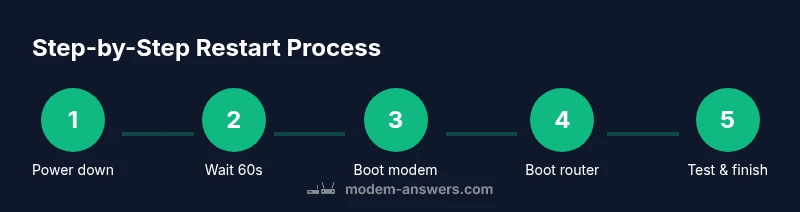
Power down devices
Turn off both the modem and router. If your devices have a power button, use it. If not, unplug from the outlet. This prevents power surges from interfering with the reset.
Tip: If you have multiple devices, unplug in a single motion to avoid partial power cycles. - 2
Wait a full minute
Leave devices unplugged for at least 60 seconds to ensure capacitors discharge and residual power clears. This helps reset internal memory and prevents immediate reboots from carrying over old state.
Tip: Use a timer to avoid guessing how long one minute lasts. - 3
Reconnect and boot modem first
Plug the modem back in and allow it to fully boot. Look for steady power and online LEDs. Typical boot takes about 1–2 minutes depending on hardware.
Tip: If the LED sequence isn’t normal after 2 minutes, proceed to the router and repeat booting. - 4
Boot the router next
Plug in the router and wait for its lights to indicate a healthy connection. If you use mesh, ensure the primary unit is back online first.
Tip: Avoid powering on devices in quick succession if your router is a dual‑band unit—let each reboot complete. - 5
Test your connection
Connect a device (preferably via Ethernet) and load a few websites or run a speed test to confirm the network is working. Note any slowdowns or errors.
Tip: Record results for future comparisons and to detect regressions after future changes. - 6
Document results and finish
If everything works, you’re done. If not, review cables, consider firmware updates, or test a different router or modem. Consider documenting your network setup for future troubleshooting.
Tip: Keep firmware up to date and consider a scheduled reboot routine if issues recur.
FAQ
Should I restart both devices at the same time, or one after another?
It’s best to power down both devices, then restart the modem first, followed by the router. This sequence helps your network re‑establish the correct control path.
Power down both devices, then restart the modem first, followed by the router, and test your connection.
How long should I wait after reboot before testing speed?
Wait 2–5 minutes for devices to boot and re-establish a stable connection before testing speed.
Give it a few minutes to boot, then test your speed.
What is the difference between restarting and factory resetting?
Restarting clears sessions and caches; factory reset wipes settings and may erase custom configurations.
A restart clears session data; a factory reset wipes settings.
If restart doesn’t fix the issue, what should I do next?
Check cables, confirm outages, and run through more advanced troubleshooting or contact your provider for assistance.
Check cables and outages; contact your provider if problems persist.
Can I restart using a hardware power button instead of unplugging?
Using the power button is fine if it fully powers down, but unplugging ensures a complete reset.
Use the power button if it fully powers down; otherwise unplug.
Watch Video
Key Takeaways
- Restart devices in the correct order to reset the network path.
- Wait for full boot before testing connectivity.
- Test on multiple devices to verify stability.
- If problems persist, escalate to provider or hardware check.