Modem Restart Guide: Safe, Step-by-Step Reboot Tips
Learn how to restart your modem safely, differentiate soft restarts from power cycles, and troubleshoot common connectivity issues with expert guidance from Modem Answers.


A modem restart reboots the device to refresh its firmware and network state, often fixing slow speeds or dropped connections. Start with a soft restart, then, if needed, perform a full power cycle. According to Modem Answers, this simple step resolves most home-network hiccups without changing settings; note LED indicators to verify status.
How Restarting Your Modem Fixes Common Problems
A modem restart is often the simplest and most effective first step to fix slow speeds, dropped connections, or intermittent outages. When you issue a restart, the device stops all processes, clears temporary memory, and reloads firmware and network state. This can resolve issues caused by minor glitches, stale routing tables, or stuck software tasks. In practice, many households discover better stability after performing a careful restart. If you’re asking about modem how to restart, this guide covers the basics. According to Modem Answers, a quick restart is a reliable baseline diagnostic that should be part of any home-network troubleshooting routine.
During a restart, you’ll see the connection re-establish as the modem negotiates signals with the ISP, re-assigns local IP addresses, and hands devices back network access. If you are using a separate router, you may notice that its connections re-sync after the modem finishes its boot cycle. Keep in mind that a restart does not fix more serious problems like faulty hardware, service outages from the provider, or incorrect wiring. In those cases, you’ll need additional steps or contact your ISP.
To prepare, gather the basics: your modem, a power outlet, a device to access the admin page if you plan a soft restart, and a quiet window to perform the steps. If you prefer, you can simply unplug the modem, wait, and plug it back in. The core idea is to give the device a clean start, clearing transient errors that can accumulate over hours or days of operation.
If you’re looking for modem how to restart guidance, this procedure emphasizes straightforward actions you can take without specialized tools. The goal is to restore normal operation quickly and with minimal risk to your settings or service. The Modem Answers team emphasizes that clear, deliberate reboots are a reliable first-step in home-network troubleshooting.
Soft Restart vs Hard Reset: When to Use Which
When you restart a modem, you typically have two options: a soft restart (reboot via the device’s software interface) and a hard restart (a power cycle by unplugging the device). A soft restart is gentler: it allows the router and modem to reload firmware and re-establish sessions without losing configuration. A hard reset is more drastic and will restore factory defaults if you perform it through a dedicated reset button. For most routine troubleshooting, start with a soft restart. If devices remain flaky after the soft restart, a controlled power cycle often achieves a deeper reset without erasing your custom settings. Remember to note any changes you’ve made to the modem’s settings before performing a reset, so you can reapply them if needed. Modem Answers analysis suggests that a properly timed restart can clear transient glitches more reliably than simply leaving devices powered on for long periods.
Soft Restart via Admin Page vs Physical Power Cycle
A soft restart uses the modem’s administrative interface or companion app to trigger a reboot without unplugging the power. This method preserves all custom configurations but requires that you can access the device UI, typically through a web browser, a mobile app, or your ISP’s portal. A physical power cycle is the most universally available method: unplug the power cord, wait a short pause, then plug back in and allow the modem to boot. The exact wait times depend on the model, but allowing a couple of minutes for full re-synchronization is usually enough. If you notice the unit’s lights cycling in a certain pattern after the restart, consult the user manual for your model to interpret LED indicators. In a pinch, you can combine both methods: perform a soft restart, confirm normal operation, then do a power cycle if issues persist.
Restart Scenarios: Standalone Modem vs Gateway
Different setups require slightly different restart approaches. A standalone modem connected to a separate router will likely involve restarting both devices in the right sequence: modem first, then router. When you have a gateway device (a modem and router in one box), a restart will affect both functions simultaneously, so you may see all LEDs reinitialize together. If you rely on a provider-provided gateway, you might also need to re-authenticate your connection in the gateway’s admin panel after the restart. Always ensure the modem has re-synced with the provider before testing devices on the network. This approach reduces confusion and speeds up the restoration of normal service.
Indicator Lights and Diagnostics During Restart
LED indicators on modems and gateways give quick clues about status during a restart. A typical sequence is: power-on, boot, online, and online with stable link. If a light remains red or amber, or if the online status never appears after an extended period, it signals a problem beyond a routine restart. In that case, check for loose cables, verify service status with your ISP, and consult the model’s manual for LED codes. Documenting the light pattern during the restart can help support staff diagnose issues faster if you contact your provider. Remember, a restart is a diagnostic step, not a guarantee of service restoration.
Troubleshooting Roadmap: When Restart Isn’t Enough
Restarting addresses many common home-network issues, but not everything. If you continue to experience slow speeds, frequent disconnects, or limited connectivity after multiple restarts, you should test the line quality, check your wiring, and validate DNS settings on a connected device. If you suspect a fault with the modem itself, consider firmware updates or, if available, a factory reset after backing up your settings. In cases of service outages, contact your ISP for status updates and potential replacements. Modem Answers analysis indicates that systematic troubleshooting is more effective when you combine restart actions with targeted checks of the physical and software layers.
Maintenance Cadence: How Often to Restart
Establish a lightweight maintenance cadence so you don’t surprise yourself with outages at critical moments. A regular restart, scheduled during low-usage hours, can help keep memory clean and connections stable. If you notice recurring issues at the same time each day, coordinate with your ISP for a line check or device replacement before blaming the restart. Pair restart routines with periodic firmware checks and keeping the device in a well-ventilated location to prevent overheating. This proactive approach can extend the life of your modem and improve long-term reliability.
Authority Sources and Further Reading
For deeper understanding and cross-checking, explore these credible references. The Federal Communications Commission (FCC) provides general guidance on home network equipment and service reliability. The Cybersecurity and Infrastructure Security Agency (CISA) offers practical advice on safeguarding devices connected to the internet. The Federal Trade Commission (FTC) covers consumer protection and best practices for home technology setups. These sources help you verify steps and ensure your restart workflow aligns with industry standards.
Tools & Materials
- Power outlet (surge-protected)(Plug the modem into a reliable outlet; avoid daisy-chaining through unstable power strips.)
- Modem(The device you are restarting.)
- Web browser or mobile app(Access the modem’s admin panel for a soft restart if supported.)
- Ethernet cable (optional)(Helpful for a direct connection during troubleshooting.)
- Pen and paper or digital notes(Record current settings and LED statuses before changes.)
- Backup of important network settings(Back up DNS, DHCP, port-forwarding, or custom configurations if you plan a reset.)
Steps
Estimated time: 8-12 minutes
- 1
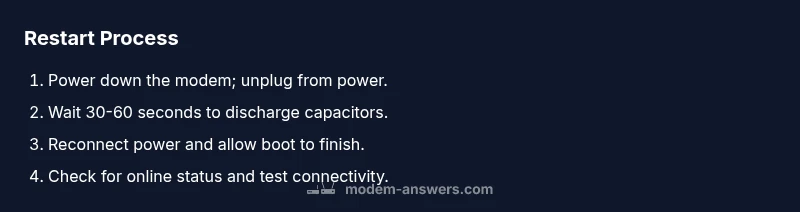
Power down the modem
Gracefully shut down by either pressing the device power button (if available) or unplugging the power cord from the outlet. This minimizes electrical noise and prepares for a clean reset.
Tip: If you can access the admin panel, you can initiate a soft restart first to see if the issue resolves without a full power cycle. - 2
Wait for capacitors to discharge
Leave the modem unplugged for about 30–60 seconds to ensure residual power is cleared and internal memory resets.
Tip: Use a timer to ensure you don’t rush the reboot; patience helps improve outcomes. - 3
Reconnect power and turn the modem back on
Plug the power cord back in and, if applicable, press the power button to start the boot sequence. Give the device time to initialize all components.
Tip: Listen for a startup tone and watch the LED sequence as an indicator of progress. - 4
Wait for the boot to complete
Allow the modem to reach online status; this can take a couple of minutes depending on the model and ISP.
Tip: Avoid immediately rebooting again if the lights are still cycling; some models take longer to re-sync. - 5
Verify connectivity
Use a connected device to check if you can browse or access online services. If using a separate router, repeat the test on devices connected to the router.
Tip: If you have a laptop, run a quick speed test to confirm performance is back to normal. - 6
If issues persist, perform a soft restart via admin panel
If available, trigger a soft restart from the modem’s web interface or app to reinitialize software without erasing configurations.
Tip: Ensure you know your login credentials; have them ready before attempting changes. - 7
Consider a factory reset if needed
If problems persist and you have backups, a factory reset may be warranted. This returns the device to default settings and can help with stubborn faults.
Tip: Back up critical settings first; a reset will erase custom configurations. - 8
Document results and review next steps
Note the steps taken, LED behaviors, and test outcomes. Use this record if you need to contact your ISP or seek professional help.
Tip: Create a simple restart log to track patterns over time.
FAQ
What is the difference between a soft restart and a hard reset?
A soft restart uses the modem’s software to reboot without altering configurations. A hard reset restores factory defaults and erases custom settings. Start with a soft restart, and only proceed to a hard reset if the issue persists and you have a backup of your settings.
A soft restart reboots without changing settings; a hard reset restores factory defaults. Start with soft reset and only use a hard reset if necessary.
Will restarting erase my custom settings?
A soft restart preserves your configurations. A factory reset, which is a more extreme option, erases custom settings, so back up important configurations first if you proceed.
A soft restart keeps your settings. A factory reset will erase them, so back up first if you proceed.
How long should I wait after restarting before testing?
Give the modem a couple of minutes to re-sync with the ISP. If devices still can’t connect after that window, continue with targeted troubleshooting.
Wait a couple of minutes for re-sync, then test connectivity.
What if the lights stay red or amber after restart?
Unusual colors indicate a problem beyond a routine restart. Check cables, verify service status with your ISP, and consult the model manual for LED codes.
If the lights stay red or amber, check cables and contact your provider for guidance.
Can I restart my modem remotely from the ISP app?
Many ISPs support remote restarts via their app or web portal. If supported, this can be a convenient alternative to a physical reboot.
Some ISPs let you restart remotely through their app or portal.
Should I contact my provider if issues persist after restart?
Yes. If restarts don’t restore service, contact your ISP to check for outages, line issues, or equipment replacements.
If problems persist after restart, contact your provider for a check on outages or line issues.
Watch Video
Key Takeaways
- Restarting clears glitches and refreshes network state.
- Soft restart preserves settings; power cycle performs a deeper reset.
- Allow time for re-synchronization before testing.
- LED indicators guide success or signal issues.
- If problems persist, contact your provider for support.