How to Restart Modem: A Practical, Safe Guide
A practical, safe method to restart your modem with a step-by-step approach, checks, and tips from Modem Answers to restore connectivity quickly.


Restarting your modem is a common, effective fix for many internet issues. This quick guide shows how to power-cycle safely and what to check afterward to confirm connectivity. By following the steps, you’ll typically see restored service within a few minutes. You’ll avoid data loss and unnecessary resets, while keeping settings intact.
Why restarting your modem matters
Digital networks depend on stable hardware and software coordination. When you experience slow speeds, buffering, or intermittent outages, a simple restart can reinitialize internal processes, clear memory, and renegotiate connections with your internet service provider. According to Modem Answers, the most common cause of minor outages is a stuck process or IP lease conflict. A power cycle gives the modem a clean slate, which often resolves the symptom without changing settings. In practice, you’ll typically notice pages load faster, video streams stay smoother, and devices reconnect more reliably after a proper restart. This section explains why the method works, what it does behind the scenes, and what it cannot fix, so you know when to seek help from your provider.
When to restart and what to check first
Restarting is not a cure-all, but it helps after common events. If you notice outages after a firmware update, a new device added to your network, or a modem that’s been on for days, a restart is a good first step. Before you begin, verify there is no service outage in your area by checking the provider’s status page or your account alerts. Also check that all cables are snug and undamaged, and confirm the power outlet is functioning (you can test with another device). If you rely on a separate router, have it ready to restart as well after you cycle the modem. This prevents the router from holding onto stale sessions and assists in re-establishing a fresh connection.
Safe, effective restart methods (power cycle vs reset)
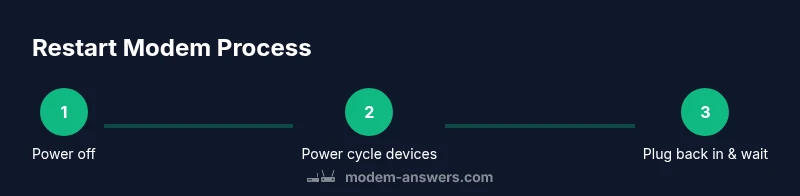
There are two related, but very different, approaches: power cycling and factory resetting. A power cycle is the recommended method for most users: unplug the modem from power, wait 30-60 seconds to discharge residual power, then plug back in and wait for the device to reinitialize. Do not press any reset button during this process. A factory reset resets all settings to the original state and should only be used if you need to reconfigure the device from scratch, or if you are troubleshooting a persistent configuration problem. After a reset, you’ll need to re-enter your Wi‑Fi name, password, and any custom settings, so consider backing up configuration if possible. If you are using a gateway that combines modem and router, perform the power cycle on the whole unit and avoid removing the battery if it’s not user-accessible.
What to expect after restarting: lights, speed, and synchronization
Once you reconnect power, you’ll see the modem begin its boot sequence. The power light typically stabilizes first, followed by the online or link LED, then the WAN or internet LED. In many homes, you’ll notice devices reconnecting to Wi-Fi and a return of normal speeds within a few minutes. If your service uses dynamic IP addressing, your modem may refresh its lease automatically; you can check your public IP on a device to confirm. If the modem takes longer than a few minutes to come online, you may be looking at an outage, a faulty cable, or a hardware problem. In such cases, consult your provider’s status page or run a speed test after a restart to confirm.
Troubleshooting common restart issues
Problem: No power or the device does not respond. Check the outlet with another device, verify the power cord is firmly plugged, and inspect for a tripped breaker. If still unresponsive, try a different outlet or a different power strip.
Problem: Lights indicate activity but no internet. Recheck cables, check for service outages, and try restarting the router as well.
Problem: Slow speeds after restart. Ensure there is no external interference, update firmware if available, and run speed tests from multiple devices. If problems persist, contact your provider.
Next steps and best practices
Maintain a reasonable restart habit only when needed; avoid frequent resets that may indicate a bigger problem. Keep your modem firmware updated through official channels and consider enabling automatic updates if available. Place the modem in a central location away from obstructions and ensure it has adequate ventilation. Consider using a surge protector and an uninterruptible power supply (UPS) for critical connections. Document outages and restarts to help support conversations.
Tools & Materials
- Modem(The device you will restart.)
- AC power outlet(Accessible outlet next to the modem.)
- Power cord(If the cord is detachable, ensure you have it.)
- Ethernet cable (optional)(Use for a wired speed test during verification.)
- Notepad or logging app(To record downtime, lights, and times.)
- User manual (optional)(Model-specific indicators or steps.)
Steps
Estimated time: 6-12 minutes
- 1
Power off the modem
Unplug the modem from the wall outlet. Do not yank or tug on cables. Wait 60 seconds to ensure all capacitors discharge and the device fully powers down.
Tip: Giving it a full minute helps ensure a clean reset of internal memory. - 2
Power cycle connected devices
If you have a separate router, mesh nodes, or set-top box, unplug them as well and wait 30 seconds. This helps ensure all devices start fresh and sessions aren’t stuck.
Tip: Restart the router after the modem to re‑establish session paths in the correct order. - 3
Plug the modem back in
Plug the modem back into the wall outlet securely. If you use a surge protector, keep the modem on the protector to guard against spikes.
Tip: Avoid power strips with multiple high-demand devices to reduce voltage drop. - 4
Wait for lights to stabilize
Allow 2-3 minutes for the modem to boot and stabilize. The power LED will usually glow steadily, followed by the online/Internet LED.
Tip: Use the LED pattern as a progress indicator; if a light stays off or behaves oddly, note it for troubleshooting. - 5
Test your connection
On a computer or phone, open a webpage and run a quick speed test on both Wi‑Fi and a wired device if possible. This confirms the restart restored service.
Tip: If you still see issues, try a second restart or test with a different device to rule out device-specific problems. - 6
Document and escalate if needed
Log the restart time, observed LED statuses, and any changes in performance. If issues persist, contact your provider with this data.
Tip: Having documented restarts helps support diagnose outages faster.
FAQ
What should I do if the modem won't restart?
Check that the outlet is powered and the power cord is firmly connected. If there’s still no response, try a different outlet or power strip. If the device remains unresponsive, contact your provider.
Make sure the power is connected and the outlet works; try another outlet if needed, and contact your provider if there’s no response.
Is it okay to reset to factory settings while restarting?
Factory resets erase all custom settings and should only be used if you need to reconfigure from scratch or if advised by support. For a simple restart, stick to power cycling.
Only reset if you need to reconfigure; otherwise power cycle.
How long should I wait for the modem to restart?
Most modems take about 2-3 minutes to boot and stabilize. If it takes longer, there may be a service outage or a hardware issue.
Usually a couple of minutes; if it’s longer, check for outages or faults.
Should I restart my router separately after restarting the modem?
Yes, if you have a separate router. Restart the modem first, then the router to reestablish sessions.
Yes—restart the modem, then the router to re-sync.
What if I still have internet issues after restarting?
Check for outages on your provider’s status page, inspect cables for damage, and consider calling support if the problem persists.
If it stays down, check outages and cables, and contact support.
What indicators show a successful restart?
Steady online light, Wi‑Fi broadcasting, and successfully loading pages indicate a successful restart.
Online light steady, Wi‑Fi active, pages load normally.
Watch Video
Key Takeaways
- Power cycling solves many common issues.
- Wait for stabilization before testing connectivity.
- Test both wired and wireless connections after restart.
- If problems persist, contact your provider with restart notes.