How Do I Reset Modem: A Step-by-Step Guide
Learn how to reset your modem safely, including soft and hard resets, post-reset setup, and troubleshooting tips from Modem Answers.


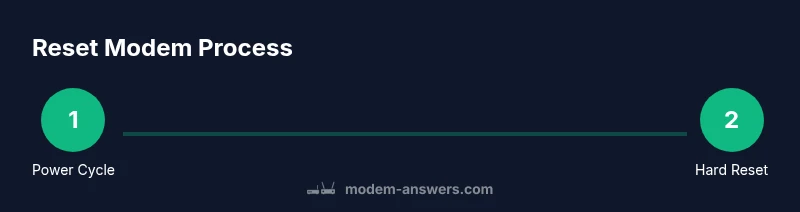
You can reset your modem to fix connectivity issues by performing a soft reset (power cycle) or a hard reset (pressed reset button). Start with a safe power cycle, then try a hard reset only if problems persist. Ensure you have your network credentials handy and understand the potential need to reconfigure settings.
What a modem reset does and when to perform it
A modem reset refreshes the connection between your home network and your Internet service provider. It clears temporary errors, resets firmware processes, and re-requests an IP address from your ISP. This simple action can fix common problems such as no internet, devices failing to connect, slow speeds, or intermittent outages. If you’re wondering how do i reset modem, this is typically the first step to try before deeper troubleshooting. In many cases, a quick reset resolves transient glitches after outages or firmware updates. According to Modem Answers, many households see noticeable improvements after performing a reset. If issues persist after this, proceed to the next steps for more advanced fixes.
Soft reset vs hard reset: which to use
There are two common reset methods. A soft reset (power cycle) simply restarts the modem by unplugging the power, waiting a short period, and plugging it back in. This clears volatile memory and lets the device renegotiate a connection without changing your settings. A hard reset returns the unit to factory defaults by holding the recessed reset button for a set duration. This wipes Wi‑Fi names, passwords, and any customized configurations. Use a soft reset first as it preserves your network settings. Reserve a hard reset for situations where soft resets fail, or you suspect a corrupted configuration or firmware issue. After a hard reset, you’ll need to reconfigure your Wi‑Fi and any port forwards, DNS settings, or parental controls.
Preparing for a reset: what you’ll need
Before you reset, gather the basics so you don’t have to repeat steps. You’ll need access to the modem’s admin interface (via a browser) or the ISP app to reconfigure settings after the reset. Have your current network name (SSID) and password handy if you plan to continue using the same Wi‑Fi. If you’re performing a hard reset, locate a small tool like a paperclip or pin for the recessed reset hole. It’s also wise to note any custom DNS entries, port forwarding rules, and parental controls you use so you can restore them later.
Safety first: hazards and precautions
Modem resets are generally safe, but you should observe basic precautions. Keep the device away from water and avoid poking around inside unusual ports. Do not reset during a known service outage unless you’re troubleshooting as directed by your provider. If you rent equipment from your ISP, some settings may be managed by the provider and resetting could revert them to defaults. Always unplug the device if you smell burning or notice exposed damage and contact support.
Step-by-step overview: soft reset (power cycle)
To perform a soft reset, power cycle the modem as a first step. Unplug the power cord, wait 15-30 seconds, then plug the power back in and allow the modem to fully reboot. This process clears temporary memory and often restores connectivity without altering your configuration. After reboot, check the status lights and confirm that your network appears on your devices. If you use a separate router, ensure it is functioning and reconnected as needed.
Step-by-step overview: hard reset
If a soft reset fails, you can perform a hard reset to restore factory defaults. Press and hold the recessed reset button with a paperclip for 10-15 seconds, then release and wait for the modem to reboot. The device will revert to its original factory settings, including the default Wi‑Fi name and password. After the reset, access the admin interface and reconfigure your network. Expect the process to take several minutes; do not unplug the modem during reboot.
After reset: reconnecting and securing your network
Once the modem finishes rebooting, reconnect to the network. Re-enter your Wi‑Fi name and password if they were reset. If you previously used a custom SSID or security settings, reapply them. Reconfigure any port forwards, DMZ rules, or firewall settings if you require them for games, servers, or smart home devices. Update the network name to something memorable and set a strong password using WPA2 or WPA3 encryption.
Common issues after reset and how to troubleshoot
If the internet doesn’t come back after a reset, check that the coax/line is properly connected and that the service status with your ISP is active. Ensure the modem’s firmware is compatible with your router. If your devices still cannot connect, forget and reconnect to the network or reboot your router. Consult the ISP app or admin interface for error messages and consider a factory reset as a last resort, but only after contacting support.
Authority Sources
For further reading on reliable configurations and safety after resets, consult official guidelines from government and academic sources: FCC Consumer Guides, FTC internet security tips, and NIST home-network recommendations.
Tools & Materials
- Reset tool (paperclip or pin)(To press the recessed reset hole on the modem)
- Modem power cord(For power cycling during soft reset)
- Access to modem admin page or ISP app(Needed to reconfigure after reset)
- Notes of current network settings(DNS, port forwards, SSID, passwords to re-enter)
- Photograph or write down current settings(Helpful backup)
Steps
Estimated time: 15-25 minutes
- 1
Identify reset method for your device
Locate your modem model and read the manual or manufacturer guidance to determine whether a soft reset should be attempted first. Knowing your model helps you avoid performing an unnecessary hard reset and losing custom configurations.
Tip: Begin with a soft reset if you’re unsure; it preserves most settings. - 2
Prepare for the reset
Gather the tools and documents you’ll need. Have your admin access information ready and know your current Wi‑Fi name and password if you plan to reuse them after the reset.
Tip: Back up your settings if possible before a hard reset. - 3
Perform a soft reset (power cycle)
Unplug the modem’s power cord, wait 15–30 seconds, then plug it back in and allow the reboot to complete. Watch the status lights to confirm the device is online.
Tip: Do not unplug the device during reboot. - 4
Assess whether a hard reset is necessary
If connectivity doesn’t return after a soft reset, you may proceed with a hard reset to restore factory defaults. This will erase custom Wi‑Fi names and passwords.
Tip: Only use a hard reset if soft reset fails and you’re prepared to reconfigure. - 5
Perform a hard reset (factory defaults)
Press and hold the recessed reset button with a paperclip for 10–15 seconds, then release and wait for the modem to reboot and restore default settings.
Tip: Have your network credentials handy for reconfiguration after this step. - 6
Reconfigure network settings
Access the modem’s admin page or ISP app and re-enter your Wi‑Fi name, password, security settings, and any port forwards or parental controls you used previously.
Tip: Use a strong, unique password and enable WPA3 if available. - 7
Test connectivity across devices
Connect several devices to your network and run a quick speed test to ensure performance meets expectations. Check wired and wireless connections.
Tip: If speeds are still slow, try repositioning the modem or checking for interference. - 8
Document changes and monitor
Save any new settings and keep notes of the new Wi‑Fi details. Monitor the network over the next 24–48 hours for stability and outages.
Tip: Update your home network documentation to reflect changes.
FAQ
What is the difference between soft reset and hard reset?
A soft reset restarts the modem without changing settings, while a hard reset restores factory defaults and erases custom configurations. Use soft reset first to avoid losing data.
A soft reset restarts the modem and keeps your settings, while a hard reset wipes settings and returns to factory defaults.
Will resetting erase my Wi-Fi password?
A hard reset will restore default Wi‑Fi name and password. A soft reset does not change your Wi‑Fi credentials.
A hard reset resets the Wi‑Fi name and password; a soft reset keeps them intact.
Do I need to contact my ISP after a reset?
Usually not, unless service is still down or you suspect a line fault. If problems persist, contact your ISP for guidance.
No need to call your ISP unless the service is still down after reset.
How long should I wait after resetting?
Allow several minutes for the modem to reboot and re-establish service. Check status lights and confirm devices can connect.
Give the modem a few minutes to restart and then test your devices.
What should I back up before a hard reset?
Record your SSID, Wi‑Fi password, DNS settings, and any port forwards or firewall rules so you can restore them after the reset.
Note down your network name, password, and any special port settings before resetting.
What if resets don’t fix the problem?
If resets don’t help, contact your provider to check for outages or line problems, or consider a technician visit as a last resort.
If problems persist after resets, it may be an outage or line issue; contact support for next steps.
Watch Video
Key Takeaways
- Reset first—soft resets solve most issues
- Hard resets are a last resort
- Back up settings before a factory reset
- Reconfigure Wi‑Fi and security after reset
- Verify connectivity across devices after reset