How to Clear a Modem: A Step-by-Step Guide for Home Networks
Learn how to clear a modem safely with soft resets and factory resets, back up settings, reconfigure your network, and avoid common pitfalls in this comprehensive Modem Answers guide.


By the end of this guide, you’ll know how to clear a modem safely using a soft reboot or a factory reset, when each option is appropriate, and how to reconfigure your network afterward. According to Modem Answers, starting with a simple restart is best, reserving a factory reset for persistent problems.
What does it mean to clear a modem?
Clearing a modem means removing problematic configurations, glitchy cached data, or stuck firmware states that prevent reliable connectivity. It often involves a soft reset (reboot) to clear temporary issues, or a factory reset to restore the device to its original defaults. When done correctly, clearing a modem can resolve many common home-network problems without expert intervention. This guide follows the practical, step-by-step approach preferred by the Modem Answers team to help homeowners and renters regain stable Internet access with minimal downtime.
In practice, clearing a modem does not typically erase your ISP plan or account credentials unless you perform a factory reset. The catch is that a factory reset wipes personalized settings, including Wi‑Fi names and passwords, so you’ll need to reconfigure those after the reset. Keep this in mind before you start, so you aren’t surprised by the loss of custom settings when you’re mid-setup.
Why you might need to clear a modem
A modem can require clearing when you notice slow performance, frequent disconnects, DNS issues, or after you change Internet plans or equipment. Clearing helps rule out simple misconfigurations and cached data that may be causing problems. The Modem Answers analysis highlights that most home-network issues can be resolved by a disciplined sequence of restarts and careful reconfiguration rather than jumping to more extreme fixes. If you’ve recently updated firmware or added new devices, a reset can also help ensure all changes take effect cleanly.
Before you proceed, confirm that the issue is device-related rather than service-wide by checking other devices and running basic diagnostics. This saves time and reduces unnecessary resets.
Safety and prerequisites
Before you touch the modem, gather essential materials and protect yourself from potential power interruptions. Unplug the modem during certain steps or if you notice unusual heat or smells; avoid attempting resets during storms or when power is unstable. Create a quick backup of your current settings if the modem supports exporting configurations, or write down key details such as Wi‑Fi names, passwords, and any custom DNS or port-forward rules. Ensure you have access to the ISP credentials and can re-provision the device if needed, as this will speed up reactivation after a reset.
If you rely on parental controls, guest networks, or specific firewall rules, take note of those configurations before proceeding so you can restore them later. This preparation reduces post-reset reconfiguration time and helps prevent accidental data loss.
Soft reset vs factory reset: when to use each
A soft reset, or reboot, restarts the device’s software without removing custom settings. It’s the first-line action for most speed or connectivity hiccups and usually takes only a few minutes. A factory reset, by contrast, restores the modem to its original, out-of-the-box state, erasing all user-configured settings. Use a factory reset only if the soft reset does not resolve the problem or if you suspect corrupt configurations, malware, or persistent misconfigurations.
When deciding which path to take, start with a soft reset. If issues persist after reboot, proceed to a factory reset as a last resort. Remember: a factory reset requires you to reconfigure Wi‑Fi, re-enter ISP credentials, and possibly re-provision the device with your provider. Modem Answers recommends clear criteria and a plan before moving to the factory reset stage to avoid needless data loss.
Backing up your settings before a reset
Backups protect you from losing customized configurations. If your modem offers export options, use them to save a copy of settings such as Wi‑Fi names, passwords, port-forward rules, firewall settings, and any VPN configurations. If export isn’t available, manually document critical details on paper or a digital note. Save this information in a secure location so you can re-create the configuration after the reset.
Some ISPs bind your service to the device; knowing whether your account needs re-provisioning will help you plan for a longer downtime. Always confirm backup success before initiating a reset to prevent avoidable reconfiguration work after the reset.
Step-by-step: soft reset (reboot)
- Unplug the modem’s power cable and wait 15–30 seconds, then plug it back in. A short pause lets the internal cache clear and often resolves temporary glitches.
- Wait for the status lights to stabilize, typically indicating a normal connection. If the lights blink or stay in a non-standard pattern, consult the user manual or manufacturer support.
- After reboot, test basic connectivity on a connected device to confirm improvement. If issues persist, proceed to a factory reset as needed.
Tip: Refrain from turning off the device during firmware updates or while the modem is applying changes, as this can corrupt the process and require recovery steps.
Step-by-step: factory reset (hard reset) via reset button
- Locate the reset button on your modem. It is typically a small recessed button labeled RESET.
- Prepare a pointed object (paperclip) and press and hold the reset button for 10–15 seconds until the indicator lights flash or you observe a noticeable reset effect.
- Release the button and allow the modem to reboot fully. This will restore factory defaults.
- Reconnect to the modem’s setup page using a computer or mobile device and begin reconfiguration.
Pro tip: If your device has a separate reset process for the gateway (combination modem/router), you may need to follow different steps; consult the manual for exact instructions. A factory reset will erase your Wi‑Fi name and password, so have those details ready for reconfiguration.
How to access the modem’s admin interface after reset
After a reset, connect a device to the modem via Ethernet or Wi‑Fi. Open a web browser and enter the default gateway address, which is usually a private IP such as 192.168.0.1 or 192.168.1.1. Log in with the default credentials listed in the manual or on the underside of the device. If you cannot access the interface, check for alternative addresses listed in the manual or reset instructions.
From the admin page, verify that the connection status shows online and begin the reconfiguration process. If the login fails, try the most common defaults or perform another reset as a last resort, ensuring you follow manufacturer guidance carefully.
Re-provisioning your service and reconfiguring Internet settings
During reconfiguration, you may need to re-enter ISP authentication details, VLAN settings, or PPPoE credentials. If your provider uses dynamic IP, wait for the device to obtain an address. For static setups or specific VLAN tags, ensure you enter the correct values exactly as provided by the ISP. If you’re unsure, contact your provider for provisioning instructions before saving changes.
Once the Internet is active, re-run a basic connectivity test on multiple devices to confirm reliability. If you encounter persistent issues, restore a backup of settings (if available) and retry the provisioning steps. Modem Answers emphasizes documenting provider-specific steps to avoid delays.
Wi‑Fi setup and security after reset
Recreate your Wi‑Fi network by choosing a new SSID and strong password. Use WPA2 or WPA3 security if your router supports it, and disable WPS for added security. Don’t reuse default credentials; tailor a unique admin password for the device’s management interface. If you had guest networks, set them up again with appropriate access controls.
Consider enabling guest network isolation to protect your main network while still providing Internet access to visitors. After configuring the Wi‑Fi, test signal strength around the home to identify weak spots and plan possible access-point placement improvements.
Firmware updates after reset
Check for firmware updates as a critical post-reset step. Manufacturers release fixes for stability, security vulnerabilities, and compatibility with new devices. If available, apply updates during a stable, non-peak time and avoid interruptions until the update completes. Some ISPs automatically push firmware; verify that your device shows the latest version in the admin interface.
If you notice new features after an update, review the new settings and adapt them to your network needs. Keep backup copies of your prior configuration in case you need to revert changes later.
Troubleshooting common post-reset issues
If you cannot access the admin interface after a reset, double-check the gateway address, try another device, and ensure your computer is on the correct network. If the Internet still doesn’t come up, re-check the physical connections, cables, and power supply. In some cases, a second reset or a call to your ISP’s technical support may be necessary to re-provision the device.
Other common issues include Wi‑Fi not broadcasting, devices unable to connect, or slow speeds. For each of these, verify security settings, SSID visibility, and channel interference. A systematic approach—check cabling, re-run setup, and test with multiple devices—will usually resolve most post-reset problems.
Performance and health: post-reset checks
After clearing a modem, monitor network performance for a few days. Look for consistent upload and download speeds, stable uptime, and reliable Wi‑Fi signal across rooms. If problems recur, consider optimizing placement, reducing interference from household electronics, and exploring alternate channels or channels for the 2.4 GHz and 5 GHz bands. Regular maintenance, such as firmware updates and periodic reboots, helps keep the network running smoothly.
Best practices for ongoing modem health
Establish a simple maintenance routine: reboot monthly or after major changes, back up settings before any significant updates, and monitor device lights for unusual patterns. Keep a written record of credentials and provisioning steps so you can quickly restore service after hardware changes. If you frequently encounter issues, investigate alternative equipment options or higher-tier plans with your ISP for improved reliability.
What to expect in the first 24 hours after clearing
In the first day after clearing, expect a short downtime window while the modem re-provisions and your Wi‑Fi networks stabilize. Some devices may require a second reboot or re-entry of credentials if provisioning is delayed. Plan for a brief interruption during the initial setup, then test across devices to ensure consistent performance. Following these steps reduces the likelihood of recurring problems and supports steady home networking.
Tools & Materials
- Modem user manual(Keep on hand for model-specific reset instructions and default login details.)
- Paperclip or small pin(Used to press recessed reset button gently.)
- Web browser and connected device(Phone or laptop to access admin interface.)
- Backup method for settings(Export settings if supported, or write down important details.)
- Power source with stable electricity(Optional but helpful; use an UPS if available.)
Steps
Estimated time: 20-40 minutes
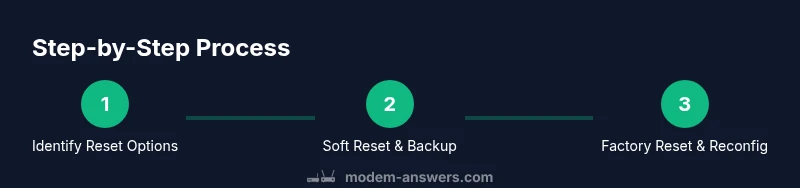
- 1
Identify reset options
Review your modem’s manual to determine the exact reset options available (soft reset vs factory reset) and confirm the recommended sequence from the manufacturer. This step ensures you choose the least disruptive method first.
Tip: Starting with a soft reset avoids unnecessary data loss when the issue is minor. - 2
Back up current settings
If the device offers a backup/export feature, save your current Wi‑Fi details, firewall rules, port forwards, and any custom DNS settings. If not, manually document key configuration information.
Tip: A quick checklist saves time during reconfiguration. - 3
Perform a soft reset (reboot)
Power cycle the modem by unplugging for 15–30 seconds, then plug back in and wait for normal operation to resume. This clears temporary caches and often resolves minor glitches.
Tip: Don’t interrupt the reboot process once lights stabilize. - 4
Try a factory reset (if needed)
If problems persist after a soft reset, perform a factory reset using the recessed reset button. Hold for 10–15 seconds until the lights indicate a reset.
Tip: Only proceed if you’re prepared to reconfigure the device fully. - 5
Reconnect to the admin interface
After reset, connect a device to the modem and access the admin page with the default gateway address. Log in with default credentials found in the manual.
Tip: If you can’t access it, try the alternate default address from the manual. - 6
Re-provision your service
Enter your ISP credentials or let the device obtain a dynamic IP as appropriate. Verify online status and confirm the connection with multiple devices.
Tip: Provisioning can take a few minutes to complete. - 7
Reconfigure Wi‑Fi and security
Set a new SSID and strong password, enable WPA2/WPA3, and disable WPS if supported. Recreate any guest networks with proper access controls.
Tip: Record your new credentials securely. - 8
Update firmware
Check for and apply any available firmware updates. Updates improve stability and security and should be done during a stable moment.
Tip: Avoid firmware updates during critical tasks.
FAQ
What is the difference between soft reset and factory reset?
A soft reset restarts the device without erasing user configurations, while a factory reset restores default settings, erasing personalized configurations like Wi‑Fi names and passwords. Use soft resets first and reserve factory resets for persistent issues.
A soft reset restarts the modem and keeps your settings, while a factory reset wipes your customizations.
Will resetting my modem affect my internet plan?
Resetting a modem does not change your service plan. However, you may need to re-enter account details or re-provision after the reset if required by your provider.
Resetting won’t change your plan, but you may need to re-enter login details or re-provision your device.
Do I need to contact my ISP after resetting?
Often you’ll need to re-provision the device with your ISP after a reset. Check with your provider for activation steps if Internet connectivity doesn’t restore automatically.
You might need to call your ISP to re-provision the modem after a reset.
Can I clear a modem without losing my Wi‑Fi password?
If you perform a factory reset, the Wi‑Fi password resets to the default. You will need to set a new password after the reset; soft resets do not delete your existing Wi‑Fi settings.
A factory reset resets the Wi‑Fi password, so you’ll need to set a new one.
How long does re-provisioning take after a reset?
Provisioning typically completes within minutes to an hour, depending on the provider and network conditions. If it takes longer, verify with your ISP.
Provisioning usually takes a few minutes up to an hour.
Watch Video
Key Takeaways
- Back up settings before resets
- Know when to use soft vs factory reset
- Re-provision ISP and reconfigure Wi‑Fi after reset
- Update firmware to improve stability
- Test connectivity across devices after changes