Is It OK to Reset Modem? A Practical Home Guide
Learn when and how to safely reset your modem, understand soft vs factory resets, and follow a step-by-step approach to restore reliable home internet.


Yes, you can reset a modem when you’re troubleshooting connectivity, but know the difference between soft resets and factory resets. A soft reset restarts the device while keeping most settings, while a factory reset returns the modem to its default state and may erase custom configurations. Always back up important info first.
Is it ok to reset.modem?
Many homeowners wonder whether resetting the modem is a safe first step when experiencing slow speeds, dropped connections, or Wi‑Fi outages. The short answer is generally yes, but you should understand what you’re about to do and why. The phrase is it ok to reset.modem reflects a common question among non‑tech users: does a reset bring everything back to normal, or could it make things worse? In most cases, a reset simply reboots the device, clears short-term memory, and speeds up service after temporary hiccups. However, a factory reset erases personalized settings, including your Wi‑Fi network name, password, and any port-forwarding rules you have configured. Always check your service status, note any custom settings, and only perform a reset if you’ve exhausted simpler troubleshooting steps (like power cycling or checking cables).
Soft reset vs hard reset: what's the difference?
A soft reset restarts the modem and clears running processes without touching most user-configured settings. It’s equivalent to rebooting a computer and is typically the first option when minor glitches occur. A hard reset, often labeled as a factory reset, restores the device to its original factory state. This will erase your Wi‑Fi name, password, firewall rules, port forwards, and any customized settings. If you’ve documented your network details, you’ll be able to restore them after a hard reset, but if not, you may need to reconfigure from scratch.
How resets affect internet connectivity and settings
Resetting can temporarily interrupt internet service. A soft reset usually restores normal operation quickly with settings intact. A factory reset will force you to re‑establish your network, reconnect devices, and reconfigure any advanced features (such as parental controls or guest networks). Some ISPs tie authentication to the specific device; after a factory reset you may need to re‑activate service or re‑enter PPPoE credentials. This is why it’s important to know your network name, Wi‑Fi password, and any required login information before proceeding.
When to perform a reset
Use a reset when you have persistent issues like unresponsive web interfaces, repeated drops that aren’t explained by a single device, or after a firmware update that didn’t apply correctly. Before taking action, check for service outages in your area and verify that cables are firmly connected. If you recently changed password or settings and things stop working, a soft reset is usually enough to reinitialize the device without losing configurations. If problems persist after a soft reset, a factory reset should be considered, but only after you’ve prepared backup notes.
How to reset using the hardware button
If your modem has a recessed reset button, you’ll need a paperclip or similar object to press it. Gently press and hold the button for about 10–15 seconds until the status LEDs blink or reset sequence begins. Release and wait for the device to reboot. A hardware reset will typically restore factory defaults, so plan to reconfigure Wi‑Fi name/password and any port settings afterward. If your model requires a different hold time, consult the manual or the manufacturer’s support site.
How to reset via the admin interface
Soft resets can often be performed from the modem’s web interface or mobile app. Connect your computer or phone to the modem’s network, open the admin URL provided by the label or manual (often something like 192.168.x.1), log in with your admin credentials, and navigate to a section labeled Reset, Maintenance, or Status. Choose the appropriate option (restart or soft reset) and confirm. This method preserves settings, reduces downtime, and is safer if you’re unsure about hardware button timing. Have your Wi‑Fi credentials handy in case you need to rejoin after the reboot.
After reset: reconfigure and test
Once the device comes back online, test basic connectivity by loading a few websites and running a quick speed test. Reconnect your devices and, if you performed a factory reset, re‑enter your Wi‑Fi name and password. Revisit settings like port forwarding, firewall rules, and parental controls as needed. If you have a guest network or separate SSIDs, confirm they’re broadcasting correctly and re‑issue passwords where necessary. Document changes so future resets are easier.
Troubleshooting post-reset issues
If issues persist after a reset, verify the physical connections (coaxial/ethernet cables, power supply, and line integrity). Check for service outages with your ISP and review router logs if accessible. Consider testing with a single device to isolate whether the problem is device-specific. In cases of persistent instability, contact your ISP or modem manufacturer support for diagnostics and potential replacement. Modem health can degrade over time, so a replacement may be warranted if resets no longer stabilize performance.
Best practices and safety notes
Before performing any reset, back up critical settings and document your network name and password. Avoid frequent resets; use them as part of a structured troubleshooting plan. If you rent your equipment, confirm you’re authorized to reset and that ongoing service activation remains in place after a factory reset. For fiber connections, re‑authentication may be required after a reset; have your account details ready. Finally, consider keeping a simple one‑page settings sheet to streamline future resets and reconfigurations.
Tools & Materials
- Paperclip or small pin(To press recessed reset button on the modem.)
- Computer, tablet, or smartphone(Used to access the modem’s admin interface for soft resets.)
- Modem user manual or model-specific instructions(Helpful for model-specific reset steps and times.)
- Backup of network credentials(Note his Wi‑Fi name, password, and any static IP or port-forwarding rules.)
- Stable power source(Keep the modem plugged in during reset; avoid power interruption.)
Steps
Estimated time: 20-40 minutes
- 1
Prepare and backup settings
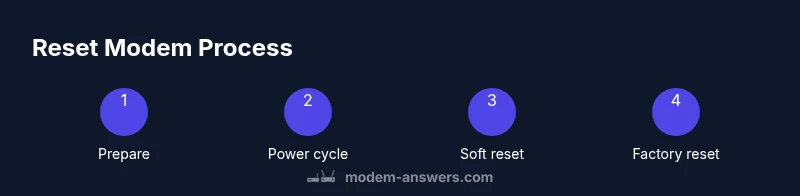
Gather your current network details (SSID, Wi‑Fi password) and note any custom configurations. If you have port forwarding or a static IP setup, write down the required rules. This preparation helps you restore your network quickly after a factory reset.
Tip: Take a quick photo of the router’s status page and label. - 2
Power cycle the modem
Unplug the modem from power for about 30 seconds, then plug it back in. Let the device fully reboot and reinitialize its services before testing connectivity.
Tip: A full power cycle often resolves memory or process glitches without affecting settings. - 3
Try a soft reset via the admin interface
Connect to the modem’s admin page, locate Reset or Maintenance, and choose a soft restart or reboot. This option preserves most settings while refreshing the device.
Tip: Ensure your computer is connected to the modem’s network during this step. - 4
If needed, perform a hardware reset
If the soft reset doesn’t fix the issue, press and hold the recessed reset button with a paperclip for 10–15 seconds until the LEDs indicate reset. This restores factory defaults.
Tip: Use the paperclip to avoid damaging the button. - 5
Reconfigure network settings after factory reset
Re‑establish your Wi‑Fi name and password, re‑enter ISP login if required, and re-create any port forwards or parental controls. Document changes for future resets.
Tip: Do this step promptly to minimize downtime for devices that auto‑connect. - 6
Test connectivity and services
Run a speed test, load multiple sites, and verify streaming or VoIP quality. Confirm all wired devices reconnect and wireless devices find the network.
Tip: Keep a basic checklist to confirm each device connects reliably.
FAQ
What does resetting a modem actually do?
A reset restarts the device and clears temporary memory. A soft reset preserves settings, while a factory reset erases them and returns the device to default state.
Resetting a modem restarts it; soft resets keep your settings, factory resets erase them.
Will resetting affect my Wi‑Fi name or password?
A factory reset will restore default network details, including Wi‑Fi name and password. A soft reset typically does not change these credentials.
Factory reset may change Wi‑Fi name and password; soft reset usually won’t.
Can I reset my modem remotely?
Some providers offer remote resets via a mobile app or portal. If your device is remote managed, check your ISP’s instructions before attempting a reset.
Some ISPs let you reset remotely; check your account app for options.
What if reset doesn’t fix the issue?
If issues persist, test line integrity, check outages, and contact your ISP or device manufacturer for diagnostics or replacement options.
If problems persist, check the line and contact support for diagnostics.
Is it safe to reset a modem on fiber vs cable?
The reset process is similar for fiber and cable modems, but reactivation steps may differ. Always verify model-specific guidance from the manufacturer or provider.
Process is similar; reactivation steps may differ by service.
How long does a reset take to complete?
A soft reset usually completes within a few minutes. A factory reset may take longer, as the device reconfigures and reconnects to the network.
Soft reset finishes in minutes; factory reset can take longer due to reconfiguration.
Watch Video
Key Takeaways
- Back up settings before a factory reset.
- Soft resets preserve configurations and are safer first steps.
- Factory resets erase network credentials and custom rules.
- Reconfigure and test connectivity after any reset.