Xfinity Activate Modem: Quick Step-by-Step Setup Guide
Learn how to activate your Xfinity modem with this step-by-step guide. It covers compatibility, prep, activation options, common issues, and tips from Modem Answers for a smooth setup.


Goal: Activate your Xfinity modem quickly and correctly. In most homes it takes about 20-30 minutes, using either the Xfinity app or the online activation portal. Before you start, confirm your account details, verify the modem compatibility, and ensure a stable internet connection. This Modem Answers guide walks you through each step.
Activation overview: what activation does for your Xfinity service
Activation is the bridge between your modem hardware and the Xfinity network. According to Modem Answers, when you activate an approved modem, you authorize service, download the latest configuration, and assign your device to your account. The goal is to establish a stable, authenticated connection that supports your internet plan, TV, and voice services if included. In most homes, activation takes 15–30 minutes, though some setups may take longer if a new account needs to be created or a gateway is being paired with other devices. Throughout this guide, you’ll see practical steps, tips from Modem Answers, and clear checkpoints to confirm success. Remember: use a wired connection for the activation process if possible to minimize interruptions, and always keep your account credentials ready.
Prerequisites before activation: what you should have ready
Before you start xfinity activate modem, gather your essentials: an active Xfinity account, a compatible modem (DOCSIS 3.1 or newer for most plans), a coaxial cable, a power supply, and a device to run activation (phone, tablet, or computer). If you plan to use Wi‑Fi, have your preferred network name and strong password ready. Confirm you have physical access to the modem location and that you have administrative access to your Xfinity account. It’s also helpful to note the modem’s MAC address and serial number, usually printed on a sticker on the bottom or back of the unit. Finally, verify you have a stable internet connection on another device in case activation requires a quick online check.
Compatibility and equipment you need: options and decisions
Xfinity supports a range of approved modems; using an authorized modem helps ensure post-activation reliability and faster support if issues arise. If you’re renting a modem from Xfinity, activation is typically straightforward, but owning a compatible modem can reduce monthly costs over time. Verify DOCSIS standard (3.0 vs 3.1) and channel bonding capabilities, and check that the modem is listed on Xfinity’s official compatibility list. If you’re bridging a separate router, you’ll want a router that matches your speed tier and supports features like guest networks and WPA3 security. For homeowners, it’s common to pair a modem with a separate router; renters often rely on an all-in-one gateway provided by the provider. Ensure you have the correct coax cable and connectors for a clean, secure connection.
Activation paths: app vs website – choose your route
Xfinity offers two main activation paths: mobile app activation and web-based activation. The app is convenient for a quick setup from a smartphone, while the website provides a more detailed view of your device status and account information. Either path will guide you through verifying your account, identifying your device by MAC address, and completing the activation handshake with the network. If you already use Xfinity’s app for other services, the app route is typically faster because it preserves your credentials and preferences. If you’re troubleshooting, the website often shows a broader network status and allows easier access to account settings.
What to expect during activation: a high-level walkthrough
During activation, your modem negotiates with the home network and the Xfinity provisioning system. Expect to see the Power, Receive, and Send lights cycling as the device boots and synchronizes with the network. The process includes a certificate exchange and configuration download that applies your service plan to the device. If the modem is new, it may require a short registration step on your account before provisioning completes. You’ll be asked to confirm basic details such as service address and account ID. When finished, you should see a solid online status on the modem and connected devices. If you’re using a separate router, you’ll configure Wi‑Fi after the modem reports active service.
Common activation issues and quick fixes
Activation problems are rare but can occur. A miscopied MAC address, a mismatched account, or a slow internet connection can delay activation. If you encounter a failure message, restart the activation flow and re-check your device’s MAC address. Ensure all cables are firmly connected and that the coax line isn’t damaged or loosely connected. If using a bridge mode setup, be sure you understand how the router handles NAT and firewall settings. In most cases, these steps resolve activation holdups quickly. If issues persist, contact Xfinity support and have your modem’s serial number handy for faster assistance. Modem Answers also recommends rechecking compatibility and trying a different device if possible.
Verifying service after activation: tests and checks
Once activation completes, verify service by opening a browser and loading a few pages, checking speeds using a tested speed test site, and confirming that devices can connect over Wi‑Fi. Record the reported download and upload speeds and compare them with your plan’s advertised rates. If speeds are significantly lower, try rebooting the modem and router, ensuring firmware is up to date, and moving the router to a central location. Consider placing the modem in a well-ventilated area to prevent overheating. If TV or voice services are included, test those paths as well. Document any discrepancies for reference when you call support.
Security and privacy considerations during activation
During activation, ensure your network uses strong, unique passwords and modern security protocols. Change default admin credentials on the modem’s interface and enable WPA3 when available. Keep firmware updated; many providers push firmware automatically during activation, but you can check manually in the device’s admin panel. Disable remote management if you don’t need it and consider enabling guest networks for visitors. If you’re using a separate router, make sure it receives firmware updates alongside the modem. Finally, keep a record of your activation date and account changes for future reference and privacy auditing.
Using a third-party router with an activated modem: best practices
If you’re using a separate router after activation, configure the router’s WAN settings to obtain an IP address via DHCP from the modem. Consider enabling bridge mode on the router if you want the modem to handle only the internet connection and rely on your router for all networking features. Ensure you set up a strong, unique Wi‑Fi name and password, and enable security features like firewall and guest networks. Test devices to ensure that streaming and gaming performance meet your expectations. The interplay between modem and router matters most for overall speed and reliability.
What to do if activation fails: when to call support
Activation may fail due to account verification, device incompatibility, or provisioning delays. If you encounter an error message, document the error, reboot devices, and retrace your steps using the two activation paths. If the problem persists after a couple of attempts, contact Xfinity customer support and provide your modem’s model, MAC address, and serial number. In some cases, the issue is on the provider’s end, and a quick reset or re-provision resolves it. The Modem Answers team notes that keeping a calm, stepwise approach reduces resolution time and helps identify whether the fault is on your end or the provider’s network.
Next steps: optimize speeds and keep things running smoothly
After activation, you can optimize your home network by placing your modem in a central location, away from interference, ensuring proper ventilation. Run regular speed tests to verify you’re getting the promised throughput, and adjust your Wi‑Fi channel and band selection to minimize congestion. If you have multiple devices, consider hardware upgrades or a mesh Wi‑Fi system to extend coverage. Finally, bookmark the Xfinity activation page for easy future checks and perform periodic firmware updates to maintain security and performance.
Tools & Materials
- Coaxial cable(Quality RG-6 coax preferred; ensure connectors are tight)
- Xfinity-compatible modem(DOCSIS 3.1 recommended for most plans; owned or rented)
- Power supply(Original or compatible supply; stable outlet)
- Device for activation(Smartphone, tablet, or computer with internet access)
- Ethernet cable (optional but helpful)(For a wired initial setup or troubleshooting)
- Xfinity account credentials(Username and password ready for app/website activation)
- MAC address and serial number(Found on the modem label)
Steps
Estimated time: 25-40 minutes
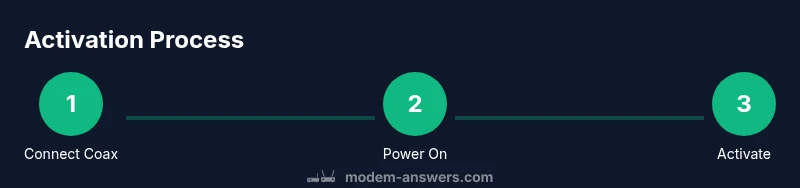
- 1
Connect the coax
Attach the coaxial cable to the modem’s coax port and to the wall outlet or splitter. Ensure the connection is snug and secure to prevent signal loss. A loose coax is a frequent activation blocker.
Tip: Double-check that the outlet is live by testing with another device if needed. - 2
Power on the modem
Plug in the modem’s power supply and wait for the status lights to begin cycling. Give the device 2–3 minutes to boot and initialize.
Tip: If lights don’t appear after 3 minutes, try a different outlet or reset the power cord. - 3
Connect your activation device
Using Ethernet or Wi‑Fi, connect your computer or phone to the modem. A wired connection is preferred during activation for reliability.
Tip: If using Wi‑Fi, join the default network name printed on the device label. - 4
Open the activation portal or app
Launch the Xfinity app or go to the activation website. Sign in with your Xfinity account and locate the activation flow for your new device.
Tip: If you don’t see the activation prompt, refresh the page or reopen the app. - 5
Enter account and device details
Provide your account information, the modem’s MAC address, and the serial number. Confirm the device model matches the one on your box or label.
Tip: Having this information handy reduces errors during provisioning. - 6
Submit activation
Proceed with activation; the provisioning system will provision the modem to your plan and apply network settings.
Tip: If you receive an error, note the exact message for support contact. - 7
Verify activation
Check for a stable online status and test a few pages or apps to confirm connectivity. If you use a separate router, verify WAN is obtaining an IP from the modem.
Tip: Run a speed test to ensure you’re getting expected bandwidth. - 8
Configure Wi‑Fi
Set a unique SSID and strong password. Enable WPA3 if available and configure guest network if desired.
Tip: Place the router/modem combo in a central location for best coverage.
FAQ
What do I need to activate an Xfinity modem?
You’ll need a compatible, approved modem, an active Xfinity account, a coaxial cable, power supply, and a device to run activation (phone, tablet, or computer). Have the MAC address and serial number handy for provisioning.
To activate, gather a compatible modem, your Xfinity account details, a coax cable, power supply, and a device to run activation, plus the MAC address and serial number.
Can I activate Xfinity modem myself, without a technician?
Yes. Activation is designed for self-service through the Xfinity app or website. Follow the prompts to verify your account and provision the device. If problems arise, consult the guide or contact support.
Yes, you can activate it yourself via the Xfinity app or website. Follow the prompts, and reach out if you need help.
Why is my modem showing offline after activation?
Offline status usually means provisioning isn’t finished, the device isn’t communicating with the network, or there’s a bad coax connection. Reboot the modem and router, re-check connections, and retry activation.
Offline means provisioning isn’t complete or the connection is interrupted. Reboot and retry activation.
What should I do if activation fails repeatedly?
Document the error message, verify MAC/serial, and confirm account status. Retry the activation path via app or website. If it persists, contact Xfinity support with device details for faster help.
If it keeps failing, note the error, retry via app or website, and contact Xfinity with device details.
Can I use my own modem with Xfinity after activation?
Yes, as long as the modem is on Xfinity’s approved compatibility list. You may save on rental fees, but ensure firmware updates and activation steps follow the same process.
Yes, if it’s on the approved list; otherwise you’ll need to switch back to a provider-approved device.
How long does activation take after I start?
Typical activation takes about 15–30 minutes, depending on account setup, device compatibility, and network provisioning. Some steps can be faster, while others may require minor troubleshooting.
Most activations take about 15 to 30 minutes, depending on your setup and network provisioning.
Watch Video
Key Takeaways
- Verify modem compatibility before starting activation.
- Prefer a wired link for reliability during setup.
- Have account details and device identifiers ready.
- Test speeds and Wi‑Fi after activation to confirm performance.