How to Activate Modem on Xfinity App
Learn how to activate your modem with the Xfinity app. This guide covers prerequisites, activation steps, troubleshooting, and best practices for a smooth home network setup.


You can activate a compatible modem using the Xfinity app in minutes. Ensure you have an active Xfinity account, a supported modem, and a smartphone with the app installed. This guide covers prerequisites, the core activation flow, and common troubleshooting steps to get your network online quickly.
Why the Xfinity App is the Preferred Activation Path
According to Modem Answers, activating a modem through the Xfinity app is typically faster and less error-prone than manual provisioning. The app guides you through a centralized setup, checks your device compatibility, and provisions the modem with your account settings. For most home networks, this method reduces trips to equipment rooms and minimizes downtime. If you prefer a visual walkthrough, you’ll find step-by-step guidance below, designed for homeowners and renters alike.
Prerequisites and What You Need Before You Begin
Before you start, make sure you have everything in one place to avoid mid-activation pauses. You need an active Xfinity account, a modem that is provisioned for use with Xfinity services, a smartphone with the Xfinity app installed and updated, and a stable power and coax connection for the modem. If you’re activating a rental modem, confirm that your account is linked to the device. Finally, have your login credentials handy for any sign-in prompts within the app. This preparation minimizes delays and reduces the chances of activation failing due to missing information.
Understanding the Activation Flow in the Xfinity App
The app acts as the orchestrator for device provisioning. It verifies your account, detects the connected modem, and communicates with the provider’s activation servers to secure a working IP address, DNS settings, and service status. The flow includes authenticating your account, validating hardware compatibility, and scheduling the activation event. In most cases, you’ll see status indicators such as ‘Activating’ followed by ‘Activated’ or a clear error with actionable steps. If you have a bridging router, you may see separate prompts for bridge mode; follow the app prompts accordingly.
Step-by-Step Activation Process Overview
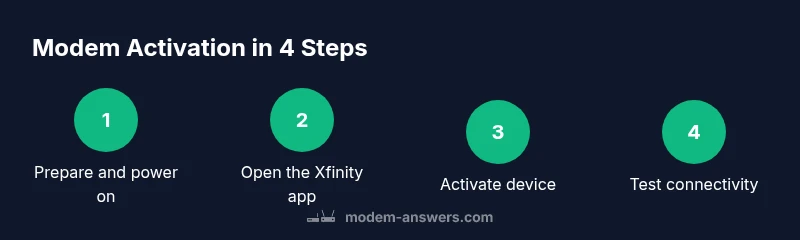
The following steps map directly to actions you’ll take in the Xfinity app. Each step is designed as a single action you can perform in sequence to complete activation. If your setup involves a third-party router, you’ll handle bridging or selecting your network later in the flow. The app will guide you through each prompt, and you should expect a confirmation screen once the modem is ready to serve your devices.
Common Issues and Quick Fixes
Activation can fail for several reasons: a loose coax connection, the modem not being powered on, or incomplete account verification. First, verify all physical connections and power. If the app shows an error, try refreshing the page or restarting the modem and retry activation. Some errors point to account issues; ensure your Xfinity account is active and that your service is provisioned for the modem. When in doubt, re-launch the activation flow from the Devices section and retry.
Testing Your Connection After Activation
Once activation completes, run a quick connectivity check. Open a browser on a connected device and load multiple websites to confirm basic browsing works. Use a speed test to verify you’re receiving the expected download/upload rates for your plan. If performance seems off, re-check the modem’s placement for optimal signal, ensure there’s no interference from nearby electronics, and confirm that the router (if used) is correctly configured. Finally, save the activation receipt or confirmation number for future reference.
Tools & Materials
- Xfinity account login credentials(Needed to access activation within the app)
- Xfinity app installed on a smartphone (iOS/Android)(Keep the app updated to the latest version)
- Modem provisioned by Xfinity(Ensure compatibility with your service tier)
- Stable power outlet and coax cable connected(Power on and verify signal before activation)
- Secondary device (optional) for troubleshooting(Helpful if the primary device has setup issues)
- Mobile data connection (optional fallback)(Used if home network is temporarily unavailable)
Steps
Estimated time: 15-25 minutes
- 1
Power on and verify physical connections
Ensure the modem is plugged in, powered on, and the coax cable is securely connected. Check the status LEDs for normal activity before proceeding to avoid false activation failures.
Tip: A solid signal at the LED indicators indicates the device is ready for activation. - 2
Open the Xfinity app and sign in
Launch the app on your smartphone and sign in with your Xfinity account credentials. If you’re switching devices, ensure you’re using the account that owns the modem activation.
Tip: Always use the most recent app version to access the latest activation prompts. - 3
Navigate to Devices and locate your modem
In the app, go to Devices or Add Device to let the system detect the connected modem. Confirm the model appears correctly to prevent misprovisioning.
Tip: If the modem doesn’t appear, refresh the App and recheck the coax connection. - 4
Initiate activation in the app
Tap Activate or Set Up New Device and follow the on-screen prompts. The app will verify compatibility and begin provisioning your modem.
Tip: Read each prompt carefully; some prompts may request confirmation of service terms. - 5
Wait for activation to complete
Allow several minutes for the provider to provision the modem. Do not unplug or reboot the device during this window.
Tip: If activation stalls, try refreshing or restarting the app briefly, then retry. - 6
Troubleshoot if activation fails
If you see an error, verify cable connections, power, and account status. Restart the modem and retry activation from the Devices screen.
Tip: Temporary network congestion can cause delays; wait 5–10 minutes and try again. - 7
Test connectivity and finalize setup
After success, load webpages on multiple devices and run a quick speed test to confirm service is live. If you use a router, configure network settings as needed.
Tip: Save the activation confirmation for future troubleshooting or warranty needs.
FAQ
What do I need to activate a modem with the Xfinity app?
You need an active Xfinity account, a compatible modem, and the Xfinity app installed on a smartphone. You may also require the modem to be physically connected and powered on before starting activation.
You’ll need an active Xfinity account, a supported modem, and the Xfinity app on your phone to begin activation.
Can I activate a modem if I have no home internet yet?
Activation requires an internet connection from the app to reach the activation servers. If your home network isn’t ready, you can use mobile data to complete the activation steps and then verify the connection once your home network is online.
Activation needs internet access, usually via the app. If your home internet is down, you can use mobile data to complete activation.
What if activation fails multiple times?
Double-check cable connections, power, and that the modem is compatible with your plan. Restart the modem and try the activation again from the Devices screen. If problems persist, contact Xfinity support.
If activation keeps failing, verify connections, restart, and try again. If it still won’t work, contact support.
I rent a modem from Xfinity—does activation differ?
Rental modems typically activate the same way in the Xfinity app. Ensure the device is linked to your account and that you’re signing in with the account associated with the modem.
Rentals activate the same way; just sign in with the account linked to your modem.
How can I verify my activation is complete?
Look for an Activated status in the app under Devices, then test your connection by loading sites or running a speed test on multiple devices.
Check the app for an Activated status and test connectivity across devices.
Watch Video
Key Takeaways
- Prepare credentials and device before starting
- Use the Xfinity app to simplify activation
- Allow several minutes for provisioning
- Test connectivity and save confirmation