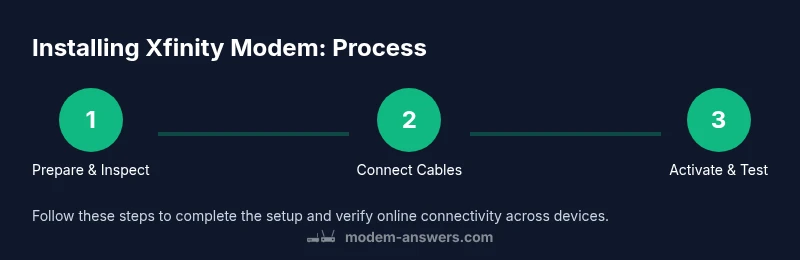
Installing Xfinity Modem: A Step-by-Step Guide for Home Networks
A comprehensive, easy-to-follow guide for homeowners and renters on installing an Xfinity modem, activating service, and optimizing your home network for speed and reliability.


This guide helps you install Xfinity modem with confidence, covering device prep, coax connections, activation, and Wi-Fi setup. You’ll learn a reliable sequence, practical troubleshooting, and how to verify your connection after install.
Why installing xfinity modem matters
According to Modem Answers, getting the installation right the first time reduces frustration and speeds up your path to reliable home internet. The process of installing xfinity modem isn’t just about plugging in a box; it’s about ensuring coax integrity, proper activation, and a secure Wi-Fi setup that serves a household of devices. When done correctly, you minimize service calls, avoid common activation delays, and improve overall network stability. In this article, we walk through why a solid install matters and how to approach it methodically, so you can enjoy faster uploads, smoother streaming, and more reliable video calls.
What you’ll need before you start
Before diving into the steps, gather the essentials. You’ll need an Xfinity-approved modem or gateway, a coaxial cable that’s in good condition, a power outlet, a computer or mobile device for activation, an ethernet cable for a wired setup if preferred, and a stable surface for the modem. Having a pen and paper or notes app helps log settings, firmware version, and your Wi‑Fi network name (SSID) and password. A few minutes to verify service address and account details saves time during activation.
Planning your network layout for best performance
A thoughtful network layout helps you maximize performance across rooms and devices. Place the modem in a central, open location away from metal objects and heavy appliances that could cause interference. Keep it off the floor and at a height where vents are unobstructed to avoid overheating. If you’re also using a separate router, plan where it should sit to minimize dead zones and ensure adequate coverage. Remember that Xfinity’s activation will often optimize the connection automatically, but the physical setup sets the foundation for speed and stability.
Understanding compatibility and modes for Xfinity setups
Xfinity supports both integrated modem-router gateways and standalone modems with a separate router. If you’re bringing your own device, confirm compatibility with your service tier and plan. Some features, like public Wi-Fi or advanced security, may differ based on whether you use a gateway or a third-party router. If you own a gateway, ensure it’s not already tied to another service location and that the firmware is up to date. This knowledge helps prevent activation hiccups and ensures you get the features you expect.
Common mistakes and how to avoid them
Rushing through activation, using damaged cables, or attempting to activate without an active Xfinity account are frequent missteps. Avoid using a damaged coax cable—inspect connectors for bent pins or frayed shielding. Don’t skip a power cycle after reconnecting hardware; a quick reboot often resolves minor issues. If you’re in a multi‑tenant building, confirm your service address matches the installation address on file, as mismatches can delay activation. Double-check network name and password to prevent confusion when other household members join the network.
Troubleshooting common issues during installation
If the modem’s lights don’t behave as expected, start with the simplest checks: ensure the coax is firmly seated, the power cord is securely plugged in, and the device has a stable power source. A factory reset can help if settings were misconfigured, but only after you’ve noted your preferred network details. If activation fails, try re-running the activation steps from a connected device, clearing browser caches, or using a different device to complete prompts. If problems persist, contact Xfinity support with the modem’s S/N and MAC address so they can verify activation on their end.
Security and optimization after install
Once online, secure your network by changing the default admin password and enabling WPA3 if available. Rename your network (SSID) to something unique, and consider separating guest networks from your main devices for added privacy. Keep firmware up to date by checking for updates periodically, and disable remote management if you don’t need it. Regularly review connected devices to spot unfamiliar activity and maintain a healthy balance of speed and security.
Final checks and next steps
Walk through a quick validation: test a few devices (laptops, phones, smart speakers) to confirm consistent Wi‑Fi performance, run a basic speed test, and verify online streaming and gaming latency. If you have a second router, ensure it’s correctly configured (e.g., bridge mode or standard routing) depending on your setup. Keep a record of your activation steps and settings for future changes or troubleshooting.
Tools & Materials
- Xfinity modem or gateway(Must be compatible with your service plan)
- Coaxial cable(In good condition; avoid damaged ends)
- AC power outlet(Near the modem placement area)
- Ethernet cable (optional)(For a wired connection to a computer or router)
- Laptop or smartphone(Used for activation prompts and testing)
- Pen and paper or notes app(Record SSID, password, and steps)
- Cable management supplies (optional)(Keeps setup tidy)
- Owner account details (Xfinity)(Needed for activation and troubleshooting)
Steps
Estimated time: 30-60 minutes
- 1
Gather and verify equipment
Collect the modem, coax cable, a power outlet, and a device for activation. Check that the coax connectors are clean and the device is in a stable location. Confirm your Xfinity account is active and the modem is compatible with your service tier.
Tip: Label cables and keep a simple diagram of device placement for reference. - 2
Power down and prepare the network area
Unplug powered devices if you’re replacing an old modem. Clear space around the modem, ensure ventilation, and arrange cables neatly to prevent accidental disconnections during setup.
Tip: Avoid placing the modem behind furniture where airflow is restricted. - 3
Connect the coax cable
Tighten the coax cable firmly to the modem’s coax port and the wall outlet. If you notice corrosion or a loose fit, replace the cable before proceeding to minimize signal loss.
Tip: Hand-tighten first, then give a gentle quarter-turn with a wrench if needed without over-tightening. - 4
Power on and boot the modem
Plug the modem into power and wait for the initial boot sequence. This may take several minutes as the device negotiates with the service provider. Avoid unplugging during boot.
Tip: Watch the power and data lights; a steady online light indicates readiness. - 5
Connect your testing device and access activation prompts
Using a laptop or smartphone, connect to the modem’s network via Ethernet or Wi‑Fi. Open a browser and navigate to the activation page or your Xfinity account prompts to begin activation.
Tip: If you’re using a phone, disable mobile data to force your browser to use the new network. - 6
Complete activation and confirm service
Follow on-screen prompts to activate the modem. This may involve signing into your Xfinity account or entering device details. Wait for the activation to complete before testing the connection.
Tip: If prompts stall, refresh the page or try a different browser/device. - 7
Set up Wi‑Fi and test speeds
Configure your network name (SSID) and password. Run a speed test on multiple devices to verify performance. Document results for future reference and note any inconsistencies.
Tip: Choose a strong, unique password and enable WPA3 if available.
FAQ
Do I need to activate my Xfinity modem?
Yes. Activation links your modem to your Xfinity account and enables service. You typically complete this online via your account or through the prompts on a connected device.
Yes. Activation is usually done online by signing into your Xfinity account and following the prompts on your screen.
Can I use my own modem with Xfinity service?
Xfinity supports third‑party modems that are on their approved list. You’ll need to check compatibility with your plan and hardware.
Yes, but only if your modem is on the approved list; otherwise activation may fail.
What should I do if the status lights are off or blinking abnormally?
Verify coax connections, power, and that the device is powered. Reboot the modem and try activation again. If issues persist, contact support with your device’s MAC and serial numbers.
If the lights aren’t normal, check cables, reboot, and contact support if needed.
How long does activation take?
Activation is generally quick, but timing can vary based on service status. If it stalls, retry from a different device or browser and ensure your account is active.
Activation usually completes shortly; if it stalls, try again on another device.
Should I bridge my modem to a separate router?
If you’re using your own router, you might set the Xfinity modem to bridge mode to avoid double NAT. Otherwise, you can connect the router normally after activation.
Bridge mode is useful if you want your own router to handle all routing features.
What should I do after installation to test performance?
Run speed tests on multiple devices, check for stability in streaming and gaming, and verify devices can reach the internet consistently.
Test speeds on several devices and ensure everything loads smoothly.
Watch Video
Key Takeaways
- Plan the layout before you begin.
- Follow activation steps in order for fastest results.
- Secure Wi‑Fi with a strong password.
- Document network settings for later changes.
- Test performance across devices after setup.