How to Use Your Own Modem with Xfinity
Learn how to use your own modem with Xfinity: check compatibility, install, activate, and optimize for a reliable home network. This guide covers common pitfalls, safety tips, and best practices for homeowners and renters.


Using your own modem with Xfinity lets you control your network hardware, potentially save on monthly rental fees, and customize performance to your home. This guide walks you through compatibility checks, installation, activation, and verification steps to minimize downtime. We also cover common pitfalls and when to switch back to an Xfinity rental if needed.
Why using your own modem with Xfinity matters
Using your own modem with Xfinity gives you direct control over your home network hardware, the ability to optimize settings, and the potential to reduce monthly rental fees. The Modem Answers team emphasizes that choosing a compatible device can improve performance and simplify management. According to Modem Answers, many homeowners who switch to a personal modem report greater satisfaction and fewer service interruptions when the setup is done correctly. This guide walks you through compatibility checks, installation steps, activation, and verification to minimize downtime and maximize reliability across devices. By understanding the trade-offs and following best practices, you’ll gain a stable home network without sacrificing support from your provider. Modem Answers Analysis, 2026.
Throughout this process, you’ll learn how to compare DOCSIS standards, read device specs, and plan a transition that minimizes downtime. The goal is a seamless switch that doesn’t disrupt streaming, work video calls, or online gaming. We’ll also discuss security practices to keep your network safe while you use a third-party modem.
Compatibility: Will your device work with Xfinity?
First, verify that Xfinity supports third‑party modems on your plan. Not all services or tiers allow non‑rental devices, so start by logging in to your Xfinity account and checking the approved devices list for your address. Look for a modem that supports DOCSIS 3.0 or 3.1, has at least one Gigabit Ethernet port, and offers active support for your current service speeds. Also confirm that your modem is compatible with your plan’s download/upload speeds and that you aren’t mixing fiber or another topology with cable Internet. If you’re unsure, contact Xfinity support or visit their official hardware page to confirm. Finally, ensure you have the correct coaxial connection and that your home wiring is stable, as signal quality matters as much as device capability. You’ll also want to verify any firmware update requirements and warranty considerations before committing to a model.
Selecting a modem for Xfinity: features to prioritize
When choosing a modem for Xfinity, prioritize forward‑looking features that align with typical home networks:
- DOCSIS version: Prefer 3.1 for future speed and efficiency, though 3.0 devices can still work for slower plans.
- Channel bonding and download speeds: More channels generally translate to higher real-world speeds.
- Built‑in routing: If you want a single device, look for a modem with a reliable built‑in router; otherwise, plan to pair with a strong separate router.
- Ethernet ports: Ensure you have enough ports for wired devices and a stable uplink to your router.
- Energy efficiency and heat management: A cooler device reduces throttling and improves longevity.
- Compatibility with Xfinity features: Some devices support features like IPv6, bridge mode, or other advanced networking options if you need them. Select a model that fits your budget, supports your plan, and has positive reviews for reliability and firmware updates. Remember that a well‑chosen modem can deliver smoother performance and lower total cost of ownership over time.
Activation overview: what happens when you connect a personal modem
The activation process ties your modem to your Xfinity account without changing the underlying service. After you connect the coax and power, the device will initialize and request provisioning from Xfinity. Activation typically happens automatically when the device detects the Xfinity network, but you may need to trigger it from your account portal, or via the mobile app. During provisioning, your service plan, speed tier, and any rental device associations are updated. Expect a short downtime while the system recognizes the new hardware. If the modem is not provisioned correctly, you may see no Internet or intermittent outages until the system completes the provisioning cycle. Proactive checks, like confirming the MAC address pre‑registration and verifying that you’re connected to the correct network, can reduce surprises during activation.
Optimizing Wi‑Fi when using a standalone modem and router
If you’re separating the modem and router, position the router for best coverage and minimize interference. Common tips:
- Place the router central to your living area, elevated, and away from thick walls or metal cabinets.
- Use the 2.4 GHz band for range and 5 GHz for speed and less congestion.
- Enable WPA3 security when available and set a strong admin password.
- Update firmware on both devices regularly and back up settings.
- Consider enabling bridge mode on the modem if you want your router to handle all networking features.
- Test with a reputable speed test tool and adjust channel settings or QoS rules as needed. This approach gives you flexibility and control while preserving fast, reliable wireless performance across your home devices.
If you’re exploring mesh systems, evaluate whether a two‑box setup (modem + router) or a true mesh solution best fits your home layout and Wi‑Fi needs. A well‑designed network reduces dead spots and improves consistency for video conferencing and gaming.
Safety, security, and privacy considerations
Using your own modem can be safe when you follow best practices:
- Keep firmware up to date and download updates only from official sources.
- Use strong, unique passwords for your network and admin access.
- Disable remote management on the modem unless you need it for remote troubleshooting.
- Regularly monitor connected devices and review logs for unusual activity.
- If you plan to share your network, implement guest networks to limit device access.
- If you encounter damage to the coax line or power cords, stop and contact a professional — avoid DIY repairs on exterior lines. Ensure you’re using certified cables and adapters to reduce risk of electrical shorts or interference.
Common pitfalls and how to avoid them
To minimize downtime and ensure a smooth transition, avoid these common mistakes:
- Skipping the approved device check: Always confirm compatibility before purchase.
- Impatient activation: Allow provisioning time and re-check the portal if services don’t appear immediately.
- Improper cabling: Use a clean coaxial connection and secure Ethernet cables to prevent intermittent links.
- Overlooking splitters: Overly complex wiring reduces signal quality; simplify where possible.
- Mixed topologies: Do not mix fiber segments with cable where Xfinity service is delivered; keep a consistent medium.
- Forgetting to disable the rental modem: If you forget this step, you may incur double charges or conflicts in provisioning. Double‑check that the rental modem is deactivated in the account.
The switch: what to expect during transition and post‑switch care
During the switch, you may experience a brief loss of Internet as provisioning completes. Plan for a maintenance window if you’re doing this during an important work day. After activation, monitor speeds with a trusted speed test to confirm you’re receiving the expected tier. Keep the original modem in a safe place in case you need to revert for any reason. If performance lags, verify coax connections, consider upgrading to a DOCSIS 3.1 modem, and ensure your router firmware is current. The goal is a stable, secure, and fast home network that supports streaming, work tasks, and smart home devices.
Tools & Materials
- Compatible modem (your own)(DOCSIS 3.0/3.1, gigabit Ethernet, approved for Xfinity)
- Coaxial cable (RG6 or better)(Length as needed to reach modem location)
- Ethernet cable (Cat5e or better)(At least 1–2 meters for router placement)
- Xfinity account login credentials(Needed for device provisioning and activation)
- Computer or smartphone for activation(Access to the Xfinity activation portal or app)
- Power outlet and surge protector(Protects against power surges during setup)
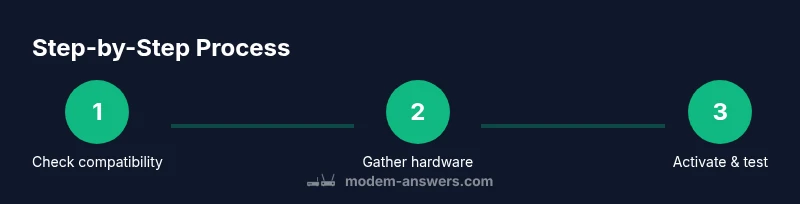
Steps
Estimated time: 60-90 minutes
- 1
Verify compatibility
Check Xfinity’s official list to confirm your modem is approved for your plan. Review DOCSIS version, speed tier, and required firmware support. This upfront check saves time later.
Tip: If in doubt, contact Xfinity support before purchase. - 2
Gather and prep hardware
Collect the modem, coaxial cable, Ethernet cable, and your activation device. Ensure cables are undamaged and have minimal kinks.
Tip: Label cables to avoid confusion during setup. - 3
Power down and disconnect rental modem
Unplug the rental modem from power and disconnect any connected cables. Keep the rental device accessible for return if needed.
Tip: Avoid unplugging the service line from the wall outlet. - 4
Connect the modem to the coax and power
Attach the coaxial cable to the modem’s coax port, connect the Ethernet cable to a router or computer, and plug in power.
Tip: Use a surge protector to minimize risk from surges. - 5
Activate through Xfinity
Open the Xfinity activation portal or app, sign in, and follow prompts to provision the new modem. You may need to select your device from a list or scan the MAC address.
Tip: Have your account details and modem MAC address handy. - 6
Verify provisioning and connectivity
Check the activation status in your Xfinity portal and confirm Internet access on wired and wireless devices. If needed, reboot the modem and router.
Tip: If you see no Internet, recheck coax connections and try provisioning again. - 7
Tune router settings
Log into your router, update firmware, set a strong password, and adjust Wi‑Fi bands for coverage. Enable WPA3 if available.
Tip: Consider a separate guest network for visitors. - 8
Test and monitor performance
Run speed tests to verify you’re receiving expected bandwidth. Monitor for drops over 24–48 hours and adjust settings if needed.
Tip: Record results to compare over time and diagnose issues quickly.
FAQ
Can I use my own modem with all Xfinity plans?
Most Xfinity Internet plans support approved third-party modems, but some bundles or attenuated services may require a rental modem. Always verify with Xfinity’s official device list for your address and plan.
Most plans support third-party modems, but check the approved device list for your area.
Do I need to return the rental modem after switching?
Yes, if you’re not using the rental modem, return it to avoid ongoing charges and ensure provisioning is clean. Keep confirmation receipts until the process is complete.
Yes, return the rental to avoid extra charges.
What if activation fails?
If activation fails, refresh the provisioning in the Xfinity portal, double-check cables, and retry. If issues persist, contact Xfinity support for provisioning assistance.
Retry provisioning and check cables; contact support if needed.
Will my Wi-Fi be affected if I use a separate modem and router?
Using a separate router with a modem often improves Wi‑Fi performance and coverage, but ensure you configure the router properly and enable security features.
Separated modem and router can boost Wi‑Fi performance with proper setup.
How do I find the MAC address of my modem?
The MAC address is printed on the modem label or accessible via the device's status page. You’ll need it during provisioning.
Find the MAC on the modem label or in its status page.
Is there a difference between DOCSIS 3.0 and 3.1 for Xfinity?
DOCSIS 3.1 supports higher up‑to speeds and more efficient spectrum use, but many plans still work with 3.0 devices. Choose 3.1 if you want longer‑term performance headroom.
3.1 offers better speeds and efficiency; 3.0 may work for older plans.
Watch Video
Key Takeaways
- Check compatibility before buying hardware
- Activate via Xfinity portal and disable rental modem
- Expect a short downtime during provisioning
- Use DOCSIS 3.1 for best future-proofing
- Secure your network with strong passwords and updated firmware