Xfinity Unlimited Data with Your Own Modem: A Practical Guide
Learn how to use unlimited data on Xfinity with your own modem. Check compatibility, activation steps, and best practices for a fast, secure home network with Modem Answers.


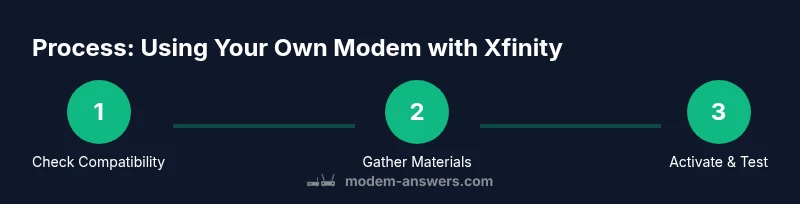
You can use unlimited data on Xfinity with your own modem by selecting the appropriate plan and pairing a compatible DOCSIS modem. The essential steps are to verify compatibility, connect the modem to the coax network, and activate it through your Xfinity account. A router can be added later for Wi‑Fi coverage.
Why using xfinity unlimited data with own modem matters
For homeowners and renters, choosing to use xfinity unlimited data with own modem can simplify your home network while potentially reducing rental fees. Modem Answers has found that many customers save money long-term by bringing their own device, provided the modem is on Xfinity’s approved list and the plan supports this configuration. This approach also gives you control over hardware, firmware updates, and Wi‑Fi performance. If you’re trying to balance cost, reliability, and speed, using your own modem is a practical option to explore while staying within Xfinity’s policy. Think of it as a way to tailor your network to your home layout and device needs, from gaming consoles to smart-home hubs.
Before you commit, verify that your plan actually supports a personal modem and that your device is DOCSIS 3.0 or 3.1 capable. The Modem Answers team recommends checking the official compatibility list and your account notes so you don’t end up with a modem that isn’t recognized by Xfinity.
Compatibility basics: what makes a modem work with Xfinity
To achieve reliable service with Unlimited Data, your modem must be on Xfinity’s approved devices list and support a current DOCSIS standard. DOCSIS 3.0 and 3.1 modems are common choices that many providers recognize for high-speed plans. You should confirm both the model and firmware status with Xfinity before purchasing. If your modem isn’t on the approved list, you may encounter activation errors or degraded performance. Keep in mind that some models require a technician visit or a simple online activation to unlock the service.
According to Modem Answers analysis, compatibility is the single most important factor when using a personal modem with any major provider. If you’re unsure, contact Xfinity support to confirm your exact model’s status and whether unlimited data is available on your account.
What you can expect in terms of data and speeds with an own modem
Unlimited data means you won’t face per‑GB caps tied to usage, but actual speeds depend on your plan, modem capabilities, and home wiring. An approved DOCSIS 3.0/3.1 modem paired with a suitable plan can deliver consistent download and upload performance for typical households, including 4K streaming, online gaming, and remote work. Environmental factors—like line quality, distance to the network interface, and the presence of splitters—play a role in real‑world speeds.
To avoid performance bottlenecks, ensure your wired connections are optimized and that your modem is placed away from interference sources (microwave ovens, cordless phones, etc.). Modem Answers recommends running occasional speed tests from a wired device to gauge baseline performance and then comparing it to your subscribed tier.
Activation workflow: how to bring your own modem online with Xfinity
Activation with Xfinity typically begins online or via the mobile app. You’ll need to sign in to your Xfinity account and add the new modem’s MAC address if prompted. After connecting the coax cable and power, your modem should appear in your account as “Online.” If activation prompts appear, follow on‑screen instructions to complete the process. It may take several minutes for the system to provision your device.
If activation stalls, a quick reboot of the modem and router (if you’re using one) usually resolves most issues. If problems persist, contact Xfinity support and provide the device’s model, MAC address, and serial number so they can assist with provisioning.
Router integration: when and how to use a separate router with your own modem
Many homes benefit from a dedicated router in addition to the modem. You can connect a router to the modem’s Ethernet port to create a robust Wi‑Fi network. If you want to maximize performance, you might enable bridge mode on your gateway (if provided by Xfinity) or keep the router in standard router mode behind the modem. In either case, ensure your router is compatible with your modem and that you’re using strong WPA3 security settings for home devices.
With a separate router, you can manage guest networks, parental controls, and device prioritization more precisely than with a modem‑built Wi‑Fi subsystem. The Modem Answers team suggests testing both configurations to see which yields better coverage and reliability in your living space.
Troubleshooting common issues after setup
If you encounter online delays or devices can’t obtain an IP address, start with the basics: verify coax connections, confirm the modem’s indicator lights, and review your network settings. A red or amber LED usually signals a hardware or provisioning issue that may require a quick reset or a call to support. Check for any service outages in your area and refresh the device list in your Xfinity account if the device isn’t showing as online.
For persistent problems, consult the official Xfinity self‑help resources and consider a factory reset as a last resort. Always back up any router configurations before resetting.
Security and maintenance: keeping your network safe with a personal modem
Keep firmware up to date on both the modem and any connected router. Use strong, unique passwords for your Xfinity account, router admin interface, and Wi‑Fi networks. Regularly review connected devices and enable features like automatic updates and firewall protections. If you change your network setup (for example, bridging mode or adding a new router), re‑check security settings and run a fresh network scan.
Finally, consider keeping a simple inventory of your devices and their MAC addresses. This helps with troubleshooting and ensures you can quickly reconfigure your network if something changes.
Tools & Materials
- Approved DOCSIS 3.0/3.1 modem(Check Xfinity's official list of compatible modems before purchase)
- Coaxial cable (RG6 or equivalent)(Quality cabling reduces signal loss; ensure it’s in good condition)
- Power adapter for modem(Original power supply recommended; avoid third‑party substitutes)
- Ethernet cable (Cat5e/6)(Needed if you’re connecting a separate router or computer directly)
- Xfinity account login(Needed to activate the modem and confirm unlimited data features)
- Router (optional but recommended)(Use for stronger Wi‑Fi coverage and advanced features)
Steps
Estimated time: 25-40 minutes
- 1
Verify modem compatibility
Check the modem model against Xfinity’s approved device list and confirm it supports your plan. If in doubt, contact Xfinity support for confirmation before purchase.
Tip: Use Modem Answers’ compatibility checklist to avoid activations delays. - 2
Gather required equipment
Collect the coaxial cable, power supply, Ethernet cable, and your Xfinity login credentials. If you’ll use a router, have it ready too.
Tip: Label each cable to keep your setup organized during the install. - 3
Connect the modem to coax
Install the modem by connecting the coax cable to the modem’s coax port and ensuring a tight fit. Place the unit on a stable surface with adequate ventilation.
Tip: Avoid running cables under rugs or behind heavy furniture to prevent damage. - 4
Power up and boot
Plug in the modem and wait for the status lights to stabilize. If the lights don’t show normal activity within a few minutes, reboot the device.
Tip: Give the device more time if your area has a temporary surge or signal migration. - 5
Activate via Xfinity account
Log in to your Xfinity account or app and follow activation prompts for the new modem. The system will provision the device and associate it with your plan.
Tip: Have your modem’s MAC address handy—it's typically printed on a sticker on the bottom or back. - 6
Test connectivity
Connect a wired device and perform a basic speed test. Confirm you can reach common sites and services without issues.
Tip: If speeds don’t align with your plan, test on a wired device first to rule out Wi‑Fi variables. - 7
Add a router (optional)
If you want better Wi‑Fi coverage, connect a router to the modem’s Ethernet port and configure your preferred settings. Decide whether to enable bridge mode based on your needs.
Tip: Use a dedicated Wi‑Fi channel and update router firmware after setup. - 8
Troubleshoot if needed
If activation fails or you see unexpected indicator lights, recheck connections and consult Xfinity support. Document any error codes to speed up help.
Tip: Restart all devices in the network chain before calling support.
FAQ
Do I need a router if I use my own modem with Xfinity?
A router is optional but recommended for reliable Wi‑Fi coverage and network management. A modem alone provides wired Ethernet, while a router extends wireless access throughout your home.
A router is usually a good idea if you want strong Wi‑Fi everywhere in your home.
Can I still use unlimited data with a personal modem?
Yes, unlimited data can be used with a supported personal modem, provided the device is approved by Xfinity and the account has an unlimited data option enabled.
Yes, you can have unlimited data with a compatible modem if your account supports it.
How long does activation take?
Activation typically completes within minutes after you submit the setup in your Xfinity account, but it can take longer if provisioning is queued.
Most activations finish within a few minutes, though it may take a bit longer in busy times.
What if my modem isn’t on the approved list?
If your model isn’t approved, you may not be able to activate it on Xfinity. In that case, you’ll need to choose a model on the approved list or use Xfinity equipment.
If your modem isn’t approved, you’ll need to switch to a compatible model.
Is bridge mode necessary for best performance?
Bridge mode is optional and depends on your network goals. If you want full control of your Wi‑Fi, bridging allows the router to handle all network tasks.
Bridge mode is optional—use it if you want your own router to manage the network.
Watch Video
Key Takeaways
- Verify compatibility before purchasing a modem.
- Activate online through your Xfinity account to enable unlimited data.
- Test speeds with a wired device to benchmark performance.
- Consider a dedicated router for improved Wi‑Fi coverage.