WiFi Modem Compatible with Xfinity: A Practical Guide
Discover how to pick a wifi modem compatible with Xfinity, verify DOCSIS and Wi‑Fi specs, and install with confidence for fast, stable home internet.


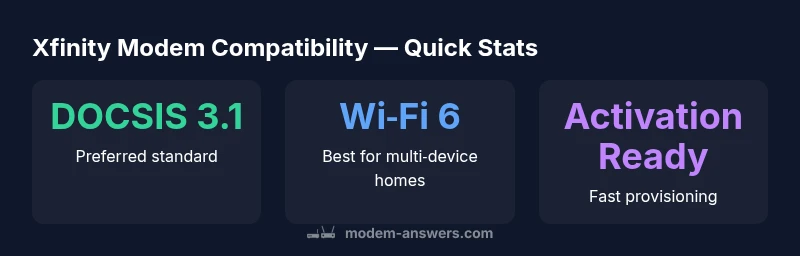
Xfinity supports a range of DOCSIS 3.1 modems and many Wi‑Fi routers. For best results, choose a DOCSIS 3.1 modem paired with a modern router, or use an Xfinity‑approved gateway. Always confirm compatibility with your service plan and activation steps before buying, and remember that gateway devices combine modem and router in one unit.
What makes a modem Xfinity-compatible?
When evaluating a wifi modem for Xfinity, start with whether the device is DOCSIS-compatible and whether Xfinity supports it on your plan. The backbone of compatibility is DOCSIS: most modern Xfinity tiers require DOCSIS 3.1; older technology may work on slower plans but won’t unlock gigabit speeds. Beyond the cable-side spec, you must decide if you want a standalone modem or a gateway. Standalone modems offer bandwidth efficiency and more router choice, often at lower long-term costs, while gateways simplify setup by combining modem and router in a single box. Regardless of choice, activation through the Xfinity activation flow (online portal or phone) is typically required, and your account must be linked to the device. Even with a supported modem, issues can arise if the device isn’t properly activated or if your plan is not recognized. The Modem Answers team emphasizes checking the official compatibility list before purchasing.
Confirming DOCSIS and Wi‑Fi specs
To ensure smooth operation with Xfinity, verify both the cable modem’s DOCSIS version and the wireless standard. Look for DOCSIS 3.1 on the device labeling or product page; this version supports higher throughput and efficient channel bonding for gigabit plans. In parallel, confirm the Wi‑Fi specification—prefer at least 802.11ac (Wi‑Fi 5) or, better, 802.11ax (Wi‑Fi 6) for stronger multi-device performance in dense environments. Some devices advertise “Dual-band” or “Tri-band” performance; for most homes, a solid 2.4 GHz/5 GHz dual-band or a Wi‑Fi 6 router is enough. Always cross-check that both specs align with your service tier and that the device appears on Xfinity’s approved devices list. This verification reduces activation friction and post-purchase surprises.
Standalone modem vs gateway: what's best with Xfinity?
Choosing between a standalone modem and a gateway hinges on layout, budget, and comfort with networking. A standalone modem plus a separate router gives you modularity: you can upgrade the router independently and often customize security settings more deeply. It can also be cheaper upfront, especially if you already own or plan to buy a high‑quality router. A gateway (modem‑router combo) simplifies installation and typically provides reliable coverage for small to medium homes. Some gateways include advanced features like guest networks and parental controls, but you may forgo some advanced router options. If your home is large or has dead zones, you’ll likely benefit from a high‑quality standalone router or a mesh system paired with a DOCSIS 3.1 modem. In all cases, ensure activation with Xfinity and verify that your chosen configuration is compatible with your plan.
How to verify compatibility before you buy
Before purchase, perform a quick compatibility check. 1) Identify your Xfinity service plan (download speeds and upload capabilities). 2) Look up Xfinity’s official list of compatible devices for your plan. 3) Confirm the device supports DOCSIS 3.1 and at least Wi‑Fi 5 (802.11ac) or Wi‑Fi 6 (802.11ax). 4) Read customer reviews focusing on Xfinity activation experiences and reliability. 5) If possible, choose devices that explicitly state “Xfinity compatible” or “Xfinity approved.” 6) Consider a retailer with a solid return policy in case the device doesn’t meet expectations. Following these steps can save time and avoid setup headaches.
Activation and setup steps with Xfinity
Activation is usually straightforward: connect the modem to the coax wall outlet, power on, and connect a computer or mobile device to the network. Open the activation page ( oftentimes at xfinity.com/activate ) and enter your account details. The system will verify compatibility and link the device to your plan. If you’re using a gateway, the setup is often automatic, with the device provisioning itself and creating a single SSID for both modem and router functions. If activation fails, restart the device, re-check coax connections, and ensure your service is active on the account. When in doubt, contact Xfinity support; they can verify device recognition and provisioning from their side.
Common issues and troubleshooting
Even with compatible hardware, issues can arise. Activation failures are common if the device isn’t linked to your account or if service is not provisioned in your area. Slow speeds can result from router placement, interference, or firmware issues. If you experience dropped connections, check your modem’s signal levels (via the admin page) and ensure your coax cable is undamaged and properly tightened. Keep firmware up to date and consider replacing older routers that lack recent security and performance features. For persistent problems, perform a factory reset only after saving settings, then re-run activation. The goal is a stable, secure, and fast home network that’s aligned with your Xfinity plan.
Real-world scenarios: small apartment vs large home
In compact living spaces, a gateway with integrated Wi‑Fi can be adequate, provided the unit has a strong range and robust security. For larger homes or multi‑story layouts, a separate high‑quality modem plus a mesh Wi‑Fi system yields consistent coverage. Mesh systems extend the signal without creating dead zones, especially when combined with a DOCSIS 3.1 modem. If you rent and lack control over the setup, choose a guided Xfinity-approved gateway to simplify maintenance. Always consider interference from nearby networks and appliances, and place devices on a central, elevated surface away from walls and metal objects to maximize performance.
Final buying checklist
- Confirm DOCSIS version (3.1 recommended) and Wi‑Fi standard (Wi‑Fi 5/6).
- Decide between standalone modem + router or gateway based on home size and preferences.
- Verify device compatibility on Xfinity’s official list for your plan.
- Ensure proper activation steps are clear and that your account is linked to the device.
- Plan for future-proofing with higher speeds and a robust router or mesh system.
- Check return policies and warranties before purchasing, and keep proof of purchase for activation support.
- Consider security features like WPA3, guest networks, and automatic firmware updates.
Key compatibility matrix
| Aspect | Meaning | Notes |
|---|---|---|
| DOCSIS version | Spec for cable modems | Xfinity gigabit plans prefer DOCSIS 3.1 devices |
| Wi‑Fi standard | Wireless protocol supported | Look for at least 802.11ac (Wi‑Fi 5) or better 802.11ax (Wi‑Fi 6) |
| Activation | Provider provisioning | You’ll need to activate the modem with Xfinity or connect a gateway; ensure account is linked |
FAQ
Is a separate modem required for Xfinity plans with higher speeds?
For many gigabit plans, a DOCSIS 3.1 modem is recommended, especially when using a separate router. An approved gateway may suffice for simpler setups. Always verify your plan’s requirements before buying.
Yes, for best performance with fast plans you may need a DOCSIS 3.1 modem, often paired with your own router.
Does Xfinity support DOCSIS 3.1 modems from third-party brands?
Yes. Xfinity supports third-party modems that are listed on its official compatibility page for your service tier. Check the list and ensure activation steps are clear.
Yes, as long as the modem is on Xfinity’s compatibility list.
Can I use my own router with an Xfinity modem or gateway?
Yes. You can use your own router with a compatible modem. If you prefer, a gateway provides both functions in one device, but you’ll have less router customization.
Absolutely, you can pair your own router with a compatible modem.
What if my device isn’t listed as compatible?
If a device isn’t on the official list, it may still work but could lack guaranteed performance or support. Consider choosing a device on the list to minimize issues.
If it isn’t listed, there’s more risk of compatibility issues.
Do I need to activate my modem after installation?
Yes. Activation associates the device with your Xfinity account and plan. Use the activation flow on the Xfinity site or contact support if needed.
Activation is usually required to get things working.
What’s the difference between a modem and a gateway for Xfinity?
A modem converts cable signals to digital data; a gateway adds a built-in router. Gateways are simpler to set up, while separate devices offer more customization.
Modem is the brain of the connection, gateway combines modem and router.
“The right modem strategy starts with verifying provider compatibility and supported standards before buying.”
Key Takeaways
- Check DOCSIS version before purchase.
- Prefer 802.11ax for future-proofing.
- Decide between modem-only vs gateway early.
- Validate activation with Xfinity to avoid delays.