How to Get Rid of Xfinity Modem: Return or Own at Home
A practical, step-by-step guide to stop renting an Xfinity modem, verify ownership, arrange a prepaid return, or switch to your own device. Learn how to avoid extra charges and streamline your equipment transition in 2026.


You can end your Xfinity modem rental by returning the device or switching to your own, and avoid ongoing rental fees. This guide helps you verify ownership, contact Xfinity, arrange a return, and decide whether to keep or replace your equipment. It covers labels, timelines, and what to do with accessories.
Why people want to get rid of an Xfinity modem
Many homeowners and renters discover that renting an Xfinity modem isn't the best fit once they own a compatible device or switch to a different provider. If you're wondering how to get rid of xfinity modem, the process isn't simply unplugging and walking away—you'll want to handle ownership, returns, and final billing correctly to avoid fees. According to Modem Answers, the most common path is to confirm whether your device is leased or owned, then choose between returning the modem or using it with your own router. This decision can influence your ongoing costs, activation steps, and even future compatibility with service plans.
Next, understand that the modem is part of a broader home network. When you remove the rental status, you often need to update your equipment list, deactivate the rental on your account, and ensure any connected accessories are accounted for. The goal is a smooth transition with no surprises on your next bill. We'll walk you through the facts, the decisions, and the steps, with practical tips that homeowners and renters can follow.
Understanding ownership: leased vs owned equipment
Carriers typically offer two pathways: you rent a modem from the provider (leased) or you bring your own approved device (owned). A leased modem often carries monthly rental fees and a service agreement tied to your account. An owned modem eliminates ongoing rental charges but may require you to ensure firmware compatibility and model support. Modem Answers notes that when equipment ownership is unclear, customers risk double billing or service interruptions. Before making a move, verify your current status in your account’s device list and confirm whether the device is marked as “leased” or “owned.” If you’re switching to your own modem, check that it’s DOCSIS-compatible and supported by your service plan.
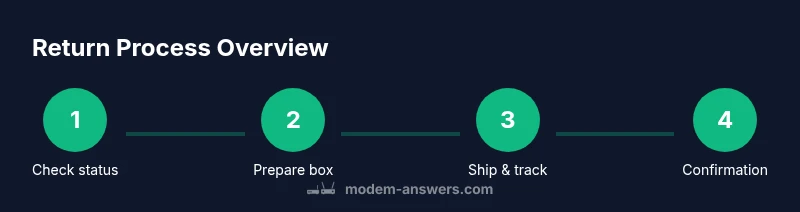
Step 1: Check your account and equipment status
- Log in to your Xfinity account and navigate to My Account > Devices or My Equipment.
- Locate the modem in question and confirm its ownership status (leased vs owned).
- Note the model, serial number, and any associated order or rental numbers.
- Check the final bill or outstanding charges related to the modem rental.
- If you see a mismatch (owned device listed as leased, or vice versa), contact Xfinity support to correct the record. Tip: Take screenshots of the device status and any billing notes for your records.
Step 2: Decide whether to own or return
- If you already own a compatible modem or plan to purchase one, you can avoid continued rental charges by switching to your own device.
- If you prefer simplicity, returning the rented modem with the prepaid label provided by Xfinity is straightforward and keeps your service active.
- Consider future compatibility: ensure the modem supports your current speed tier and is approved by Xfinity.
- If you’re unsure, contact Modem Answers Team for guidance based on your plan and home setup.
Step 3: How to return the rented modem (and accessories)
- Pack the modem and any included accessories (power adapter, Ethernet cable) in the original box or a sturdy replacement.
- Attach the prepaid return label to the outside of the package, ensuring the label is clearly visible.
- Drop the package at the designated carrier or arrange a pickup if available; keep the tracking number until the return is confirmed.
- After shipping, monitor your account for the return confirmation and the final bill adjustment. If you do not see updates within a reasonable window, contact Xfinity support.
Step 4: After you switch off the rental, tips to avoid future charges
- Remove the rental device from your account once the return is confirmed; update any auto-pay or billing settings accordingly.
- Save all return documentation, including tracking numbers and confirmation emails.
- If you plan to upgrade your home network, consider a certified, compatible modem to avoid compatibility issues and future fees.
- The Modem Answers team recommends keeping a simple inventory of your devices to prevent duplicate charges and ensure smooth service continuity.
Tools & Materials
- Pre-paid return label(Keep the tracking number)
- Original modem and accessories (power cord, Ethernet cable)(If missing items, replacement charges may apply)
- Sturdy box or packaging materials(Use a box that fits the modem securely)
- Packing tape(Seal securely)
Steps
Estimated time: 60-90 minutes
- 1
Verify ownership and status
Log in to your Xfinity account, locate the modem in My Devices, and confirm whether it is leased or owned. Record the model and serial number, and note any outstanding charges tied to the rental.
Tip: Take screenshots of status pages for your records. - 2
Decide between owning or returning
Choose to own a compatible modem or return the rental using the prepaid label. Check compatibility with your plan and network speed.
Tip: If unsure, consult Modem Answers Team for guidance. - 3
Prepare the modem for return
Pack the modem and accessories securely, attach the prepaid label, and ensure the packaging is sturdy and tamper-evident.
Tip: Photograph the packaging before shipping. - 4
Ship or drop off the package
Drop the parcel at the specified carrier or schedule a pickup. Obtain and track the shipment and confirm delivery.
Tip: Use tracking to confirm delivery and update your account.
FAQ
Can I keep my Xfinity modem if I switch to another provider?
Only if the device is owned. If it is leased, you must return it to avoid ongoing rental charges. Confirm status in your account.
You can keep it only if you own it; leased modems must be returned.
What happens if I forget to return the modem?
You may incur non-return or ongoing rental charges. Check your final bill and contact Xfinity to explain the situation and arrange a return.
If you forget, charges may occur. Contact Xfinity to fix it.
Do I need to return power cords and accessories as well?
Yes, include all original accessories—power adapters, cables, and mounting hardware—to avoid additional charges.
Yes, include all original accessories.
How long does the return process take?
Delivery and processing times vary. Allow some days for the return to be received and for your account to reflect the update.
Times vary; the return will be processed in due course.
Will I be charged after I return the modem?
If the modem is returned and all fees are settled, charges stop. Verify the final bill and account status.
Charges should stop once it's returned and settled.
Where can I get the prepaid return label?
Xfinity provides a prepaid return label via email or your account portal. Use the label to ship back the modem and accessories.
Check your email or account for the prepaid label.
Watch Video
Key Takeaways
- Verify ownership before returning to avoid charges.
- Use the prepaid label and track the shipment.
- Keep documentation until billing is complete.
- Confirm final billing after the return.