Replace Comcast Modem: A 2026 Step-by-Step Guide
A comprehensive, beginner-friendly guide to replace Comcast modem with a compatible owned device. Learn how to choose, activate, and troubleshoot your new modem while weighing renting versus owning.


Learn how to replace Comcast modem with a compatible, owned device. This guide covers checking compatibility with your plan, choosing a DOCSIS modem that supports your speeds, and steps to install and activate the new modem safely. You’ll also decide whether to rent or own and how to return a leased device.
Why replacing Comcast modem matters
If you’re currently paying monthly rental fees for your Comcast modem, you’re paying more than you need to. Replacing Comcast modem with a personal, compatible device can provide long-term savings, give you more control over firmware updates, and help you tailor your home network to your actual usage. According to Modem Answers, homeowners who switch from rental to owned modems often save money and gain better reliability, especially when their plan’s speeds and bandwidth requirements change over time. A new DOCSIS 3.x modem can handle higher throughput and more simultaneous devices without the buffering that plagues older equipment. In practice, the upgrade reduces monthly expenditures, minimizes dependency on a single equipment lifecycle, and improves privacy by letting you manage updates on your own schedule. Beyond cost, owning a modem can simplify troubleshooting because you’re not waiting on a provider to swap devices during outages. The goal is to choose a device that is clearly compatible with Comcast's service and your current plan, install it correctly, and keep a spare backup on hand. The right choice balances upfront cost, future-proofing, and the realities of your household’s internet usage.
Check if you should replace your Comcast modem
Not all scenarios require swapping hardware. Start by assessing your current agreement with Comcast: if you are leasing, you’re paying a recurring fee every month. If your speeds are capped or your network regularly shows Wi-Fi congestion even when your router is strong, replacing the modem with a newer, compatible model may offer tangible benefits. Modem Answers analysis shows that many households can reduce ongoing costs by owning a modem rather than renting, especially when their internet plan requires more robust modem features. Consider whether the cost and time of selecting and wiring a new device align with your budget and patience for a DIY setup. If you move soon or anticipate changing providers, the decision might lean toward rental parity for a transition period. In short, weigh the upfront price, expected lifespan, and the reliability of the replacement modem against continuing monthly rental charges and the potential for service interruptions during the switch.
How to choose a replacement modem
The core criterion is compatibility: the modem must support your Comcast service plan and be documented as compatible with your provider. Look for a DOCSIS 3.1 (or newer) device for higher throughput and better energy efficiency. Check that the modem is not locked to another provider, that it has sufficient channel bonding for your speed tier, and that it includes a Gigabit Ethernet port for wired devices. Compare models on their warranty length, heat dissipation, and user reviews. Budget-minded buyers should consider last-generation devices still on the compatible list, which can offer substantial savings, while enthusiasts may opt for the latest models with advanced security features and longer lifespans. Keep in mind that some older modems marketed as “compatibles” may require firmware updates or specific activation steps. When in doubt, reach out to customer support or your local retailer to confirm official compatibility before purchasing. Finally, confirm return policies for any leased gear to avoid unexpected charges.
Renting vs owning: cost and considerations
Renting a modem through Comcast is convenient but can quietly inflate your monthly bill. Owning a modem requires an upfront purchase, typically in a price range that reflects the modem’s features and future-proofing; many users find that a modest investment now pays for itself within months through avoided rental fees. If your home network includes a separate router, you can pair your new modem with a high-quality router to maximize Wi-Fi performance, or you may choose a modem-router combo for a simplified footprint. Owning also gives you control over firmware updates and the ability to repurpose the device when you upgrade your plan. If you travel or move often, consider keeping a spare, unlocked modem that works with multiple providers, though ensure it remains compatible with your current service. Budget-conscious buyers should compare options in the $60-$200 range for new devices or look for certified refurbished models to stretch value further. Whatever you choose, document activation steps so you can reproduce the setup if you reconfigure your home network later.
Step-by-step setup and activation (overview)
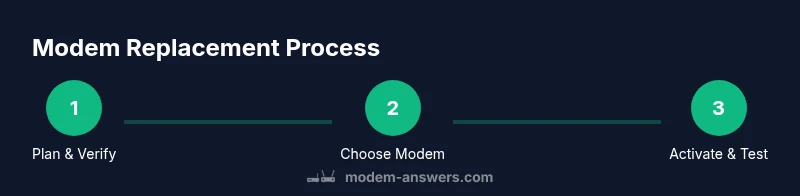
A smooth replacement involves careful preparation, accurate wiring, and timely activation. Begin by confirming account details and ensuring you have admin access to your router settings. Plan the sequence: disconnect the current leased modem, connect your new device to the coax line, and power both the modem and any router. Access the new modem’s web interface to verify signal strength and link status, then activate via your provider’s app or website. If activation requires a phone call, keep your account information handy. After activation, reconnect your router (if applicable) and test connectivity with a wired device first, then wirelessly across multiple rooms. Finally, monitor for any hiccups—like dropped connections or inconsistent speeds—and keep a log for reference. Expect a short transition window where some services may reset, but most homes complete activation within a few minutes to half an hour.
Troubleshooting during transition
If you experience outages after swapping, recheck physical connections: ensure the coaxial cable is secure, the modem is powered, and the Ethernet cable is firmly seated. Reboot devices in the correct order: modem first, then router. If activation stalls, retry through the provider’s app or website, and verify your account status. For performance issues, run a speed test from a wired connection to establish a baseline, compare against your plan’s advertised speed, and adjust your router placement to minimize interference. If problems persist, contact your provider’s technical support and request guidance on activation or any compatibility flags that could be affecting service. Finally, remember to preserve your receipt and any activation numbers in case you need to reference them later.
Authority Sources
Here we list official resources to inform your decision:
- https://www.fcc.gov
- https://www.consumer.ftc.gov/articles/internet-service-providers
- https://www.nist.gov/topics/network-security
Common mistakes to avoid
Important cautions: buying a device not clearly compatible, neglecting activation steps, failing to update the router after replacement, or returning a leased device without confirming final billing. Do not ignore the terms of your plan or the provider’s activation requirements. Keep in mind that a rushed install may cause outages or device conflicts with your existing network. By avoiding these missteps, you improve your chances of a seamless transition and a more reliable home network. The Modem Answers team recommends documenting every step and keeping copies of activation confirmations to prevent billing surprises.
Tools & Materials
- New DOCSIS 3.1+ modem(Ensure it is Comcast/Xfinity compatible per the provider’s official list)
- Coaxial cable (quality RG6 recommended)(If possible, use a low-loss cable for best signal quality)
- Ethernet cable (Cat5e or better)(For wired connections to a router or computer)
- Power supply/adapter for the modem(Check that the included adapter matches the modem’s requirements)
- Router (optional)(Needed if you have a separate wireless router; can be integrated in a modem-router combo)
- Account login details for activation(Have your Comcast/Xfinity account number and PIN ready)
Steps
Estimated time: 30-45 minutes
- 1
Plan and verify account status
Check your current Comcast rental status and confirm you have access to activate a new modem. Verify plan limits and ensure you have the necessary account details before you buy. This avoids activation delays later.
Tip: Note your account number and the name on the account; you’ll need them during activation. - 2
Choose a compatible modem
Refer to Comcast’s approved devices list and select a DOCSIS 3.1+ modem that matches your plan’s capabilities. Read user reviews and check warranty terms. If you’re uncertain, reach out to support before purchasing.
Tip: Double-check the exact model is listed as compatible with your service level. - 3
Power down and unplug old equipment
Turn off and unplug the existing modem and any connected router. Disconnect all cables carefully to avoid damage. This minimizes risk when you remove the old hardware.
Tip: Label cables if you’re unsure where they go to speed reassembly. - 4
Connect the new modem to coax and power
Connect the coaxial cable to the modem’s coax port, then plug in the power adapter. Give the modem a moment to establish a connection before moving on to configuration.
Tip: Avoid bending connectors; a gentle, snug fit improves signal quality. - 5
Connect a computer and check status
Connect a computer to the modem via Ethernet for initial setup. Open a browser to access the modem’s management page and verify a stable link and online status.
Tip: Wired connections are more reliable for initial configuration. - 6
Activate the modem with your provider
Launch Comcast activation via the mobile app or website, or call support if needed. Have your account and device info ready for a smooth activation.
Tip: If prompted, provide the new modem’s MAC address and serial number. - 7
Connect your router and test speeds
Reconnect your router if you use one and run speed tests to confirm you’re achieving plan-appropriate performance. Adjust placement for best coverage.
Tip: Place the router central to your home and away from interference sources. - 8
Finalize and return leased equipment
If you’re replacing a leased modem, arrange its return and check final billing to ensure no residual rental charges.
Tip: Take photos of the return shipment and obtain a receipt.
FAQ
Can I replace Comcast rental modem with any DOCSIS modem?
Yes, as long as the modem is on Comcast’s approved device list and compatible with your service plan. If unsure, contact support before purchasing.
Yes, as long as the modem is on Comcast’s approved list and matches your service plan.
Do I need to contact Comcast to activate the new modem?
Activation can usually be completed through the Comcast mobile app or website. If you run into issues, you may need to call support.
Activation can typically be done through the app or website, and support is available if you need help.
What happens to my old modem after I replace it?
If you own the modem, you can repurpose it; if you’re returning a leased device, follow Comcast’s return process to avoid charges.
You can repurpose or sell a owned modem; if leased, return it via Comcast’s process.
Will replacing the modem improve Wi‑Fi speed overall?
Upgrading to a modern modem often improves overall stability and peak speeds, especially if your current device is older.
A newer modem can improve stability and peak speeds, especially with newer plans.
How long does activation take?
Activation typically completes within minutes, but it can take longer if there are system checks or account verifications.
Usually just a few minutes, though it can take longer during verification.
Should I return leased modem before activation is complete?
Coordinate returns so you’re not billed for both devices at once. Check final billing after return.
Make sure you don’t get charged for both devices by aligning the return with activation.
Watch Video
Key Takeaways
- Replace Comcast modem to save rental costs
- Use a DOCSIS 3.1+ modem for future-proofing
- Follow provider activation steps to avoid outages
- document activation and return processes