How to Replace a Modem: A Complete 2026 Guide
Learn how to replace a modem safely, activate the new device, and verify speeds. This step-by-step guide covers compatibility, setup, activation, and best practices for homeowners and renters.


Goal: Learn how to replace a modem safely with minimal downtime. Before you start, gather a compatible modem (DOCSIS 3.0/3.1 for cable, or your provider’s approved model), a power source, an Ethernet cable, and your account details. Steps: unplug power, disconnect old modem, connect the new modem, power up, follow the on-screen setup, and test your internet connection.
Why replacing a modem matters
Replacing a modem can deliver noticeable benefits: faster speeds, more stable Wi‑Fi when paired with a capable router, and enhanced security through current firmware. According to Modem Answers, up-to-date modems reduce compatibility problems with newer internet plans and devices. If your device sits on a shelf and is several years old, you may experience buffering, intermittent drops, or weak signals in remote corners of your home. A thoughtful replacement can simplify activation flows and improve support for features like bridge mode or IP passthrough when required. By prioritizing a compatible DOCSIS version (3.0 or 3.1 for most providers) and a model that's on your provider’s approved list, you set yourself up for a smoother transition and a more reliable home network.
Key considerations when selecting a replacement
Choosing a replacement modem involves balancing compatibility, performance, and value. Start with provider compatibility: confirm the modem is approved for your plan and supports the DOCSIS version your service uses. Look for channel bonding and upload speeds that meet or exceed your current plan expectations, especially if you rely on gigabit speeds or multiple devices. Consider future needs, such as whether you’ll use a separate router or a gateway with built-in Wi‑Fi. Price ranges vary, and many homeowners weigh the cost of buying a modem versus leasing from the provider. If you rent, remember you’ll typically need to return the old unit when you switch to a self-owned device. Modem Answers analysis suggests focusing on legitimate brands and certified models to minimize activation friction and post-install issues.
What you need before you start
Before you begin, assemble the essentials and verify your plan details. Ensure you have a provider-approved modem, a power adapter, an Ethernet cable, a coaxial (or fiber) connection as applicable, and your account information for activation. If you use a separate router, have it handy so you can set up the network after the modem is online. It’s also helpful to keep a notepad or digital notes to record MAC addresses and activation steps. Finally, confirm you’ll have a stable power source and a quiet workspace to minimize mistakes during installation. Preparing these items upfront reduces downtime and makes the activation smoother.
The replacement steps at a glance
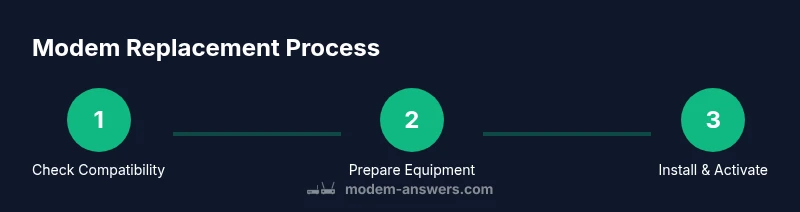
This section provides a high-level roadmap you can follow during the swap. First, check compatibility and gather equipment. Next, power down all connected devices and unplug the old modem. Then, disconnect the coaxial or fiber connection and remove the old device. Install the new modem by attaching the coaxial or fiber line, connect the power, and allow it to boot. Finally, connect a computer or phone via Ethernet to run the activation flow and test the connection. If you use a router, you’ll configure it after the modem activates. This overview is designed to prevent common missteps and streamline activation.
Activation and initial testing
Activation typically happens automatically when the modem connects to the provider’s network, but many ISPs require you to complete a portal activation or call support. Have your account details handy, including the account holder name and service address. Once activated, verify that your devices obtain IP addresses and that the internet connection is stable. Use a wired connection to perform the first tests, then test Wi‑Fi with typical devices (phone, tablet, laptop) to ensure coverage. If activation stalls, a quick reboot of the modem and router (if present) often resolves the issue, and your provider’s activation page will guide you through the remaining steps.
Speed test, performance, and optimization
After activation, run a standard speed test from a reputable site at different times of day to establish a baseline. Compare results to your service plan and account for factors like device capability and concurrent local network use. If speeds are consistently below plan, try rebooting the modem and router, ensure firmware is up to date, and check for stray interference from neighboring networks or electronics. If problems persist, contact your provider to confirm calibration, authorization status, and possible line issues. A properly replaced modem should deliver steady performance with minimal variation.
Security, privacy, and ongoing maintenance
Keep your network secure by changing the default SSID and password, enabling WPA3 if available, and updating firmware as soon as updates are offered. Disable remote management if you don’t need it, and consider enabling onboard firewall features if your device supports them. Document the new device’s MAC address and keep it handy for future troubleshooting or re-activation. Regularly check for firmware updates and reboot schedules to maintain reliability. Following these practices helps prevent unauthorized access and ensures your network remains protected over time.
Best practices and homeowner tips
To maximize reliability, place the modem away from walls or metal obstructions that could impede signal, and avoid stacking it with other heat-producing electronics. If you rely on Wi‑Fi heavily, the modem alone may not provide optimal coverage—consider pairing with a high-quality router or mesh system. Label cables and ports to reduce confusion during future upgrades or troubleshooting. Finally, document the replacement date, model number, and any activation steps for future reference, which makes renewals or upgrades easier and faster.
Tools & Materials
- New provider-approved modem(Ensure DOCSIS version matches plan and model is on the provider's approved list)
- Power adapter for modem(Use the original or an equivalent power brick with the correct voltage and polarity)
- Coaxial cable (or fiber optic line as applicable)(Ensure it’s in good condition and free of visible damage)
- Ethernet cable (Cat5e or better)(Used for initial config and for wired devices during setup)
- ISP account details(Username, activation code, or activation portal credentials as applicable)
- Router (optional, if using a separate router)(Have it ready for network configuration after modem activation)
- Notepad or digital device(Record MAC, activation steps, and settings for future reference)
Steps
Estimated time: 30-45 minutes
- 1
Verify compatibility and gather equipment
Check your service plan to confirm the DOCSIS version and ensure the modem model is provider-approved. Collect the power adapter, coaxial cable, Ethernet cable, and activation details before you begin.
Tip: Having everything in one place reduces trips to the modem room and speeds up activation. - 2
Power down devices and unplug
Shut down connected devices, including computers and smart home hubs. Unplug the old modem from power to prevent any electrical issues while you swap hardware.
Tip: Wait a few seconds after unplugging to discharge residual power. - 3
Disconnect the old modem’s connections
Carefully detach the coaxial cable (and any Ethernet cables) from the old modem. If you’re using a separate router, disconnect its WAN/Internet port as well.
Tip: Take a quick photo of the cabling for reference during reassembly. - 4
Install the new modem
Connect the coaxial cable to the new modem (tighten gently; avoid cross-threading). Attach the power adapter and plug in the device so it begins booting.
Tip: Do not force connectors—hand-tighten only to prevent damage. - 5
Establish a wired connection for setup
Connect a computer or laptop to the new modem via Ethernet to access the activation page or run the provided setup wizard. This step helps ensure you can complete activation without wireless interruptions.
Tip: Use a wired connection for the initial setup to avoid dropped wireless signals during activation. - 6
Activate the modem with your ISP
Open the activation portal or call support as required by your provider. Have your account details ready and follow the prompts to register the new device on your service.
Tip: If the portal prompts for a device ID or MAC address, you’ll find it on the modem label. - 7
Test the connection and secure the network
After activation completes, verify internet access on multiple devices. Set your Wi‑Fi name (SSID) and strong password, and ensure devices can connect via both wired and wireless methods.
Tip: Run speed tests at different times of day to establish a baseline. - 8
Document and maintain
Record the model number, activation date, and any special steps taken. If you use a separate router, update its settings and note the new network name and password.
Tip: Keep this information in a known, accessible place for future upgrades or troubleshooting.
FAQ
Do I need to contact my ISP before replacing my modem?
In many cases you can replace a modem with an approved model and activate it online. If you rent from your provider, you may need to initiate activation or return the old unit. Checking the provider’s policy avoids surprises.
Usually you can swap to an approved modem and activate it online; if you rent, you may need to confirm return policies.
What counts as a compatible modem?
A compatible modem supports your DOCSIS version (3.0 or 3.1 for most services) and is approved by your ISP for your plan. Check the provider’s device list and confirm firmware support.
Make sure the modem supports your DOCSIS version and is approved by your ISP.
What if activation fails?
Recheck all connections, verify the device is on the approved list, and retry activation. If issues persist, contact your ISP for assistance and possible device re-authorization.
Double-check the connections and try activation again; contact your ISP if it still fails.
Can I replace a modem without a technician?
Yes, most homeowners can replace a modem themselves, especially with provider-approved devices. Some advanced setups may require router configuration or bridge-mode adjustments.
Most people can replace it themselves; basic setups are straightforward.
How do I test speed after replacement?
Run a speed test from a reliable site on multiple devices and at different times of day. Compare results to your plan and investigate any significant deviations.
Test speeds on several devices and at different times to confirm you’re getting what you pay for.
Watch Video
Key Takeaways
- Verify compatibility before purchase
- Follow activation steps in order
- Test speeds to establish baselines
- Secure your home network after setup
- Document model and activation details