How to Install a New Modem: Step-by-Step Guide
Learn how to install a new modem with our homeowner-friendly, step-by-step guide. From compatibility checks and activation to testing and securing your Wi-Fi, this educational guide helps homeowners and renters get online quickly and reliably.


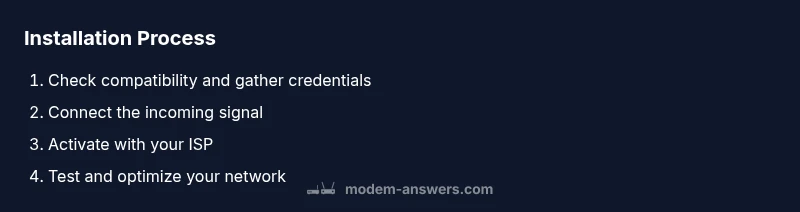
By the end of this guide, you’ll be able to install a new modem, verify your connection, and troubleshoot basic issues. You’ll learn how to check compatibility with your provider, connect the coaxial or fiber line, activate the device, and confirm Wi‑Fi and wired performance. This process minimizes downtime and speeds up your setup.
Before you start: compatibility and planning
Choosing the right modem starts with compatibility. The Modem Answers team emphasizes aligning a new device with your Internet Service Provider (ISP)’s approved list and the type of connection you have (cable, fiber, or DSL). Begin by identifying your service type, your current plan’s speed, and any activation instructions your provider sent—usually included in welcome emails or a packaging insert. If you recently upgraded your internet plan, confirm whether your new modem supports the higher DOCSIS standard (DOCSIS 3.1 or newer for cable) or fiber ONTs. A well-planned install minimizes surprises during activation and helps you avoid buying the wrong hardware. Also consider whether you’ll need a separate router; many households use a modem-router combo, while others prefer a separate router for more control.
What you’ll need before you begin
Gather the essentials before you touch any cables. You’ll need the new modem (the exact model your provider approves), the coaxial or fiber feed, a power supply, and an Ethernet cable for a reliable initial connection. Keep your ISP account details handy: account number, activation PIN, or an activation link. A pen and paper help you record the modem’s serial number, the MAC address, and your Wi‑Fi network name and password. If you’re using a separate router, have its power adapter ready and write down any current router settings you want to replicate. Finally, set aside a clear workspace away from moisture or heat sources to avoid accidental damage during setup.
Understanding your connection type and modem requirements
Knowing your connection type determines how you connect and activate. Cable modems plug into a coaxial cable, fiber modems rely on an ONT with an Ethernet/WAN port, and DSL uses phone-line entries. Each type has its own activation flow: cable modems typically require activation via your ISP’s portal or phone line, while fiber often requires provisioning through the ONT and a username/password for your gateway. Review the modem’s labeling and the provider’s documentation to ensure you have DOCSIS support, IPv6 readiness, and compatible security features. If you own a gateway device, confirm whether the combination matches your plan’s terms or if bridging is preferable to avoid double NAT.
Activation and testing basics
During activation, power off all devices, connect the modem to the proper line, and power up in the recommended order. For cable, the signal should appear after a few minutes as the modem negotiates with your ISP. Access the gateway's admin page to confirm the connection status, then run a basic speed test on a connected device to validate downstream/upstream speeds. If your provider requires activation via a portal, follow the prompts exactly and save any activation codes. If you see persistent “no service” or “offline” indicators, perform a quick reset and re-check the connections. Finally, configure your Wi‑Fi name and password on the admin interface, and consider enabling security features like WPA3 if supported.
Common mistakes and how to avoid them
A few missteps are common but avoidable. Don’t skip the activation step or assume your old login details will work with a new device. Avoid using long or obvious Wi‑Fi passwords; use a strong, unique key and update it on all devices. Don’t place the modem inside a cabinet or behind furniture; maintain good ventilation and central placement for best coverage. If you plan to use a separate router, avoid multiple NAT layers by putting your modem in bridge mode or using the router as the primary gateway. Finally, don’t forget to check for software/firmware updates after activation to ensure security patches and performance improvements.
Post-installation maintenance and security
After installation, schedule periodic checks to ensure firmware is up to date and your network remains protected. Change defaults on any admin pages, enable automatic updates, and enable firewall features if available. Regularly review connected devices and remove unknown ones from your network. If you’re sharing a guest network, enable a separate SSID with limited access. Maintain a record of your modem’s MAC address and serial number for future troubleshooting. By keeping a tidy, updated network, you reduce the risk of outages and security incidents.
Authoritative sources
For further reading on standards and best practices, see authoritative sources including FCC guidelines, NIST networking recommendations, and professional coverage from IEEE Spectrum. These references help anchor practical steps in validated information.
Tools & Materials
- New modem (provider-approved model)(Ensure it is DOCSIS 3.1+ for cable or appropriate for your service)
- Coaxial cable (for cable)(Quality coax with proper connectors)
- Optical network terminal (ONT) or fiber gateway (for fiber)(Only if you have fiber service)
- Power adapter(Include with device, check voltage)
- Ethernet cable (Cat5e/Cat6)(Fast stable initial connection)
- ISP account details (username/password or activation code)(Needed for activation)
- Router (optional)(Use if you’re setting up a separate network)
- Paper and pen(Record settings, credentials, and MAC/serial numbers)
Steps
Estimated time: 20-40 minutes
- 1
Prepare equipment and credentials
Identify your service type and locate activation instructions. Gather your account number, activation code, and any required codes before you start. This reduces back-and-forth calls and ensures a smoother activation.
Tip: Have your account number and activation code handy to speed activation. - 2
Unbox and inspect the modem
Check the package for all listed components. Inspect the modem’s ports and labels to confirm model compatibility and note MAC/serial numbers for future reference.
Tip: Look for damaged ports or missing cables before proceeding. - 3
Power off and disconnect old equipment
If upgrading, unplug the old modem/router and disconnect power. Store old device for potential return if required by your ISP.
Tip: Always unplug from power before handling cables to avoid shock. - 4
Connect the incoming signal
For cable, attach the coaxial line to the modem. If you have fiber, ensure the ONT is connected to power and to the gateway via Ethernet. Avoid forcing connectors; hand-tighten.
Tip: Verify all connections are snug but not overtight. - 5
Power up and boot
Plug in the modem and wait 1-3 minutes for the device to boot. Look for status lights to indicate power, signal, and link. If lights flash or stay off, recheck connections.
Tip: If the device doesn’t boot, try a different outlet and check the power adapter. - 6
Activate with your ISP
Open the modem’s admin page or your provider’s activation portal and follow the prompts. Enter activation codes if required and confirm service status once activation completes.
Tip: Keep activation codes handy; write them down when shown. - 7
Test connectivity and configure Wi‑Fi
Connect a computer via Ethernet and run speed tests. Log in to the modem’s admin page to set SSID and password, then test wireless devices for coverage.
Tip: Use a wired connection for the initial speed check to avoid wireless interference. - 8
Integrate with router or mesh (optional)
If you’re using a separate router, connect it to the modem’s LAN port and decide between bridge mode or standard router mode. Update firmware and adjust guest networks if needed.
Tip: Bridge mode avoids double NAT; only enable it if you need a dedicated router.
FAQ
Do I need a technician to install a new modem?
Most users can install a modem themselves and activate via the provider. Fiber services may require professional provisioning for the ONT, but many steps are self-guided.
Most people can install a modem themselves; call your provider if you have fiber or run into activation issues.
What should I do if activation fails?
Double-check all connections, ensure you’re using an approved model, and try the provider’s activation portal again. If problems persist, contact your ISP for assistance.
If activation fails, recheck connections and use the provider portal; contact support if needed.
How do I know which modem to buy?
Check your provider’s approved modem list and ensure the device supports the right DOCSIS standard (3.0/3.1) and your plan speed. Look for a gateway if you want Wi‑Fi built-in.
Choose a model your provider approves and that supports your speed; consider a gateway if you want built‑in Wi‑Fi.
Should I bridge my modem and router?
Bridge mode disables the modem’s built‑in routing. Use it when you want a dedicated router to manage your network features, such as advanced QoS or guest networks.
Bridge mode turns off the modem’s router; use it if you have a separate router.
Do I need to activate Wi‑Fi separately?
Most modems/gateways include Wi‑Fi. Set your network name and strong password in the admin page and enable security features like WPA3 if available.
Yes—activate and secure your Wi‑Fi in the admin page.
Watch Video
Key Takeaways
- Verify compatibility with ISP before purchase.
- Follow activation steps precisely to avoid delays.
- Test both wired and wireless performance after setup.
- Secure your network with a strong password and updated firmware.