Is a Modem Easy to Install? A Practical Guide for Homeowners
A practical, step-by-step guide to installing a modem at home. Learn prerequisites, wiring, activation, common issues, and tips to get you online quickly and safely in 2026.


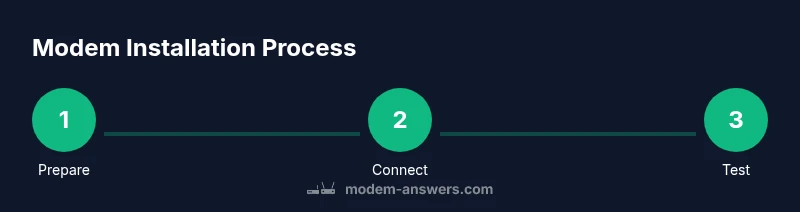
You can install a typical home modem by following a few clear steps: verify service, gather tools, connect coax/DSL, power up, and run the setup wizard. It usually takes 20–45 minutes depending on your provider and the network layout. Prepare your account details, the modem's model, and activation codes from your ISP. Have a friend help if you are unsure about cabling or calling support.
Is a Modem Easy to Install?
For many homeowners the answer is yes with caveats. The ease depends on service type (cable, DSL, fiber) and the equipment you own or rent. According to Modem Answers, most modern modems are designed for plug and play activation, but success still relies on choosing the right device for your internet service and following a few foundational steps. The Modem Answers team emphasizes that readiness matters: a stable power outlet, a wall outlet with the correct line, and access to your ISP account details can dramatically simplify the process. The key is not fancy hardware but simple wiring, a quick activation call or online activation, and a short setup wizard. When these pieces are in place, many installs complete within an hour, with 15 to 30 minutes of actual hardware setup.
Prerequisites and Planning
Before touching a cable or power button, take a moment to plan. The installation experience varies by service type and the equipment you plan to use. Confirm the service type and ensure you have an active account with the ISP. If you rent gear, verify what you are allowed to use and whether your plan supports a third party modem. A clear plan reduces the chance of compatibility issues and activation delays. Gather the modem model, the activation code if required, and create a stable workspace near a power outlet and a router if you plan to build a home network with your own router.
What You Need Before You Start
Prepare the items and knowledge you will rely on. Know your service type (cable, DSL, fiber) and whether you need a direct connection to a device or a separate router for a full home network. Have the wall coaxial or DSL line ready and a suitable Ethernet cable for wired devices. Keep your ISP account credentials handy for activation. Check the provider's approved device list to ensure compatibility if you are using a personal modem. Doing this prep work minimizes friction and avoids delays in activation.
Wiring and Activation Basics
Modem installation begins with the right physical connections. Cable modems use a coaxial cable connected to a wall outlet and a power source; DSL modems use a telephone line; fiber setups usually require an optical network terminal provided by the provider rather than a consumer modem. For most homes, connect the coax or DSL line to the modem, then connect an Ethernet cable from the modem to a computer or a router, and finally power up. Activation is typically done online or by phone with the ISP; you may need the MAC address or serial number from the device label. After a few minutes of activation, you should see online status indicators stabilize and the service come online.
Common Pitfalls and Troubleshooting
Many installation issues come from mismatched hardware, incorrect cables, or incomplete activation. Double check the service type, verify you have the correct activation code (if required), and confirm the line is properly connected. If you see indicators that point to a problem, consult the user manual for the meaning of the lights. Before calling support, perform a quick reboot of both modem and router and re-run the activation steps. Ongoing issues may indicate a service outage or an account problem.
After Installation: Security and Maintenance
Once the modem is online, focus on security and ongoing maintenance. Enable automatic firmware updates if available and change default login credentials for both the modem and router. Create a secure Wi-Fi password and consider setting up a guest network for visitors. Document activation details and keep a record of MAC addresses and serial numbers in a safe place. Regularly check for firmware updates and reboot devices periodically to maintain performance and security.
Tools & Materials
- Coaxial cable (for cable modem)(Long enough to reach from wall outlet to the modem with a small slack)
- Phone/DSL line (for DSL)(Ensure line is active and clear of de-energized adapters)
- Ethernet cable (Cat5e or better)(At least 6-10 feet for flexibility)
- Power outlet(Prefer a surge-protected outlet)
- ISP account details / Activation code(Needed for activation)
- Router (optional)(Use if you plan to create a separate wireless network)
Steps
Estimated time: 20-45 minutes
- 1
Confirm service type and readiness
Check whether your service is cable, DSL, or fiber and verify you have an activation method ready. This ensures you buy the right equipment and avoid compatibility issues.
Tip: Have your ISP account details handy in case activation requires verification. - 2
Choose a suitable modem (or gateway)
Select a modem compatible with your service and avoid models on unsupported lists. If you own a separate router, plan where it will sit in relation to the modem for best signal coverage.
Tip: If buying new, look for DOCSIS 3.0/3.1 compatibility for cable. - 3
Gather cables and tools
Lay out the coaxial/DSL cables, Ethernet cable, and power cord. Ensure all items are easily reachable to minimize cable management time during setup.
Tip: Label cables using masking tape to prevent confusion. - 4
Connect the main line to the modem
Firmly connect the coaxial cable (or DSL line) to the modem’s WAN port. Do not overtighten; a snug fit is enough to ensure signal transmission.
Tip: Avoid kinks in the cable near connectors. - 5
Power up and wait for boot
Plug in the modem and router (if using) and give them 2–4 minutes to boot. Watch the LED indicators for a steady online state.
Tip: Don’t unplug during boot; it can reset activation progress. - 6
Activate the modem
Use your browser to access the activation page or call your ISP’s activation number. You may need the MAC address or serial number from the device label.
Tip: Have the MAC address ready; it is often required for activation. - 7
Test a wired connection
Connect a computer directly via Ethernet to confirm a direct connection to the modem. If this works, you are likely close to finished.
Tip: If there is no connection, re-seat the Ethernet cable and try a different port. - 8
Set up wireless (if using a separate router)
Configure your router with a unique SSID and strong password. Enable WPA3 if available for best security.
Tip: Place the router in a central location away from obstructions. - 9
Run speed tests and verify devices
Test wired and wireless speeds and verify that smart home devices connect without issues. Compare results to your plan’s advertised speeds.
Tip: Run multiple tests at different times to gauge stability. - 10
Document and secure your network
Save activation details, update firmware when prompted, and set up security features like guest network access and automatic updates.
Tip: Keep a record of your network name (SSID) and password in a secure place.
FAQ
Do I need a technician to install my modem?
Most home setups can be completed by homeowners with basic tools. If you have fiber or complex service, a technician visit may be helpful. Always verify compatibility and activation requirements with your provider.
In most cases you can install it yourself, but for fiber or complex services, a technician may be needed.
What if my modem shows no internet after activation?
Restart the modem and router, check cables, and verify account status with your ISP. If the problem persists, contact support; there may be a service outage or activation issue.
If there is no internet after activation, restart and verify cables, then contact your provider.
Can I use my own modem or must I rent?
Many providers support third-party modems that are on their approved list. If yours isn’t listed or you’re unsure, check with customer support. Using an approved model helps with timely activation.
Often you can use your own modem if it is approved by your provider.
Why is Wi-Fi not working after a successful activation?
The modem may be online, but the router settings or wireless network name (SSID) could be misconfigured. Ensure Wi-Fi is enabled and the correct password is used. Resetting the router can fix common issues.
If Wi-Fi isn’t working after activation, check router settings or try a reset.
How do I know if my service uses coax or fiber for the modem?
Cable services use coax, DSL uses phone lines, and fiber uses an ONT in most cases. Your service type will determine which equipment you need.
Check your service type to know whether you need coax, DSL, or fiber equipment.
Watch Video
Key Takeaways
- Plan before plugging in the modem
- Use the right model for your service
- Activation is usually online or by phone
- Have credentials ready
- Test both wired and wireless connections