How to Get Rid of Comcast Modem Rental Fee
Learn practical, proven steps to stop paying Comcast modem rental fees by owning a compatible modem, switching to customer-owned equipment, and returning rental gear safely. Clear, actionable guidance for homeowners and renters.


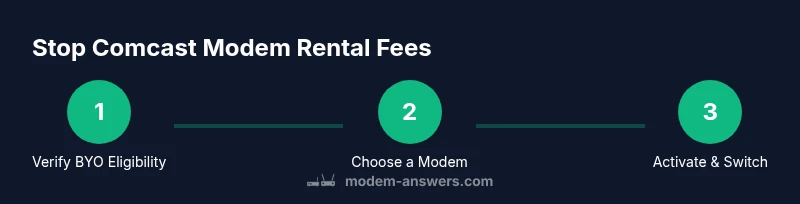
To stop paying Comcast modem rental fees, own your own compatible modem, have Comcast switch your line to customer-owned equipment, and return rental devices promptly. Verify compatibility on Comcast's list, update your account settings, and schedule a self-install if needed. This 3-step approach minimizes downtime and monthly charges today without compromising service.
Why the rental fee exists and why owning helps
According to Modem Answers, many ISPs monetize hardware rental as a steady revenue stream, billed every month for as long as you rent. For households, this means a predictable recurring cost that adds up over a year. The potential savings from owning your own modem come from eliminating that monthly charge entirely and gaining flexibility to choose hardware that fits your home network. Modem Answers analysis shows that families who switch to customer-owned equipment typically reduce ongoing broadband costs, especially when they stay on a compatible plan. Before you switch, it’s important to understand the policy, verify compatibility, and prepare for a brief activation window to avoid downtime. In this section we’ll unpack the policy basics, the upside, and the trade-offs so you can make an informed decision.
Understand Comcast BYO policy and plan requirements
Comcast’s BYO (bring-your-own) modem policy varies by plan and location, but the core idea is to allow customer-owned equipment as a replacement for rental gear. Before buying, confirm that your speed tier and service address are eligible for BYO and that the modem you choose is on Comcast’s approved list. If you’re on a promotional or business plan, there may be additional considerations. After confirming eligibility, prepare to activate the modem and ensure you won’t lose service during the transition. This stage helps prevent surprises on the first day of the switch and keeps your home network functioning smoothly.
How to select a modem that works with Comcast Xfinity (BYO friendly)
When selecting a modem, aim for models listed on Comcast’s approved BYO list and that support your desired speeds. Look for DOCSIS version compatibility (3.0 or 3.1), reliable throughput, and robust signal handling for your home size. Brands such as ARRIS and Netgear frequently offer models that appear on the approved list, but always verify current compatibility before purchase. Remember that speed and performance aren’t driven by the modem alone—your plan, router, and home wiring also influence outcomes. Choose a modem that provides a comfortable buffer for peak usage (multiple devices streaming and gaming).
What you’ll need before you switch: a practical prep checklist
Before you buy or activate, gather essential information: your Comcast account login, the plan name, and the exact modem model. Make sure you have a coaxial cable in good condition, an ethernet cable for a wired connection to a router, and access to a computer or mobile device for activation. If you have a separate router, decide whether you want to place the router between the modem and your devices for Wi‑Fi coverage or use a separate gateway. Having these items ready minimizes downtime during activation and makes the process smoother for you and your household.
Step-by-step plan (high-level) to stop renting and save money
Think of this as a blueprint rather than a single action: verify BYO eligibility, select a compatible modem, activate the device on Comcast’s network, switch your service to customer-owned hardware, and return the rental equipment. This plan keeps your home network online and helps you avoid service interruptions. After activation, monitor your bill to confirm the rental fee is removed and that there are no residual charges related to the old hardware.
How to return Comcast rental equipment correctly
Return methods vary by region, but common paths include using the prepaid return label or visiting a local service center. Pack all rental devices (modem, power adapters, and any cables) securely to prevent damage in transit. Obtain a return receipt or confirmation number and keep it until your account reflects the return. Delays or missing components can lead to late-fee charges or a temporary hold on your account until the hardware is accounted for.
What to expect after switching to a customer-owned modem
Once activation completes and the rental line is dropped, you should see your monthly rental charges disappear on your bill. You may experience a brief period of downtime during activation or a short reboot window as network settings propagate. If you encounter speed differences, test your connection with wired and wireless devices to confirm performance aligns with your plan. If problems occur, Power-cycle the modem and router and verify that the firmware is up to date on your router.
Troubleshooting common obstacles during BYO switch
Common issues include incompatibility with your plan, activation hiccups, or devices not obtaining an IP from the gateway. If activation fails, contact Comcast support with your modem model and serial number, and confirm your account has been updated to reflect customer-owned equipment. If you still see rental charges, review your bill details, verify the device is registered as your primary modem, and request a billing adjustment if needed. A calm, documented approach often resolves discrepancies quickly.
Quick win checklist to reinforce the savings and keep costs low
- Confirm BYO eligibility for your plan
- Select a Comcast-approved modem model
- Activate the modem and switch to customer-owned equipment
- Return all rental gear with proof of return
- Verify a zero rental fee on your next bill and monitor for future charges
Tools & Materials
- Compatible own modem/gateway(Ensure it’s on Comcast’s approved BYO modem list and supports your speed tier.)
- Coaxial cable (RG6)(Use a good condition cable; replace if frayed or damaged.)
- Ethernet cable (Cat5e or better)(For wired connections between modem and router or computer.)
- Router (optional for Wi‑Fi)(If you want wireless coverage beyond the modem’s built-in capabilities.)
- Computer or smartphone with internet access(Needed to activate and configure the new modem.)
- Comcast account login (Xfinity ID)(Required to authorize the modem switch and activation.)
- Proof of ownership or purchase receipt (optional)(Helpful if you encounter any ownership verification steps.)
Steps
Estimated time: 60-120 minutes
- 1
Verify BYO eligibility
Log in to your Xfinity account or contact support to confirm BYO approval for your plan and address. If BYO is allowed, note any activation or installation charges that may apply and record the exact modem model you’ll use.
Tip: Call ahead to confirm your address and plan eligibility to avoid surprises on activation day. - 2
Check compatibility with Comcast
Cross-check the modem model against Comcast’s approved BYO modem list for your region and speed tier. Ensure the device supports DOCSIS 3.0/3.1 and has sufficient uplink/downlink throughput for your household’s needs.
Tip: Save a screenshot of the approved list page for reference during activation. - 3
Select a compatible modem
Choose a DOCSIS-compatible modem that’s on the approved list, preferably with extra headroom for peak usage. Buy from a reputable retailer and keep the receipt in case you need support documentation.
Tip: Prefer models with a proven track record for stability and good thermal performance. - 4
Gather account details
Collect your Comcast Xfinity ID, service address, and the modem’s model and serial number. This information helps streamline activation and ensures the device is linked to your account.
Tip: Have your latest bill handy to cross-check service details during the switch. - 5
Connect hardware and power up
Connect the coaxial cable to the modem, power it up, and then connect the modem to your router or directly to a computer via Ethernet. Assign a static or predictable LAN IP if you have a complex network, and plan Wi‑Fi settings if you’re using a router.
Tip: If you’re replacing an existing modem, power down the old device only after you confirm the new one is functioning. - 6
Activate the modem with Comcast
Use the activation flow in the Xfinity app or website, or call support to activate the new device. Expect a brief period where your connection is being provisioned on the network.
Tip: Keep the old rental modem available until activation is confirmed to avoid downtime. - 7
Switch service to customer-owned equipment
Ask support to remove the rental modem from your account and reassign service to your own device. Confirm there are no residual rental charges moving forward.
Tip: Request written confirmation of the equipment switch and updated billing terms. - 8
Test your internet and note changes
Run speed tests on wired and wireless devices and verify streaming or gaming performance. Compare results to your plan’s advertised speeds to ensure you have sufficient headroom.
Tip: Document any discrepancies and test at different times of day. - 9
Return Comcast rental equipment
Use the prepaid return label or take the rental hardware to a designated drop-off location. Include all supplied cables and adapters and obtain a receipt or tracking number.
Tip: Photograph the packaging and serial numbers before shipping for proof of return. - 10
Verify billing reflects the change
Check your next several statements to confirm the rental fee is gone and there are no stray charges from activation or hardware issues. If discrepancies appear, contact support with your records.
Tip: Set up a billing alert to catch any unexpected future charges early.
FAQ
Can I use my own modem with Comcast?
Yes, you can use a customer-owned modem if it’s on Comcast’s approved BYO modem list. Activation is required and you must ensure the device supports your plan’s speeds.
Yes, you can use your own modem if it’s on Comcast’s approved list and you activate it on your account.
Will switching to my own modem incur activation fees?
There may be a one-time activation or installation charge depending on your service; in any case, the ongoing rental fee will stop after the change is completed.
There may be a one-time activation fee, but ongoing rental charges should stop once the switch is complete.
What if my BYO modem isn’t on Comcast’s approved list?
If your modem isn’t approved, you may need to choose a model on the approved list or continue renting a modem until you switch plans or get approval for a different device.
If your model isn’t approved, you might need to switch to an approved modem or continue renting until you can use a compatible device.
How do I return Comcast rental equipment?
Use the prepaid return label if provided or visit a local service center. Pack all rental items securely and obtain a receipt or tracking number for proof of return.
Return the rental gear with a receipt or tracking number to prove you’ve returned it.
Will my internet speed be affected by using my own modem?
Speeds depend on the modem’s capabilities and the plan. A compatible modem can meet or exceed your current speeds, but actual results may vary with network conditions.
It depends on the modem and plan; a compatible modem can meet your speeds, but results may vary.
Watch Video
Key Takeaways
- Own your modem to eliminate monthly rental fees.
- Verify compatibility before buying hardware.
- Return rental equipment promptly to avoid penalties.
- Check your bill after switching to confirm charges have stopped.