Buying a Comcast Modem: A Practical Guide for 2026
Learn how to buy a Comcast/Xfinity-compatible modem, compare DOCSIS options, confirm compatibility, and set up your own device to save rental fees and improve home Wi-Fi.


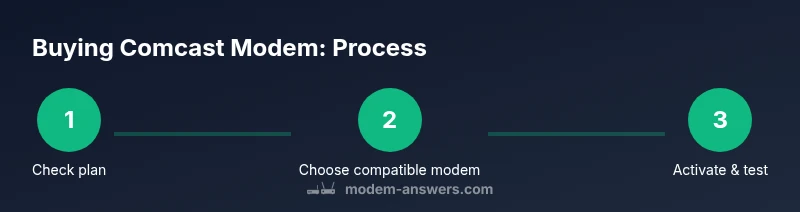
Goal: You can buy a Comcast/Xfinity-compatible modem and use it with your service instead of renting. Start by confirming your plan's speed, then pick a DOCSIS 3.1 modem that Comcast approves. Compare models on the official compatibility list, consider a separate router if you want Wi‑Fi, and use the activation tools to connect.
Why buying a Comcast modem makes sense for many households
Buying a Comcast modem can reduce monthly costs and give you more control over your home network. For many homeowners and renters, owning a compatible modem means you’re no longer paying ongoing rental fees and you can upgrade at your own pace. According to Modem Answers, the typical home setup benefits from choosing a modem labeled as compatible with Xfinity services and DOCSIS standards. When you buy wisely, your modem can also deliver stable performance for streaming, gaming, and video conferencing. The goal is to select a device that is reliable, future-proof, and supported by Comcast’s activation process. Remember: a modem is only part of your network; you may still need a router or gateway to provide Wi-Fi coverage, depending on your home size and preferences. If you plan to upgrade your service in the future, a DOCSIS 3.1 modem is a wise, long-term investment.
Understanding Comcast's modem policy and compatibility
Comcast's policy allows customers to use their own modems, but only if the device is approved as compatible with Xfinity. Not every DOCSIS modem will work on every plan or service tier. Start by checking Comcast’s official compatibility list to verify models that are supported for your address, speed, and plan. If you already have a gateway or router provided by Comcast, you can still pair a separate modem with your own router. The activation process is tied to your Comcast account, so having your account details handy helps. It's also important to note that Comcast sometimes blocks non-approved devices; using a non-approved modem can lead to activation failure or inconsistent performance. When in doubt, contact customer support for guidance before ordering.
What to consider before you buy
Before you purchase, take a moment to outline your priorities and constraints. First, match the modem’s capabilities to your speed tier; a DOCSIS 3.1 device is forward-looking for gigabit plans and many mid-tier plans. Second, verify the device works with Comcast by checking the official list and reading user feedback. Third, consider the warranty, return window, and the retailer’s reputation; good return policies reduce risk if compatibility issues arise. Fourth, measure the physical size and ensure adequate ventilation near your router shelf. Fifth, think about future-proofing: a compact, energy-efficient modem can stay in service for several years. Finally, decide whether you want a separate router or a gateway; a router gives you more control over Wi‑Fi features, while a gateway is simpler for small spaces.
How to pick a Comcast-approved modem vs gateway
A modem alone handles the connection to your ISP, while a gateway combines a modem and router into a single device. If you already own a capable router and only need a modem, buy the modem separately and keep your router. If you prefer an all-in-one solution, a gateway can simplify installation, but you may be paying a premium for the convenience. When choosing, look for: compatibility with your plan, DOCSIS version, Ethernet port count, and included security features like firewall and automatic updates. Also check the warranty and whether the device is listed on Comcast’s official compatibility page. Finally, balance cost against longevity—an affordable gateway with a longer warranty can be a better long-term choice than a cheaper, short-lived model.
How to verify compatibility before purchase
Start by collecting your account details (address, current plan, and speed tier). Then visit Comcast’s official compatibility checker and filter results by your address. Look for DOCSIS 3.1 devices if you plan to upgrade or already have gigabit service. Read recent user reviews focusing on activation success and reliability with Xfinity. If a retailer lists the device as compatible but you’re unsure, contact Comcast support to confirm. Keep a record of model numbers you’re considering so you can cross-check them quickly later.
How to activate and register your device with Comcast
After you connect coax, power, and Ethernet, open the Xfinity app or sign in to your account on the web. The auto-activation flow usually completes within minutes, but in some cases you may need to call support. During activation, Comcast often assigns the new modem to your account and disconnects the old one. If you’re using a separate router, configure your router’s WAN settings or set the gateway to bridge mode if you want the router to provide all Wi‑Fi features. Test devices on multiple wired and wireless endpoints to verify stable speeds.
Cost considerations: rental vs ownership and return policies
Buying your own modem hinges on long-term value rather than one-off savings. Typical price ranges for a Comcast-compatible modem vary by features and speed, from budget options under $100 to mid-range devices around $100–$200 and premium models above $200. Even without exact numbers, plan to recover rental costs over time through lower monthly fees, especially if you have a consistent service plan. Remember to factor in warranty duration and potential restocking fees if you return a model after the window closes. If you later upgrade your service speed, ensure the device still supports your new tier.
Common setup scenarios and tips
If you already own a capable router, you can connect the modem to the router and enable bridge mode on the gateway if needed. For small apartments, a single-room router with a strong 2.4/5 GHz band can handle everyday tasks. For larger homes, consider mesh Wi‑Fi or a high-performance router to eliminate dead zones. Cable management matters: keep the coax tidy, avoid kinks, and ensure the modem has good ventilation. Always label your Ethernet cables so you can troubleshoot quickly if issues arise.
Security and privacy basics for home networks
Your modem, router, and devices form a single network perimeter. Use a unique, strong admin password for your router and enable WPA3 when possible. Keep firmware up to date to patch vulnerabilities and disable remote management unless you need it. Be mindful of default DNS settings and consider enabling firewall features within your router. If you enable router features on the gateway, make sure to review guest network settings to minimize exposure from smart devices.
Maintaining and updating your modem for peak performance
Regular checks help maintain stable performance. Keep the device in a well-ventilated area, check for overheating, and verify that the firmware is current via the manufacturer’s support portal. If you notice slow speeds, perform a factory reset or power cycle, and verify the connection to the gateway or router. Note that some updates may require re-pairing with your router, so have your settings handy.
Troubleshooting quick-start after install
If activation stalls, re-check coax connections and ensure the modem is receiving power. If wired devices don’t connect, examine Ethernet cables and check the router’s LAN settings. For Wi‑Fi issues, try changing channels or moving the router to a central location. If problems persist, consult Comcast support and reference your model number and purchase date.
Next steps and where to learn more
If you want more detail, revisit Comcast’s official compatibility pages and the Modem Answers buying guide. Consider bookmarking the retailer’s return policy and warranty terms for easy access. Stay up to date with DOCSIS standards and home-network best practices to ensure your setup remains reliable for years to come.
Tools & Materials
- DOCSIS 3.1/3.0 cable modem(Choose a model labeled as Comcast/Xfinity-compatible)
- Ethernet cable (Cat5e or better)(Used to connect the modem to a router or computer)
- Router (optional for separate setup)(Needed if you want Wi-Fi from your own router)
- Comcast account credentials(Have your username and password ready for activation)
Steps
Estimated time: 30-60 minutes
- 1
Check your plan and speeds
Review your current Comcast plan to confirm the speed tier you receive. Faster plans benefit more from DOCSIS 3.1 hardware, so document your target speeds before selecting a modem.
Tip: Note the exact advertised speed of your plan to avoid overbuying hardware. - 2
Locate Comcast-approved models
Visit the official compatibility list and filter by address and plan. Choose models that explicitly state compatibility with Xfinity services.
Tip: If in doubt, contact support to confirm a model’s status before purchasing. - 3
Select DOCSIS version
For most modern plans, pick a DOCSIS 3.1 modem; DOCSIS 3.0 is acceptable for older/slow-speed tiers but may limit future upgrades.
Tip: DOCSIS 3.1 devices are more future-proof and widely supported. - 4
Compare retailers and warranty
Choose a reputable retailer with a clear return policy and a solid warranty period. This reduces risk if the device is incompatible.
Tip: Keep the packaging and receipt in case you need to return within the window. - 5
Place the order
Purchase your chosen modem from a trusted source. Verify the model number matches your compatibility list to avoid activation issues.
Tip: Double-check the model number against the retailer’s listing and Comcast’s site. - 6
Unbox and prepare
Unpack the modem, power adaptor, coaxial cable, and Ethernet cable. Inspect for physical damage before connecting.
Tip: Keep all accessories neatly labeled to simplify setup. - 7
Connect your hardware
Connect the modem to the coax cable, plug in power, and connect an Ethernet cable to a router or computer.
Tip: Use a direct Ethernet run when possible for the initial setup to reduce wireless interference. - 8
Activate with Comcast
Sign in to the Xfinity app or website and start activation. The system usually completes in minutes.
Tip: Have your account details handy and be prepared to call if auto-activation stalls. - 9
Test and verify
Run wired and wireless speed tests and ensure devices can reach the internet with consistent performance.
Tip: Test multiple devices to confirm stable speeds across the network.
FAQ
Can I use my own modem with Comcast?
Yes, if the modem is approved for Xfinity. You may still need a separate router for Wi‑Fi.
Yes, you can use your own modem if it's approved and you have Wi‑Fi coverage via your router.
What is the difference between a modem and gateway?
A modem connects to your ISP; a gateway combines a modem and router in one device.
A modem connects you to the internet, while a gateway includes built-in routing for Wi‑Fi.
Do I need a DOCSIS 3.1 modem for gigabit plans?
For higher-speed plans, DOCSIS 3.1 is recommended; verify compatibility with your plan.
Yes, for the fastest plans, DOCSIS 3.1 is recommended and compatible with most providers.
How do I activate a new modem?
Connect the device, sign into your Xfinity account or use the app to start auto-activation.
Use the Xfinity app or website to activate your modem quickly.
What should I budget for buying a modem?
Modem prices vary by features and speed; budget options exist under $100, mid-range $100–$200, higher for premium.
Prices vary; plan for a range and choose based on needed features.
Will a new modem improve Wi‑Fi range?
A modem alone won’t boost Wi‑Fi range; pair with a capable router or mesh system for better coverage.
Modems don’t improve Wi‑Fi range by themselves; use a good router or mesh.
Watch Video
Key Takeaways
- Verify compatibility before purchase
- Choose DOCSIS 3.1 for future-proofing
- Budget across price ranges and consider warranty
- Activate with Xfinity app and test thoroughly