Comcast Modem Compatibility: A Practical Home Guide
Discover Comcast modem compatibility: how to verify approved modems for Xfinity, understand DOCSIS versions, activation steps, and practical tips to choose a reliable home modem for your plan.


Comcast modem compatibility means a modem is on Xfinity’s approved list and can activate on your plan without issues. It hinges on DOCSIS support (3.0/3.1), the device appearing on Comcast’s compatibility page, and any plan-specific requirements. Using an unlisted modem can lead to limited service or activation failures. Always verify against Xfinity’s official compatibility list before buying.
The core concept: what Comcast modem compatibility means for your home network
Comcast modem compatibility is more than a speed rating; it determines whether a specific device can be activated on Xfinity’s network and supported by their account. For homeowners and renters, this matters because an incompatible modem can slow speeds, prevent activation, or limit access to support. In practice, you must verify that the device is on Comcast’s official compatibility list and that it supports the DOCSIS standard your plan requires. The decision often influences whether you buy a standalone modem, a gateway, or a modem-router combo. When you add in features like bridge mode and IPv6, the landscape becomes even more nuanced. This article uses official Xfinity resources and practical steps to help you assess Comcast modem compatibility for your exact address and plan. By understanding the differences between approved devices and unlisted models, you’ll avoid wasted purchases and setup delays.
Throughout this guide, we’ll emphasize concrete steps you can take, explain common misconceptions, and offer a decision framework so you can choose a device that aligns with your home network goals while staying within Comcast’s compatibility rules.
Key standards and terms you should know
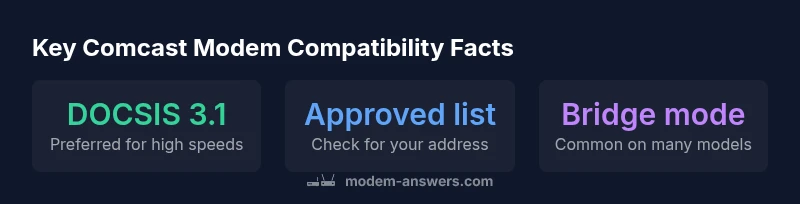
To navigate Comcast modem compatibility effectively, you need to understand a few core terms. DOCSIS is the data transfer protocol cable modems use; Comcast/Xfinity primarily supports DOCSIS 3.0 and 3.1 devices, with 3.1 offering higher speeds and more efficient network use for busy homes. Activation is the process that provisions your device to the network and applies your plan settings; some devices require help from support to complete provisioning. Bridge mode is a setting that disables the modem’s built‑in router, so you can use a separate router for advanced features or broader coverage. An “approved modem” is a device explicitly listed on Xfinity’s compatibility page for your address and plan. Using a device not on the approved list can lead to activation failures, limited service, or lack of troubleshooting support. By becoming fluent in these terms, you can interpret official lists and choose devices that minimize surprises after purchase.
When evaluating options, focus on DOCSIS support, bridge mode capability, and the device’s inclusion on the approved list for your address. The practical takeaway is to map your speed needs to the device capabilities and ensure the product appears on the official list before making a purchase.
How Comcast/Xfinity verifies compatibility
Verification begins with the official compatibility materials. Xfinity maintains an online list of approved modems and gateways organized by model, and you should confirm that your device appears on the list for your specific address before buying. After connection, activation proceeds through your Xfinity account, either automatically or with assistance from a support agent. If activation stalls, it can indicate that the device isn’t on the approved list or that the account requires provisioning changes. In some cases you may need to provide the modem’s MAC address or serial number to verify compatibility, particularly if you are replacing a rented device with a third‑party modem. From a network engineering perspective, ensure the device supports the DOCSIS version your plan requires and confirm IPv6 settings are correctly configured for modern home networks. Finally, remember that some plans or promotions restrict device types, so always cross-check the latest details for your plan and locality on Xfinity’s compatibility resources.
Choosing a modem: approved models vs. off-brand
Your modem choice should start with the official compatibility page. If you’re setting up on an Xfinity plan, select devices that appear on the approved list and align with your speed tier. A common approach is to use a DOCSIS 3.0 or 3.1 modem paired with a separate router, which can offer flexibility and potential Wi‑Fi performance improvements. Off-brand devices not listed as approved may work in some scenarios, but activation can be unreliable and you may lose access to provider support. If you’re renting through Xfinity, you gain straightforward activation, firmware updates, and continued assistance. In rented or mixed setups, consider a modem-router combo if you prefer a single device with built‑in Wi‑Fi. The essential goal is a stable, supported configuration, so prioritize approved devices and verify your chosen model supports your address and plan specifics before purchasing.
The role of DOCSIS: 3.0 vs 3.1 and channel bonding
DOCSIS 3.0 and 3.1 define generations of cable modem technology and shape compatibility. DOCSIS 3.1 generally enables higher theoretical speeds and more efficient spectrum use, which is beneficial for households with multiple devices or high‑bandwidth activities. When assessing Comcast modem compatibility, prioritize devices that support the DOCSIS version required by your plan and are listed as approved for your address. Channel bonding—aggregating multiple channels for higher throughput—often benefits 3.1 devices, particularly in crowded networks. For many homes, a DOCSIS 3.1 modem on Xfinity’s approved list offers a forward‑looking option, while 3.0 devices can still meet midrange needs. Always verify the latest compatibility guidance, as firmware updates and new service tiers can shift which devices are supported.
Troubleshooting common compatibility issues
After selecting a compatible modem, you may encounter setup hiccups. Begin with a simple reboot of both modem and router if you’re using a separate device; this resolves many common network problems. If activation stalls, double‑check that the modem is on the approved list for your address and that account details are entered correctly. If activation continues to fail, contact Xfinity support to confirm provisioning and MAC address assignments. Firmware updates can improve compatibility, but not all updates apply to third‑party devices; sometimes you must wait for a provider‑side update. If you’re using a gateway device, review security settings to minimize interference from parental controls, firewall rules, or guest networks. Systematically ruling out these issues helps identify the root cause and restore reliable service more quickly.
At-a-glance compatibility reference for Comcast/Xfinity
| Aspect | Definition | Why it matters |
|---|---|---|
| DOCSIS Version | 3.0 vs 3.1 compatibility | Impacts device support and speed capabilities |
| Activation Method | Self-activation vs. approved activation | Affects setup time and reliability |
| Bridge Mode Availability | Modem in bridge vs. gateway mode | Determines router performance and security |
FAQ
What does Comcast mean by compatible modem?
A compatible modem is one that's on Comcast/Xfinity's official compatibility list for your address and plan and supports the required DOCSIS standard. Using a compatible modem ensures activation succeeds and you receive full support from the provider.
A compatible modem is on the official list for your address and plan and supports the needed DOCSIS standard.
Can I use any DOCSIS modem with Xfinity?
Not every DOCSIS modem is approved for Xfinity. Check the official compatibility page for your address and plan to confirm support before purchasing.
Not every DOCSIS modem is approved; always check the official list for your address.
How do I check if my modem is on the approved list?
Visit Xfinity’s official compatibility page and filter by your address. Look up your exact modem model and verify it appears on the list before activation.
Use Xfinity’s compatibility page to confirm your model is on the list for your address.
Do I need a modem-router combo device?
A modem-router combo can simplify setup, but you must ensure the device is on the approved list and supports your speed tier. Separate modem and router often offer more flexibility and advanced features.
A combo device can be convenient, but confirm compatibility and speed; separate devices offer flexibility.
What could cause compatibility issues after upgrading?
If you upgrade or switch plans, the new speed tier may require a different DOCSIS version or an updated approved list. Recheck the compatibility page and re‑activate if needed.
New plans might need a different DOCSIS version; re-check compatibility and activate again.
How long does activation take for a new modem?
Activation typically completes within minutes, but in some cases it may take longer if provisioning is required from support. If it stalls, verify the device is approved for your address and contact support.
Activation is usually quick, but can take longer if provisioning is needed.
“When evaluating Comcast modem compatibility, stick to officially approved models and DOCSIS standards; using unlisted devices can lead to activation failures or limited service.”
Key Takeaways
- Check the official Xfinity compatibility list before buying.
- Prioritize DOCSIS 3.1 devices for future‑proofing.
- Prefer approved modem models to ensure activation success.
- If in doubt, consider renting through Xfinity for guaranteed support.