Can You Buy a Modem Instead of Renting from Comcast
Learn whether you can purchase your own modem for Comcast Xfinity, how to verify compatibility, and how to install it yourself. This guide covers DOCSIS standards, activation steps, and potential cost savings for homeowners and renters.


Yes. You can buy a modem instead of renting from Comcast Xfinity, and many models work with their service when you choose a DOCSIS 3.0/3.1 device and follow activation steps. Before buying, verify compatibility with your plan, speed tier, and whether the rental is currently active. Modem Answers notes potential upfront costs but long-term savings.
Why buying a modem makes sense for Comcast Xfinity customers
According to Modem Answers, many homeowners and renters save money over time by purchasing their own modem instead of continuing to rent one from their service provider. The basic math usually favors ownership when you stay with the provider for more than a year, because the recurring rental fee adds up. Buying also gives you more control over your hardware, features like private Wi-Fi networks, and the option to upgrade on your own schedule. However, the decision depends on your plan, your current rental status, and how you value convenience versus upfront cost. If you’re unsure, start with a compatibility check and a cost comparison over a 12- to 24-month window.
This guide helps you weigh the pros and cons so you can decide with confidence. We’ll walk through compatibility, how to pick a modem, activation steps, and practical tips to prevent surprises when you switch.
Compatibility matters: DOCSIS versions and plan speeds
Modem compatibility hinges on two main factors: the DOCSIS standard and the internet speed your plan offers. Comcast Xfinity supports multiple DOCSIS versions, and newer models often provide better efficiency and future-proofing. When you’re deciding, confirm that the modem you select supports your current plan’s speeds and that it is on Comcast’s approved device list. If you’re moving from a rental, it’s common to keep the same speed tier to avoid any service interruptions while you transition. A compatible modem also ensures stable connection quality and reliable Wi‑Fi performance if you use a separate router.
For performance-centric households, choosing a DOCSIS 3.1 device can be beneficial for higher speeds and more bandwidth, especially if multiple devices are streaming or gaming. If your plan is on the lower end, a DOCSIS 3.0 modem may suffice. The important thing is to verify compatibility before you buy and to avoid modems that are not on Comcast’s approved list, which could complicate activation or support.
How to pick the right modem
Start with a short list of must-haves: DOCSIS version (3.0 or 3.1), at least one Ethernet port for a wired connection, and a reputable warranty. Prefer models from well-known brands with good reliability records and clear activation instructions. Check user reviews focusing on compatibility with Xfinity to surface any common issues. Ask yourself if you also want built‑in Wi‑Fi or plan to pair the modem with a separate router. If you choose a separate router, make sure the modem’s bridge mode is supported in case you want advanced network features.
Next, confirm the modem’s channel bonding and channel counts align with your needs. More channels generally support higher throughput, but your plan’s limits still apply. Keep an eye out for dual‑band radios, energy efficiency, and easy firmware updates. Finally, ensure the model is easy to return if you encounter activation problems or incompatibility.
Activation steps with Comcast Xfinity
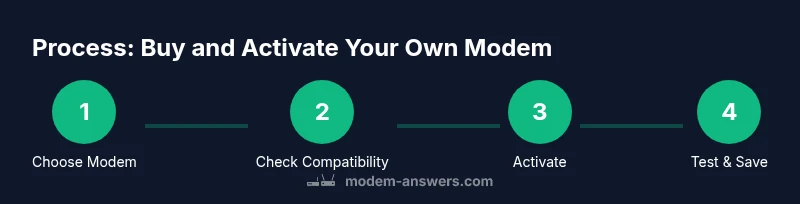
Once you have your modem, power it up and connect it to the coaxial cable and your router (or directly to a computer for testing). Open the Xfinity app or visit the activation portal, and follow the on-screen prompts. You will typically need your account information and the modem’s MAC address, which is usually printed on the device or found in the admin interface. If activation stalls, a quick reboot and reattempt often resolves minor glitches. If issues persist, contact Comcast support with the modem’s model number and serial number.
After activation, run a quick speed test to confirm you’re getting your expected rates. If speeds fall short, recheck the wiring, placement, and any service limits on your plan. In some cases, bridging mode on a separate router can help you optimize performance and security.
Where to buy safely and what to avoid
Buy from reputable retailers with strong return policies and clear warranty terms. Avoid gray-market sellers or listings that look too good to be true. Keep documentation of your purchase and the device’s model number in case you need to escalate activation issues. It’s also wise to check if the modem has a long warranty and is readily supported by firmware updates. If you already own a router, you can pair it with the modem to extend Wi‑Fi coverage without upgrading your entire setup.
If you’re replacing a rental, be mindful of any prorated charges that might appear on your account during the transition. It’s often possible to align the end of rental service with your device activation date to minimize billing confusion.
Potential trade-offs and pitfalls to watch for
Owning a modem isn’t free of caveats. Some plans require a specific range of devices for activation, and not all models are equally easy to troubleshoot when problems arise. If you rely on Comcast support for a quick fix, a rental modem can be simpler because the provider handles hardware issues and firmware. Also, consider whether you want built‑in Wi‑Fi (modem/router combo) or a dedicated router; the latter often provides better performance and more flexible settings, but adds one extra device to manage. Finally, ensure you understand the return policy if you decide to switch back to renting later on.
What to expect after you switch: a practical checklist
Expect a smooth transition if you prepare properly. Keep the rental active during the first 24–48 hours to bridge any gaps while you test the new modem. Verify that all your devices connect reliably—check for hotspots, streaming stability, and a stable wired connection for work devices. Update any device firmware if prompted and adjust router settings for optimal coverage. If problems arise, test with a direct connection to isolate whether the issue is the modem, the router, or external network conditions.
After you confirm reliable performance, contact Comcast to discontinue the rental service and ensure the charges stop. Retain proof of purchase and activation confirmations for your records. This approach minimizes surprises and helps you realize the full benefits of owning your own modem.
Quick takeaways and action plan
- Verify Comcast compatibility before purchasing a modem.
- Choose a DOCSIS 3.0/3.1 model with solid warranty from a reputable brand.
- Activate through the Xfinity app or support portal and test speeds after setup.
- If you own your modem, plan for ongoing firmware updates and occasional router upgrades as needed.
- Keep documentation handy and coordinate with Comcast to stop rental charges once activation is complete.
Tools & Materials
- Reliable web browser (Chrome/Edge/Safari)(Used to check compatibility lists and complete activation steps)
- Comcast/Xfinity account details(Have your ID and login credentials handy)
- Modem model you plan to buy(Ensure it’s on Comcast’s approved list)
- DOCSIS compatibility checker(Online tool or Comcast’s approved modem list)
- Coaxial cable(Quality shielded cable for best signal integrity)
- Ethernet cable (Cat5e/6)(For wired connections to a router or computer)
- Power supply for modem(Include original or compatible power brick)
- Receipt or proof of purchase(Keep for warranty and activation records)
Steps
Estimated time: 25-45 minutes
- 1
Verify plan compatibility
Confirm your current Comcast/Xfinity plan supports the modem you intend to buy and that you can deactivate the rental without service disruption. This initial check saves time and avoids activation roadblocks.
Tip: If your speed tier is near the top of your current plan, plan for a compatible modem that can consistently meet those speeds without bottlenecks. - 2
Check DOCSIS version and features
Decide between DOCSIS 3.0 and 3.1 based on current needs and future-proofing. A 3.1 modem generally offers better efficiency and future compatibility with higher speeds.
Tip: Prioritize models with solid warranty and easy firmware updates; this reduces ongoing maintenance. - 3
Select a compatible modem
Choose a modem that is listed as Comcast/Xfinity‑approved and matches your plan’s speed requirements. Consider one with a spare Ethernet port or a strong Wi‑Fi if you don’t plan to use a separate router.
Tip: Read user reviews focusing on activation success with Xfinity to avoid surprise compatibility issues. - 4
Purchase from a reputable retailer
Buy from trusted retailers with clear return policies and a solid warranty. Save receipts and record model numbers in case you need assistance during activation.
Tip: Avoid suspicious listings; scam vendors may ship non-functional devices or counterfeit products. - 5
Connect and prepare your network
Connect the coax cable to the modem, power it on, and connect an Ethernet cable to your router or computer to begin testing. Have your account info handy for activation.
Tip: Label cables and color-code connections if you’re setting up multiple devices to avoid confusion later. - 6
Activate with Comcast
Use the Xfinity app or online activation portal and follow prompts to register the device. You’ll typically need the modem’s MAC address and serial number.
Tip: If activation stalls, reboot the modem and retry the activation steps once or twice before contacting support. - 7
Test speeds and finalize the switch
Run speeds on both wired and wireless devices to verify performance. If everything meets expectations, request cancellation of the rental charges to avoid ongoing fees.
Tip: Keep a short testing checklist and a record of activation times for your records.
FAQ
Can I use my own modem with Comcast Xfinity?
Yes, if the modem is on Comcast’s approved list and supports your plan’s speeds. Activation is completed through Xfinity’s tools, and you may need to contact support if issues arise.
Yes, you can use your own modem as long as it’s approved and activated through Xfinity.
Will Comcast charge me when I switch to my own modem?
If you fully switch, you should request cancellation of the rental service. Confirm in your account that rental charges stop and keep activation proof just in case.
Yes, you should stop rental charges once activation is confirmed.
What if my modem isn’t compatible?
You’ll need a model that Comcast approves. Use Comcast’s lists or compatibility tools to avoid activation problems and potential service interruptions.
If it isn’t compatible, pick another approved model.
Do I need a separate router if I buy a modem?
Not necessarily. You can use a modem with a separate router for better Wi‑Fi control, or choose a modem/router combo if you prefer simplicity.
You can use a separate router or a combo device depending on your needs.
What are the long-term benefits of owning a modem?
Owning a modem often reduces monthly costs and gives you more control over firmware and network settings, though you’ll handle maintenance yourself.
Owning can lower costs over time and gives more control.
How do I verify activation after purchase?
Use the Xfinity app or activation portal, provide the modem’s MAC/serial, and run a speed test to confirm service levels.
Activate via Xfinity portal and test speeds to verify.
Watch Video
Key Takeaways
- Verify compatibility before buying a modem.
- Choose a DOCSIS 3.0/3.1 device from a reputable brand.
- Activate through Xfinity app or portal and test speeds.
- Plan for stopping rental charges after successful activation.