Can You Get a New Modem from Xfinity? A Step-by-Step Guide
Discover whether you can get a new modem from Xfinity, compare rental vs. purchase, and learn activation steps with clear guidance for homeowners and renters.


Yes — you can get a new modem from Xfinity. You have options: rent a modem directly from Xfinity and have it delivered or picked up, or buy a compatible Xfinity-approved modem from a retailer and activate it on your account. This guide walks you through choosing, purchasing, and activating a new modem, plus tips for renters and homeowners on a smooth upgrade.
Can you get a new modem from xfinity and why this matters
The short answer is yes: you can get a new modem from Xfinity to refresh your home network. For many households, a newer modem (and compatible gateway) can unlock faster speeds, better Wi‑Fi coverage, and more reliable connections for streaming, gaming, and remote work. The question can you get a new modem from xfinity often comes up when a device is aging, when a move happens, or when a technician visit is not convenient. According to Modem Answers, understanding your options helps you balance cost, control, and performance. Xfinity offers at least two paths: renting a modem directly through your account or purchasing an approved, compatible model from a retailer and activating it on the service. Before deciding, note that compatibility matters as much as price. Some higher-speed plans require DOCSIS 3.1 devices and certain channels, so verify what your plan supports before you buy or rent. In practice, your goal is to minimize downtime and ensure your home network remains secure while you upgrade.
How Xfinity modem options work
Xfinity positions modem options along two main tracks: rental and purchase. Rental provides simplicity, ongoing support, and a known monthly cost, while buying offers ownership, potential long-term savings, and the freedom to choose a model that best fits your home network. Regardless of path, you’ll need a device that is compatible with Xfinity’s network and supports your chosen speed tier. Modem Answers highlights the importance of selecting a DOCSIS standard and channel bonding that aligns with your internet plan. Approved models are available from Xfinity’s site and in retail stores, and activation is typically done through the Xfinity app or online portal once the device is connected to your service line.
Checking eligibility and terms
Before you commit, confirm whether you are eligible for a device swap or upgrade under your current plan. Existing customers may have different terms than new customers, and moving to a different address can trigger a reassessment of compatibility and device support. You’ll want to log into your Xfinity account to review your plan, devices associated with your account, and any upgrade options. The Modem Answers team notes that some plans have minimum modem requirements to unlock peak speeds, while others work with a wider range of devices. If you’re renting, check the rental agreement for upgrade or replacement terms. If you’re buying, ensure the model is listed as Xfinity-approved to avoid activation hiccups.
How to choose: rental vs buy
Choosing between renting and buying depends on your usage, budget, and how long you expect to stay in the home. Renting offers predictable monthly costs, bundled support, and easy replacements if the device fails. Buying gives you ownership, potential long-term savings, and the flexibility to switch providers without worrying about a lease, but it requires upfront investment and self-activation. Consider your speed needs, smart-home devices, and whether you want features like built‑in Wi‑Fi 6 or 6E. If you plan to stay for several years and want control over the hardware, a purchase is often worth considering. If you move frequently or prefer hands-off support, renting can be appealing. The key is to verify that any chosen modem is DOCSIS 3.1 compatible and approved for your specific Xfinity plan.
Compatibility and activation steps
Compatibility is the linchpin of a smooth upgrade. Look for DOCSIS 3.1 support and at least gigabit-grade Ethernet interfaces. Xfinity maintains a list of approved modems; sticking to that list minimizes activation problems. Activation typically involves connecting the modem to your coaxial line, powering it up, and then signing into the Xfinity app or website to associate the device with your account. If you’re bringing your own modem, you’ll be prompted to activate it and award it a service profile. If you opt for an Xfinity rental, activation is often immediate once the device is connected and your account recognizes it. In all cases, a factory reset on the new modem can help resolve initial setup quirks, and you should test the connection after activation to confirm speeds match your plan.
Steps to obtain a new modem from Xfinity
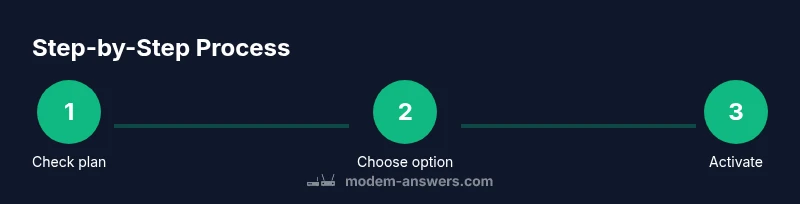
There are straightforward ways to obtain a new modem from Xfinity, depending on whether you want to rent or own. First, confirm your plan’s compatibility and the expected speeds. Then decide whether to rent via your Xfinity account or purchase an approved modem from retail. After choosing, you’ll either place an order for a rental device or purchase a model that’s on Xfinity’s approved list. Finally, connect the modem, activate it through the Xfinity app or website, and run a speed test to verify performance.
Common scenarios for renters vs homeowners
Renters often prefer the simplicity and flexibility of a rental modem, especially if living in a rental that may require frequent moves. Homeowners might favor purchasing a router/modem combo or a dedicated gateway with advanced Wi‑Fi features for larger homes or multiple devices. If you rent, make sure the rental policy allows you to replace the device, and consider whether a new rental qualifies for upgrades. If you own, verify your model’s longevity and firmware support. In either case, ensure compatibility with your service tier and confirm activation steps with Xfinity.
Security and maintenance tips
Keep your home network secure by enabling automatic firmware updates when available, changing default passwords, and placing your router in a centralized, elevated location away from potential interference. Regularly reboot your modem to clear caches and refresh connections, especially after upgrading or adding smart devices. If you use a separate router, ensure the router firmware is updated and that the bridge mode setting (if used) is configured correctly to avoid double NAT issues. The Modem Answers guidance emphasizes maintaining a clean network topology and documenting any changes to your home network for quick troubleshooting.
What to expect after you get a new modem
After you obtain and activate a new modem, you should experience a period of stabilization as your device negotiates the best channels with your ISP. Expect a confirmation in the Xfinity app or via email that the device is active on your account. Run a speed test to compare your results with your plan’s advertised speeds, and check for any signal issues or dropouts. If problems persist, a quick reset or re-activation through the app often resolves most setup glitches. If you encounter persistent problems, contact Xfinity support for device-specific troubleshooting.
Tools & Materials
- Xfinity account login(Have your username and password ready; you may need to verify your identity)
- Modem (if buying)(Choose an Xfinity-approved model (DOCSIS 3.1) and ensure it fits your space)
- Coaxial cable(One with secure connectors; avoid damaged cables)
- Ethernet cable(Cat5e or better recommended for reliable wired speeds)
- Power supply for modem(Original power brick if buying; ensure compatibility with outlet type)
- Xfinity app or web portal(Used for activation and device management)
Steps
Estimated time: 45-60 minutes
- 1
Confirm eligibility and plan compatibility
Log into your Xfinity account and review your plan’s compatibility with newer modems. Ensure your speed tier and activation options allow a replacement or upgrade.
Tip: If you are moving residences, verify service readiness at the new address before buying. - 2
Decide rental vs. purchase
Weigh ongoing rental costs against a one-time purchase. Consider how long you expect to stay in your current home and whether you want ownership of the device.
Tip: If you frequently move, renting can simplify transitions; otherwise, buying may save money long-term. - 3
Choose a model on the approved list
Select a DOCSIS 3.1 modem (and a compatible gateway if needed) from Xfinity’s approved list. Avoid unsupported devices to prevent activation delays.
Tip: Prefer newer generation devices to maximize future-proofing and security updates. - 4
Acquire the device
Purchase from an authorized retailer or rent through Xfinity. Keep receipts and model numbers in case you need to reference them for support.
Tip: If renting, confirm the return policy for upgrades or replacements. - 5
Connect and power up
Attach the coaxial cable, plug in the modem, and power it on. Ensure all connections are secure and the device boots fully.
Tip: Avoid running the modem behind furniture or in enclosed cabinets to improve signal quality. - 6
Activate on your account
Open the Xfinity app or visit the activation site and follow prompts. The system will link the device to your account and plan.
Tip: If activation fails, perform a factory reset and retry activation. - 7
Test and optimize
Run a speed test and check multiple devices to verify performance. Adjust placement or settings if needed.
Tip: Consider pairing a separate router for enhanced Wi‑Fi coverage if you need broader range.
FAQ
Can I get a new modem from Xfinity if I am already a customer?
Yes. Current customers can upgrade or swap modems, either by renting a newer model through their account or purchasing an approved modem and activating it on their service.
Yes. If you're already with Xfinity, you can upgrade or swap your modem by renting a newer model or buying an approved modem and activating it on your account.
Is there a charge to replace or upgrade the modem?
Xfinity may charge rental fees for a newer rental device or apply a one-time activation/upgrade fee if you purchase a modem. Check your current plan terms for exact costs.
There could be a rental fee for a newer device, or a one-time upgrade charge if you buy a modem. Check your plan terms for exact costs.
Do Xfinity-approved modems support gigabit speeds?
Many Xfinity-approved modems support high-speed tiers, including gigabit plans, when paired with a compatible gateway or router. Always verify the specific model on Xfinity’s approved list.
Most Xfinity-approved modems support high-speed plans like gigabit, but confirm the exact model on Xfinity’s approved list.
Can I return a purchased modem if I change my mind?
Return policies vary by retailer and device; Xfinity activation generally locks the device to your account. If you bought it, check the retailer’s return window and Xfinity’s guidance on device ownership.
Return policies depend on the retailer and device, so check the retailer's window and Xfinity's policy on device ownership.
How long does activation take after plugging in a new modem?
Activation is typically quick through the Xfinity app or portal, with service recognition often occurring within minutes after setup.
Activation usually takes a few minutes once you use the Xfinity app or portal.
What should I do if the modem doesn’t work after activation?
If issues persist, restart the device, re-run activation, and verify coax connections. If problems remain, contact Xfinity support for device-specific troubleshooting.
If it still doesn’t work, reboot, re-activate, and check coax connections; contact Xfinity if issues persist.
Watch Video
Key Takeaways
- Know your options: rent vs buy, and choose what fits your long-term plan.
- Verify DOCSIS compatibility and Xfinity approval to avoid activation delays.
- Activate through the Xfinity app for a smooth setup and quick testing.
- Secure your network with updated firmware and proper passwords.