How to Register a Modem with Xfinity: A Step-by-Step Guide
Learn how to register a BYO modem with Xfinity, activate service, and troubleshoot activation errors with this in-depth guide from Modem Answers.


In this guide on how to register modem with xfinity, you will learn the exact steps to activate a compatible modem, ensure your account supports BYO hardware, configure your network settings, and confirm your service is active. The instructions are designed for homeowners and renters, and include troubleshooting tips for common activation errors.
Before you begin: understand Xfinity BYO policy
According to Modem Answers analysis, BYO (bring your own) modems are commonly accepted by Xfinity for residential service, but eligibility depends on your account and location. This means you can use a compatible modem you already own, potentially saving on rental fees. Start by checking your Xfinity plan and confirming BYO support with your account portal or support representative. If BYO is allowed, you will still need to register the device and activate it through Xfinity's activation steps. Keep in mind that not all models are supported, and some features like advanced security or certain speed tiers may require an Xfinity router or gateway. This section lays the groundwork for a smoother activation experience and sets expectations for what your modem must support.
What counts as a compatible modem
Xfinity maintains a list of approved modems, typically citing DOCSIS versions, throughput, and compatibility with their services. In practice, most residential customers use DOCSIS 3.0 or 3.1 devices that are on the approved list. The Modem Answers team emphasizes verifying that your specific model appears on Xfinity’s compatibility roster before purchasing or migrating hardware. If your modem isn’t listed, activation may fail or you could experience limited performance. Always cross-check the model number, firmware status, and whether the modem supports required channels for your speed tier. This step helps you avoid surprises during activation and ensures you’re using a device that can reliably connect to the network.
Gather your accounts and device information
Before you begin activation, gather essential information so the process goes smoothly. You’ll typically need your Xfinity account username or email, account number, the physical address on file, and the MAC address plus model of your modem. Keep the modem’s serial number handy in case support requests arise. Writing this down or storing it in a note on your phone can prevent delays if you need to re-enter data. Having this information ready also helps you verify the device’s identity quickly during the activation flow and reduces back-and-forth with customer support.
Step 1: physically connect your modem
Start by turning off the power to all devices in the setup chain. Connect a coaxial cable from the wall outlet to the modem’s coax port, ensuring a snug fit without kinking or deforming the cable. Plug the power adapter into a live outlet and connect it to the modem. Allow the modem to boot; a steady power LED and a few startup indicators typically signal readiness. The physical connection is crucial because an improper coax or power disrupts the activation flow and can trigger error codes later in the process.
Step 2: locate and log into the activation portal
Once the modem is powered, open a web browser or the Xfinity app on a smartphone or tablet. Sign in with your Xfinity account credentials. If you don’t have an account, you’ll need to create one linked to your service address. The activation portal is the hub where you register the new device, associate it with your account, and start the provisioning process. If you encounter login problems, try a different device on your home network, ensure cookies are enabled, and clear the browser cache before attempting again.
Step 3: register the modem with Xfinity on your account
In the activation portal, locate the option to add a new device or activate a BYO modem. Enter the device’s MAC address exactly as it appears on the label, along with the model number. Confirm your service address and preferred account options. The portal will verify the device against Xfinity’s system and begin provisioning. If the system flags the modem as unsupported, stop and re-check compatibility and MAC entry, then contact support if needed. This step links your hardware to your Xfinity account for proper provisioning.
Step 4: complete network setup and security settings
After provisioning completes, set up your home network. Create a unique Wi-Fi network name (SSID) and a strong password, and choose security settings such as WPA2 or WPA3 if available. Consider enabling firewall features and disabling WPS for better security. If you already have a router or mesh system, decide whether to place the devices behind the modem or in bridge mode, depending on your home layout and coverage needs. This step ensures your network is both usable and secure from the start.
Step 5: verify activation and test connectivity
With activation complete, verify that your internet service is live by loading a few websites or running a speed test. If pages load normally and speeds align with your plan, you’re likely good to go. If you encounter issues, try rebooting the modem and router, re-checking the Wi-Fi settings, and running another test. Keep an eye on the modem’s LEDs; a solid online indicator typically means the device is communicating correctly with the network. This final check helps you confirm successful activation.
Common pitfalls and troubleshooting tips
Activation can fail for several reasons: a non-approved modem, incorrect MAC address entry, or an account-related flag that blocks BYO devices. Double-check the compatibility list, re-enter the MAC address carefully, and ensure your Xfinity account supports BYO hardware. If activation still fails, contact Xfinity support with your modem model and MAC address on hand. The Modem Answers Team recommends staying calm and methodical, reattempting the activation flow, and noting any error codes for faster resolution and future reference.
Tools & Materials
- Coaxial cable (RG6)(Ensure it is in good condition and at least 1.5 meters long)
- BYO modem (DOCSIS 3.0/3.1)(Must be on Xfinity’s approved list for BYO activation)
- Power adapter for modem(Use the original or a compatible replacement)
- Computer, tablet, or smartphone(Used to access the activation portal and settings)
- MAC address and model number(Found on the modem’s label; record exactly as shown)
- Xfinity account information (username or email)(Needed to log in and associate the device)
- Pen and paper or digital notes(For jotting down login details and MAC address)
Steps
Estimated time: 30-60 minutes
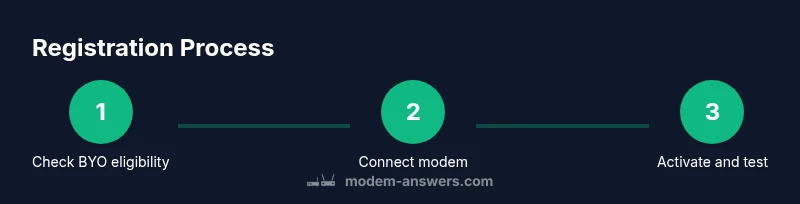
- 1
Check compatibility and eligibility
Verify your modem is on Xfinity’s approved BYO list and confirm BYO is allowed for your account. This avoids activation failures and ensures you won’t waste time provisioning an unsupported device.
Tip: If in doubt, contact Xfinity support before purchasing the device. - 2
Connect the modem physically
Attach the coaxial cable to the modem and wall outlet, then plug in the power. Wait for the device to boot and display a steady online indicator.
Tip: Use a surge-protected outlet to protect your equipment. - 3
Log into the activation portal
Open a browser or the Xfinity app and sign in with your account. Navigate to the BYO or activation section to start provisioning.
Tip: If you can't log in, reset your password or try a different device on your home network. - 4
Register the modem on your account
Enter the MAC address and model number, confirm your service address, and initiate provisioning. The system will verify compatibility and begin activation.
Tip: Double-check the MAC address for exact entry; a single character error blocks activation. - 5
Configure network settings
Set a unique SSID and strong password, choose WPA2/WPA3, and enable necessary security features. Decide on bridge mode if you’re using a separate router.
Tip: Document your SSID and password for future changes or device additions. - 6
Verify activation and test connectivity
Run a quick speed test and load several sites to ensure the connection is stable. If issues appear, reboot devices and retry activation.
Tip: If speeds consistently miss your plan, contact support with the error codes you saw.
FAQ
Can I register any modem with Xfinity?
Xfinity supports specific modems listed on their approved BYO hardware page. Verify your exact model and firmware status before attempting activation.
Xfinity only supports certain modems. Check the approved list to confirm your model before activation.
Do I need to be an Xfinity customer to register a modem?
Yes. You need an active Xfinity account associated with your service address to register a BYO modem and complete activation.
You’ll need an active account tied to your address to register a modem.
What if activation shows 'modem not found'?
Double-check the MAC address, ensure you’re using the correct activation portal, and try a reboot. If it persists, contact support with your modem details.
If you see 'modem not found', verify MAC, retry activation, and contact support if needed.
Can I activate the modem over the phone?
Activation is primarily online through the Xfinity portal or app. Phone support can assist, but online activation is usually faster.
Online activation is the standard path; phone help is available if you need it.
How long does activation take?
Activation typically completes within minutes, but it can take up to an hour if provisioning queues are heavy or if there are compatibility checks.
Most activations are quick, but delays can occur during peak times.
What should I do if I can't find the MAC address?
Check the modem label on the bottom or back, or consult the manual. If still missing, contact the manufacturer’s support for guidance.
Look on the device label; if you can't find it, ask support or check the manual.
Watch Video
Key Takeaways
- Verify BYO compatibility before activation.
- Gather MAC address, model, and account details upfront.
- Follow the activation prompts precisely to provision the device.
- Set a strong Wi-Fi name and password for security.
- Test connectivity and keep notes for future changes.