How to Set Up Xfinity Modem When Moving
A complete, step-by-step guide to moving and reactivating your Xfinity modem in a new home, with planning tips, activation steps, and troubleshooting to minimize downtime.


Moving homes with an Xfinity modem? This guide provides the essential steps to safely relocate, reconnect coax and power, activate service at the new address, and verify network performance. Plan ahead, gather the right cables, and follow the step-by-step process to minimize downtime and avoid activation delays.
Planning the Move and Checking Service Availability
Moving is a great time to rethink your home network. If you search for how to set up xfinity modem when moving, start with a quick service check: confirm your new address is within Xfinity’s service area and verify whether you’ll reuse the same modem or need rental equipment at the new location. According to Modem Answers, careful planning reduces downtime and activation friction. Document your current device’s MAC address, model, and the required activation method (in-app vs. web activation). A simple move plan includes a basic tool list, a packing timeline, and a test script for post-setup validation. This early prep helps you avoid surprises and makes the actual move day smoother for everyone involved.
Gathering Materials and Account Details
Before you pack, assemble the items you’ll need at the new place and confirm account details. You’ll want a coaxial cable (RG6), an Ethernet cable (Cat5e or better), and a power supply with surge protection. Have your Xfinity account information handy, plus any notes on the activation method you’ll use at the new address. If you’re moving within the same provider, activation is usually straightforward, but a move to a new service address may require re-provisioning or a quick technician check. Keep a labeled bag for each cable so you don’t misplace anything on moving day.
Disconnecting at the Old Location and Packing
On moving day, power down the modem, disconnect all cables, and unplug from the wall outlet. Carefully detach the coaxial cable from the wall and the modem, and unplug the Ethernet cable. Pack the modem and accessories in a cushioned container to prevent heat or impact damage. Label each cable with its destination (e.g., “Living Room” or “Office”) to speed reconnecting. If you’re using a separate router, keep it with the modem in the same packing to simplify the setup at the new home. This step minimizes the chance of signal loss or damage to fragile connectors.
Transporting and Reconnecting at the New Home
Upon arrival, inspect the new space for a clear coax line path and an accessible power outlet. Position the modem on a stable surface away from heat sources and moisture. Reattach the coaxial cable to the wall outlet or splitter, then connect the modem’s power supply. Bring the Ethernet cable to your primary testing device (laptop or computer) and connect it to the modem to verify connectivity before expanding to Wi‑Fi. Ensure the coax connectors are snug but not over-tightened; loose connections can cause intermittent outages. Planning the layout now saves time later and reduces the risk of unexpected outages.
Activation, Bridging Mode, and Network Testing
Activate the modem at the new address through the Xfinity app or website. You’ll likely need your MAC address and account details for device provisioning. If you own a separate router, decide whether you’ll enable bridge mode to avoid double NAT, or use the modem-router combo as your hub. After activation, test wired and wireless connections, checking speed and stability. If you run into issues, a quick modem reboot and network reset can fix most problems. This is also a good time to verify your Wi‑Fi name (SSID) and password.
Troubleshooting Common Move-Day Issues
If activation stalls, verify cable integrity and coax continuity; a damaged cable is a frequent culprit. Recheck the power supply and outlet status; a loose plug can mimic a hardware fault. If your device still won’t activate, use the Xfinity app’s diagnostics or contact customer support for remote assistance. Document any changes you make and run a speed test to ensure you’re getting the service level you’re paying for. Pro tip: keep a backup plan, such as a mobile hotspot, for urgent connectivity during the move.
Special Considerations for Renters and Multi-Device Homes
Renters should clarify lease terms about returnable equipment and contact a property manager if there are building-wide network provisions. In homes with multiple modems or a dedicated mesh network, bridging mode should be used judiciously to avoid conflicts. If your home uses a fiber or DOCSIS upgrade, verify compatibility of your modem with the service tier you’ll receive. Having a clear edit trail of activation steps and supported devices helps prevent last‑minute service interruptions.
Move-Day Checklist and Final Tips
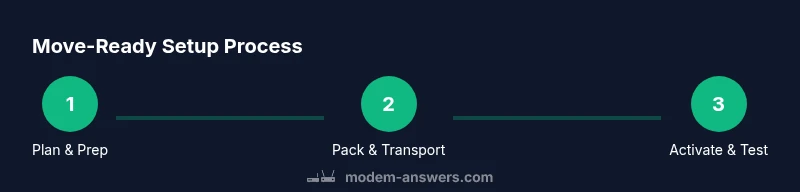
Create a simple move-day checklist: confirm service availability, pack and label all cables, verify coax and power at the new location, perform the activation, and run a full network test (wired and wireless). Ensure you have at least one spare cable and a backup power source for critical equipment. The Modem Answers team recommends following this sequence to minimize downtime and ensure a smooth transition between addresses.
Tools & Materials
- Coaxial cable (RG6)(Have a spare length (6–12 ft) for awkward layouts; avoid long, unsupported cable runs.)
- Ethernet cable (Cat5e/Cat6)(At least 6 ft; longer if your device will be farther from the modem.)
- Power supply with surge protection(Ensure it matches the modem’s input (usually 12V).)
- Modem and any router you plan to reuse(Keep original packaging or a padded bag for protection.)
Steps
Estimated time: Total estimated time: 60-120 minutes
- 1
Power down and unplug old modem
Shut down the modem and unplug the power supply, then disconnect both the coaxial and Ethernet cables. This prevents any power surges and protects connectors during transport.
Tip: Label cables before disconnecting to ease reconnecting at the new address. - 2
Pack and label equipment
Wrap the modem, router, and cables in cushioned material. Place each item in a separate labeled bag or box and note the destination room.
Tip: Use small bags for adapters and keep up to date records of MAC addresses. - 3
Transport to the new home
Move equipment in a padded bag or carry-on style box to avoid jostling. Keep the coax and power components together for quick setup.
Tip: Avoid placing the modem in extreme heat or direct sunlight during transit. - 4
Connect at the new location
Mount or place the modem, connect the coaxial cable to the wall outlet or splitter, then plug in the power supply. Attach Ethernet to a testing device to confirm a wired connection.
Tip: Make sure you run the cable behind furniture to prevent tripping or pulling on connectors. - 5
Activate the device
Use the Xfinity app or website to activate the modem. Enter required details like the MAC address and account information. Expect 5–15 minutes for provisioning.
Tip: If activation stalls, remove and reinsert the power, then reattempt activation. - 6
Set up Wi‑Fi and test
Configure your Wi‑Fi SSID and password, then connect multiple devices to verify stability and speeds. Run a quick speed test to compare live results to your plan.
Tip: Consider updating firmware if prompted during setup. - 7
Consider bridging or double NAT
If you use a separate router, enable bridge mode on the Xfinity gateway to avoid double NAT, unless you require advanced features that demand a router behind the gateway.
Tip: Check with support before changing network modes to prevent outages. - 8
Finalize and document
Record your new network settings, confirm all devices connect, and archive any activation confirmation codes for future reference.
Tip: Keep a copy of the activation result in your move notes.
FAQ
Do I need to contact Xfinity before moving to a new address?
Yes. Contact Xfinity to confirm service availability, update address details, and ensure your modem will be provisioned correctly at the new location. This can prevent activation delays.
Yes. Contact Xfinity to confirm service at your new address and update your account so activation goes smoothly.
Can I reuse my old modem at the new place?
If the modem is compatible with your service tier and not restricted by the provider, you can reuse it. Activation will still be required at the new address.
You can reuse it if it’s compatible, then activate it at the new address.
What if activation fails after moving?
First, verify all cable connections and power. If it still fails, use the Xfinity app diagnostics or contact support for remote assistance.
Check cables and power, then use diagnostics or contact support if activation doesn’t work.
Should I enable bridge mode if I have a separate router?
Bridge mode can help avoid double NAT when using a dedicated router. Enable it only if you need advanced routing features and after confirming compatibility with your gear.
Bridge mode helps with a single router setup; enable it if your gear requires it.
What information is needed for activation?
You’ll typically need your account number, the MAC address of the modem, and your current service address.
Have your account number and MAC address handy for activation.
What if I’m moving to a different provider area?
If moving to a region outside Xfinity coverage, you’ll need to switch services. Verify options and equipment compatibility with the new provider.
If you’re moving outside Xfinity coverage, check alternatives with the new provider.
Watch Video
Key Takeaways
- Plan ahead to minimize downtime.
- Verify service availability at the new address.
- Label, pack, and transport equipment carefully.
- Activate, test, and optimize your network on move day.