How to Activate an Xfinity Modem Without the App
Learn how to activate an Xfinity modem without the app using a browser-based flow. This guide covers prerequisites, browser steps, troubleshooting, and post-activation security.


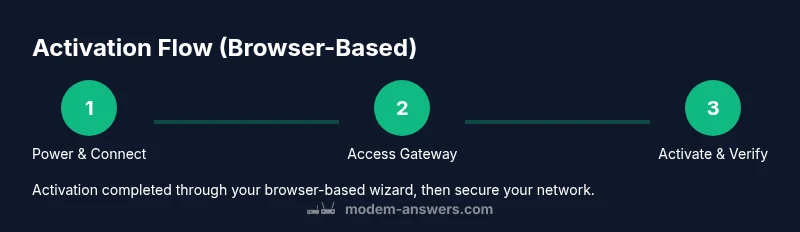
According to Modem Answers, you can activate an Xfinity modem without the app by using the browser-based activation flow. Connect the modem to your home network, power it on, open a web browser, and access the gateway’s local setup page (often 10.0.0.1 or 192.168.0.1). Follow the on-screen prompts to complete activation. If the wizard doesn’t appear, contact Xfinity support.
Overview: Activate without the app — when and why
According to Modem Answers, activating a Comcast/Xfinity modem without the mobile app is a practical option when the app isn’t available or you prefer a browser-driven flow. This guide walks you through a browser-based activation, what you’ll need, and how to verify a healthy connection after activation. You’ll learn how to load the gateway’s setup page, follow prompts, and secure your network after activation. The approach prioritizes reliability and minimizes downtime.
What you need before you start
Before attempting activation without the app, assemble the essentials: your Xfinity account details, a computer or smartphone, and a direct connection to the modem. Modem Answers analysis shows that having a stable internet connection and access to the gateway admin page dramatically reduces setup friction. Keep a clean workspace, disable VPNs on the device you’re using for activation, and ensure your modem is near a suitable power source.
Browser-based activation flow
To begin, power on the modem and connect a device to the modem via Ethernet or Wi-Fi. Open a web browser and navigate to the gateway’s local setup page, commonly http://10.0.0.1 or http://192.168.0.1. The browser should load the activation wizard; if not, try the alternate address or consult the manual for your specific model. Follow the prompts to sign in with your Xfinity account and authorize activation. You may be asked to confirm service details or accept terms; complete these steps to proceed.
Troubleshooting activation issues
If the activation wizard doesn’t load, first rule out simple issues: ensure the device is directly connected to the modem, refresh the page, and clear the browser cache. Try a different browser or device, and reboot the modem if necessary. If the page still won’t load, verify you’re not connected to a VPN and contact Xfinity support for alternative activation methods.
Using your own router after activation
After activation succeeds, you can place your own router behind the modem. Decide whether to enable bridge mode or connect the router in gateway mode, depending on your networking needs. If you opt for bridge mode, follow the model-specific instructions to minimize double NAT and preserve performance.
Post-activation checks and security
Verify your internet connection by loading several pages and running a quick speed test. Change the Wi‑Fi network name and strong password to secure your network. Update the modem’s firmware if prompted, and review security settings in the gateway admin panel to disable UPnP if you don’t need it.
When to revert to app-based activation or call support
If browser-based activation continues to fail, you may revert to the Xfinity app or call customer support for assisted activation. Some features or advanced configurations might require the app or direct support interaction. Keeping a backup plan ensures minimal downtime and faster restoration of full service.
Quick-reference activation checklist
- Power cycle the modem and verify LEDs are steady
- Connect a device via Ethernet for reliability
- Access gateway admin page (10.0.0.1/192.168.0.1)
- Complete the activation wizard and sign in
- Run post-activation checks and secure your network
Tools & Materials
- Computer or smartphone(Wi-Fi or Ethernet; ensure browser access to the modem's admin page.)
- Direct Ethernet cable(Connect the computer to the modem for reliable access.)
- Modem power adapter(Plug in the modem and allow full boot (2–5 minutes).)
- Xfinity account details(Account number or login email for activation.)
- Active internet connection(Ensure upstream connectivity during activation.)
- Web browser(Chrome/Edge/Safari; disable VPN during activation.)
Steps
Estimated time: 30-60 minutes
- 1
Power on the modem
Plug in the modem and wait for the device to boot completely. Look for stable status LEDs before proceeding to avoid incomplete activation.
Tip: If LEDs stay off after several minutes, unplug and replug the power cord and check the power outlet. - 2
Connect a device to the modem
Use an Ethernet cable to connect your computer to the modem, or ensure your phone/tablet is connected to the modem’s Wi‑Fi network. A direct connection reduces activation errors.
Tip: Wired connection typically provides a more reliable activation experience. - 3
Open the gateway's local setup page
In a browser, enter the local admin address for your gateway (usually 10.0.0.1 or 192.168.0.1). If one address doesn’t load, try the other and refresh.
Tip: If neither works, check your device’s network settings or consult the modem’s manual. - 4
Start the activation wizard
Look for an option to activate a new device or complete setup. Select it and prepare to sign in with your Xfinity account.
Tip: Some models label the step as 'Activate,' 'New Device,' or 'Setup Wizard'. - 5
Sign in and authorize activation
Enter your Xfinity credentials to verify service and link the modem to your account. Follow on-screen prompts to grant required permissions.
Tip: Use the account email you registered with Xfinity for quickest verification. - 6
Complete activation and confirm status
Finish the wizard and check that the gateway reports an active connection and your devices can access the internet.
Tip: Don’t close the browser window until the activation status confirms success. - 7
Configure router options (optional)
If you plan to use your own router, decide between bridge mode or cascading routers. Configure according to your network needs.
Tip: Bridge mode can reduce double NAT; consult your router’s manual for precise steps.
FAQ
Can I activate my Xfinity modem without the app?
Yes. You can use the gateway’s local setup page in a browser to run the activation wizard and link your modem to your Xfinity account.
Yes, you can activate it through the gateway’s browser page if you don’t want to use the app.
What do I need before starting activation without the app?
You’ll need your Xfinity account details, a device with a browser, a stable internet connection, and a direct connection to the modem.
You’ll need your account details and a device with a browser connected to the modem.
What if the activation page doesn’t load in the browser?
Try the alternative gateway address, refresh the page, disable VPNs, or use a different browser. If it still fails, contact support.
If the page won’t load, try another address or browser, and contact support if needed.
Can I use my own router after activation?
Yes. You can place your own router behind the modem. You may choose bridge mode or a standard cascade setup depending on your needs.
Yes, you can use your own router after activation, usually by setting bridge mode.
Is activation without the app officially supported by Xfinity?
Activation via the browser is a supported alternative when the app isn’t available or convenient.
Yes, it’s supported as an alternative when the app isn’t convenient.
What should I do if I can't access 10.0.0.1 or 192.168.0.1?
Check your device’s network settings, try a wired connection, or consult the modem manual for the correct address.
If you can’t access the admin page, check network settings or try the other common address.
Watch Video
Key Takeaways
- Activate via browser when app isn’t available
- Have account details and a direct modem connection ready
- Follow prompts and verify status before moving on
- Secure your network with a strong password after activation
- Consider bridge mode if using your own router