Spectrum Modem Swap: A Practical Step-by-Step Guide
Learn how to perform a Spectrum modem swap safely and efficiently with a practical, step-by-step process, from preparation to activation and troubleshooting.


With a Spectrum modem swap, you replace your current modem with a Spectrum-approved unit to restore or improve internet performance. You’ll need your Spectrum account, a compatible modem, and a working coax and Ethernet connection. This guide shows the exact steps, safety checks, and activation tips to complete the swap quickly and correctly.
What a Spectrum Modem Swap Is and Why It Matters
According to Modem Answers, a spectrum modem swap means replacing your current Spectrum-provided or third-party modem with a Spectrum-approved model. The goal is to restore or improve reliability, achieve consistent speeds, and simplify support if issues arise. For homeowners and renters, swapping can resolve intermittent dropouts, improve streaming quality, and reduce the need for service calls. The Modem Answers team notes that using an approved modem helps ensure compatibility with Spectrum's activation and network management systems, reducing activation delays and troubleshooting friction. Always verify that the new modem is on Spectrum's approved devices list before swapping, and be prepared to reconfigure any connected routers or bridges for optimal performance.
This article is designed for a broad audience—whether you rent or own, the swap is a common maintenance task that can yield tangible improvements in reliability and speed. By following a clear checklist and using Spectrum-approved equipment, you minimize downtime and get back to streaming, gaming, and remote work with confidence.
Preparing for the Swap: Prerequisites and Safety
Before touching your hardware, gather essential information and set up a safe workspace. Have your Spectrum account number or account login ready; confirm your service address and plan to ensure the device is compatible with your tier. Gather necessary cables and a clean workspace away from water or excessive heat. Power down and unplug all devices connected to the modem to prevent surges or data loss. If you rent a modem from Spectrum, confirm the return process and any fees that may apply. As you prepare, note current network settings you may want to replicate, such as your router's WAN settings, so you can restore optimal performance after the swap.
Pro tip: set aside a small window for activation and testing, and keep a written note of any settings you plan to reuse so you don’t lose important details.
Compatibility and Choosing the Right Modem
Choose a model on Spectrum's compatibility list that supports your internet speed tier. Look for DOCSIS 3.1 or higher (for cable networks) and verify that the device is not already registered to another account in your name. If you own the modem, check the device's MAC address and ensure it isn't locked to a different provider's account. Consider features like channel bonding, USB ports, and dual-band support if you use a separate router. Keep in mind that Spectrum sometimes updates supported models, so check the latest list on their site or contact support. If in doubt, call Spectrum to confirm compatibility before purchasing or swapping.
Activation, Wiring, and Setup: The Swap in Action
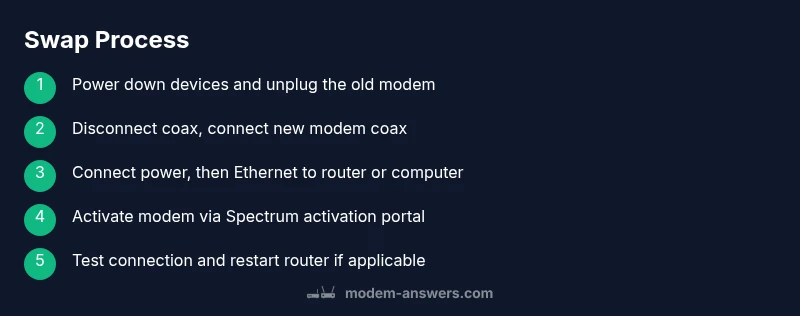
Now it's time to physically swap and activate. Disconnect the old modem's coax and power, then connect the new modem's coax and power. Connect an Ethernet cable from the new modem to a computer or your router’s WAN port. Power on the new modem and wait for the online or power indicators to stabilize. Open Spectrum's activation page and follow prompts; you may need to sign in and confirm the serial or MAC address. If activation stalls, try restarting the modem and, if necessary, reboot the router. After activation, test a basic speed and page load to confirm service is live.
If you’re using a separate router, plan to reconfigure it after activation to ensure DHCP and NAT are correctly set. This is also a good moment to check for firmware updates on your router and ensure your security settings align with your preferred privacy posture.
Common Issues After Swap and Troubleshooting
For many households, the swap is straightforward, but some issues can arise. If you have no internet after activation, double-check coax connections, ensure the modem is receiving power, and confirm the activation status in Spectrum's portal. If devices are connected to a gateway or router, restart the router to obtain new DHCP information. If Wi-Fi remains unstable, verify channel settings and distance to the router. If you still experience issues, call Spectrum support and have your modem's MAC address handy. Persistent outages could indicate line problems or a service tier mismatch, which Spectrum can verify remotely.
Security, Privacy, and Best Practices After Swap
Keep firmware updated by enabling automatic updates if your modem supports it; this helps close vulnerabilities. Change password defaults for any connected router and enable WPA3 if available. If you use bridged mode, ensure your network devices are configured securely. Note any new IP address or gateway changes on your network and monitor for unusual activity in the first 24–48 hours after the swap. Regularly review connected devices and consider enabling client isolation on guest networks to protect your home devices.
Impact on Your Home Network: Router, IP, and Performance
Swapping the Spectrum modem can affect your home network configurations. If you have a separate router, you may need to re-enter the WAN credentials or revert to DHCP. Some customers notice improved stability and faster initial handshake when the modem and router are both modern and properly matched. Even with a great modem, real-world speeds depend on plan, cable quality, and network congestion. Regularly run speed tests at different times of day to track performance changes and verify that your service remains within expected ranges. Maintaining a simple, well-documented network map helps you troubleshoot future swaps more quickly.
Tools & Materials
- Spectrum-compatible modem(Approved by Spectrum; not previously activated on another account)
- Coaxial cable (RG-6 or equivalent)(Ensure snug fit; avoid damaged connectors)
- Power supply for the modem(Use the correct voltage and connector)
- Ethernet cable (Cat5e/6)(For direct connection to computer or router)
- Spectrum account information(Account number and login credentials for activation)
- A working computer or mobile device(To access activation portal and run tests)
- Optional: spare router(If you plan to use a separate router, keep it handy)
Steps
Estimated time: 30-60 minutes
- 1
Power down and unplug the old modem
Shut down connected devices and unplug the modem’s power. This reduces electrical surges and helps prevent data loss during the swap.
Tip: Label each connected device and note which port it uses for easy restoration. - 2
Disconnect coax from the old modem
Unscrew and remove the coax from the wall or splitter. Avoid pulling on the cable; grip the connector firmly and disconnect straight.
Tip: If the coax is stiff, gently move the wall plate to prevent wear. - 3
Connect coax to the new modem
Attach the coax from the wall to the new modem and tighten the connector by hand until snug. Do not overtighten.
Tip: Check for any visible damage on the coax before reconnecting. - 4
Power up the new modem
Plug in the modem power supply and allow 1–2 minutes for the device to boot and initialize.
Tip: Watch the front panel lights; a solid online light indicates readiness. - 5
Connect Ethernet to router or computer
Use an Ethernet cable to connect the modem to your computer for direct activation or to the router’s WAN port if using a separate router.
Tip: Use a direct connection for initial activation to avoid DHCP conflicts. - 6
Activate the modem
Open Spectrum's activation page and follow prompts to register the new modem. You may need the serial or MAC address.
Tip: If activation stalls, refresh the page and try a different browser or device. - 7
Test connectivity
Visit a few websites or run a speed test to verify service is live. Note any discrepancies from expected speeds.
Tip: Document results for future reference and troubleshooting. - 8
Configure router and finalize
If using a separate router, power it on and ensure DHCP/NAT are set correctly. Reboot devices if needed.
Tip: Update router firmware and change default passwords for security. - 9
Handle old equipment
If the modem was rented, verify return instructions to avoid ongoing charges. If you own it, store it safely or repurpose.
Tip: Keep a receipt or tracking number for the return.
FAQ
What do I need before swapping Spectrum modems?
Before swapping, gather your Spectrum account information, confirm modem compatibility, and have a working coax and Ethernet setup. This speeds activation and reduces surprises.
You’ll need your Spectrum account info and a compatible modem, plus working cables to start.
Can I use any DOCSIS 3.1 modem with Spectrum?
Spectrum supports dedicated list of approved modems. Check the official compatibility list before buying or swapping to avoid activation issues.
Yes, but only if it’s Spectrum-approved.
Do I need to activate the new modem online?
Yes. Activate the modem through Spectrum’s activation portal or by contacting support if you run into problems.
Activation online is usually required; follow the prompts on Spectrum’s site.
What about my router after swapping?
If you have a separate router, reboot it after the modem activates to obtain new DHCP information and ensure settings are current.
Reboot the router to refresh its connection with the new modem.
What if the new modem won’t connect?
Check coax connections, confirm power, verify activation status, and ensure the device isn’t locked to another provider.
Double-check cables, power, and activation status; contact support if needed.
How long does activation take?
Activation typically completes within minutes; if delays occur, retry or contact Spectrum support.
Usually a few minutes; if it takes longer, reach out to support.
Watch Video
Key Takeaways
- Plan ahead and confirm modem compatibility.
- Activate via Spectrum's portal and verify status.
- Restart router and devices after activation.
- Return rental modems promptly to avoid charges.