How to Set Up a New Modem: A Step-by-Step Guide
Learn how to set up a new modem with a clear, practical approach. From unboxing to activation and securing your network, get theater-tested steps, safety tips, and troubleshooting guidance for homeowners and renters.


By the end of this guide, you will be able to set up a new modem from unboxing to activation, with a secure home network. You’ll learn the precise connections, power sequence, ISP activation steps, and quick tests to verify service. This quick answer outlines the essential requirements and the overall flow. We cover safety checks, firmware updates, and basic troubleshooting.
Preparing to Set Up a New Modem
Setting up a new modem starts with a calm, methodical approach. Before you touch any cables, verify that your device is compatible with your Internet Service Provider (ISP). Check the modem’s DOCSIS standard (3.0 or 3.1 is common today) and confirm the wall outlet and service tier match what your ISP supports. According to Modem Answers, a smooth start hinges on confirming compatibility and having a clean, organized workspace. Take a quick inventory of what you’ll use: the modem, power adapter, coaxial cable, Ethernet cable, and a device for configuration. If you’re using a separate router, plan how you’ll connect it later. Label ports or place the modem in a central, open area to optimize signal distribution. A tidy setup reduces confusion and speeds activation. Remember to keep the box and manuals until activation is complete, in case you need model-specific steps or warranty details.
In many homes, the first step is verification: is the service already active on your account, or will you need to request activation? Modem Answers analysis shows that many households run into delays when activation codes aren’t ready or when there’s a mismatch between the modem and the ISP’s portal. Having your account information, device serial/IMEI, and a brief note about whether you’re replacing an old modem helps the process move quickly. If you rent a modem from your provider, you may need to bring a proof of residence and a valid ID to the service desk or portal. Once you’ve confirmed compatibility and gathered documents, you’re ready to proceed with the physical setup and activation workflow.
description
Tools & Materials
- Modem(Certified compatible with your ISP (DOCSIS 3.0/3.1).)
- Power adapter(Original or manufacturer-approved adapter.)
- Coaxial cable(Wall outlet to modem; avoid kinks and loose connections.)
- Ethernet cable (RJ-45)(For initial direct connection to a computer or router.)
- Computing device(Smartphone, tablet, or PC with a web browser for activation.)
- Optional router(Use only if you plan to manage Wi‑Fi separately from the modem.)
Steps
Estimated time: 20-30 minutes
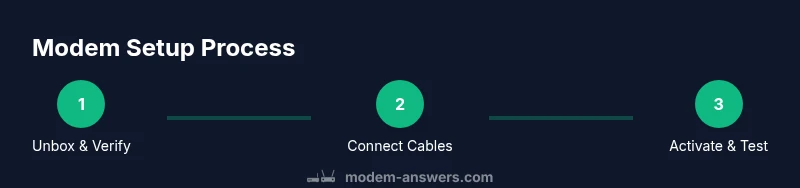
- 1
Unbox and verify contents
Open the box and confirm all listed items are present. Check the modem’s model number and ensure the power adapter matches the required voltage. Inspect the coaxial connector for any visible damage. This step prevents surprises during the wiring phase and helps you identify missing accessories before you start.
Tip: Keep the box and manual; you may need model-specific steps for activation or warranty requests. - 2
Connect the coaxial cable
Tighten the coaxial cable hand‑tight to the wall outlet and the modem. Avoid overtightening, which can damage connectors. Make sure the cable is straight and not bent sharply to reduce signal loss. A secure connection at this stage is critical for reliable service.
Tip: If your outlet uses a splitter, ensure the splitter is rated for data signals and no excessive signal loss occurs. - 3
Power up and allow boot
Plug in the modem and wait for the power LED to stabilize. This typically takes 1–2 minutes. If the device doesn’t start, check the power source and the cable, and try a different outlet. Some models display a blinking pattern during boot; wait until the lights settle into a steady state.
Tip: If using a surge protector, plug the modem directly into the wall to avoid interference. - 4
Connect a device for configuration
Using an Ethernet cable, connect your computer or laptop to the modem, or connect via Wi‑Fi if the modem provides default network credentials. Open a browser and enter the activation portal URL provided by your ISP or the modem’s default gateway address. Follow the prompts to verify your account and complete activation.
Tip: If you don’t know the gateway address, check the manual or look up the default IP commonly printed on the device label. - 5
Activate with your ISP
Complete activation through your ISP’s self-activation portal or by calling support if needed. You may need your account number, the modem’s MAC/serial number, and sometimes a temporary authorization code. Ensure you’re using the connection type your ISP supports (cable or fiber) and confirm service provisioning in the portal.
Tip: If activation fails, reboot the modem and reattempt; note any error codes for the support agent. - 6
Test and secure the connection
Run a quick speed test and verify at least one device is online. Write down the measured speeds and compare them to your service plan. Change default credentials and configure Wi‑Fi settings if you’re using a separate router, including the network name and a strong password.
Tip: Document the new admin password and save it in a secure manager.
FAQ
Do I need a separate router when setting up a modem?
Not necessarily. If you want Wi-Fi coverage, you can connect a router to the modem. Some modern modems include built‑in routing, which can simplify setup, but you may still want to use a dedicated router for advanced features and better coverage.
You can start with the modem’s built-in routing, but for best Wi‑Fi, consider adding a separate router.
What should I do if activation fails?
First, double-check your account and device MAC/serial numbers. Reboot the modem and retry activation. If failures persist, contact your ISP with the error code and device details.
Reboot, retry activation with the correct device info, and call your ISP if it still fails.
How can I improve Wi‑Fi coverage with a new modem?
Place the modem/router in a central, elevated location away from walls and metal objects. Update firmware, change default passwords, and choose a strong, unique SSID. If coverage remains weak, consider a mesh system or a higher‑performance router.
Put the device in a central spot, update firmware, and consider a mesh system if needed.
Is it safe to unplug the modem during setup?
Pause only if there’s an established process. Interrupting boot can cause provisioning issues. If you must unplug, wait at least 30 seconds before reconnecting and restarting the activation flow.
Avoid unplugging during boot; if you must, wait a bit before reconnecting and retry activation.
Where can I find the admin password for my modem?
The default admin password is typically on a label on the bottom or back of the modem. Change it during the initial setup for security.
Check the label on the device for the default password and change it during setup.
Watch Video
Key Takeaways
- Confirm compatibility before starting setup.
- Follow a clean power-up sequence to avoid boot issues.
- Activate via your ISP's portal or support when prompted.
- Secure the network with a unique SSID and strong password.
- Test speeds and document settings for future reference.