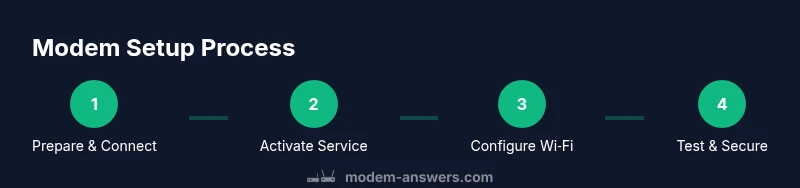
Modem Setup Guide: Step-by-Step for Home Networks Today
Learn how to set up a home modem with a clear, step-by-step process. This Modem Answers guide covers wiring, activation, Wi-Fi configuration, and essential security.


This guide walks you through a complete modem setup from power-on to Wi‑Fi configuration, activation, and testing. You’ll learn the essential checks, wiring order, and best practices for a reliable home network with clear, actionable steps you can follow right away.
Understanding modem setup basics
A successful modem setup begins with clarity on what the device does and how it fits into your home network. A modem connects your home to the internet service provider (ISP) and translates the signal from the external network into a form your devices can use. In most setups, you’ll either use a dedicated modem or a modem-router gateway. The term modem setup often overlaps with configuring a router, but the key distinction remains: the modem handles the connection to your ISP, while the router creates your local network. When planning modem setup, verify that the device is DOCSIS 3.0 or newer for cable services or an appropriate gateway for fiber or DSL. This initial planning minimizes surprises during activation and reduces the number of trips to the hardware closet. According to Modem Answers, starting with correct cabling, power sequencing, and a clear activation plan yields fewer support calls and more consistent performance. In short, dial in the basics first, and work from a known starting point to avoid frustrating troubleshooting later. Adjustments like channel bonding or security settings can be done after you confirm a stable connection.
Planning your network topology
Before you power anything, sketch a simple diagram of how devices will connect. Decide whether you’ll use a separate router or a modem-router combo, and plan where the unit will sit for optimal signal distribution. A central, elevated location with minimal obstructions improves Wi‑Fi coverage. Check that your modem location is near the coaxial input and a power outlet, with room for ventilation. If you choose a separate router, decide whether you’ll enable bridge mode for a single Wi‑Fi network or provide guest networks for visitors. Confirm your ISP’s requirements for activation, and collect account credentials, MAC address, and any service-specific steps. Modem setup is smoother when you have a clear plan for cable routing, device placement, and network naming (SSID) before you begin.
Step-by-step: wired vs wireless configuration
In a typical wired setup, you’ll first connect the modem to the power outlet and the coaxial cable from the wall. Allow the modem to boot fully—this can take about 1–2 minutes. Next, connect a computer or smartphone to the modem via Ethernet to access the admin page, usually at http://192.168.0.1 or a provider-specific URL. From there, verify the status lights indicate a solid online connection. If you’re adding a router, connect it to the modem’s Ethernet port and configure the router’s admin page to establish your local network. For wireless configuration, set a unique SSID, enable WPA3 if available, and choose a strong passphrase. If you’re using a gateway device, you’ll typically follow on-screen prompts to activate service and configure Wi‑Fi without a separate router. A successful modem setup should show active status indicators and a working wired test connection before proceeding to Wi‑Fi tuning.
Common pitfalls and troubleshooting
Hasty cable connections are a frequent source of problems. Always start by power cycling the modem and any connected devices when you see no internet. If activation stalls, verify you have the correct account status with your ISP, or try the activation steps again in a supported browser. DNS issues can prevent page loading even when lights indicate a strong signal; in that case, set the modem or router to obtain DNS automatically or specify a reliable public DNS like 1.1.1.1 temporarily to test connectivity. If you see repeated disconnects, check for interference from nearby electronics or thick walls; adjusting the router’s position or changing the Wi‑Fi channel can reduce congestion.
Optimizing for speed and reliability
After your modem and router are configured, run a baseline speed test to establish a reference. Place the testing device near the router, ideally on a wired connection for accuracy, and repeat tests at different times of day. If speeds lag, consider updating firmware, enabling Quality of Service (QoS) on the router, and ensuring you’re using Ethernet backhaul where possible. For wireless optimization, favor 5 GHz for nearby devices and 2.4 GHz for longer range, while avoiding interference from microwaves or neighbor networks. Regularly restarting the router every few weeks can stabilize performance, and periodic firmware checks keep security and performance up to date.
Security and best practices
Security starts with a strong Wi‑Fi password and a unique SSID. Change the default admin password for the modem/router to prevent unauthorized access. Enable WPA3, or at least WPA2, encryption, and disable WPS if your device supports it. Keep firmware up to date by enabling automatic updates when available. Set guest networks for visitors to keep your main network isolated, and consider enabling a firewall and disabling remote management unless you need it. For households with IoT devices, segment those devices on a separate network to minimize risk if any one device is compromised.
Maintenance and future-proofing
Modem setup should be revisited whenever you change ISPs, add home devices, or anticipate higher bandwidth needs. Document your network settings, including SSID, password, and firewall rules, so future maintenance is quick. Periodically check for firmware updates and review your router’s security settings. If you’re planning a home office or smart-home expansion, consider a mesh Wi‑Fi system for broader, more reliable coverage. A proactive approach to maintenance reduces the odds of unexpected outages and helps you adapt to evolving internet speeds and requirements.
Tools & Materials
- Modem(Power: ensure the power adapter is included and matches your device)
- Power adapter(Be sure it matches the modem’s voltage and amperage)
- Coaxial cable(Cable that connects to the wall outlet)
- Ethernet cable(At least 5 ft; used for wired testing or router connection)
- Smartphone or computer(For accessing the admin page and activation portal)
- ISP account credentials(Username, password, and service plan information)
- Router (optional)(If using a separate router, connect via Ethernet)
- Pen and paper(For documenting settings and passwords)
- Cable ties or organizer(Keep cables tidy and accessible)
Steps
Estimated time: 30-60 minutes
- 1
Prepare workspace and verify materials
Gather all items and clear a space near the modem location. Confirm you have the correct cables and the ISP activation information. A prepared setup reduces interruptions and misconnections.
Tip: Label cables if you’re setting up multiple devices to avoid confusion later. - 2
Power down and connect the modem
Unplug the power, attach the coaxial cable, then plug the modem back in. Allow 1–2 minutes for the device to boot and initialize. Lit indicators should progress from amber to green/solid.
Tip: Do not power on other devices until the modem is fully online. - 3
Test the modem with a wired device
Connect a computer to the modem via Ethernet and attempt to reach a basic website to confirm a network path exists. If no page loads, recheck cable connections and reboot.
Tip: Prefer a wired test to avoid wireless interference during this phase. - 4
Activate service with your ISP
Follow the activation steps in your ISP portal or call support. Have your account information handy and enter required device details (MAC address may be requested).
Tip: If activation stalls, try a different browser or clear cache and retry. - 5
Log in to the modem/router admin page
Open the browser to the device’s default gateway (e.g., 192.168.0.1) and login with the default credentials. Change the admin password immediately for security.
Tip: Write down the new credentials and store them securely. - 6
Configure Wi‑Fi and security
Set a unique SSID, enable WPA3 (or WPA2 if needed), and create a strong passphrase. Consider disabling WPS and enabling a guest network for visitors.
Tip: Use distinct networks for guests and IoT devices to reduce risk. - 7
Run tests and finalize
Test Wi‑Fi on multiple devices, run a speed test, and verify that devices are maintaining a stable connection. Save settings and note any optimizations you plan to revisit later.
Tip: Schedule a monthly check for firmware updates and network performance.
FAQ
What is the difference between a modem and a router?
A modem connects your home to the internet service provider, converting the service signal. A router creates and manages your home network, delivering Wi‑Fi to devices. Some devices combine both functions in a gateway.
A modem links you to your provider, while a router builds your home network.
Do I need a separate router for modem setup?
Not always. If you want advanced features or stronger coverage, use a separate router. A modem-router gateway can simplify setup but may limit customization.
You might not need a separate router unless you want more control or coverage.
How long does modem activation take?
Activation typically completes within minutes but can take up to an hour depending on the provider. If it’s longer, contact your ISP.
Most activations take a short while, but check with your provider if it stalls.
What should I do if there is no internet after setup?
First, check the modem lights and reboot if needed. Verify service status with your ISP and confirm you used the correct login credentials during activation.
If there’s no internet after setup, reboot and verify your activation status with the provider.
How can I improve Wi‑Fi performance?
Place the router high and central, reduce interference, and use the 5 GHz band for nearby devices. If coverage is poor, consider a mesh system.
To boost Wi‑Fi, position the router well and use 5 GHz where possible; a mesh system helps large homes.
Should I change the default admin password?
Yes. Changing the default admin password is essential to prevent unauthorized access and protect your network.
Definitely change the default admin password to secure your network.
Watch Video
Key Takeaways
- Plan your network topology before wiring.
- Activate service early to validate connectivity.
- Secure Wi‑Fi with strong passwords and modern encryption.
- Test speeds and document settings for future maintenance.