How to Get Modem Online: A Step-by-Step Guide
Get your modem online fast with a clear, actionable plan: activation with your ISP, secure Wi-Fi, and step-by-step setup guidance plus troubleshooting tips.


This guide shows how to get your modem online from unboxing to a stable connection. You’ll learn activation steps with your internet provider, how to access the modem’s admin page, configure WAN and Wi‑Fi, and verify online status. Follow the steps to avoid common setup pitfalls and secure your home network.
Why Getting Modem Online Matters
If you're wondering how to get modem online, this guide explains a practical path from power on to a stable, secure connection. The Modem Answers team notes that a reliable online state reduces misconfigurations and simplifies ongoing maintenance. You’ll learn to identify activation requirements from your ISP, access the modem’s admin interface, and verify your connection across devices. The steps assume a typical home setup with a cable or fiber modem, but the core ideas apply to most configurations. Start by ensuring you have the essential information handy, then proceed methodically to activate and secure your network. Expect to work with activation prompts, login credentials, and security settings that protect your home from common threats.
What you’ll do first is confirm that your modem is powered, connected to the correct coax/line, and physically free of damage. This foundation makes activation smoother and helps prevent subtle connectivity issues that derail setup later.
Understand Your ISP Activation Process
Activation flows vary by provider, but the goal is the same: the modem must be registered as a valid device on your account. Before you start, gather your ISP account number, service ID or order number, and the MAC address of the modem. The Modem Answers team notes that having the right information prepared speeds activation and reduces back-and-forth with support. Expect prompts in an online portal or an automated phone system. Some providers allow self-activation online, while others require a quick call. If you’re renting, activation may be immediate; if you own the modem, you may still need to confirm service provisioning with your ISP. Keep a record of the activation timestamp and the device’s serial/MAC for future reference.
Typical checkpoints include confirming service status in your account, entering your device ID, and selecting a network name (SSID) and password once activation completes.
Accessing the Modem Admin Interface
Most modems provide a web-based admin interface that you access via a browser. Start by connecting a computer or smartphone to the modem’s network, then enter the standard gateway address in the URL bar (commonly 192.168.0.1 or 192.168.1.1). If prompted, use the default username and password found on the device label or in the manual. For security, change these creds during the first login and note them in a safe place. If the page doesn’t load, you may need to disable VPNs or firewall software temporarily or try a wired Ethernet connection. Some carriers redirect you to a captive portal after login—follow on-screen prompts to complete activation and basic setup.
When you reach the admin dashboard, verify the status indicators show the device is online and that the WAN/Internet status reflects a valid connection. This is a critical moment: if the gateway isn’t reporting online, revisit the activation steps or contact your provider.
Tip: If you can’t locate the login page, check the model’s manual for the default IP address and credentials. Also look for a reset button if you ever need to restore factory defaults—use only as a last resort.
Physical Setup and Connection
A clean, solid physical setup helps avoid intermittent failures. Ensure the power adapter is firmly connected and the modem sits on a stable surface with adequate ventilation. Attach the coaxial or fiber line securely; a loose connection can cause flaky performance or no service at all. If you’re using a separate router, connect it to the modem’s LAN port with an Ethernet cable rather than relying on Wi‑Fi alone during setup. Keep the modem away from dense obstacles and heavy electronics that could cause interference. After verifying all cables are secure, power cycle the modem by unplugging, waiting 15–30 seconds, and plugging back in. This simple step often clears stubborn glitches and forces a fresh connection.
If your modem is in a closet or cabinet, ensure there is enough space for cooling and that vents aren’t blocked. Poor ventilation can lead to overheating and degraded performance over time.
Configure Network Settings and Security
With the device online, configure essential network settings. Start by setting a unique SSID (network name) and a strong Wi‑Fi password using WPA2 or WPA3 security. Do not reuse default names or passwords and consider enabling a guest network for visitors. Update the firmware if the admin interface prompts you; firmware updates fix bugs and improve security. Disable features you don’t need, such as remote management over the internet, unless you require them for remote support. If you have a router in front of the modem, enable bridge mode only if you understand how it changes your network topology, because it disables the router functionality on the modem.
Document your settings in a secure note for future reference. If you’re managing multiple devices, consider using a password manager to store credentials safely.
Verify Online Status and Troubleshoot
Run a quick connectivity check by loading several websites on different devices. A reliable modem online should consistently render pages and allow basic services like email or streaming to operate without noticeable delays. If pages fail to load, start with simple checks: confirm the coax/line is secure, reboot the modem, and re-check the admin panel for a valid WAN status. If issues persist, run a basic speed test to ensure you’re receiving service within your plan’s expectations, and verify no firewall rules are blocking traffic. Common culprits include DNS misconfigurations, IP address conflicts, or outages in your area. If you suspect a service outage, contact your provider’s support line, noting any error codes and your device’s MAC address for faster assistance.
Security and Best Practices
Finally, adopt ongoing security practices to protect your home network. Keep firmware up to date, use a strong, unique password for the admin interface, and enable automatic updates when available. Place your modem and router in a central, open area to ensure even coverage, and regularly review connected devices through the admin dashboard. Consider enabling a firewall and enabling observer or parental controls if needed for your household. Regularly test your network from different devices to catch issues early and maintain a reliable online experience.
Tools & Materials
- Modem or gateway device(Ensure it’s the correct model for your service)
- Power supply for the modem(Original adapter recommended)
- Coaxial or fiber cable(Secure and undamaged)
- Ethernet cable (optional but recommended)(For direct connection to a computer or router)
- Computer or smartphone(To access the admin interface)
- ISP account information(Account number, service ID, or activation pin)
- Pen and paper or password manager(To record credentials and settings)
Steps
Estimated time: 30-60 minutes
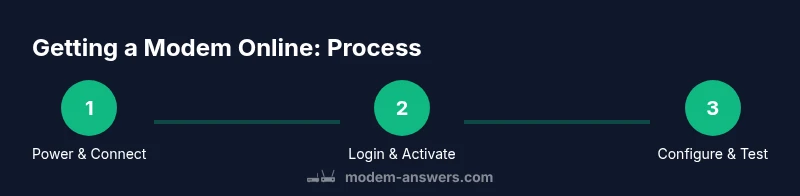
- 1
Power up the modem
Connect the power adapter, ensure LEDs indicate normal boot, and wait until the status shows online. Do not unplug the device during boot.
Tip: If the lights blink in unusual patterns, check the power source or try a different outlet. - 2
Connect to the modem
Use a computer or smartphone to connect to the modem's Wi‑Fi network or via an Ethernet cable for a stable setup session.
Tip: Prefer Ethernet during initial configuration to avoid wireless dropouts. - 3
Access the admin page
In a browser, enter the gateway IP address and log in with the default credentials provided by the manufacturer or your ISP.
Tip: If you don’t know the login, check the device label or manual; never use weak credentials. - 4
Activate with your ISP
Follow the on-screen activation prompts or call your ISP to register the device on your account.
Tip: Have your account number and MAC address ready for faster activation. - 5
Configure your network
Set a unique SSID, strong Wi‑Fi password, and enable WPA2/WPA3 security. Update firmware if prompted.
Tip: Write down your credentials and consider using a guest network for visitors. - 6
Test and finalize
Open multiple websites and run a speed test on different devices to confirm online status and performance.
Tip: If issues persist, re-check cabling and reboot the device; contact ISP if outages persist.
FAQ
What should I do if my modem won't activate with my ISP?
Double-check that you have the correct account details and the MAC address of your modem. Reboot the device and retry activation. If problems persist, contact your ISP’s support for provisioning checks.
If activation fails, verify your account details, reboot, and try again. If it still fails, reach out to your ISP for provisioning support.
Do I need a separate router if I have a modem with built‑in routing?
If your modem includes routing, you can use it for basic Wi‑Fi. For advanced features like guest networks or robust parental controls, a dedicated router can help. Bridge mode is an option but requires network understanding.
A modem with built‑in routing can cover basic needs, but a dedicated router offers more features. Bridge mode should be used only if you know what it does.
Why is my internet not working after activation?
Check for physical connection issues (cable tightness, power, LEDs). Confirm the service status in your account and retry activation. If outages exist in your area, contact your provider.
If you’re not online after activation, check cables and power, verify service status in your account, and contact your provider if an outage is suspected.
How do I log into the modem admin page safely?
Connect to the modem, enter the default gateway address in a browser, and log in with the default credentials. Change them immediately and keep them secure.
Log in through the modem’s gateway address and replace default credentials with something strong.
How long does activation usually take?
Activation can take a few minutes to complete once the device is recognized by the ISP. If it takes longer, contact support to verify provisioning.
Activation typically takes a few minutes; if it takes longer, contact your ISP to confirm provisioning.
Is it safe to use the default credentials temporarily?
No. Default credentials are widely known. Always change them during the first login to protect your network.
Avoid using default login details; change them during setup to secure your network.
Key Takeaways
- Verify activation with your ISP before extensive setup
- Access the admin page securely and change default credentials
- Configure Wi‑Fi with a strong password and current firmware
- Test connectivity across devices and adjust as needed