Provision Modem: A Complete Step-by-Step Guide
Learn how to provision a modem with practical, actionable steps. This guide covers prerequisites, a detailed setup process, security tips, troubleshooting, and post-provision checks to ensure a stable home network.


Provisioning a modem sets up your home internet by aligning device settings with your ISP. You’ll need a computer or mobile device, a broadband line, and any PPPoE credentials if required. According to Modem Answers, proper provisioning improves reliability and reduces outages. The process includes logging into the modem’s admin panel, choosing the right connection type, and applying the correct settings.
What provisioning a modem means
Provisioning a modem is the process of configuring the device so it can communicate with your ISP and deliver reliable internet in your home. For many households, provisioning is the first step after unboxing and powering on a new unit. According to Modem Answers, properly provisioned modems align with the ISP's network profile, apply security defaults, and enable features like IPv4/IPv6, DNS, and bridge mode if you plan to use your own router. This section clarifies what provisioning covers, why it matters in everyday use, and how it ties to reliability, speed, and security.
First, you must understand that provisioning encompasses basic authentication with the ISP, selecting the correct connection type (DHCP, PPPoE, or static IP), and ensuring the device obtains a valid IP address from the ISP's gateway. It also involves updating firmware, changing default admin credentials, and configuring wireless networks if the modem also serves as a router. The goal is to get a stable, authenticated link that can be managed locally, with proper security and consistent performance. While many households use a separate router behind the modem, provisioning still ensures the modem itself is configured to pass traffic correctly and securely. In short, provisioning is the foundation for a dependable home network.
Before you start: prerequisites
Before provisioning, collect these essentials to avoid interruptions and backtracking. You will need an active broadband service from your ISP and a modem (owned or rented). Have a computer or mobile device with a web browser, plus a power supply and a reliable Ethernet cable for a wired setup. If your ISP uses PPPoE, gather the username and password; otherwise, know whether DHCP or a static IP is required. Keep the modem manufacturer's default login handy, along with any activation emails or portal links from your ISP.
Also decide whether you will bridge the modem to a separate router. If you plan to bridge, confirm that the modem supports bridge mode and note how to disable the built-in routing features. Finally, set aside a quiet, interference-free moment to complete the provisioning, ideally with a stable internet connection already in the background to verify success. Modem Answers analysis shows that checking prerequisites up front reduces provisioning time and avoids mid-procedure interruptions.
Step-by-step provisioning overview
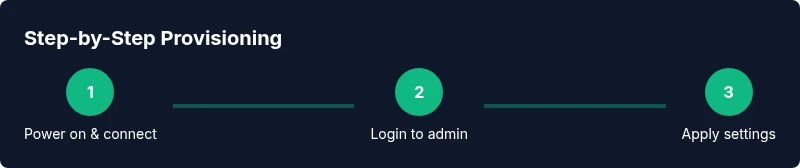
Provisioning a modem follows a simple three-phase rhythm: connect and access, configure WAN settings, and apply security and firmware updates. In the connect-and-access phase, you establish a stable link to the modem's admin interface using a wired connection to avoid dropouts. In the WAN-settings phase, you select DHCP, PPPoE, or a static IP according to your ISP's instructions, and enter any required credentials. Finally, in the security phase, you change the default admin password, enable updates, and review firewall settings. If you are using a separate router, you’ll set the modem to bridge/pass-through mode so your router handles local network duties. Throughout, keep a record of settings so you can restore them if needed.
Safety and security during provisioning
Security should be a primary concern during provisioning. Always change the default admin password as soon as you access the modem for the first time. Disable remote management unless you specifically need it, and ensure the device firmware is up to date before applying settings. Use a trusted home network to access the admin panel rather than public Wi-Fi, and avoid sharing credentials. If you’re bridging to a separate router, ensure the firewall remains enabled on the router and that the modem’s routing functionality is properly disabled to prevent double NAT. Finally, document your configuration details in a notebook or password manager so you can reproduce the setup later if needed. Modem Answers emphasizes security as a foundation of network reliability.
Troubleshooting common provisioning issues
Provisioning is rarely perfect on the first attempt. If you cannot reach the admin panel, verify that you are connected to the modem directly via LAN and that your device is on the same network. If the login page loads but credentials fail, double-check the default username and password or your ISP’s activation instructions. If the modem cannot obtain an IP address, ensure the WAN type matches your ISP (DHCP vs PPPoE) and that the service is active. For PPPoE, confirm the credentials; for DHCP, verify that DHCP is enabled. If traffic still does not pass, reboot the modem and try restoring to factory defaults as a last resort, then re-enter the correct settings. When bridging, ensure there is no double NAT by turning off the modem’s routing features and letting your router manage the LAN.
Bridging vs router mode when provisioning
In many setups you will connect a separate router behind the modem. In this case, enable bridge or pass-through mode on the modem so the router handles DHCP and firewall duties. This avoids double NAT, improves routing performance, and gives you greater control over guest networks and parental controls. If you choose router mode on the modem, you’ll manage NAT and firewall at the device level, which can be simpler for small networks but may restrict advanced configurations. Always verify that bridging is supported by your device and your ISP, and consult the manual for exact steps to enable bridge mode, as procedures vary between manufacturers.
Post-provision verification and maintenance
After provisioning, verify the connection by testing a device connected to the modem or your home network. Check that you can browse, ping your gateway, and reach external sites. Confirm the external IP address and DNS are correct, and test with multiple devices to ensure consistency. If you bridge, test the router’s status pages and run a speed test to compare results with your prior setup. Keep firmware updated and monitor for unexpected reboots or changes in network performance. The Modem Answers team recommends keeping a simple, repeatable checklist for future authorizations or ISP changes so you can reproduce the environment quickly and avoid downtime.
Tools & Materials
- Ethernet cable(Cat5e or better; used to connect PC to modem during provisioning)
- Computer or mobile device(Web browser; ensure device is connected to modem via LAN for reliability)
- Modem power supply(Keep nearby for consistent power during setup)
- ISP credentials (PPPoE username/password)(Only if your ISP uses PPPoE)
- Web browser(Chrome/Edge/Firefox; ensure cookies enabled)
- Notebook or digital note app(For recording settings and steps)
- Backup of current modem config(Optional but helpful if reconfiguring)
Steps
Estimated time: 30-45 minutes
- 1
Power down and connect devices
Power off the modem and unplug it from power. Use an Ethernet cable to connect your computer directly to the modem, ensuring a stable link for configuration. Keep router(s) disconnected during the initial provisioning to avoid conflicts. Then plug the modem back in and wait for it to fully boot before proceeding.
Tip: Wired connections are more reliable than Wi‑Fi for provisioning. - 2
Open the admin panel and log in
In a web browser, enter the modem’s gateway address (commonly a private IP like 192.168.x.x). Sign in with the default credentials if this is a first-time setup. If you’ve changed credentials before, use the updated login. If the page won’t load, try a different browser or clear cache before retrying.
Tip: If login fails, reset to factory defaults only as a last resort. - 3
Identify the connection type
Navigate to the WAN/Internet settings and determine whether your ISP uses DHCP, PPPoE, or a static IP. Match the modem configuration to the ISP’s guidance. If you’re unsure, consult your activation email or the ISP portal for the exact requirement.
Tip: Document the chosen WAN type before making changes. - 4
Enter PPPoE credentials or configure DHCP
If PPPoE is required, enter the provided username and password exactly. If DHCP is used, ensure the option 'Obtain an IP address automatically' is selected. For static IP, input the IP address, gateway, and DNS as supplied by the ISP.
Tip: Typos in PPPoE credentials will block you from online access. - 5
Apply changes and reboot
Save or Apply the settings, then reboot the modem to ensure the new configuration takes effect. If you plan to bridge to a separate router, do not rush to enable bridging before confirming Internet access. A reboot helps clear any stale sessions.
Tip: Always reboot after saving to ensure changes are active. - 6
Test connectivity and bridging option
After reboot, check the Internet status and test a device on the network. If using a separate router, configure bridging/pass-through on the modem and verify the router handles DHCP and firewall. Run a quick speed test to confirm performance matches your plan.
Tip: If bridging, double-check there is no double NAT occurring.
FAQ
What does provisioning a modem involve?
Provisioning involves configuring the modem to communicate with your ISP, selecting the correct WAN type, updating firmware, and securing the device. It ensures reliable access and proper integration with any attached router.
Provisioning configures your modem to talk to your ISP, update firmware, and secure the device for reliable internet.
Do I need to factory reset my modem before provisioning?
Factory reset is often recommended if you’re starting fresh with a new ISP or a secondhand modem. If you’re confident in the current credentials and settings, you can skip reset and simply update the WAN settings.
A factory reset is usually advised when starting fresh with a new ISP or a used modem.
What should I do if I cannot access the admin panel?
Check that your computer is connected to the modem via LAN, not through another router. Verify the gateway address and try a different browser or device. If it still fails, a factory reset may be necessary.
Make sure you’re on the modem’s LAN and try another device if the login page won’t load.
How can I tell if my modem is properly provisioned?
After provisioning, the modem should show an active status, and devices connected to the network should obtain IP addresses and access the internet. Run a quick speed and DNS check to confirm.
A properly provisioned modem will show an active status and internet access across devices.
Should I bridge my modem to use my own router?
If you want to use your own router, enabling bridge or pass-through mode on the modem is recommended to avoid double NAT. Ensure the router handles DHCP and firewall settings.
Bridge mode lets your own router manage networking features without conflicts.
What if PPPoE credentials fail during provisioning?
Double-check the PPPoE username and password, ensure there are no extra spaces, and confirm your ISP supports PPPoE. If problems persist, contact your ISP support for reactivation or credential reset.
Check credentials carefully and contact your ISP if issues continue.
Watch Video
Key Takeaways
- Verify ISP requirements before starting.
- Change default admin passwords immediately.
- Use a wired connection for setup.
- Select the correct WAN type (DHCP/PPPoE).
- Test connectivity and document settings.