Modem Hookup: A Complete Home Setup Guide
Master modem hookup with this comprehensive, beginner-friendly guide. From tool prep to activation, get clear steps, helpful tips, and common troubleshooting fixes.


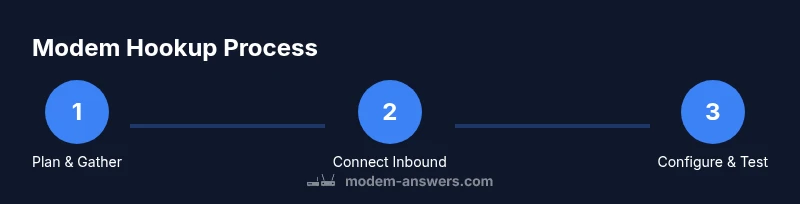
Modem hookup is the process of connecting your modem to the internet service, power, and devices in your home. A clean, well-planned hookup reduces interruptions and makes future tweaks easier. This six-step setup covers gathering tools, connecting the inbound line, powering up, configuring the network, testing connectivity, and activating service for a stable home network.
Understanding Modem Hookup Basics
Modem hookup refers to the careful process of linking your modem to the service line, power supply, and local devices so you can access the internet. A solid hookup minimizes troubleshooting and supports reliable performance over time. According to Modem Answers, starting with a clear plan reduces common mistakes like loose cables or incorrect port connections. In most homes, the modem sits near a power outlet and the entry point for the service line, acting as the bridge between your ISP’s network and your local network. From there, you can wire devices directly via Ethernet or distribute internet access through a router for Wi‑Fi coverage. Understanding these basics helps homeowners and renters set up a dependable network that scales as devices multiply. This foundation also makes future upgrades—like adding a mesh system or a second access point—far easier to implement.
What You’ll Need Before You Begin
Before you touch a single button, assemble the essential gear and review safety considerations. The goal is a clean, reliable hookup that supports consistent speeds and minimal downtime. Gather the service line (coax or fiber), the modem itself, at least one Ethernet cable, a power outlet, and a router if you plan to create a wireless network beyond the modem’s built‑in capabilities. A surge protector, cable ties, and a notepad for recording settings will help keep things orderly. If you’re unsure about service activation timing, have your ISP activation date handy and a contact number ready. This prep work reduces last‑minute scrambling and sets you up for a smooth, confident hookup.
Step 1 — Plan Your Layout and Gather Materials
Begin with a quick layout plan to minimize cable clutter and maximize signal quality. Choose a central, ventilated spot for the modem to reduce overheating and ensure easy access to power and service lines. Map out where your router (if used) will sit to optimize coverage in the home and identify a clear path for coaxial or fiber cables. Label cables so you or someone else can identify ports later without guessing. A simple diagram or photo helps preserve the plan and serves as a reference if you ever upgrade hardware. This planning stage cuts down on rework and ensures the hookup proceeds smoothly.
Step 2 — Connect the Inbound Line and Power
Attach the inbound service line securely to the modem’s designated port. Hand-tighten the connector—avoid over‑tightening, which can damage threads or crush the line. Once the line is connected, plug the modem’s power adapter into a reliable outlet and connect it to the modem. If you use a surge protector, ensure it is rated for data devices and avoid daisy‑chaining multiple power strips. After this step, you should see at least one LED indicator start to glow, signaling power and basic hardware recognition by the device. Visual cues from the LEDs guide you toward the next steps. (If your service requires a battery backup, connect it according to the manufacturer’s instructions.)
Step 3 — Power On and Initial Boot
Power on the modem and give it time to boot. A typical boot sequence takes a minute or two, during which LEDs will transition from amber to green or display a steady pattern indicating a successful boot. If LEDs stay dark or flash erratically, unplug the power, wait 15 seconds, and plug back in to perform a soft reset. Do not unplug other devices during this process, as it can interrupt the activation handshake with your ISP. Waiting for the device to finish its boot process ensures you’ll reach the configuration screens without errors.
Step 4 — Access the Modem Interface and Begin Configuration
On a connected computer or mobile device, open a browser and enter the modem’s default gateway address (commonly 192.168.0.1 or 192.168.1.1). If prompted, log in with the default credentials provided in the manual or on the device label. Run the setup wizard if available, and follow the prompts to establish the WAN connection using your ISP’s settings. This phase often includes confirming activation with the service provider. If you can access a status page showing “Connected” or similar, you’re in a strong position to continue. See Figure A in your manual for the typical path to the configuration screens.
Step 5 — Configure Wi‑Fi, Security, and Local Network Settings
Set a unique network name (SSID) and a strong password for your Wi‑Fi network. Choose WPA2 or WPA3 security if supported, and disable WPS to reduce risk from automated attacks. Create a strong admin password for the modem’s interface and enable automatic firmware updates if available. If you’re setting up a separate router, configure the modem in bridge mode only if you intend to use a distinct routing device for all traffic; otherwise leave it in typical router mode. Document settings so you can reproduce them if you need to reinstall later. Good password hygiene and up‑to‑date firmware play a big role in long‑term stability.
Step 6 — Test Connectivity, Activation, and Performance
Run a quick connectivity check from a wired device, then perform a speed test to verify expected throughput. If your ISP requires activation, follow its prompts—some services activate immediately, others on a scheduled basis. If the test shows slower results than expected, try reconnecting to the router, changing Wi‑Fi channels, or enabling auto‑selected channel width. For fiber or cable services, you may need to reboot the modem once more after activation to finalize the link. Document results and any anomalies for future reference.
Step 7 — Optimize Placement and Coverage
Where you place the modem and router (if used) impacts signal quality. Elevate the devices on a shelf or stand away from walls and metal objects that can reflect or absorb radio waves. Avoid placing hardware in closets or cramped cabinets, which can trap heat and degrade performance. If you notice dead spots, consider repositioning the router or adding a mesh node closer to those areas. A well‑planned layout reduces the need for repeat adjustments and supports stable, whole‑home coverage.
Step 8 — Security Hardening and Maintenance
Enable automatic updates for both firmware and security signatures, and periodically review connected devices. Keep a log of your network name, password, and device list so you can quickly identify unfamiliar connections. Set up a guest network for visitors to protect your primary network from unauthorized devices. Routine maintenance—checking for firmware updates and updating passwords every year or after a security event—helps sustain a robust modem hookup over time.
Step 9 — Common Pitfalls and Quick Fixes
Avoid common errors like mixing up coaxial and Ethernet ports or skipping activation steps that delay service. If you lose internet after setup, recheck the inbound line, confirm power, and verify the gateway address you used to access the modem. If LEDs indicate a problem, consult the manual’s LED guide or contact your ISP for diagnostic help. With careful planning, logged settings, and a few basic checks, you’ll reduce outages and get a stable, long‑term connection.
Tools & Materials
- Coaxial or fiber inbound line(Choose the correct type for your service (cable coax or FTTH fiber).)
- Modem(Ensure compatibility with your plan and provider.)
- Router (optional)(Use if you need wider Wi‑Fi coverage or advanced features.)
- Ethernet cable (Cat5e or better)(Prefer at least Cat5e for reliable wired connections.)
- Power supply(Use the manufacturer‑supplied adapter.)
- Surge protector(Protects equipment from power surges.)
- Cable management supplies (Velcro ties)(Keeps cords tidy and reduces tripping hazards.)
- Notepad and pen(Record default passwords, IPs, and activation steps.)
Steps
Estimated time: 45-90 minutes
- 1
Gather tools and confirm service readiness
Collect all required items and verify your service is active or scheduled for activation. Having a clear list prevents last‑minute trips to the store or ISP. This upfront step reduces errors during the hookup.
Tip: Label cables and keep a copy of settings for easy reference. - 2
Connect the inbound line securely
Attach the coaxial or fiber line to the modem’s service port with a snug, not overtight, fit. Check for any kinks or damaged connectors before proceeding. A solid inbound connection is essential for stable speeds.
Tip: Avoid bending the line sharply; a gentle loop is safer. - 3
Power on the modem and wait for boot
Plug in the power adapter and observe the LED sequence as the modem boots. If nothing lights up after a minute, perform a soft reset by unplugging and replugging. A clean boot is a prerequisite for configuration.
Tip: If the LED pattern is unusual, consult the manual before proceeding. - 4
Access the modem interface for setup
Open a browser to the modem’s default gateway (e.g., 192.168.0.1) and log in using the default credentials. Run the setup wizard and input the WAN/ISP details. This step establishes the internet bridge between your service and home network.
Tip: If you’re unsure of the gateway, check the sticker on the modem or the manual. - 5
Configure Wi‑Fi and security
Set a unique SSID and strong password, enabling WPA2/WPA3 as available. Disable WPS and secure the admin interface with a non‑default password. If you’re using a separate router, decide on bridge vs router mode.
Tip: Record the Wi‑Fi password in a secure note. - 6
Test connectivity and activate service
Run a wired and wireless speed test to confirm performance. Follow your ISP’s prompts to activate the service if required. Reboot the modem after activation if advised.
Tip: Document activation status and speeds for future reference. - 7
Optimize placement for coverage
Position the router (if used) and modem to maximize coverage, avoiding obstructions. Elevate devices and keep them away from heat sources. Consider adding a mesh node if you have multiple floors.
Tip: Avoid placing devices in closets or behind furniture where signal fades. - 8
Security hardening and maintenance
Enable auto‑updates for firmware and regularly review connected devices. Change admin and Wi‑Fi passwords periodically and keep a log of network configurations.
Tip: Set up a guest network to isolate visitors from your main network. - 9
Troubleshoot common issues
If internet drops, recheck the inbound line, verify power, and confirm you’re connected to the correct gateway. Use the LED indicators to diagnose problems and consult the manual or ISP if needed.
Tip: Keep a basic trouble‑shoot checklist handy for quick reference.
FAQ
What is the first step in modem hookup?
Unpack the modem, confirm service readiness, and gather required tools to avoid mid‑process trips. This foundation reduces file errors and rework.
Start by confirming service readiness and gathering your tools so you can hook up smoothly.
Do I need a router after modem hookup?
If you want Wi‑Fi throughout your home, use a router either as a separate device or as a modem‑router combo. For wired setups, a router isn’t strictly required but is recommended for network management.
A router is typically needed for Wi‑Fi and better network management.
Why is there no internet after setup?
Possible causes include activation delays, incorrect cabling, or power issues. Double‑check the inbound line, power, and gateway address, and contact your ISP if activation remains unresolved.
Check activation status and the connections; contact your provider if the issue persists.
How long does activation take?
Activation can be immediate or take a few minutes to an hour, depending on the provider and service type. During this window, avoid power cycling repeatedly unless advised.
Activation usually happens quickly, but it may take a short while depending on your provider.
What if the modem LEDs show an error?
Refer to the LED status guide in your manual to interpret patterns. If no standard pattern appears, try a soft reset or contact support for diagnostics.
Check the LED indicators against the manual, then reset or contact support if needed.
Watch Video
Key Takeaways
- Plan your hookup layout before touching devices.
- Verify the inbound line and power are solid before configuring.
- Secure Wi‑Fi with strong passwords and up‑to‑date firmware.
- Document settings and activation steps for future refreshes.