How to Use a Modem: A Step-by-Step Guide for Home Networking
A practical, step-by-step guide for homeowners on how to use a modem to connect, configure Wi-Fi, secure your network, and troubleshoot common issues.


Goal: Learn how to use a modem to connect to the internet, set up your home network, configure Wi-Fi, and troubleshoot common issues. Essentials include a compatible modem, an active Internet plan, and a coax/DSL line. This guide covers step-by-step setup, security basics, and testing, with tips to improve reliability.
Understanding what a modem does
A modem sits at the boundary between your home network and your Internet service provider (ISP). According to Modem Answers, a modem primarily translates the provider’s signal into digital data your devices can understand, and it also modulates outgoing traffic back into the provider’s format. In many homes, the modem also handles routing or connects to a separate router to distribute Wi‑Fi. Understanding this role helps you decide when you need a separate router for better coverage or additional features.
Key takeaways:
- A modem is the gateway for your Internet signal; it is not the same device as a router, though many devices combine both functions.
- Some ISPs loan or sell a gateway that includes both modem and router; others provide just a modem, requiring a separate router.
- Regularly check for firmware updates to keep speeds, stability, and security current.
This section sets the foundation for knowing what to expect when you plug in or replace your device. It also frames the rest of the guide around reliable setup, proper security, and consistent performance.
Preparing to use your modem
Before you start, gather the items you’ll need and confirm your service status. Verify your ISP has active service for your address and that you have any activation codes or account details on hand. Plan a convenient setup location that’s near a wall outlet and with minimal interference from thick walls or metal objects.
From a practical standpoint, you’ll want a computer or smartphone to access the modem’s admin interface and a working Ethernet cable for initial configuration. Have a notebook or digital note ready to record the SSID and password you create. According to Modem Answers, preparing properly reduces activation delays and helps you avoid rework later.
By the end of this step, you’ll know exactly what you have to gather and where you’ll configure the device for reliable access, security, and future upgrades.
Setting up your modem: connection and power
Connect the modem to the provider’s service line (coaxial cable for cable service, or a DSL line for DSL). Plug the power adapter into a wall outlet and power up the modem. If you’re using a laptop or phone for setup, connect it to the modem via Ethernet to ensure a stable connection during configuration.
Once powered, give the device a minute to boot, then check the status lights. A healthy modem should show the power and online lights steady, with the downstream/upstream indicators blinking in a normal pattern. If you don’t see activity, try reseating cables or rebooting the modem. This is a common source of delays in activation.
Tip: If your service requires activation, you may need to contact your provider or log in to your account to complete the process during this boot sequence.
Configuring your home network: Wi-Fi and security basics
Access the modem’s admin interface using the IP address shown in the manual (commonly 192.168.0.1 or 192.168.100.1). Set a strong admin password and, if available, enable WPA3 security for Wi‑Fi. Create a unique network name (SSID) and a long, random password. If you’re using a separate router, ensure you set the modem to bridge mode if you want the router to handle the network, otherwise enable router mode so the modem’s built‑in features manage your network.
Consider enabling a guest network for visitors to keep your main network private. Regularly review connected devices and unplug unneeded ones to reduce potential security risks. From Modem Answers’ perspective, proper security settings are the backbone of a stable home network, reducing exposure to threats while improving overall performance.
Testing and optimizing your connection: speed, reliability, and troubleshooting
With the network configured, run a wired speed test to benchmark your baseline and then compare it to wireless results. Use a wired device for accuracy and then test multiple wireless devices in different rooms to identify coverage gaps. If speeds are slower than expected, check DNS settings, verify you’re not connected to a neighbor’s network, and consider changing the channel on the 2.4 GHz band to minimize interference.
If you encounter issues, perform a simple reboot, check for firmware updates, and re‑test. Make sure your cables are firmly seated and that there are no power-related disruptions. For persistent problems, isolate the issue by testing directly with one device, then gradually reintroduce others.
Note: Firmware updates improve security and stability and should be installed when available.
Common mistakes and best practices
A frequent error is using an old or mismatched modem that cannot handle higher speeds offered by your ISP. Always verify compatibility before upgrading and avoid mixing old and new hardware that forces retries and reconfigurations. Poor placement, such as placing the modem behind furniture or near microwaves, degrades performance. Keep the device in an open, central location and away from metal objects and thick walls.
Best practices include changing default credentials, enabling automatic firmware updates, and documenting your network settings. Consistent monitoring and periodic reboots help maintain reliability. By following these steps, you’ll reduce downtime and enjoy a smoother online experience.
Advanced tips: bridge mode, ISP activation, firmware updates
Bridge mode is a tool to let a separate router manage your network. If you want advanced controls or better Wi‑Fi coverage, enable bridge mode on the modem and use your own router. Activation with your ISP may require you to register the device’s MAC address or enter account details; follow your provider’s prompts precisely. Keep firmware up to date; many issues are resolved by a simple update, and it closes security gaps that could affect devices on the network.
As experts, we recommend establishing a routine for firmware checks, securing the admin account, and testing Internet speed after any major change. Small maintenance tasks now prevent larger problems later, improving reliability and satisfaction with your home network.
Maintenance and periodic checks
Set a schedule to check your modem’s status lights and firmware every few months. Look for unusual heat, odd noise, or unexpected drops in connectivity, and address them promptly. Keeping cables tidy, labeling ports, and storing your device in a well-ventilated location reduces wear and prevents accidental unplugging. Periodic resets can help clear temporary glitches but avoid excessive rebooting, which can cause IP address churn.
If you rent a modem, track its lease end and arrange a replacement from your provider if needed. Keeping documentation of activation steps and settings helps when you need to move or upgrade later.
Quick-start recap: what you need to know to use a modem confidently
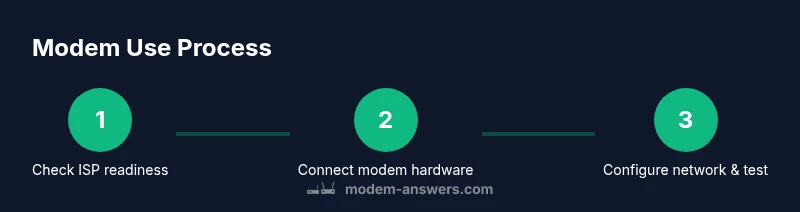
To use a modem effectively, verify service readiness, connect hardware properly, secure the network, and run checks to confirm performance. Prioritize security, keep firmware current, and plan for future upgrades. The Modem Answers team emphasizes ongoing maintenance and informed decisions about whether a gateway or a separate router best serves your home.
Tools & Materials
- Modem (compatible with your service)(Confirm DOCSIS standard (if cable) or DSL type; ensure it's compatible with your provider.)
- Coaxial or DSL line(From wall outlet to modem.)
- Power adapter(Original or compatible; ensure output matches modem spec.)
- Ethernet cable (Cat5e or better)(For wired device connections and setup computer.)
- Router (optional)(If you want Wi‑Fi distribution beyond a gateway or more controls.)
- Computer or smartphone(Used to access the modem's admin interface.)
- ISP account details/activation info(Needed for activation if required by your provider.)
- Notebook or notes app(Record SSID, password, and configuration steps.)
Steps
Estimated time: 60-90 minutes
- 1
Gather essentials and plan
Collect your modem, cables, and activation details. Confirm your service is active and check if activation requires a prompt from your ISP. This reduces back-and-forth and ensures a smooth setup.
Tip: Have your account number and service address handy to speed activation. - 2
Power down and prep devices
Power off all devices that will connect to the modem during setup. Unplug them briefly to ensure a clean startup when you finish wiring.
Tip: Avoid touching metal parts while handling coax connectors to prevent static discharge. - 3
Connect the modem to service
Attach the correct line (coaxial for cable or DSL line for DSL) to the modem. Plug the power adapter and power on the device; give it a minute to boot fully.
Tip: If you don’t see online indicators after a minute, reseat cables and try a reboot. - 4
Connect a setup device via Ethernet
Use an Ethernet cable to connect a computer or phone to the modem directly. This ensures a stable connection during initial configuration.
Tip: Wired connections during setup reduce the risk of misconfiguring Wi‑Fi settings. - 5
Log in and set admin password
Open the modem’s admin interface (common IPs: 192.168.0.1 or 192.168.100.1). Change the default admin password to something strong and unique.
Tip: Do not reuse passwords across devices or services. - 6
Configure Wi‑Fi network
Create a distinct SSID and a strong passphrase. Select WPA3 if available; otherwise WPA2 with AES. Disable WPS for better security.
Tip: Write down the SSID and password for future devices. - 7
Update firmware
Check for and install the latest firmware. Firmware updates improve performance and close security gaps.
Tip: Only install updates from the official admin interface; avoid third‑party firmware sources. - 8
Test and optimize
Test both wired and wireless devices; adjust placement and channel settings for best coverage. Recheck gateway status and verify Internet access on all devices.
Tip: If performance is inconsistent, try a different channel or limit interference from nearby electronics.
FAQ
What is the difference between a modem and a router?
A modem connects your home network to your Internet service and translates signals. A router creates the local network and distributes Wi‑Fi. Some devices combine both functions, called gateways.
A modem connects you to the Internet, and a router creates your home Wi‑Fi network. Some devices combine both into one box.
Do I need a separate router if I have a gateway?
Not always. If your gateway provides solid Wi‑Fi coverage and enough features for your needs, a separate router may be unnecessary. For better control and range, a dedicated router can help.
It depends on your coverage and features; you can start with the gateway and add a router later if needed.
How do I activate my modem with my ISP?
Activation varies by provider but typically involves registering the device’s MAC address and confirming service on your account. You may need to contact support or log in to your ISP portal to complete activation.
Activation usually means registering the device with your provider; check your account or call support if it doesn’t activate automatically.
Why is my Internet slow after setup?
Common causes include weak Wi‑Fi signal, channel interference, or outdated firmware. Verify cabling, run speed tests, and adjust Wi‑Fi settings or router placement for better performance.
Slow speeds are usually caused by signal issues or outdated software; try adjusting placement or updating firmware.
What is bridge mode and should I use it?
Bridge mode disables the gateway features so a separate router can manage the network. Use it if you want advanced routing, QoS, or better Wi‑Fi coverage with your own router.
Bridge mode lets your own router handle the network instead of the modem’s built-in features.
How often should I update firmware on my modem?
Check for updates every few months or enable automatic updates if available. Updates improve security, stability, and compatibility with new services.
Keep firmware current; check periodically or enable automatic updates.
Watch Video
Key Takeaways
- Plan activation and security before starting.
- Connect hardware correctly for reliable access.
- Secure Wi‑Fi with strong credentials.
- Regularly update firmware and monitor performance.
- Consider a separate router for advanced features and coverage.