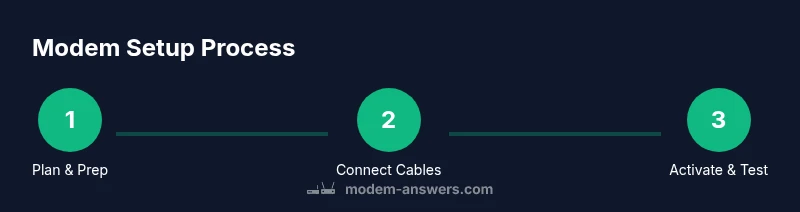
How to Put a Modem: Step-by-Step Setup
Learn how to place, connect, and activate a modem safely in your home network. This Modem Answers guide walks you through each step with practical tips for reliability and easy testing.


By the end of this guide, you'll know how to put a modem in your home network setup and get it working with your router. According to Modem Answers, correct modem placement and safe wiring reduce interference and improve stability. This quick answer outlines the essential steps, including safety checks, connection order, and basic activation tips to avoid common setup headaches.
Understanding the Goal of 'Putting a Modem' in a Home Network
In many homes, the modem is the bridge between your outdoor service and the devices you use daily. The phrase “how to put a modem” usually means installing and positioning the device so it can reliably connect to your Internet service and then feed a router or devices. The Modem Answers approach emphasizes two outcomes: security and performance. Before you start, clarify your goals: where will devices be used most, what speeds do you subscribe to, and do you plan to use a separate router or rely on a modem-router combo? By defining these goals, you can avoid rework and improve overall network stability. The goal is not just to plug in the device; it is to create a clean, scalable foundation that supports streaming, gaming, and smart-home devices without constant resets. Consider the layout of your home, the location of outlets, and the possibility of future upgrades to your equipment.
Safety and Basic Requirements
Safety comes first when you put a modem into service. Always unplug a device before wiring or moving it, and avoid placing electronics near water or heat sources. Use a surge protector to protect against power surges, and ensure the modem has adequate ventilation so it cannot overheat. Handle cables gently; finger-tighten coax connections to prevent stripping the connector, and avoid bending cables sharply. If you’ll be routing wires around furniture or along walls, secure them with cable ties or Velcro to prevent trips or accidental unplugging. Finally, have your ISP activation details handy, since some setups require online or telephone activation before you can reliably browse.
Choosing the Location for Your Modem
Location matters for signal quality. Choose a central, elevated spot away from walls and large metal objects, not inside a cabinet with doors that block airflow. Keep the modem on a sturdy surface at least a few inches from the wall to allow heat to dissipate and to minimize interference from other devices like microwaves or cordless phones. Consider future needs as well: if you plan to add a larger router or mesh system, place the modem where it can easily reach a single, clean Ethernet run to the main router. Finally, avoid direct sunlight and moisture, which can shorten device life.
Connecting Cables: Coax, Power, and Ethernet
To put a modem into service, start with the essential cables. Connect the coaxial cable firmly to the modem’s coax port, then plug the power adapter into a reliable outlet. If you’re using a separate router, connect an Ethernet cable from the modem’s Ethernet port to the router’s WAN/Internet port. If you own a modem-router combo, you’ll typically skip this step or connect downstream devices directly to the modem. After wiring, power on the modem and give it a moment to initialize. Ensure all lights progress from power to online as described in your device manual.
Activation, Testing, and Basic Network Setup
Activation generally involves confirming your service with your Internet provider. Once the modem shows online, open a browser and attempt to load a page to verify connectivity. If required, complete activation through your ISP’s portal or customer support, sometimes using an account number or activation code. Next, test stability with a wired connection to a computer or laptop, then add your router to extend wireless coverage. If you’re using a separate router, ensure it’s configured for your network name (SSID) and password. Finally, run a throughput test to establish a baseline speed and compare against your plan.
Performance Tweaks: Placement, Routing, and Cabling
Once your modem is online, small changes can yield noticeable improvements. Keep the modem away from windows or corners that can cause signal reflections, and avoid placing it inside cabinets. Use high-quality Ethernet cables (Cat5e or Cat6) for the connection to your router to minimize loss. If you’re in a multi-room home, consider a single Ethernet backhaul to a central router or a mesh system for better coverage. Manage cable lengths to reduce clutter and signal interference from nearby electronics. Regularly reboot devices on a schedule to clear stale network states and improve reliability.
Troubleshooting Quick Wins
If things don’t go as planned, start with the basics: confirm power, reset the modem, and recheck all cable connections. Check service status with your ISP in case of outages. If the modem shows unusual lights or fails to initialize, power cycle the device and inspect coax for tightness. If you’re using a separate router, try a direct connection to see if the problem lies with the modem or the router. For persistent issues, consult your ISP and Modem Answers resource center for common fault codes and recommended steps.
Security, Firmware, and Maintenance
Keeping your modem and network secure is part of putting a modem into service. Regularly check for firmware updates through the device’s admin panel or the ISP’s portal. Change default admin passwords and enable encryption (WPA3 if available) on any connected routers. Consider adding a guest network for visitors and set up a parental-control or device-quarantine policy if needed. Maintain physical security by placing the modem where it cannot be easily accessed by others, and keep the area free of dust and moisture to extend device life.
Tools & Materials
- Coaxial cable (RG6)(Length sufficient to reach modem location without stretching.)
- Modem device(Ensure it aligns with your ISP compatibility.)
- Power adapter(Use the provided adapter; avoid third-party variants.)
- Ethernet cable (Cat5e/Cat6)(Needed to connect modem to router or switch.)
- Router (optional for separate routing)(Needed if you plan to use a dedicated wireless access point.)
- Cable management ties(Keeps cables neat and reduces tripping hazards.)
- ISP activation details(Have account number or activation method handy.)
Steps
Estimated time: Total estimated time: 30-60 minutes
- 1
Unbox and Inspect
Remove the modem and accessories from the box. Check that all components are present and free of visible damage. If anything is missing or damaged, contact support before proceeding to avoid setup delays.
Tip: Take a photo of your box contents for warranty or returns. - 2
Connect the Coaxial Cable
Screw the coaxial cable into the modem’s coax port until it is snug. Do not over-tighten; ensure a firm, stable connection to prevent intermittent signal loss.
Tip: Use a coax cable with a rigid center conductor for best stability. - 3
Plug In the Power
Connect the power adapter to the modem and plug it into a grounded outlet. Wait for the device to power up and the status lights to progress to online. If the lights don’t behave as expected, check the cable connections again.
Tip: Use a surge-protected outlet to guard against power surges. - 4
Connect to Your Router
If you’re using a separate router, plug an Ethernet cable from the modem’s Ethernet port to the router’s WAN/Internet port. If you have a modem-router combo, skip this step as the router functionality is built-in.
Tip: Keep the router away from large metal objects that can cause interference. - 5
Power On and Test
Power on the router (if applicable) and use a connected device to verify you can load web pages. Ensure your devices obtain an IP address and that you can reach the admin page of the modem when needed.
Tip: If you can’t reach the admin page, verify you’re on the correct network and try a different browser. - 6
Activate and Verify
Complete any ISP activation steps via the portal or support line. After activation, run a wired speed test to establish a baseline and compare it to your service plan.
Tip: Document your measured speeds for future troubleshooting. - 7
Secure and Adjust
Change default passwords, enable network encryption, and configure your wireless SSID and firewall settings. Consider setting up a guest network for visitors and a scheduled reboot if you experience slowdowns.
Tip: Use a strong, unique password for the admin interface and Wi-Fi.
FAQ
What does it mean to 'put a modem' in service?
Putting a modem into service means installing the device, connecting it to the internet service, and ensuring it communicates with a router or connected devices. The goal is reliable connectivity and proper activation with your ISP.
Putting a modem into service means installing, activating, and testing it so your home devices can connect to the internet.
Do I need a separate router after putting the modem?
Not always. If you have a modem-router combo, you can use the built-in Wi‑Fi. If you use a separate router, connect it to the modem with an Ethernet cable to provide wireless access across your home.
A separate router is optional if you have a combined modem-router unit; otherwise, you’ll need a router for Wi‑Fi.
How long does activation take after setup?
Activation times vary by provider, but many ISPs complete it within a few minutes to an hour after the modem is connected and online.
Activation can take a few minutes to an hour. If it takes longer, contact your provider.
Can I place the modem in a cabinet or closet?
You can place it in a cabinet, but ensure adequate ventilation and avoid metal enclosures that block signals. If possible, choose a visible, open location.
It's possible, but better to keep the modem in an open space for best signal and airflow.
What should I do if the modem won't power on?
First, check that the power outlet works and the adapter is firmly connected. Inspect the coax connection, then try a different outlet. If the problem persists, contact your ISP or device manufacturer.
If it won’t power on, check the outlet and cable, then contact support if needed.
How can I improve Wi‑Fi coverage after putting the modem?
Place the router centrally, avoid obstructions, and consider a mesh system for larger homes. Use wired backhaul where possible to maximize speed.
Center the router and consider mesh if you have a bigger area to cover.
Watch Video
Key Takeaways
- Plan placement before wiring to avoid rework
- Use quality cables and proper mounting for reliability
- Activate with your ISP and verify connectivity
- Test both wired and wireless performance after setup
- Secure the network with updated credentials