How to Make a Modem Work as a Repeater
Learn how to turn a compatible modem into a Wi‑Fi repeater using bridge or AP mode, or by pairing with a second router. Step-by-step setup, safety tips, and troubleshooting from Modem Answers.


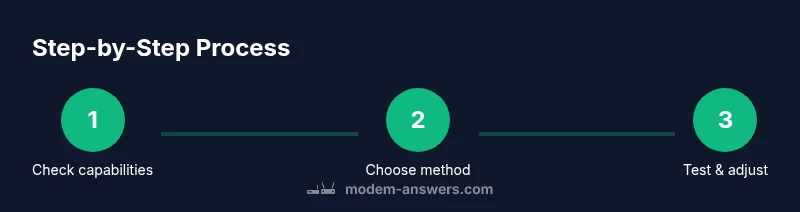
Goal: Turn a modem into a Wi‑Fi repeater by enabling bridge or AP mode, or by configuring a secondary router as an access point. First, verify your device supports repeater features. Then place the second device where signal is weak, connect via Ethernet if possible, and test coverage and speeds. If unsupported, consider a mesh system.
What it means to make a modem act as a repeater
Modem-based repeaters extend wireless coverage by either passing traffic through a second device or by turning the gateway into a passive bridge. The terminology can be confusing: a true repeater rebroadcasts an existing signal, while a bridge passes traffic to another router without double NAT. In practice, many consumer gateways support only gateway functionality (NAT + DHCP) and not full repeater modes. According to Modem Answers, the feasibility hinges on the device's firmware and hardware, as well as the operator’s configuration options. If your device supports bridge or AP mode, you can expand coverage with minimal network disruption. If not, a secondary router or a dedicated mesh system often provides more reliable results. The key is to understand your current network role and the effect of each mode on DHCP, NAT, and firewall rules.
Prerequisites and capability check
Before attempting any changes, inventory your hardware and confirm capabilities. Identify whether your modem is a gateway device (modem + router), whether it supports Bridge, AP, or WDS (Wireless Distribution System) modes, and whether your ISP allows you to alter the device's behavior. Gather login credentials for the admin page, an Ethernet cable, and a computer or smartphone for configuration. If you’re unsure, consult the user manual or the manufacturer’s support site. Modem Answers recommends labeling current settings and noting default IP addresses so you can revert if needed. Also verify that a second router or access point will be available to complete a backhaul connection if your modem cannot bridge.
Methods to extend Wi‑Fi with a modem: Bridge mode, AP mode, WDS, and mesh alternatives
There are several viable paths to extend Wi‑Fi using a modem:
- Bridge mode: The gateway acts as a modem only, passing all traffic to a second router. This reduces double NAT issues but requires DHCP and firewall duties to be handled by the second device.
- AP (Access Point) mode: The gateway continues to route, but a second device handles the wireless network as an access point, often with a shared SSID.
- WDS (Wireless Distribution System): A built‑in wireless bridge between devices, typically vendor‑specific and less interoperable.
- Mesh alternative: If the modem lacks proper repeater options, a mesh system or a dedicated wireless repeater is often simpler and more robust for large homes. Choosing the right method depends on your device capabilities, network needs, and willingness to manage NAT/DHCP.
Step-by-step path A: Using Bridge Mode (if supported)
If your modem supports bridge mode, begin by logging into the admin interface via a wired connection. Locate the Bridge or WAN settings and enable bridge mode. You may need to disable the gateway’s DHCP server and NAT, so the second router will handle routing. Save the changes and reboot devices. After the reboot, connect your secondary router to the modem with an Ethernet cable and configure the router to handle DHCP on your network. This path is usually best for large homes where you want a single network across all devices. Pro tip: note the new IP address of the second router so you can reach its admin panel without a fight.
Step-by-step path B: Configuring a second router as an AP or via WDS
If bridge mode is not available, set up a second router as an access point. Connect the second router to the modem using a LAN‑to‑LAN connection to ensure traffic flows through the primary gateway. Disable DHCP on the second router, assign a static IP in the same subnet as the modem, and configure the wireless settings to either a shared SSID or a distinct AP SSID for easier troubleshooting. If your devices support WDS, enable it and pair with the primary gateway. Remember to enable security (WPA2/WPA3) and avoid WEP. This method often preserves coverage without requiring advanced networking knowledge.
Step-by-step path C: Wireless repeater mode (if modems support it) or WDS
Some gateways offer a dedicated wireless repeater or WDS option. In this path, you’ll typically enable Repeater or WDS mode on both devices and enter the pairing code or MAC address as required by the firmware. Ensure both devices share compatible security settings and the same channel to maximize performance. Place the repeater midway between the router and the dead zone and test with a real‑world device. Note that repeaters can halve theoretical speeds, so a wired backhaul is often preferable for higher throughput.
Testing and troubleshooting: verifying coverage, speeds, and reliability
After configuring one of the options above, perform practical tests across your home. Use a smartphone or laptop to run speed tests in multiple rooms, and check the connection stability as you move around. If speeds drop significantly, adjust the AP position or switch to a wired backhaul. Use a dedicated app or built‑in diagnostic tools to monitor signal strength (RSSI) and channel interference. If you see frequent disconnects, recheck firmware versions and reset any conflicting settings. Modem Answers notes that improved results come from stable firmware and consistent channel selection rather than forcing aggressive settings.
Security considerations and maintenance
Security should never be an afterthought. Keep firmware up to date on both devices, enable WPA2/WPA3, and disable remote management unless you need it. Use strong, unique passwords for admin panels and avoid sharing them. Regularly review attached devices and firmware advisories from your vendor. If you plan to revert changes, create a quick‑start guide or take screenshots of each step. This helps you restore settings if you need to revert to the original configuration.
When to choose alternatives: mesh networks and ISP‑provided equipment
If your space has dead zones or you require seamless roaming, a mesh Wi‑Fi system often outperforms traditional repeaters or AP setups. Mesh networks adapt to changing conditions, maintain a single network name, and reduce manual tuning. In many cases, ISP‑provided equipment with a native mesh option yields the most stable performance. For some homes, a dedicated mesh system may be the simplest, fastest route to full coverage while preserving security and management simplicity.
Tools & Materials
- Computer or smartphone with web browser(Used to access and configure the modem's admin interface)
- Ethernet cable (Cat5e or better)(For a stable wired backhaul between devices)
- Modem with configurable bridge/AP/WDS options(Verify capabilities in the user manual or provider portal)
- Second router or access point (optional but recommended)(Needed if your modem lacks bridging features)
- Admin credentials and reset paper(Have access to the modem’s admin login credentials and default IP address)
Steps
Estimated time: 30-60 minutes
- 1
Check device capabilities
Identify whether your modem supports Bridge mode, AP mode, or WDS. Review the user manual and the provider’s support site. This determines which path you’ll take.
Tip: Document current network settings before changing anything. - 2
Access the admin interface
Connect a computer to the modem via Ethernet or Wi‑Fi, then log in to the admin panel using the device’s IP address. Locate the network or gateway settings.
Tip: Use a wired connection when possible to reduce login errors. - 3
Choose your path
If Bridge mode exists, enable it. If not, decide between AP mode or using a second router with LAN backhaul.
Tip: Back up current settings before making changes. - 4
Configure the second device
For AP mode: disable DHCP on the second device and assign a static IP in the same subnet. For WDS: enter pairing details per firmware guidance.
Tip: Ensure security (WPA2/WPA3) is active on both devices. - 5
Test coverage
Power cycle all devices, connect a test device, and browse the network in the newly extended area. Move the AP if needed for best signal.
Tip: Prefer a wired backhaul when possible for best performance. - 6
Finalize and secure
Note down new IPs, SSIDs, and passwords. Reboot to apply changes and verify that the network remains secure.
Tip: Disable remote management to reduce exposure.
FAQ
Can any modem be turned into a repeater?
No. Repeater or bridge functionality depends on the device's firmware and hardware. Some gateways are designed only for gateway mode and may not support bridging or AP mode.
Not all modems support repeater or bridge features; check the user manual or contact support to confirm capabilities.
Will enabling bridge mode disable my firewall?
Bridge mode typically disables NAT and DHCP on the gateway, transferring routing duties to the secondary device. The firewall is then managed by the second router or AP.
Bridge mode moves routing to the second device; you’ll handle firewall rules there.
Do I need a second router to extend Wi‑Fi if bridge mode isn’t available?
If bridge mode isn’t available, you can still extend coverage with an AP configuration or a dedicated wireless repeater/mesh system.
You can use an AP or mesh system if bridge mode isn’t present.
How can I maximize performance when extending Wi‑Fi?
Use a wired backhaul when possible, keep the AP in a central location, and ensure you’re using WPA2/WPA3 security with a strong password.
Prioritize a wired backhaul and secure settings for top performance.
What if my ISP blocks bridging options?
Some ISPs restrict changes on gateway equipment. If that happens, consider a mesh system or a standalone router connected to the modem in bridge/PPPoE passthrough mode if supported by your plan.
If bridging is blocked by the ISP, use a mesh system or a separate gateway.
How do I revert changes if the new setup doesn’t work?
Restore the original factory settings on both devices or re-enable the device’s original gateway mode. Keeping a backup of original configuration helps speed this up.
If it fails, reset to factory settings and re‑enable the original gateway.
Watch Video
Key Takeaways
- Confirm repeater capabilities before starting.
- Bridge or AP mode generally offers the cleanest setup.
- Prefer wired backhaul for best performance.
- Test coverage in real-world conditions and adjust placement.
- Mesh is often the simplest robust alternative for larger homes.