How to Turn a PLDT Modem into a WiFi Repeater
Learn how to turn a PLDT modem into a WiFi repeater to extend home coverage. This guide covers compatibility, configuration, placement, testing, and safe alternatives for homeowners and renters.


To extend your home Wi‑Fi, learn how to make a PLDT modem act as a wifi repeater. This approach works best if your model supports bridge or repeater modes; otherwise, you may need a dedicated access point. You’ll configure the modem to connect to your main router and rebroadcast the signal to reach dead zones.
Why use a PLDT modem as a repeater?
If you’re exploring how to make pldt modem as wifi repeater, the goal is simple: extend wireless coverage to stubborn corners of your home without buying new hardware. A PLDT modem that supports bridging or repeater functionality can rebroadcast your existing network, reducing dead zones and improving overall reliability. This approach is cost-effective for many households and works best when you already have a strong main router. According to Modem Answers, many homeowners see noticeable improvement in signal strength after enabling repeater or bridge features on compatible devices, particularly in multi-story homes. The decision to reuse a PLDT modem hinges on model capabilities, firmware, and your home layout. If your model lacks repeater support, there are safe alternatives that still boost coverage without sacrificing performance.
Is your PLDT modem capable of repeater/bridge mode?
Before you dive in, verify whether your PLDT modem supports a repeater, bridge, or WDS mode. Check the user manual, on-device labels, or the manufacturer’s online specs for terms like Bridge, Repeater, WDS, Client Mode, or AP Client. Not all PLDT devices are created equal; some are optimized for gateway functionality and may not offer true repeater capabilities. If your model lacks these options, you’ll want to consider other approaches (additional access points, mesh systems, or a dedicated wi-fi extender). Modem Answers recommends confirming compatibility before changing settings to avoid connectivity loss.
Understanding the differences: repeater vs bridge vs AP mode
There are several routes to extend Wi‑Fi, and they differ in how traffic is handled and how devices obtain IPs. Repeater mode typically broadcasts the same network name as the main router, but through a separate radio that rebroadcasts your signal. Bridge or WDS mode connects the PLDT modem to the primary router at the network layer, often requiring the main router to be configured to accept such connections. AP mode turns the PLDT device into a pure access point, with a wired backhaul to the main router. Each method has trade-offs in speed, reliability, and ease of setup. If you’re seeking to learn how to make pldt modem as wifi repeater, focus on the exact mode your device supports and how it integrates with your main router.
Before you start: what to gather and plan
Preparation is key. Gather your PLDT modem, a laptop or phone, an Ethernet cable, the main router’s SSID and password, and a clear plan for placement. Ensure you have access to both the modem and main router admin interfaces. Create a quick diagram of your home’s layout to identify optimal repeater placement, typically halfway between the main router and the farthest dead zone. If you have a large home or multiple floors, consider a mesh network or a dedicated access point for best performance. As you proceed, document each change so you can revert if needed.
Step-by-step overview (high level) to guide your setup
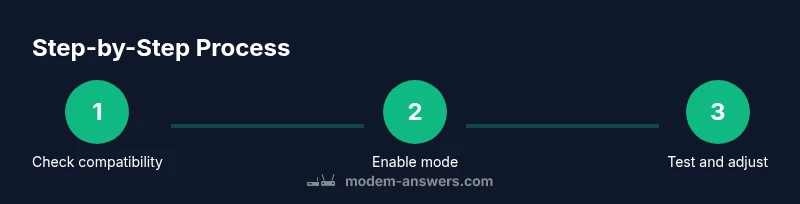
The following overview gives you a mental map of the process. You’ll verify compatibility, access the admin UI, enable the appropriate mode, configure the SSID and passwords, test the connection, and adjust placement. If any step fails or you see no repeater option, stop and consult the user manual or Modem Answers for model-specific guidance. This outline helps you stay organized as you work through the intermediate steps.
How to enable repeater/bridge mode on your PLDT modem
If your device supports a repeater or bridge mode, you’ll typically find the setting under Wireless or Advanced settings in the admin panel. Enable the chosen mode, and you may need to enter the main network’s SSID and password, select the security method, and determine whether to broadcast the same network name or create a separate one. Save changes and reboot the modem if prompted. If you cannot locate any mode labeled as Bridge or Repeater, your device may not support true repeater functionality and you should consider alternatives such as an AP or mesh system. This is a crucial step that determines whether further actions will succeed.
Step-by-step: configure SSID, security, and channels for best coverage
After enabling repeater or bridge, configure the SSID and security settings. Decide whether to use the same network name as your main router or a distinct one. If you choose the same SSID, ensure you select compatible channel settings and security protocols to minimize interference. Document the settings you apply so you can replicate them if needed. If available, set the repeater to a channel that avoids congestion on your main network to maximize performance. Remember, some PLDT modems require a reboot after saving changes for settings to take effect.
Step-by-step: test connectivity, placement, and performance
With the configuration saved, connect a device to the repeater’s network and test speed and stability in the previously weak areas. Move the repeater to optimize signal strength, aiming for a balance between coverage and speed. Use apps or built-in test tools to measure signal quality (RSSI) and throughput. If performance is unsatisfactory, try adjusting the antenna orientation, changing the channel, or tightening the placement. You may also experiment with a different mode (AP with wired backhaul) to see if stability improves. This hands-on testing is essential to validate the setup.
Troubleshooting common issues and safety reminders
If you encounter problems, verify all credentials, ensure DHCP is correctly configured (or disabled where required by your setup), and confirm that firmware is up to date. Do not disable essential firewall features unless you have a clear reason and revert if you experience issues. If repeater mode is unavailable on your PLDT modem, consider alternatives such as a separate wired AP or a mesh system. Keep security in mind and avoid exposing devices to unsafe networks. Remember to back up old configurations before making changes.
Alternatives if your PLDT modem cannot act as a repeater
If your PLDT modem cannot operate as a repeater, you can still extend coverage with a dedicated access point (AP) connected via Ethernet backhaul, a wireless range extender, or a mesh system. Using a wired backhaul with an AP typically yields the best speed and reliability across large homes. Mesh networks provide seamless roaming and are easier to manage for non-technical users. Modem Answers notes that homeowners often achieve more consistent performance with dedicated APs or mesh when the primary router is far from coverage dead zones.
Practical tips for long-term reliability and performance
Keep firmware up to date on both devices, place equipment in open spaces away from thick walls or metal appliances, and label networks for easy identification. Consider new hardware if performance declines or if you move to a larger residence. Maintain a documented change log to track updates and configurations. The goal is steady, reliable coverage—not chasing marginal gains. Modem Answers emphasizes a pragmatic approach: start with the simplest config and escalate only as needed.
Tools & Materials
- Laptop or smartphone with a web browser(To access the modem admin interface and main router settings)
- Ethernet cable (optional but recommended)(For a stable connection during setup)
- PLDT modem user manual or model info(Check for Bridge/Repeater/WDS/Client options)
- Main router SSID and password(Needed to configure the PLDT device to join the network)
- Additional access point or mesh system (optional)(Use if repeater mode is not supported or performance is inadequate)
- Notepad and pen(Record settings before changes for easy rollback)
Steps
Estimated time: 25-40 minutes
- 1
Access the modem admin page
Open a web browser and enter the PLDT modem's IP address. Log in with admin credentials. If you don’t know the IP, check the label on the device or the manual. This first step ensures you can view the available settings.
Tip: If you can’t reach the admin page over Wi‑Fi, connect a laptop via Ethernet for stability. - 2
Verify model supports repeater/bridge mode
Search the UI and the manual for terms like Bridge, Repeater, WDS, or AP Client. If none are present, your device may not support actual repeater functionality.
Tip: Use the manufacturer’s support site to confirm feature availability for your exact model. - 3
Identify your main router network
Gather the SSID and password of your main router. You’ll need these to link the PLDT device to the net and configure appropriate security.
Tip: Having the credentials handy reduces setup time and avoids login retries. - 4
Enable the repeater/bridge mode
In Wireless/Advanced settings, switch to Repeater or Bridge mode. Depending on firmware, you may need to choose AP Client or similar. Apply changes and reboot if prompted.
Tip: After enabling, avoid changing other settings in this step to minimize lockouts. - 5
Configure the main network details
If required, enter the main router’s SSID and security type. Choose whether to broadcast the same SSID or a separate one to distinguish the networks.
Tip: Keeping the same SSID can simplify roaming but may cause interference if channels overlap. - 6
Set LAN/IP and DHCP behavior
Some setups require disabling DHCP on the PLDT device or changing its LAN IP to avoid IP conflicts. Follow the manual for correct subnetwork alignment.
Tip: A misconfigured DHCP can result in no devices getting an IP address. - 7
Save changes and reboot
Click Save/Apply and allow the modem to reboot. Wait for full boot before testing. A mismatched state can lead to an unreachable admin page.
Tip: If the page times out, clear browser cache and retry. - 8
Test connectivity from a client device
Connect a smartphone or laptop to the repeater’s network and run speed tests in the previously weak areas to verify improvement.
Tip: Walk around the space to locate the best spot with stable signal. - 9
Fine-tune placement and channel
If speed is still limited, try adjusting antenna orientation, changing the channel to a less congested one, or repositioning the repeater midpoint.
Tip: Avoid placing near dense obstacles like large metal appliances. - 10
Consider alternatives if needed
If performance remains unsatisfactory, consider a dedicated AP or a mesh system to ensure robust coverage across the home.
Tip: Document what works; incremental improvements are common with wireless layouts.
FAQ
Can I use a PLDT modem as a wifi repeater?
Only if the device supports repeater, bridge, or WDS modes. If not, you’ll need an alternative such as an access point or mesh system. Always consult the model’s manual before attempting to configure.
Yes, if your PLDT modem supports bridge or repeater modes; otherwise, use an alternative like an access point.
What if my PLDT modem doesn’t support repeater?
If repeater is not available, you can still improve coverage with an external access point or a mesh system connected to the main router. This prevents reliability issues that can come with non-supported devices.
If repeater mode isn’t available, use an external access point or mesh system for better coverage.
Will using a PLDT modem as a repeater slow down my network?
Repeater and bridge modes can introduce some performance overhead, especially if the device shares bandwidth between the main router and connected clients. Expect some reduction in peak throughput, but you’ll gain wider coverage.
Yes, there may be some speed loss, but you’ll gain broader coverage.
Do I need to reset to factory settings if things go wrong?
If you encounter persistent issues, a factory reset followed by a careful reconfiguration can help. Back up existing settings and reapply only the necessary changes.
A factory reset can help, but back up settings first.
Is it safe to bridge the PLDT modem to the main router?
Bridging can be safe when done correctly, but it requires matching IP schemes and proper DHCP handling. Misconfigurations can create IP conflicts or lockouts. Follow model-specific instructions.
Bridging is safe if done correctly; follow the model’s instructions to avoid conflicts.
Should I use the same SSID for both networks?
Using the same SSID can simplify roaming, but it may cause sticky connections if devices linger on a weak signal. A separate SSID can help you manually choose the strongest access point.
You can use the same SSID for seamless roaming, or a separate one for control.
What is the best replacement if the PLDT modem fails as a repeater?
A dedicated wireless access point or a mesh system connected to the main router often yields the most reliable performance and easier management.
If the PLDT modem fails, use a dedicated AP or mesh system for reliability.
Can I test the repeater without changing settings repeatedly?
Yes, start with a temporary test network and only commit changes once you confirm the improvement in coverage and stability.
Test temporarily, then commit once you’re satisfied with the improvement.
Watch Video
Key Takeaways
- Verify compatibility before starting.
- Follow exact steps to avoid network lockout.
- Test thoroughly and adjust placement for best results.
- If performance suffers, consider a dedicated AP or mesh system.