How to Use a Modem as a Wifi Extender
Learn how to turn your existing modem into a wifi extender by enabling bridge or AP mode, configuring SSID and security, and testing coverage. This step-by-step guide helps homeowners extend Wi-Fi without buying a separate extender.


To learn how to use your modem as a wifi extender, you’ll enable bridge or access-point mode, then configure SSID, password, and security settings to extend coverage. You’ll need a compatible modem (with admin access), a secondary device or router, and a basic network plan. This guide walks you through a clear, step-by-step process to expand your home Wi‑Fi without purchasing a separate extender.
Understanding the concept of a modem as a wifi extender
The idea behind using a modem as a wifi extender is to repurpose an existing device to widen wireless coverage rather than buying a standalone extender. In most homes, the primary gateway is a modem or a modem-router combo. When configured properly, this device can broadcast a second access point or bridge to your main network, delivering stronger signal to dead zones. The key is recognizing the difference between bridge mode, access point mode, and traditional repeating features. This article explains how to use a modem as a wifi extender by selecting the right mode and tailoring network settings to your layout.
Hardware and firmware readiness
Before you start, verify that your modem supports the desired extended-coverage setup. Some modems allow bridge-mode operation, others offer dedicated access point (AP) settings, and a few can function as repeaters. Check your device’s user guide or the ISP portal for supported modes. Ensure the firmware is up to date because recent updates improve stability and security for extended networks. If you own a rented or provided modem, confirm with your provider whether bridging is permitted or required for your plan to avoid service interruptions.
Bridge mode vs AP mode vs repeater mode: which to choose
Bridge mode disables router functions on the main device and lets a second router handle all wireless activity, which can eliminate double NAT issues. AP mode keeps the modem’s routing features but adds a second wired/Wi‑Fi access point. Repeater mode simply rebroadcasts the existing signal but can cut throughput. For the goal of extending wifi coverage, AP mode or bridge mode is usually more reliable than a simple repeater. Your choice depends on whether you want a single network SSID, wired backhaul, and how your ISP configures your device.
Prerequisites to gather before starting
Collect essential credentials and details: admin login for the modem, firmware version, existing SSID and password, and whether you’ll deploy a second router as the extender or use the modem’s own AP feature. Have a plan for the network name (SSIDs) and security (WPA2/WPA3). If you plan to use a second router, decide whether you want seamless roaming with a single SSID or separate networks. Back up current settings so you can roll back if needed.
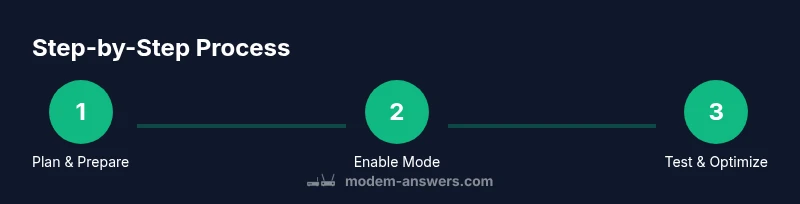
Step-by-step Part 1 — prepare your network and hardware
- Map your home’s Wi-Fi dead zones using a simple reliability survey. Identify rooms with weak signal and note potential obstacles. 2) Gather your devices: the modem, a secondary router or AP, a computer or smartphone for configuration, and an Ethernet cable for a wired backhaul if available. 3) Update firmware on both devices to the latest version to ensure compatibility with bridging/AP features. 4) Decide on a network strategy: single SSID with the same password tends to improve roaming, but separate SSIDs can simplify troubleshooting.
Step-by-step Part 2 — enable bridge/AP mode on the modem
- Access your modem’s admin interface using a web browser and the device’s IP address. 2) Navigate to the network or advanced settings to locate Bridge Mode, AP Mode, or Repeater options. 3) Enable Bridge Mode if you want the secondary router to handle all Wi‑Fi, or enable AP Mode to preserve the modem’s routing while adding an extra AP. 4) Save changes and permit the device to reboot. Do not disconnect power during reboot.
Step-by-step Part 3 — configure the extended network on the second device
- If using a secondary router, connect it to the modem using an Ethernet cable for a reliable backhaul. 2) Log in to the secondary device and set its operation mode to AP or Bridge, depending on your prior choice. 3) Create or adjust the SSID(s) and security settings to align with your main network. 4) Make sure DHCP is disabled on the secondary device if you’re in bridge mode, or correctly configured in AP mode to avoid IP conflicts. 5) Test your extended network on multiple devices and adjust channel settings to minimize interference.
Securing and optimizing the extended network
Use a strong WPA2/WPA3 password and consider enabling a guest network for visitors. If possible, enable automatic firmware updates to protect against vulnerabilities. Position the modem and APs away from thick walls, microwaves, and metal objects. Use a single channel plan to reduce interference and improve roaming between devices. Keep logs of changes so you can revert if something goes wrong.
Testing coverage and troubleshooting common issues
Run speed tests in areas with prior dead zones to gauge improvement. If speeds drop significantly, verify backhaul connections, reboot devices, and re-check bridge/AP settings. If you still see dead zones, adjust antenna orientation, move devices closer, or add a wired backhaul where feasible. For persistent issues, consult your ISP’s support pages for model-specific guidance.
Tools & Materials
- Modem with admin access(IP address for admin page (often 192.168.0.1 or 192.168.1.1))
- Secondary router or access point(Prefer dual-band (2.4 GHz and 5 GHz) for best coverage)
- Laptop or smartphone for configuration(Wi-Fi or wired connection to the modem)
- Ethernet cable(Use for a wired backhaul if available)
- Current network details (SSID, password, security type)(Helps replicate settings across devices)
- Backup of current modem settings(Optional but recommended before making changes)
Steps
Estimated time: 25-40 minutes
- 1
Prepare the network map and hardware
Survey your home to identify weak spots and plan where to place the extender. Gather the modem, secondary device, computer, and Ethernet cable. Confirm you have admin access and firmware up-to-date.
Tip: Use a simple floor plan to mark coverage gaps and plan a wired backhaul if possible. - 2
Log in to the modem’s admin interface
Open a browser and enter the modem’s IP address. Sign in with admin credentials. Ensure you’re connected to the modem directly for accuracy.
Tip: Have your admin password handy and consider changing it from the default for security. - 3
Decide the mode: bridge vs AP vs repeater
Choose Bridge Mode if a second router will handle Wi‑Fi, AP Mode to add a second access point while keeping routing on the modem, or Repeater if hardware supports it and your aim is simplicity.
Tip: Bridging can reduce double NAT issues; AP mode is easiest for most setups. - 4
Connect the devices for a stable backhaul
If possible, run an Ethernet cable from the modem to the secondary router. Wireless backhaul is acceptable if a wired path isn’t feasible but may affect throughput.
Tip: Wired backhaul generally gives the best performance. - 5
Enable the chosen mode and reboot
Apply the mode setting and reboot both devices as prompted. Wait for the lights to stabilize before testing.
Tip: Do not unplug devices during the reboot process. - 6
Configure network settings on the secondary device
Set the secondary device to AP or Bridge mode, disable DHCP if in Bridge, and assign the same SSID/password or a distinct one if you’re testing separation.
Tip: Avoid IP conflicts by ensuring a clear DHCP range. - 7
Review SSID and security settings
Choose WPA2/WPA3, enable automatic updates, and configure any guest network if you need guest access separately.
Tip: A strong password is essential for security and performance. - 8
Test connectivity and tweak as needed
Run speed tests in all critical rooms, check roaming if possible, and adjust channel settings to minimize interference.
Tip: Cycle through channels to find the least congested one.
FAQ
Can any modem be turned into a wifi extender?
Not all modems support bridge or AP modes. Check the user manual or ISP portal to confirm whether bridging or AP functionality is available.
Most modems support basic bridging or AP features, but some ISP-provided models have limited options.
Will extending with a modem reduce internet speeds?
Extending with a second device can introduce some overhead, especially if using wireless backhaul. A wired backhaul typically minimizes speed loss.
There can be some slowdown with wireless backhaul, but using a wired backhaul helps maintain speed.
Will I lose features like guest networks when I bridge?
In bridge mode, many routing features are handed to the secondary device. You can usually enable guest networks on the secondary device, but check your exact model.
Guest networks may be available on the secondary device if you set it up as AP or in bridge mode with proper configuration.
How can I tell if the extender is working after setup?
Test with speed tests in areas far from the main router, check the extended network’s SSID, and verify devices can roam between access points.
Run tests around dead zones and verify devices connect to the extended network automatically.
What should I do if my ISP blocks bridging?
Some ISPs restrict bridging. Contact support for guidance or use AP mode with a second router if allowed by your plan.
If bridging is blocked, AP mode with a secondary router is a common workaround.
Watch Video
Key Takeaways
- Plan placement to maximize signal reach
- Choose the correct mode (bridge or AP) based on your setup
- Use wired backhaul when possible for best performance
- Secure the extended network with strong encryption
- Test coverage and adjust channels for best roaming