How to Make Converge Modem as Wi‑Fi Extender: A Step-by-Step Guide
Learn how to turn your Converge modem into a Wi‑Fi extender. This step-by-step guide covers bridge mode, AP mode, and using a second router for wired backhaul, with practical tips and safety considerations.


This guide shows how to make converge modem as wifi extender by leveraging bridge or AP mode, or a second router for wired backhaul. It covers checking capabilities, selecting a deployment method, and basic testing to extend coverage while preserving security. Follow these steps with your existing equipment to improve home Wi‑Fi.
Introduction to extending Wi‑Fi with a Converge gateway
In this guide on how to make converge modem as wifi extender, Modem Answers explains that many households can improve coverage by repurposing their gateway as a dedicated Wi‑Fi extender. We walk through practical, 100% actionable steps to convert the gateway into an extender using bridge or AP mode, or by attaching a secondary router for wired backhaul. Whether you rent or own, expanding wireless coverage is achievable with common equipment and careful setup. The goal is a reliable, seamless network that maintains security and speed across rooms.
Bridge mode vs AP mode vs separate router: Understanding the options
Bridge mode disables the router function on the gateway and passes the public IP to a connected device, effectively turning the gateway into a simple modem. AP (access point) mode keeps the gateway’s network but relieves it from routing duties, letting a second device manage DHCP and NAT. A separate router behind the gateway creates a simple network extension using Ethernet backhaul. Each option has trade‑offs related to NAT, ease of management, and device compatibility. Modem Answers recommends starting with AP mode or a dedicated access point to minimize disruption to your current network.
Prerequisites: What you need before you start
Before you begin, identify the gateway’s IP address and admin credentials, and ensure the firmware is up to date. Gather a second router or access point, a computer or mobile device for configuration, a stable Ethernet cable (Cat5e/6), and power adapters. Optional items include a basic USB drive for firmware backups and a label maker to document network settings. Having a plan for SSID names and passwords helps a smoother setup.
Method A: Turn the gateway into a wired access point behind your primary router
Action steps in this method: connect the second device to the main router via Ethernet, disable DHCP on the secondary device, and set its LAN IP within the same subnet as the primary gateway. Then configure the SSID to match the main network or create a distinct, easy‑to‑use name. Place the AP halfway between the router and areas with weak signal, avoiding dense walls. This approach preserves speed by using wired backhaul and minimizes NAT complexity.
Method B: Enable bridge mode on the Converge modem if supported
If your device supports bridge mode, enable it from the admin interface and reconnect the second router so it handles DHCP/NAT. In bridge mode, the gateway becomes a pure modem; the connected device becomes the gatekeeper for your network. Expect any existing firewall features on the gateway to be bypassed, so ensure the secondary device’s security settings are strong. If you cannot find a bridge option, proceed with Method A or C.
Method C: Use a dedicated extender or second router for broader coverage
A purpose‑built Wi‑Fi extender or a second router configured as an access point can cover areas the gateway cannot reach. Use a backhaul Ethernet connection whenever possible, and keep the network naming predictable. Consider a simple mesh setup if your devices support it, and update firmware on all devices to maintain security and compatibility. This method is often easiest for renters who cannot modify the primary gateway.
Security, performance, and ongoing maintenance
Keep firmware updated on all devices, use strong WPA3 (or WPA2) passwords, and disable WPS if supported. Regularly check channel usage and interference, especially in dense apartment buildings. Document changes to avoid confusion, and run periodic speed tests to verify that the extended network performs as expected. Modem Answers suggests periodic reboots during major changes, but avoid frequent resets that disrupt devices.
Authority sources and further reading
For authoritative guidance on network configuration and security, see: FCC: Wi‑Fi network setup basics (https://www.fcc.gov/), NIST wireless networking security guidance (https://www.nist.gov/programs-projects/wireless-networking-security-guidance), and FTC consumer tips on computers and the internet (https://www.consumer.ftc.gov/articles/0015-computers-and-internet).
Tools & Materials
- Ethernet cable (Cat5e/6)(Use at least Cat5e for gigabit reliability)
- Second router or access point(Prefer a device that supports AP/Bridge mode)
- Computer or mobile device for configuration(Web browser access to admin pages)
- Power adapters for gateway and extender(Keep devices powered during setup)
- Labeling supplies (optional)(Mark SSIDs and passwords for easy reference)
- Backup plan (optional)(Note current settings in case you need to revert)
Steps
Estimated time: 1.5-2 hours
- 1
Check device capabilities
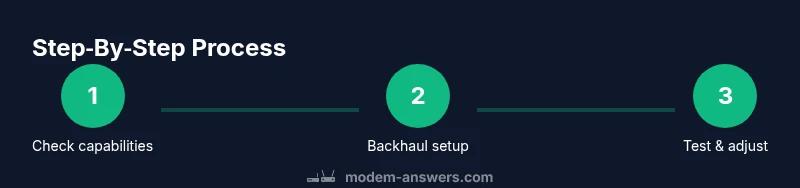
Access the Converge gateway admin page and search for terms like Bridge mode, AP mode, or wireless repeater. Confirm whether the device can operate in AP or bridge mode, or whether a separate router is required.
Tip: If you can't find any bridge/AP option, plan to use Method C with a second router. - 2
Gather required gear
Collect an Ethernet cable, a second router or access point, a computer or phone for configuration, and power supplies. Ensure you have the latest firmware backups if available.
Tip: Use Cat6 for future‑proofing and reliability. - 3
Decide deployment method
Choose AP/bridge mode on the gateway (if available) or configure a second router behind the gateway as an AP with wired backhaul. Decide if you want seamless single network or clearly named SSIDs.
Tip: AP mode is simpler and less likely to cause double NAT. - 4
Configure the extender as AP
Disable DHCP on the second device and assign a static IP in the same subnet as the gateway. Set the Wi‑Fi name and security in line with your main network or choose a distinct, easy name.
Tip: Document the static IP and SSID for future changes. - 5
Physically connect the devices
Connect the second device’s LAN port to a LAN port on the primary gateway (LAN‑to‑LAN) for AP mode. Avoid using the WAN port in AP mode to prevent double NAT.
Tip: Place the AP in a central location between weak zones. - 6
Configure SSID and security
If you want seamless roaming, mirror the main network’s SSID and password; otherwise, choose a clearly named separate network. Enable WPA2/WPA3 and disable WPS if possible.
Tip: Use a strong password and keep firmware updated. - 7
Test and optimize
Run speed tests in multiple rooms, check signal strength, and adjust the AP’s location or channel as needed. Reboot devices after changes if connections are unstable.
Tip: Aim for consistent speeds above your baseline in target zones.
FAQ
Can I use my Converge modem as a Wi‑Fi extender without buying new hardware?
Yes, if your device supports bridge or AP mode, or if you add a second router configured as an AP behind the gateway. This preserves network flow without additional internet costs.
Yes. You can extend Wi‑Fi by using AP or bridge mode on your gateway or by adding a second router.
What is the difference between bridge mode and AP mode?
Bridge mode passes the public IP to the connected device and turns off router features on the gateway. AP mode keeps the gateway as an access point while another device handles routing.
Bridge mode makes the gateway a pass‑through modem; AP mode keeps Wi‑Fi on the gateway but lets another device manage routing.
Will using the modem as an extender reduce internet speed?
Some speed loss is common when extending networks, especially with wireless backhaul. A wired backhaul to a dedicated AP minimizes this loss, while bridge mode can alter performance depending on device capabilities.
Yes, there can be slower speeds with extensions, but wired backhaul helps a lot.
How do I know if the device supports bridge mode?
Check the device manual or admin interface for options labeled Bridge mode, IP Passthrough, or Transparent Bridging. If not present, a secondary router with AP mode is a reliable alternative.
Look in the admin page for Bridge, IP Passthrough, or Transparent Bridging. If you don't see those, use AP mode with a second router.
Do I need to login with default credentials?
Always change default credentials before making changes for security. Use your own credentials and disable admin accounts that you don’t need.
Do not rely on default usernames and passwords. Change them before you start.
What are safe security practices for extended networks?
Use WPA2/WPA3, disable WPS, keep firmware updated, and isolate guest networks if needed. Regularly review connected devices to prevent unauthorized access.
Use strong encryption, update firmware, and monitor who’s connected.
Watch Video
Key Takeaways
- Check device capabilities before buying gear
- Prefer AP or bridge mode to minimize NAT issues
- Use wired backhaul for best performance
- Test coverage in real rooms and adjust placement
- Keep firmware updated for security and stability