2 Routers 1 Modem: A Step-by-Step Guide to Extend Your Home Network
Learn how to set up two routers with a single modem to boost Wi‑Fi coverage, avoid double NAT, and create a reliable home network. Step-by-step instructions, topology choices, and safety tips.


Goal: Learn how to configure 2 routers 1 modem to extend Wi‑Fi coverage, improve reliability, and simplify management. This guide covers topology choices (bridge vs AP vs mesh), practical wiring, and security best practices. By following these steps, you’ll achieve a stable network with strong coverage across your home without excessive NAT or IP conflicts.
Why two routers with one modem?
In many homes, a single modem and router can't blanket every room, especially in multi-story layouts or with thick walls. A second router or a dedicated access point can fill dead zones, improve capacity for many devices, and enable more precise network segmentation. According to Modem Answers, a common and effective approach in modern homes is to place the second device in a position that maximizes coverage while keeping the backbone stable. The aim is to deliver consistent signals on both floors, support smart devices, and keep essential services like video meetings smooth. When you implement 2 routers 1 modem correctly, you reduce congestion and can quarantine guest devices on a separate network, all while maintaining a single internet source. The challenge is to set up the devices so they cooperate rather than compete, avoid NAT headaches, and keep troubleshooting straightforward. Plan for future growth by allowing room to add another AP if needed, and keep firmware up to date to prevent compatibility issues.
Understanding bridge mode, AP mode, and mesh options
Two common ways to integrate a second router with a single modem are bridge mode and access point (AP) mode. Bridge mode disables the secondary router’s own NAT and DHCP, letting the primary router manage IPs and routing. AP mode keeps the secondary device as a wireless access point while still sharing the primary router’s DHCP, which makes roaming smoother but may require careful SSID planning. Mesh is another option if both devices support it, offering coordinated roaming but sometimes at a higher cost and complexity. The key is to choose a topology that minimizes double NAT, reduces IP conflicts, and keeps management simple for home users. Modem Answers notes that many households achieve better coverage and stability by prioritizing wired backhaul and centralized control over wireless-only configurations.
Scenarios where 2 routers help
Two routers are particularly beneficial in homes with large square footage, multiple floors, or a mix of work, school, and entertainment zones. If your upstairs bedrooms suffer from weak signals while living areas stay fast, a second router placed strategically can reclaim dead zones. In households with many smart devices, a dedicated AP can isolate IoT traffic, improving reliability for critical tasks like video calls and online gaming. If you run a home office or a small business, separate networks for work devices and guest devices reduce noise and potential interference. Finally, for homes with thick drywall, metal studs, or crowded RF environments, a wired backhaul between the two routers delivers the strongest, most stable performance and minimizes latency.
Pitfalls: double NAT, IP conflicts, DHCP battles
A frequent issue when using two routers is double NAT, where both devices perform network address translation, causing problems with online gaming, VPNs, and some streaming services. IP conflicts occur when both routers attempt to assign overlapping address ranges. DHCP conflicts arise if both devices try to hand out IPs in the same range. To avoid these, assign a single DHCP server (typically the primary router) and set the second device to AP or bridge mode. If you must keep two DHCP servers, segment the networks with VLANs or use different subnets and ensure devices know which gateway to reach.
Planning hardware and backhaul options
For best results, aim for wired Ethernet backhaul between the two routers. This eliminates interference from wireless links and provides predictable throughput. If wiring is limited, place the second router within a strong wireless link to the primary router and use 5 GHz when possible for backhaul. Ensure both devices are within line of sight or have minimal wall interference. Keep in mind that longer cable runs require good shielding and proper cable management to avoid crosstalk and physical damage.
Security and privacy considerations
Security should scale with network complexity. Enable WPA3 on both devices when available, and disable WPS to prevent easy exploitation. Create a separate guest network with isolated access to protect your main devices. Regularly update firmware on both routers to patch vulnerabilities. If you use AP mode, ensure management interfaces are secured with strong admin passwords and consider enabling remote management only if you need it, from trusted networks.
Performance tips and troubleshooting
Start by verifying that the primary router connects to the modem and provides stable Internet access. Then test the second router in AP or bridge mode and confirm that devices seamlessly roam between the two access points. Use wired backhaul whenever possible; if not, optimize placement and minimize interference from microwaves, Bluetooth devices, and neighboring networks. Run speed tests from multiple rooms and adjust channel settings to reduce overlap between 2.4 GHz and 5 GHz bands. If problems persist, reboot devices in sequence and check for firmware updates.
A quick topology blueprint you can adapt
A practical approach is to locate the modem near the main living area, place the primary router nearby, and situate the second router on a different floor or away from thick walls. Use Ethernet for the link between the two routers whenever feasible. Configure the second router as AP mode, with DHCP disabled and a static IP in the primary router's subnet. If you need separate guest access, enable it on the primary router while keeping a separate, isolated guest network on the second unit. This layout minimizes NAT complexity while maximizing coverage and reliability.
Authority sources and further reading
For deeper guidance, consult formal guidelines and best practices from recognized authorities. You can also explore vendor-specific manuals for bridging and AP mode setups. The resources listed below offer additional context on network topology, security considerations, and compatibility with common home Internet services.
Tools & Materials
- Ethernet cables (Cat5e/Cat6)(At least one for wired backhaul between routers; longer runs may require cable management.)
- Primary router with WAN port(Connects directly to the modem.)
- Secondary router or access point(Configure as AP or bridge mode; disable its DHCP if bridging.)
- Laptop or smartphone for configuration(Use wired or wireless to access each router’s admin page.)
- Basic network diagram or paper and pen(Helps plan IP ranges and SSID naming.)
Steps
Estimated time: 60-120 minutes
- 1
Assess equipment and goals
Survey your home layout, measure dead zones, and decide whether you need one extra router as an access point or a full second router with independent features. Consider wired backhaul if possible for best performance. Document your desired coverage goals and device priorities.
Tip: Create a simple floor plan and mark existing router locations to visualize coverage. - 2
Decide topology
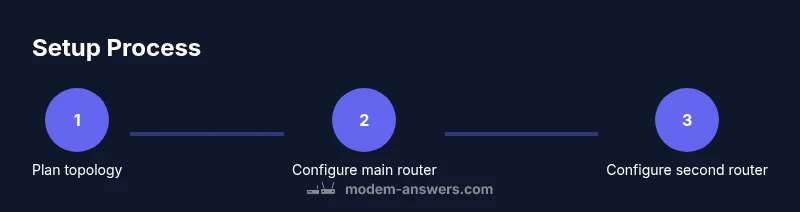
Choose between bridge mode, AP mode, or a dual-router cascade depending on your needs. Bridge/AP typically reduces double NAT and keeps a single DHCP server. If you must keep separate networks, plan VLANs or guest networks accordingly.
Tip: Bridge mode is usually easiest for minimizing NAT issues. - 3
Connect the primary router to the modem
Power down the modem, connect the primary router’s WAN/Internet port to the modem via Ethernet, and power both back up. Verify the primary router obtains a public IP from the ISP and provides basic Wi‑Fi.
Tip: Use a fixed location for the modem and primary router to maximize stability. - 4
Configure the second router
Set the second router to AP or bridge mode. If AP mode, disable DHCP and assign a static IP in the same subnet as the primary router. If bridge mode, let the primary router handle DHCP; still assign a fixed IP to the second unit for management.
Tip: Document the IP addresses used for easy access later. - 5
Test and optimize
Run speed tests from multiple rooms, test roaming between the routers, and verify guest networks if enabled. Adjust channel selection, transmit power, and QoS as needed. Confirm devices maintain stable connections while streaming.
Tip: Temporarily disable 2.4 GHz interference sources like microwaves during testing. - 6
Document and back up
Create a short topology diagram, note SSIDs, passwords, and IP ranges. Back up router configurations if possible. Keep firmware updated to maintain security and performance.
Tip: Store credentials securely and consider a periodic review schedule.
FAQ
What is the difference between bridge mode and AP mode?
Bridge mode passes through the main router’s network management, preventing the secondary device from acting as a separate router. AP mode creates wireless access while centralizing DHCP on the primary router. Choose bridge for simplicity and fewer conflicts.
Bridge mode lets the routers share a single network; access point mode adds wireless access while keeping control centralized.
Can I use wireless backhaul between two routers?
Yes, but performance may degrade without a dedicated wired link. Place units close together and choose 5 GHz for better backhaul capacity when possible.
Wireless backhaul works but wired backhaul is preferred for reliability.
Will I lose internet if the second router fails?
If the second router is configured as AP/bridge, the primary router and modem still provide internet to all devices. If the second router hosts DHCP, losing it may disrupt local IP assignment.
If the secondary router goes down, devices connected mainly to the primary router keep internet access, but some local network features may be affected.
Should I enable guest networks, and how?
Yes. Enable a separate guest network on either or both routers with isolated access to protect your main devices. This keeps your main network secure and simplifies access control.
Set up a separate guest network to keep your devices secure.
How can I tell if I have double NAT?
Check the router status page and WAN IP. If more than one device assigns NAT, you likely have double NAT. Bridge or AP mode typically resolves this.
Double NAT happens when two devices assign private networks; bridge/AP mode fixes it.
What is a simple topology for a two-story home?
Put the primary router on the main floor near the modem and place the second router upstairs with AP or bridge mode. Use Ethernet backhaul if possible.
Place a router upstairs to cover bedrooms, link back with Ethernet if you can.
Watch Video
Key Takeaways
- Plan topology before wiring.
- Prefer AP/bridge mode to minimize double NAT.
- Use wired backhaul for best performance.
- Disable DHCP on the secondary router when bridging.
- Document settings for future maintenance.