How to Make PTCL Modem as WiFi Router
Learn how to turn your PTCL modem into a capable WiFi router. This step-by-step guide covers bridge vs AP mode, safe setup, and best practices for a reliable home network.


If you want a clean, reliable home network, turn the PTCL gateway into bridge mode or use it as a simple modem and run a dedicated router for WiFi. This avoids double NAT, simplifies port forwarding, and gives you full control over your wireless network. Follow these steps to safely reconfigure and preserve performance.
Why bridging your PTCL gateway matters
If you're exploring how to make ptcl modem as wifi router, bridging the gateway and using a separate router is the most reliable route for many homes. Bridging reduces double NAT, improves wireless performance, and simplifies port forwarding. According to Modem Answers, the most recommended approach for most households is to disable the router function on the PTCL device (or enable bridge mode) and let a dedicated router handle WiFi. In practice, this means the PTCL device becomes a transparent conduit, while your own router manages DHCP, NAT, and wireless broadcasting. The result is a single, predictable network where devices obtain IP addresses from one place, your WiFi network name (SSID) is centralized, and security settings are managed by your primary router. This article expands on how to implement this safely and effectively, with practical steps and common pitfalls to avoid.
Prerequisites and safety considerations
Before you begin, gather the required items and confirm you have the necessary access. You will need to log in to the PTCL modem's admin interface, so have a computer or smartphone with a browser and the device's admin credentials ready. Modem Answers emphasizes following official guidelines and avoiding changes that could disrupt your internet service. If your PTCL modem uses PPPoE, you may need your username and password from your ISP or plan. Always note current settings such as the WiFi name (SSID) and the current DHCP range, so you can revert if needed. Safety-wise, avoid turning off essential equipment during updates, and don't mix bridge mode with existing misconfigured firewall rules. After bridge mode is enabled, ensure you have a reliable secondary router to provide WiFi and connect with a solid Ethernet cable.
Bridge mode vs AP mode: Choosing the right approach
Bridge mode and AP (access point) mode serve different purposes. Bridge mode makes the PTCL modem act as a simple modem, removing routing responsibilities. AP mode keeps the PTCL device as a wireless access point, while another router handles routing, DHCP, and NAT. For most home users seeking to maximize speed and control, bridge mode paired with a separate router is the preferred setup. It avoids double NAT, simplifies port forwarding, and centralizes network management in one place. However, if your goal is to reuse the PTCL modem's built-in WiFi with minimal changes, AP mode can be a simpler route, provided your router is configured correctly to avoid conflicts. The choice depends on your home size, number of devices, and whether you need guest networks or advanced QoS features.
How to enable Bridge Mode on PTCL modems (general guidance)
The exact steps vary by model, so consult your device’s manual or the ISP support page for model-specific instructions. In general, you will log in to the modem's web interface, locate the WAN or Internet settings, and select Bridge Mode or Transparent Bridge. Save the configuration and reboot the device. Some units require you to disable the built-in DHCP server and wireless radios after enabling Bridge Mode. If you can't locate Bridge Mode in the UI, you may need to contact PTCL support to enable it from their end. After bridging, the device should no longer perform NAT, and your other router will manage IP addresses and firewall rules.
Configuring your secondary router to broadcast WiFi
With the PTCL modem in bridge mode, connect a network cable from the modem’s LAN port to the WAN/Internet port on your secondary router. Access your router's admin page and set the WAN type to DHCP to obtain the public IP from the bridge, then configure your WiFi network (SSID, password, security). Disable the PTCL device's WiFi to prevent interference. Create a strong, unique SSID and a long password; enable WPA3 if supported, or at least WPA2. Consider enabling a guest network and enabling QoS for prioritizing video calls or gaming. Finally, update the router firmware and back up the settings.
Testing, verification, and ongoing maintenance
After completing the configuration, test the network by connecting multiple devices to the new WiFi and verifying internet access, streaming performance, and latency. Use a wired device to verify that the bridged connection passes through without issues. Check the router’s status page for WAN IP, DNS, and DHCP assignments. If you encounter issues, recheck the cabling, ensure the PTCL device is truly in bridge mode (not simply disabled routing), and verify that DHCP is active on your router. Keep firmware up to date and regularly review security settings, including password changes and firmware updates.
Tools & Materials
- Computer or smartphone with a web browser(Used to access the PTCL modem's admin interface.)
- Ethernet cable(Connects your PC and the PTCL modem or the second router during setup.)
- PTCL modem with admin access(Know the login credentials; default IP is often 192.168.1.1 or 192.168.1.254.)
- Secondary router or wireless access point(Provides the WiFi network after bridging.)
- Power adapters and a stable outlet(Keep devices powered during configuration.)
- Optional: network tester or device to verify DHCP(Helpful for confirming IP assignments and connectivity.)
Steps
Estimated time: 45-60 minutes
- 1
Check compatibility and readiness
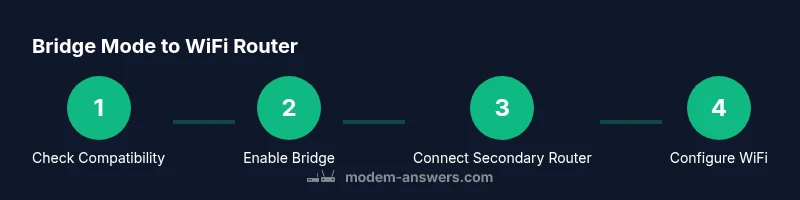
Verify that your PTCL modem supports Bridge Mode or that you can disable routing in its settings. Review the user manual or PTCL support pages for model-specific guidance. Prepare your secondary router with a known working configuration as a fallback plan.
Tip: Pro tip: take photos of current settings before changing anything in the UI. - 2
Access the modem's admin interface
Connect a computer to the PTCL modem via Ethernet. Open a browser and enter the device’s IP address. Log in with your admin credentials and locate WAN/Internet or LAN settings. Confirm you’re on the correct login page to avoid phishing pages.
Tip: If you cannot access the login page, check your network connection or reset credentials via official PTCL support. - 3
Enable Bridge Mode or disable routing
In the WAN/Internet settings, choose Bridge Mode or Transparent Bridge if available. Save changes and reboot the device. If Bridge Mode isn’t visible, follow the device’s AP/Modem section to disable NAT and wireless radios.
Tip: Double-check that DHCP is disabled on the PTCL device after bridging to avoid conflicts. - 4
Connect your secondary router
Run an Ethernet cable from the PTCL modem’s LAN port to the WAN/Internet port of your secondary router. This links the bridge to your WiFi router without layered NAT. Power cycle both devices if required.
Tip: Use a short, high-quality Ethernet cable for best results. - 5
Configure the secondary router for WiFi
On the router, set WAN to DHCP to obtain an IP from the bridge. Create your WiFi network name (SSID) and a strong password. Enable security (WPA2 at minimum, WPA3 if supported) and adjust QoS if needed.
Tip: Disable the PTCL WiFi in its settings to prevent interference or accidental mesh loops. - 6
Test, secure, and document
Connect multiple devices to the new WiFi and verify internet access, streaming quality, and latency. Check the router’s status page for IP, DNS, and DHCP activity. Update firmware and save a backup of the configuration.
Tip: Document changes and keep a copy of the new network credentials.
FAQ
Can I use the PTCL modem without bridging?
You can use the PTCL modem without bridging, but you may encounter double NAT, which can complicate port forwarding and gaming. Bridging is generally preferred for a clean network.
You can, but expect double NAT and potential port-forwarding issues. Bridging avoids that.
What if Bridge Mode isn’t visible in the UI?
If Bridge Mode isn’t visible, AP mode with a separate router is a workable alternative. Contact PTCL support for assistance enabling bridging on your model.
If you can't find Bridge Mode, use AP mode and a separate router, or contact support.
Will bridging disable WiFi on the PTCL modem?
Yes, bridging typically disables the PTCL modem’s built‑in WiFi. You should enable WiFi on your secondary router to keep wireless coverage.
Bridging usually turns off the modem’s WiFi; turn on your own router’s WiFi instead.
Do I need a second router to make this work?
A second router is highly recommended for better WiFi coverage and centralized control. If you only need basic WiFi, AP mode on the PTCL device could suffice.
A second router gives you better control and coverage; otherwise AP mode might do.
How long does the whole process take?
Most setups take 30–60 minutes depending on model familiarity and any necessary firmware updates.
Typically about 30 to 60 minutes.
Is this process safe for my PTCL service warranty?
Reconfiguring your modem with bridge mode is generally safe if done carefully and using official guidance. Check with PTCL if you’re unsure about warranty implications.
It’s usually safe if you follow official steps, but check with PTCL for warranty specifics.
Watch Video
Key Takeaways
- Bridge mode simplifies routing and reduces NAT headaches.
- Use a dedicated router for WiFi after bridging.
- Disable conflicting wireless on the PTCL device.
- Test thoroughly and keep firmware current.