How to Use a Modem as Router: Step-by-Step Guide
Learn how to turn your modem into a reliable router, choose between router mode and bridge mode, secure Wi‑Fi, and optimize your home network for speed and stability.


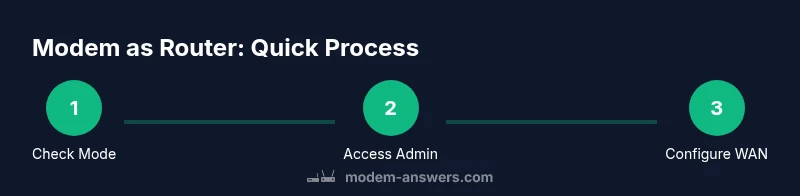
To use your modem as a router, first confirm the device supports router mode. If not, enable bridge mode to use a separate router. With router mode, enable Wi‑Fi, set an SSID and password, configure DHCP, and secure the network. If you plan to keep your modem as the primary gateway, avoid bridging. Regularly update firmware.
Understanding the goal: how to use modem as router
Using a modem as a router means the device will perform gateway duties and wireless routing, so devices connected to Wi‑Fi or via Ethernet can reach the internet without a separate router. The decision to run in router mode on the gateway device or to bridge its routing function to a dedicated router depends on your equipment and how you want to manage features like guest networks, firewall rules, and parental controls. In practice, many modern modems ship with integrated router firmware, which makes setup straightforward for most homes, but the limits of hardware may affect speed and customization. This guide clarifies the goal and the common paths you’ll consider when you ask how to use a modem as router, with practical notes for homeowners and renters. By understanding these concepts up front, you’ll save time and avoid fitting your network into an unsuitable box.
Router mode vs bridge mode: Pros and cons
Router mode on a modem integrates Wi‑Fi, firewall, NAT, and DHCP in one device. Pros include a compact single‑box setup, easy parental controls, and reliable basic protection right out of the box. Cons can include limited processing power for heavy loads, fewer advanced routing options, and potential conflicts if you also run a separate router. Bridge mode disables the modem’s routing features and tunnels all traffic to a dedicated router, which can dramatically improve performance for large homes or power users. The router then handles NAT, firewall, VPN, and QoS, giving you deeper control over traffic. The trade‑offs are extra hardware, a more complex configuration, and the need to manage firmware on two devices. Your choice should reflect your home’s size, the number of connected devices, and whether you value convenience (router mode) or customization and performance (bridge mode).
Check your equipment and capabilities
Before changes, identify your hardware capabilities and ISP constraints. Find the modem model number on the bottom or back, check the user guide, and log into the device’s admin interface to see if router mode is supported. If your device is part of a gateway provided by your ISP, you may be limited by firmware locks or admin access restrictions. Verifying compatibility helps you avoid wasted steps. Also confirm your internet plan and firmware channel to anticipate feature availability. If you have a modern combo device (modem with built‑in router), you likely will see a control panel for Wi‑Fi, LAN settings, and security. If your modem cannot perform routing, you’ll need to bridge and rely on a separate router. In short, the goal is to know what your hardware can do and what your ISP allows so you can plan the right path.
Accessing the modem's admin interface safely
To make changes without breaking your internet, connect a computer or smartphone to the modem via Ethernet or Wi‑Fi from the room where the device sits. Open a browser and enter the device’s default IP address (commonly 192.168.0.1 or 192.168.1.1) or use the quick‑start app if provided by the manufacturer. Log in with the default credentials found on the label or in the manual; if you’ve changed them in the past, use your updated values. Create a plan to back up current settings before altering anything. Take screenshots of current configurations, especially existing DHCP ranges, firewall rules, and Wi‑Fi details. If you forget the login, a factory reset will restore defaults, but you’ll lose custom settings. After confirming you can access the interface, you’re ready to evaluate the best mode for your home network.
Configuring Wi‑Fi and security on modem-router mode
If you’re keeping the modem in router mode, start by enabling both 2.4 GHz and 5 GHz bands and set a unique SSID for each to help guests. Choose a strong passphrase using a mix of letters, numbers, and symbols; avoid easily guessable names. Prefer WPA2‑WPA3 mixed mode if supported, and disable WPS for better security. Set the channel width to 40 MHz or 80/160 MHz only if your devices and interference conditions permit. Enable the device’s built‑in firewall, and consider enabling a guest network if you need to isolate visitors from your main devices. Finally, review UPnP and remote management settings; disable remote access unless you need it for a specific purpose. These steps improve security and reduce interference while keeping setup manageable.
DHCP, LAN settings, and IP addressing basics
Router mode uses DHCP to assign IP addresses to devices in your home network. In many setups, the modem‑router will use a default internal IP (for example 192.168.0.1) with a DHCP pool like 192.168.0.100–192.168.0.199. If you want a custom network, change the LAN IP address to a new subnet and adjust the DHCP range accordingly. When you coexist with a separate router in bridge mode, the router typically becomes the DHCP server, and you should set the modem to bridge to avoid double NAT. Keep a simple, documented address plan to reduce conflicts when devices switch between networks. If you notice IP conflicts, reboot devices or reset the DHCP pool. Understanding these basics helps prevent common home‑network headaches.
Firmware updates and maintenance
Regular firmware updates improve security and performance. Check for updates in the admin interface and review release notes before applying them, as some updates may require a reboot that interrupts service. Allow automatic updates if you trust the device, but monitor reboots during busy periods. If your ISP controls the device, you may need to enable alerts or use a notification method to track updates. After updating, recheck network settings, especially wireless credentials and any custom firewall rules. Staying current reduces vulnerabilities and compatibility issues with new devices.
Bridging to a dedicated router: steps overview
Bridging the modem’s routing functions to a dedicated router is common for larger homes or power users. Placing the two devices in a central location and powering both helps minimize dead zones. In the modem’s admin interface, enable bridge mode or disable routing features while leaving Wi‑Fi on if your plan allows; otherwise disable Wi‑Fi to reduce interference. Connect the router’s WAN port to the modem via an Ethernet cable and access the router’s setup page to configure Wi‑Fi, security, and a new DHCP scope if needed. Test connectivity by browsing, streaming, and running a speed test. Bridging typically shifts most settings to the second device, while the modem remains in bridge state.
Common issues and troubleshooting tips
After switching modes, you may encounter devices that won’t connect, slow speeds, or DNS resolution problems. Start with basic checks: reboot the modem and router, verify cables are secure, and confirm your Wi‑Fi credentials. If devices fail to obtain IP addresses, examine the DHCP settings and ensure the correct device is providing the addresses. If you experience DNS issues, try changing the DNS server in the router to a public DNS (for example 8.8.8.8/8.8.4.4 as a test). In bridge mode, verify that the secondary router is configured to obtain an IP automatically and that its WAN/Internet port is connected to the modem correctly. When in doubt, revert to factory defaults and start the setup again slowly.
Performance tips: optimizing throughput and range
Placement matters. Position the modem in a central location away from thick walls or metal appliances. Use the 2.4 GHz and 5 GHz bands effectively: 2.4 GHz for longer reach, 5 GHz for higher speeds where interference is lower. Consider enabling QoS for bandwidth‑sensitive devices like video calls or gaming. For larger homes, a mesh system or a stronger second router can improve coverage, while you keep the modem in gateway mode or bridge state as needed. Manage bandwidth hogs by scheduling heavy downloads during off‑peak times. Small, deliberate adjustments can yield noticeable improvements in reliability and speed.
Security and privacy best practices
Never expose the admin interface to the open internet; disable remote management unless required. Change default usernames and passwords for both the modem and router, and enable a robust firewall. Use WPA3 when available and consider network segmentation to isolate IoT devices. Keep firmware up to date and review connected devices regularly. These practices protect your network from common exploits and help maintain privacy for all household members.
Quick-start checklist to implement today
- Verify your modem supports router mode or plan to enable bridge mode.
- Gather admin credentials and backup current settings.
- Access the admin interface via a wired connection for reliability.
- Enable Wi‑Fi, set SSIDs, and choose strong passwords.
- Configure DHCP ranges and LAN IP as needed.
- Update firmware if available and reboot to apply changes.
- Test all key services: web, streaming, and gaming on multiple devices.
- Consider a bridging path to a dedicated router if you need more power.
Tools & Materials
- Web browser (Chrome/Edge/Safari)(Used to log into the modem's admin page)
- Computer or smartphone(For accessing the admin interface and configuration)
- Ethernet cable(Connects directly for reliable login and setup)
- Modem power supply(Ensure uninterrupted power during changes)
- Modem admin credentials(Located on device label or ISP welcome packet)
- Secondary router (optional)(Needed if bridging to a dedicated router)
Steps
Estimated time: 30-60 minutes
- 1
Identify desired mode and back up settings
Decide whether you’ll use the modem in router mode or bridge mode to a separate router. Before making changes, back up current settings by taking screenshots of the DHCP ranges, WAN settings, and Wi‑Fi configurations. This creates a restore point if something goes wrong.
Tip: Take photos of the current admin pages and write down login details before changing anything. - 2
Log in to the modem’s admin interface
Connect a computer via Ethernet to the modem. Open a browser and enter the default IP (e.g., 192.168.0.1). Enter the default username and password from the label or manual. If you’ve changed these before, use your updated credentials.
Tip: If you can’t access the page, try a factory reset after noting the required credentials. - 3
Choose and apply the mode
In the admin interface, select router mode to keep the device managing NAT and DHCP, or enable bridge mode to pass control to a separate router. Apply changes and wait for the device to reboot.
Tip: Confirm whether Wi‑Fi remains on in bridge mode; often you’ll disable it to avoid interference. - 4
Configure Wi‑Fi and security
Set up 2.4 GHz and 5 GHz networks with distinct SSIDs. Use a strong password and WPA3‑based security if available. Disable WPS if possible and review remote management settings.
Tip: Document your SSIDs and passwords in a secure place for future changes. - 5
Set DHCP and LAN parameters
If using router mode, adjust the DHCP range to avoid conflicts with your ISP device. If bridging, ensure the secondary router is the DHCP server. Align the LAN IP to a consistent subnet.
Tip: Keep a simple, logical address plan to simplify device management. - 6
Test connectivity and optimize
Test web access, streaming, and gaming across multiple devices. Check DNS resolution and verify that devices receive IP addresses. Reboot devices as needed and revisit settings if you notice issues.
Tip: Run a few speed tests from different rooms to gauge coverage and adjust placement.
FAQ
Can I use my modem as a router without a separate router?
Yes, many modems include built‑in router functionality that handles Wi‑Fi, NAT, and DHCP. If your device supports it, you can run in router mode without a secondary router. If performance or features are limited, bridging to a dedicated router may be preferable.
Yes, you can use a modem as a router if it supports router mode. If not, you might need a separate router or bridge.
What is bridge mode, and do I need it?
Bridge mode disables the modem's routing functions and passes traffic to another router. Use it when you want to manage routing features with a dedicated device, or to avoid double NAT and gain more control over performance.
Bridge mode disables the modem's routing so a separate router handles it.
How do I secure Wi‑Fi on a modem router?
Enable WPA3 if available, or WPA2‑WPA3 mixed mode, disable WPS, and use long, complex passwords. Keep firmware up to date and review remote management settings regularly.
Use WPA3, disable WPS, and update firmware for solid security.
Why might speeds drop after switching modes?
Double NAT, firewall settings, or an underpowered modem can cause slower performance. Bridge mode with a capable router often resolves most speed issues, but ensure proper configuration of DHCP ranges and QoS.
Double NAT or weak hardware can slow things; bridging with a strong router helps.
Should I update firmware every time?
Firmware updates improve security and features but can cause brief interruptions. Check release notes before updating and schedule during low‑traffic periods.
Update firmware when convenient, after checking notes.
What if my ISP device won’t allow router mode?
Some ISP devices lock admin access or limit features. In this case, bridging to a compatible third‑party router is the practical route, or contact the ISP for options.
If the device is locked, consider bridging to your own router.
Watch Video
Key Takeaways
- Identify mode based on device capability and home needs
- Router mode offers simplicity; bridge mode favors power users
- Secure Wi‑Fi with strong passwords and current firmware
- Back up configurations before changes
- Test thoroughly before finalizing