How to Make a Modem Router Access Point
Learn how to convert your existing modem router into a reliable access point to expand Wi-Fi coverage with wired backhaul, proper IP planning, and DHCP configuration. Practical, homeowner-friendly instructions with tips and troubleshooting.


Turn your existing modem router into a dedicated access point to extend coverage and keep management simple. According to Modem Answers, the most stable setups use a wired backhaul, a static IP for the AP, and DHCP disabled on the AP. Connect the devices with Ethernet, set a static LAN IP in the main subnet, and enable AP mode if available to avoid double NAT.
Understanding the Access Point Concept
An access point (AP) is a device that extends your network by broadcasting Wi-Fi and routing data, while relying on a central router for internet access and network management. In practical terms, turning your existing modem router into an access point creates a single, unified network without creating separate NAT domains. This approach can improve coverage, simplify device management, and reduce network contention when a wired backhaul is available. By placing the AP in a central location and using Ethernet backhaul, you can achieve more consistent speeds and fewer dead spots throughout your home. For homeowners and renters, this method preserves existing equipment while expanding wireless reach without buying a separate dedicated AP device.
When to Use an Access Point
Choosing to convert a modem router into an access point makes sense in several common scenarios. If your home has thick walls, multiple stories, or a large square footage, a single router often cannot blanket every room with a stable signal. An AP can be positioned to cover weak zones and provide a reliable backbone for streaming, gaming, and video calls. If you already own a router with strong wireless capabilities, turning it into an AP lets you maximize its potential while minimizing extra hardware. Another frequent use case is when you want a separate SSID for guests or IoT devices that are isolated from your main network. Modern home networks benefit from the predictability of wired backhaul in addition to flexible wireless extensions.
Planning Your Network Topology
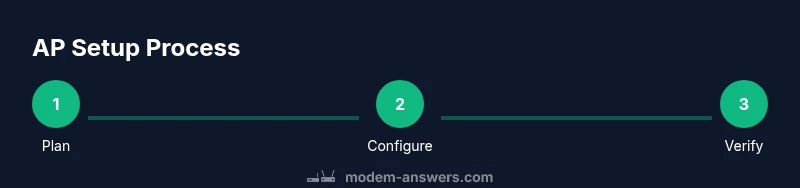
Before touching settings, sketch a basic plan. Decide whether to use a dedicated Ethernet backhaul or rely on a wireless link as a last resort. In most homes, a wired backhaul yields the best performance, consistent latency, and easier troubleshooting. You’ll also need to decide if you want the AP to share the same SSID as the main router (for seamless roaming) or use a distinct name to simplify device management. Having a simple IP plan helps keep everything under control: use a private subnet, reserve an IP for the AP, and ensure the DHCP server on the AP is disabled. This avoids IP clashes and ensures devices get clean routing information from the main router.
Prerequisites and Safety Considerations
Before you begin, ensure you have a working Ethernet backbone and access to both devices’ admin interfaces. Back up current configurations in case you need to revert. Physically connect devices with powered, compatible cables and place the AP in a location with reasonable line-of-sight to coverage areas. Note that modifying router modes can affect services like parental controls or port forwarding, so document changes and be prepared to re-enable features if needed. If your equipment is ISP-provided and under warranty, check the terms to avoid voiding support agreements.
Choosing the Right Hardware
You have two practical routes: reuse an existing router as an AP, or buy a dedicated AP device. If you’re repurposing a router, ensure it supports AP/bridge mode and has a wired Ethernet LAN port. A refurbished or spare router can be a cost-effective solution, but verify firmware capabilities and security features. If you opt for a dedicated AP, look for dual-band support (2.4 GHz and 5 GHz), decent CPU/RAM for stable performance, and easy management options (web interface or app). Either path should support disabling NAT on the AP and allowing the main router to manage DHCP and firewall rules.
IP Addressing and DHCP Essentials
Effective IP planning is critical. Assign the AP a static IP within the main router’s subnet (not in the DHCP range) so you can access it reliably for maintenance. Disable DHCP on the AP to ensure all devices receive addresses from the main router, avoiding conflicts. If your AP supports a single SSID across bands, enable it; otherwise, combine configuration for consistent roaming. The result is a clean, centralized network where devices seamlessly switch between APs without negotiating new IPs.
Common Pitfalls and How to Avoid Them
Two common issues are double NAT and IP addressing conflicts. Double NAT can occur if both devices try to perform network address translation. Disable DHCP and ensure the AP is only routing traffic from the LAN side. IP conflicts happen when the AP uses an IP already assigned by the main router. Always pick an IP outside the main router’s DHCP pool and reserve it in the main router’s settings if possible. Additionally, ensure cabling is solid and that the AP is not placed in a location with excessive interference or physical obstructions.
Verifying Your Network is Working
After applying settings, test from multiple devices across different floors. Check both wired and wireless clients for internet access and stable speed. Use a simple speed test and ping tests to local devices and the gateway. If issues appear, verify cable integrity, recheck IP configuration, and confirm DHCP is disabled on the AP. Documentation of the network layout helps future troubleshooting and expansions. Modem Answers analysis shows wired backhaul consistently improves stability and reduces dropped connections.
Troubleshooting Quick Fixes
If clients can’t obtain IP addresses, recheck the AP’s static IP and DHCP settings on the main router. If devices struggle to connect or experience weak performance, verify AP placement, channel selection, and 2.4/5 GHz band settings. Reboot both devices after major changes, and clear device caches if needed. Finally, keep firmware up to date and confirm that security settings (WPA2/WPA3) remain compatible across devices.
Authority sources
- FCC: https://www.fcc.gov
- CISA: https://www.cisa.gov
- NIST: https://www.nist.gov
Tools & Materials
- Ethernet cable (Cat 5e or better, at least 1–2 cables)(One for connecting the AP to the main router; second for future reconfiguration if needed)
- Second router or dedicated access point device(Prefer a device with AP/Bridge mode and dual-band support)
- Power adapters for both devices(Ensure stable power during setup)
- Admin access credentials for both routers(Have credentials handy before starting)
- Optional network cable tester(Helpful if you suspect faulty cabling)
Steps
Estimated time: 45-90 minutes
- 1
Log in to the main router's admin interface
Open a web browser and enter the main router’s IP address. Sign in with admin credentials to view LAN settings and DHCP range. This step establishes the baseline before changes.
Tip: Note the current LAN IP and DHCP pool to avoid conflicts later. - 2
Choose a static IP for the AP within the main subnet
Pick an unused IP address in the same subnet (for example 192.168.1.2 if .1 is the gateway). This IP will be the AP’s management address.
Tip: Avoid addresses inside the DHCP pool; reserve this IP on the main router if possible. - 3
Disable DHCP on the second router
Turn off the DHCP server on the AP to prevent IP conflicts and ensure devices obtain addresses from the main router.
Tip: Do not disable DHCP on the primary router. - 4
Connect the AP to the main router with Ethernet
Use a CAT5e/6 cable to connect a LAN port on the main router to a LAN port on the AP. This establishes a wired backhaul.
Tip: Keep the cable length reasonable to avoid latency; avoid using the WAN/Internet port on the AP unless required by your device. - 5
Enable AP mode on the second device (if available)
If the AP supports an explicit AP/Bridge mode, enable it to simplify configuration and ensure proper routing.
Tip: If AP mode isn’t available, proceed with manual bridge-like settings by disabling NAT and DHCP instead. - 6
Configure SSID and security on the AP
Set the AP to use the same SSID and security (WPA2/WPA3) as the main network for seamless roaming, or assign a distinct name if you prefer separation.
Tip: If you rely on roaming, ensure both bands (2.4 GHz and 5 GHz) use the same credentials. - 7
Test connectivity on multiple devices
Connect phones, laptops, and smart devices to verify internet access from both bands and the wired backhaul. Check for consistent speeds across rooms.
Tip: Temporarily disable other Wi-Fi networks nearby to isolate interference during testing. - 8
Optimize channels and power settings
Manually select less congested channels for 2.4 GHz and 5 GHz, and adjust transmit power if your devices allow it to minimize interference.
Tip: Consider Auto for initial setup, then switch to fixed channels after testing. - 9
Save changes and reboot both devices
Apply changes, reboot, and re-check the status pages to confirm the AP is reachable at its static IP and that devices obtain addresses from the main router.
Tip: Document the final IP, SSID, and password for future maintenance.
FAQ
What is the difference between an access point and a range extender?
An access point connects via a wired backhaul to the main router, creating a unified network. A range extender uses wireless backhaul and can introduce additional latency and separate networks. For best performance, use an AP with wired backhaul when possible.
An access point uses a wired connection to the main router for fastest, most reliable coverage, while a range extender relies on wireless backhaul and can slow things down.
Do I need to keep DHCP disabled on the main router too?
No. DHCP should stay enabled only on the primary router to avoid conflicts. The secondary device should have DHCP disabled so devices get addresses from the main router.
DHCP stays on the primary router. The secondary device should not issue IP addresses.
Will this setup slow down my network?
If wired backhaul is used and proper channels are selected, the impact is minimal and often improves overall reliability. Wi-Fi backhauls may introduce some latency if placement or interference is poor.
With wired backhaul and good placement, you usually don’t see a speed drop; better coverage often means faster perceived performance.
What if my AP doesn’t have an AP mode option?
You can still disable NAT/DHCP and assign a static IP on the AP to create a bridge-like configuration. It requires careful IP planning and testing.
If there’s no AP mode, disable DHCP and NAT on the second device and set a static IP within the main subnet.
Can I use the same SSID for the main router and AP?
Yes, using the same SSID can enable seamless roaming, but it depends on device support. If devices struggle to switch, consider a distinct SSID.
Using the same SSID helps devices roam smoothly, but if you notice dropouts, try a separate network name for testing.
Do I need a professional to set this up?
Most home setups can be done with the steps here. If you manage a large home or complex topology, professional guidance can help optimize placement and settings.
For most homes, you can do it yourself following these steps; professional help is optional for advanced setups.
Watch Video
Key Takeaways
- Plan IP scheme before you start
- Disable DHCP on the AP to avoid conflicts
- Use wired backhaul for best performance
- Decide on a shared vs distinct SSID for roaming
- Test thoroughly and document settings