Modem as Router: A Practical Guide for Home Networks
Learn how to turn a modem into a router, optimize Wi‑Fi coverage, and secure your home network with practical, step‑by‑step guidance from Modem Answers.


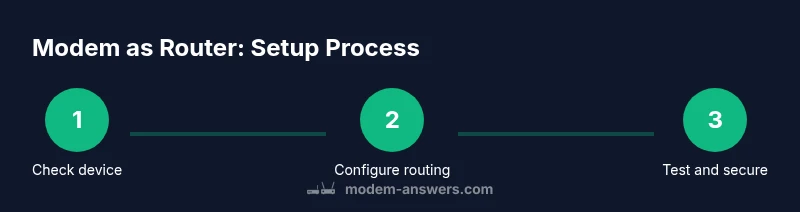
Learn how to use your modem as a router by enabling built‑in routing features, configuring Wi‑Fi, and securing the network. You’ll need a modem with router capabilities, a computer or smartphone, and access to the admin interface. Follow the step‑by‑step guide in this article for a reliable home network. This quick answer sets the stage for deeper setup options.
What it means to run a modem as a router
Using a modem as a router means you rely on the device's built‑in routing capabilities to provide both internet access and a local network, instead of using a separate standalone router. For many homes, this simplifies setup, reduces cable clutter, and centralizes control in one device. According to Modem Answers, this arrangement can streamline network management when the ISP supports compatible firmware and features. The switch also affects NAT, DHCP, and firewall settings, so understanding what changes is essential to prevent connectivity issues and maintain security.
When a modem with router functionality is used, you typically enable routing features in the admin interface and configure Wi‑Fi directly from the device. The alternative is a bridge mode where the modem becomes a simple modem, and a separate router handles all routing functions. Each approach has trade‑offs: router mode keeps all features in one place but may introduce double‑NAT in some setups; bridge mode can simplify compatibility with some ISPs but requires a second device to manage Wi‑Fi and ports. In either case, plan how you want to manage IP addresses, device access, and parental controls before changes.
Core concepts: NAT, bridging, and network topology
At the heart of modem‑as‑router configurations are a few core concepts: NAT (Network Address Translation), DHCP (Dynamic Host Configuration Protocol), firewall rules, and how IP addresses are assigned. When the modem acts as the router, it becomes the primary device that assigns local IPs, translates them to the public address, and enforces access controls. The risk is double NAT, where two devices on the network perform NAT, which can complicate port forwarding, gaming, and some VPNs. Bridging the modem to a separate router removes the router duties from the modem, eliminating double NAT but shifting control to the secondary device. Understanding which topology your home needs helps prevent performance bottlenecks and configuration headaches. Modem Answers analysis shows that streamlined networks with modem‑as‑router mode often experience fewer setup conflicts and easier maintenance. It’s important to document IP ranges, device names, and the firewall rules you apply for future changes.
Choosing between bridge mode vs. router mode
Bridge mode and router mode are not one‑size‑fits‑all solutions. Bridge mode effectively turns the device into a pure modem, passing routing duties to a dedicated router. This is ideal if you already own a high‑quality router or need advanced features like robust QoS, sophisticated parental controls, or VPN capabilities. Router mode keeps routing within the modem, which can be simpler for single‑device households and minimizes extra hardware, but may limit some advanced features. ISP compatibility matters here; some providers require the device to stay in bridge mode for certain services. Before switching, confirm whether your ISP supports bridge mode on your modem and whether your plan relies on any features that require a separate router. A practical approach is to map out your devices, expected traffic, and whether you need features such as guest networks or port forwarding for specific applications.
Configuring security and Wi‑Fi when using a modem as router
Security should be the top priority when enabling modem‑as‑router functionality. Start with a strong, unique Wi‑Fi password and enable WPA3 if available; if not, WPA2‑AES is acceptable. Disable WPS to reduce brute‑force risk, and set up a guest network to isolate IoT devices. Regularly check for firmware updates in the admin interface, as these patches often address new vulnerabilities and improve performance. Consider enabling a basic firewall, restricting remote management, and creating a simple schedule for network access for family devices. Writing down your SSID, password, and a few essential rules helps your household stay secure even after changes.
Performance optimization and troubleshooting basics
Performance hinges on how you configure the modem’s routing features and how your home is wired. Place the router (or the modem‑router) in a central location away from interference (micro services like cordless phones and microwaves can degrade Wi‑Fi signals). If speeds drop, run a speed test from several rooms to identify weak zones, then adjust channel selection or enable-band steering if your device supports it. QoS settings can prioritize critical devices like work laptops or gaming consoles during peak hours. For troubleshooting, verify that devices obtain IPs from the correct DHCP server, ensure no IP conflicts exist, and test port forwarding with a local device. If issues persist, a factory reset followed by careful reconfiguration can often resolve stubborn problems, but be sure to back up your settings first.
Setup considerations for real‑world homes: ISP, devices, and use cases
Every home has unique needs. If you’re renting or frequently changing ISPs, you may prefer bridge mode to simplify transitions. In a single‑home environment with a mixed‑device ecosystem (phones, tablets, laptops), router mode might be easier for everyday use. For households with smart devices and voice assistants, ensure you enable a robust guest network and keep IoT devices separated from main computing devices. It’s also worth considering a future upgrade path: a capable secondary router can coexist with your modem either via bridge mode or as a mesh node to improve coverage. Finally, keep in mind that some ISP‑provided features like voice services or IPTV may be tied to how the modem handles routing; understanding these dependencies helps avoid accidental service interruptions.
Troubleshooting common issues and how to test
If you notice unstable connections after enabling modem‑as‑router mode, start with basic checks: verify physical connections, reboot the modem/router, and confirm the correct WAN settings. Double NAT symptoms often show up as problems with port forwarding or online gaming. Test by connecting a device directly to the modem (if in bridge mode) or by using the router’s diagnostic tools to check DHCP and NAT status. For Wi‑Fi issues, try a quick channel change and a factory reset if necessary, then reconfigure security settings. Always document your original settings so you can revert if something goes wrong. These steps help you verify whether the issue is local or related to the ISP or device firmware.
Tools & Materials
- Modem with built‑in router functionality(Ensure the device can perform routing duties and has current firmware.)
- Computer or smartphone for admin access(Used to log into the device’s web UI or mobile app.)
- Ethernet cable(Useful for a stable initial setup and testing.)
- Additional router (optional)(Needed if you plan to run in bridge mode with a separate router.)
- Power strip with surge protection(Recommended for stable power and easier reset.)
Steps
Estimated time: 60-90 minutes
- 1
Verify device capability and ISP compatibility
Confirm your modem supports routing features or bridge mode and check with your ISP if bridge mode is supported. This foundational step prevents wasted effort and ensures you won’t disrupt essential services like voice or IPTV.
Tip: If you’re unsure, locate the model number and search the manufacturer support page for “bridge mode” compatibility. - 2
Back up current settings and prepare
Export or write down current network settings so you can revert if needed. This includes the current SSID, password, DHCP range, and any port forwarding rules.
Tip: Store the backup in a known location and label it with the date of the backup. - 3
Access the admin interface
Connect a computer to the modem via Ethernet, then open the admin page using the device’s IP address. Log in with admin credentials; if you don’t have them, check the device label or manual.
Tip: Use a secure device to avoid credential exposure and change default credentials immediately. - 4
Decide on router mode vs bridge mode
Choose router mode if you want everything in one device, or bridge mode if you already own a separate router with better features. The choice affects NAT, DHCP, and Wi‑Fi control.
Tip: Bridge mode can reduce double NAT issues but may require reconfiguring your Wi‑Fi setup on another device. - 5
Configure routing and Wi‑Fi
In router mode, enable routing, set your WAN/Internet connection type, configure a new SSID, and select WPA3 (or WPA2‑AES if not available). Create a strong password and tailor security options.
Tip: Disable WPS to reduce vulnerability and enable guest networks for visitors. - 6
Test connectivity and security
Connect devices and verify internet access, test port forwarding, and ensure devices receive IPs from the correct range. Run a speed test and check that firewall rules are functioning.
Tip: Test from multiple devices to ensure consistent results across the network. - 7
Finalize and back up the configuration
Save all settings, back up the new configuration, and document the changes. If you used bridge mode, confirm the secondary router handles Wi‑Fi and firewall.
Tip: Keep a physical copy of the settings in a safe place in case you need to recover.
FAQ
Can I use my existing modem for router duties without buying a new device?
Yes, if your modem supports routing features. Check the model’s firmware and your ISP’s policy on bridge mode to determine the best approach. If you rely on voice or IPTV services, confirm compatibility before changing modes.
Yes. If your modem supports routing, you can enable it and use the built‑in Wi‑Fi and firewall. If not, you may need a separate router or to enable bridge mode carefully.
What is the risk of double NAT, and how can I avoid it?
Double NAT can break port forwarding, gaming, and some apps. You can avoid it by using bridge mode with a separate router or by configuring proper DMZ/port rules on a single device.
Double NAT happens when two devices perform network address translation. It’s easier to fix by bridging or by setting up proper rules on your router.
Will enabling modem as router affect Wi‑Fi performance?
Changing modes can affect Wi‑Fi range and throughput. Adjust channel settings, enable beamforming if available, and consider relocating the device to optimize coverage.
Wi‑Fi performance can improve or degrade depending on placement and features; adjust settings to optimize coverage.
Should I update firmware before switching modes?
Yes. Update to the latest firmware to ensure security patches and feature support before changing network topology.
Always update firmware before making changes to ensure you have the latest fixes.
What about parental controls and guest networks?
Most modem‑router devices offer parental controls and guest networking. Enable these features and customize access rules to protect devices and manage network usage.
Use parental controls and guest networks to keep your main network secure and organized.
Key Takeaways
- Learn when to use bridge mode vs router mode for modem‑based networks.
- Expect potential double NAT issues with router mode and address them proactively.
- Secure Wi‑Fi with strong passwords and up‑to‑date firmware.
- Regularly back up settings to simplify future changes.