How to Install a Comcast Modem: A Step-by-Step Guide
Learn how to install a Comcast modem with our clear, actionable steps. Verify compatibility, connect cables, activate service, and test your home network—perfect for homeowners and renters seeking a reliable setup.


How to install a Comcast modem: This guide outlines the exact steps to set up your Comcast/Xfinity modem, verify compatibility, connect cables, activate service, and test your connection. It covers common pitfalls, equipment needs, and when to use a separate router. According to Modem Answers, following these steps helps ensure a stable home network from day one.
Why installing a Comcast modem correctly matters
According to Modem Answers, a correct installation reduces the risk of activation errors, ensures you receive the speeds your plan promises, and minimizes outages caused by misconnected cables. This guide is designed for homeowners and renters who want a reliable home network without unnecessary technical jargon. You’ll learn what gear you need, how to physically install the modem, how to activate it, and what to do if you encounter common issues. Proper setup also helps you avoid common bottlenecks like weak Wi‑Fi signals and flaky connections, which can frustrate households with multiple devices streaming, gaming, and working from home. By following a deliberate, stepwise approach, you’ll minimize troubleshooting later and gain confidence in managing your home network over time.
Before you start: what you need
Before you begin, gather everything you’ll use and confirm a few prerequisites. You’ll typically need a Comcast-compatible cable modem (DOCSIS 3.0 or 3.1), a coaxial cable in good condition, a power adapter, a device to activate the modem (a computer or mobile device), and your Comcast/Xfinity account details. If you plan to use a separate router, have it ready as well. Its documentation will guide you through the wireless setup after activation. Having a clean, clear workspace and fresh batteries for any testing devices can reduce minor delays.
Step 1 — Check compatibility and gather gear
Start by confirming the model you own or plan to buy is compatible with Comcast’s network. Comcast supports a list of approved modems, and using an unlisted model can lead to activation failures or subpar performance. Check the model number on the device and compare it against Comcast’s official compatibility list. Once you’ve confirmed compatibility, lay out all items on a neutral surface. This includes the modem, coaxial cable, power adapter, Ethernet cable, a device for activation, and a router if you intend to use one. If any item is damaged or missing, replace it before proceeding. Having everything in one place helps you move through the steps smoothly and reduces the chance of skipping a crucial connection.
Step 2 — Attach the coax line and power up
Connect the coaxial cable from the wall outlet to the modem’s coax port, ensuring a snug, finger-tight connection. It should not be loose or cross-threaded. Next, plug the power adapter into the modem and a working outlet. Give the modem a moment to boot; you should see status lights come on. If the lights indicate power, receive, and online in a steady pattern, you’re close to activation. If any light sequence seems unusual (for example, no light on power), unplug the device, wait 15 seconds, and plug it back in to reboot. Avoid unplugging cables during the boot process, as interruptions can extend setup time.
Step 3 — Connect a computer or device for activation
To activate the modem, you’ll typically use a wired or wireless connection to a computer, tablet, or smartphone. If you’re using a separate router, connect the router’s WAN/Internet port to the modem with an Ethernet cable and connect your computer to the router (either via Ethernet or Wi‑Fi). If you’re proceeding without a router, you can connect directly to the modem. Open a web browser and attempt to load a page; if the device directs you to an activation page, follow the prompts. During activation, you may be asked to sign in to your Comcast/Xfinity account and confirm service addresses. Have your account information handy to expedite the process.
Step 4 — Activate your modem
Activation is the crucial step that registers your modem on Comcast’s system. If you see an activation screen, follow the on-screen prompts to complete the process. If the page doesn’t load automatically, you can try visiting an auto-activation site or use the Xfinity app on a mobile device. In some cases, activation can be completed by rebooting the modem and allowing a few minutes for the network to recognize the device. If activation fails, double-check that the coax and power connections are secure, verify you selected the correct account, and ensure there are no outages in your area. If problems persist, contact customer support for guidance, referencing your modem’s model and MAC address.
Step 5 — Set up a router (optional) and secure Wi‑Fi
If you’re using a separate router, connect the router to the modem via an Ethernet cable from the router’s WAN/Internet port to the modem. Access the router’s admin page from a connected device to configure network name (SSID) and password. Use WPA3 or at least WPA2 security, and enable the router’s firewall for basic protection. If you want guest access, enable a separate guest network with its own credentials. For best performance, place the router in a central location away from walls and obstructions, and consider a dual-band router supporting 2.4 GHz and 5 GHz for compatibility with a wider range of devices.
Step 6 — Test your connection and troubleshoot common issues
After activation, test the connection on multiple devices to confirm speed and reliability. Run a few speed tests at different times of day to gauge consistency, and verify both wired and wireless devices perform as expected. If speeds are slower than expected, try relocating the router or adjusting its antennas if applicable. If you continue to experience dropouts or buffering, check for interference from dense materials, neighboring networks, or many devices sharing the same channel. Rebooting the modem and router can resolve many transient issues. Keep a log of any problems and the steps you took to fix them for future reference.
Additional notes and authoritative sources
For further guidance and official compatibility information, consult authoritative sources listed below. These documents provide background on modem standards, activation processes, and provider requirements. Remember: not all modems behave identically across environments, so some minor differences in indicators or prompts are possible depending on firmware and regional settings.
Tools & Materials
- Coaxial cable (good condition)(Ensure it is not frayed or bent; replace if damaged)
- Comcast/Xfinity compatible modem(DOCSIS 3.0+ or 3.1 model)
- Power adapter(Original adapter that came with the modem)
- Ethernet cable (Cat5e or better)(If using a router, connect router to modem)
- Router (optional)(For separate Wi‑Fi network; otherwise use modem’s built‑in Wi‑Fi (if available))
- Computer or mobile device(For activation steps and configuration)
- Access to Comcast/Xfinity account(Required for activation prompts)
- Paper and pen(Useful for noting MAC address and settings)
Steps
Estimated time: 30-60 minutes
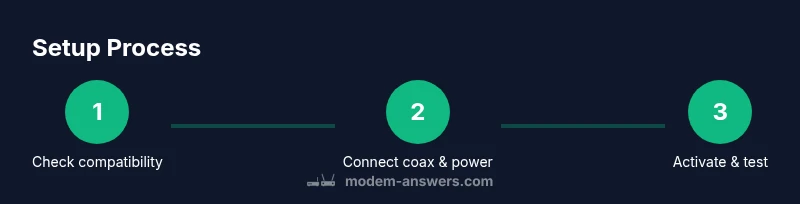
- 1
Verify compatibility and prep gear
Confirm the modem model is on Comcast’s approved list. Gather all required items and clear a workspace.
Tip: Double-check model number and MAC address before starting. - 2
Connect coax and power
Securely connect the coax cable to the wall outlet and the modem. Plug in the power adapter and wait for boot indicators.
Tip: Avoid forcing connectors; a snug, straight connection is best. - 3
Attach to a device for activation
Connect a computer or phone to the modem (or router) to access activation prompts.
Tip: Prefer a wired connection during activation for reliability. - 4
Run activation prompts
Open a browser (or app) and follow on-screen steps to activate. Sign in to your account if needed.
Tip: If prompted, choose the correct service address and account. - 5
Configure router and security
If using a separate router, set up Wi‑Fi name and strong password; enable WPA2/WPA3 and firewall.
Tip: Avoid default passwords; change them during setup. - 6
Test and troubleshoot
Test several devices, check speeds, and ensure both 2.4 GHz and 5 GHz bands are functioning.
Tip: If issues persist, reboot modem/router in sequence: power cycle, then re-test.
FAQ
Do I need a separate router after installing the Comcast modem?
Not always. If you only need basic Wi‑Fi, the modem’s built‑in wireless may suffice. For better coverage and features, pair a dedicated router and configure it separately.
Often you can run the modem alone, but for robust Wi‑Fi, a separate router is recommended.
What should I do if activation fails?
First, check all cable connections and ensure the modem model is supported. Reboot the modem and retry activation. If needed, use the Comcast app or website to initiate activation, or contact support.
Check connections, reboot, and retry activation; contact support if it still fails.
Can I install the modem without a coax outlet in the room?
Yes, you can run a coax line from a nearby outlet or have a professional extend the line to your location. Do not force connect from an unsuitable outlet.
If the room lacks a coax outlet, you’ll need a nearby outlet or a technician to extend the line.
How long does activation typically take?
Activation is usually quick, often completing within minutes once prompts are followed. If delays occur, power cycle and retry, or check for service outages in your area.
Usually quick; if it stalls, reboot and try again or check for outages.
Will this work if I already own a router?
If you have an existing router, connect it to the modem via Ethernet and configure its Wi‑Fi. Ensure router firmware is up to date for security and performance.
Yes, connect your router to the modem and configure it as you normally would.
What if I’m renting a modem from Comcast?
Renting typically means you’ll still need to activate the device and may be charged monthly. If you plan to switch devices, check your account for compatibility with your own modem.
Activation applies to the rented device; ensure it’s compatible if you bring your own.
Watch Video
Key Takeaways
- Verify compatibility before buying or plugging in
- Activate using the official prompts to avoid outages
- Place router strategically for best Wi‑Fi coverage
- Test wired and wireless connections after setup
- Keep security settings strong and up to date