How to Connect to Comcast Modem: A Step-by-Step Guide
Learn how to connect to Comcast modem with a practical, homeowner-friendly guide. Clear steps, setup tips, and troubleshooting to get your home network online quickly and securely.


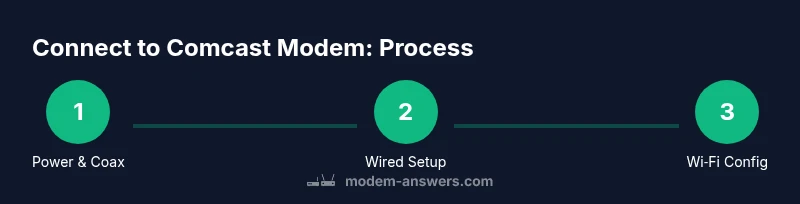
If you’re asking how to connect to comcast modem, start by locating the coax outlet and the power supply, then power up the device. Next, connect a computer via Ethernet to perform the initial configuration, access the admin page, and set your Wi‑Fi name and password. This wired-first setup helps ensure a stable connection before any wireless testing or device additions.
Setting the goal: what it means to connect to a Comcast modem
Connecting to a Comcast modem is the first essential step in establishing a reliable home network. The process varies slightly between older standalone modems and newer combined gateway devices, but the core idea remains the same: you need a working connection to the internet from the modem, proper access to its administrative interface, and a secure Wi‑Fi setup for wireless devices. For homeowners and renters, understanding this flow helps you troubleshoot quickly and avoid unnecessary service calls. In practice, you’ll verify physical connections, confirm indicator lights, access the device’s admin page, and configure your Wi‑Fi network. The goal is a stable, secure connection that supports all your devices—from smartphones to smart TVs—without constant resets or conflicts.
Prerequisites and safety checks
Before you dive into the wiring and login steps, gather a few essentials and confirm a couple of safety basics. Make sure you have: a working Comcast modem or gateway, a coaxial cable compatible with your model, a power adapter, and an Ethernet cable. If you plan to use your own router, have that ready as well. Safety checks include ensuring the modem is placed in a ventilated area, away from heat sources and moisture, and that the power is off while you connect cables. Finally, confirm your service status with Comcast in case activation is needed. Having all tools at hand minimizes interruptions and speeds up the setup process.
Locate the modem and understand its indicators
Start by locating the device in a central, accessible spot—often a living room or home office. Identify the coax port, Ethernet port, and power input, as well as any USB or additional ports your model may feature. LED indicators tell you the device’s status: power, receive (receiving signal), send (transmitting signal), online, and any error lights. A solid green or blue online light generally means the modem is ready for configuration. If you see a blinking or amber LED, consult the user manual for your model. Taking a quick photo of the rear panel’s ports can save you from misidentifying jacks later.
Step 1: Power up and connect the coax cable
Power is the first order of business. Disconnect power if the device is currently on, then firmly attach the coaxial cable from the wall outlet to the modem. Reconnect power and wait for the device to initialize. It’s normal to see the lights blink as the modem negotiates a connection with the provider. If you don’t see the expected online indicator after a few minutes, double-check the coax cable’s tightness and confirm that the wall outlet is active. A two-to-three minute warm-up period is typical for most modems.
Step 2: Establish a wired connection for initial setup
To avoid wireless interference during configuration, connect a computer, tablet, or smartphone directly to the modem using an Ethernet cable. If your model includes a dedicated LAN port for a router, ensure you’re plugged into the correct port for a direct connection. Turn on the connected device and ensure it obtains an IP address automatically (DHCP). Open a web browser and prepare to access the modem’s admin page. A wired connection generally provides the most reliable access to the configuration screens and reduces the risk of misconfigurations caused by fluctuating Wi‑Fi signals.
Step 3: Access the modem's admin interface and sign in
Most Comcast modems have a built-in admin page accessed via a default gateway address displayed on the device label or in the manual. In your browser, enter the gateway address, then log in with the default username and password provided by Comcast or printed on the device. If you’ve previously changed these credentials, use your updated ones. If you can’t log in, check that the device is online and that you’re connected to the modem directly (not to a separate router). Your goal here is to confirm you can view the status page and begin basic configuration, not to alter settings blindly.
Step 4: Configure Wi-Fi network name and password
With access to the admin page, locate the Wireless or Wi‑Fi settings section. Create a unique SSID (network name) and a strong, unique password. For added security, enable WPA3 if your devices support it; otherwise, WPA2 is a solid default. Write down the details or store them in a password manager. If you’re using a separate router, configure the router’s SSID and password there and consider placing the modem into bridge mode to avoid double NAT issues. After saving changes, reconnect your devices to the new network credentials.
Step 5: Test connectivity and verify service
Now test with a wired device first, then a wireless device. Open a web page, stream a video, or run a simple speed test to verify basic connectivity and performance. If speeds are significantly lower than your plan, consider relocating the modem for better signal reception, checking for source interference, or restarting the device. If you have voice or home phone services, test those features as well. Consistent results across multiple devices indicate a healthy setup, while sporadic performance suggests room for optimization or a potential service issue.
Step 6: Security practices and common pitfalls to avoid
Security should be an ongoing consideration after you connect to comcast modem. Change default admin credentials, keep firmware up to date, and enable guest networks for visitors. Do not disable essential protections or leave default factory settings if you’re unsure of their impact. Common pitfalls include placing the modem in a cluttered space, neglecting to secure your Wi‑Fi with a strong password, or using outdated equipment that struggles with modern speeds. Take a few minutes to review your network’s security posture and document any changes for future reference.
Tools & Materials
- Coaxial cable(Ensure it’s compatible with your modem and the in-wall outlet)
- Power adapter(Original power supply that came with the modem)
- Ethernet cable (CAT5e or better)(For a wired first setup)
- Computer, tablet, or smartphone(To access the admin interface)
- Access to Comcast account/activation info(Helpful for activation or account verification)
- Notes or password manager(To store SSID and login details)
Steps
Estimated time: 20-30 minutes
- 1
Power up and attach coax
Power down the modem if needed, firmly connect the coaxial cable from the wall to the modem, then plug the power adapter in. Wait 2-3 minutes for initialization and for the online indicator to stabilize.
Tip: Double-check the coax connection for any loose ends. - 2
Connect a device using Ethernet
Use an Ethernet cable to connect a computer or laptop directly to the modem. Ensure the device obtains an IP address from DHCP before opening a browser.
Tip: A wired connection reduces setup errors due to flaky Wi‑Fi. - 3
Open the admin page and login
In a browser, enter the modem’s gateway address from the label or manual and sign in with the default credentials unless you’ve changed them.
Tip: If login fails, verify you’re on the correct local network and consult the label for the right address. - 4
Configure Wi‑Fi details
In Wireless settings, create a unique SSID and strong password. Enable the strongest security protocol available (WPA3 if possible).
Tip: Avoid using personal or common names in SSIDs to reduce targeted attacks. - 5
Test wired and wireless connectivity
Test loading a page on both a wired device and a Wi‑Fi device. Run a speed test to confirm performance matches the plan.
Tip: If speeds are low, try rebooting the modem or moving it to a central location. - 6
Finalize and secure your network
Document your settings, consider enabling a guest network for visitors, and keep firmware updated.
Tip: Set up automatic firmware updates if the option exists.
FAQ
Do I need a coaxial cable to connect to Comcast modem?
Yes. A coaxial cable is typically required to provide the incoming signal to the modem. If you’re using a gateway, the same coax connection feeds both the modem and router functionalities. Always ensure a snug, clean connection at the wall outlet and the device.
Yes, you’ll usually need a coax cable to feed the modem. Make sure both ends are firmly connected.
Can I use my own router with a Comcast modem?
Yes, you can use a separate router after the modem to manage your home network. If you’re using a gateway, you might enable bridge mode to avoid double NAT, depending on your network needs.
Yes, you can use your own router, and you may enable bridge mode if you want to bypass the gateway’s routing features.
What if I can’t access the modem’s admin page?
Ensure you’re connected directly to the modem with a wired connection or to the correct Wi‑Fi network. Check the gateway address on the device label, verify the device is online, and try a different browser or device if needed.
Make sure you’re connected to the right network and try a different browser or device if the page won’t load.
How long does activation take after connecting the modem?
Activation can take several minutes to complete. If service doesn’t start within this window, reboot the modem and verify the wall outlet is active. You may need to contact Comcast if activation is delayed.
Activation usually takes only a few minutes, but if it’s slow, reboot the device and check your outlet.
Should I disable Wi‑Fi on the modem and use a separate router?
If you’re using a separate router, you can disable the modem’s Wi‑Fi to avoid interference and simplify management. Some setups benefit from leaving Wi‑Fi on the modem and turning off router features, but this depends on your home layout.
You can disable the modem’s Wi‑Fi if you’re using your own router for a cleaner setup.
What if I have a combo device with both modem and router functions?
A combo device provides both modem and router functionality. If you’re sharing a home network with multiple devices, ensure you configure appropriate security, enable guest networks if needed, and update firmware regularly.
If you have a combo device, configure security and keep firmware up to date.
Watch Video
Key Takeaways
- Connect via Ethernet first to ensure reliable setup.
- Access the modem’s admin page to configure Wi‑Fi securely.
- Test on multiple devices to confirm full connectivity.
- Secure the network and update firmware for ongoing safety.
- If issues persist, consult the provider or official support.