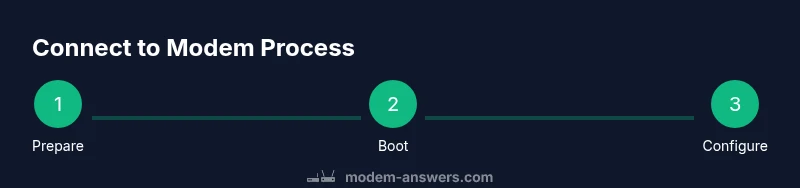
How to Connect to Modem: A Complete Step-by-Step Guide
Learn how to connect to a modem with clear wired and wireless methods. This comprehensive guide walks homeowners and renters through setup, securing your network, and quick fixes for common issues.


According to Modem Answers, to connect to a modem, attach a device via Ethernet for stability or join the modem’s Wi‑Fi network for convenience. Start by locating the modem, powering it on, and confirming the LEDs indicate normal operation. If you’re setting up for the first time, access the modem’s admin page to configure the network name and password. This guide covers wired and wireless connections.
Understanding Modems and How They Fit in Your Home Network
Modems act as the bridge between your home network and the internet provided by your ISP. They decode the digital signal from the provider into a form your devices can use, and they often pair with a router to distribute Wi‑Fi. In many homes, a single device handles both tasks, but in others the modem and router are separate devices. Knowing where to connect to the modem helps you get a stable connection, simplify troubleshooting, and apply correct network settings. The Modem Answers analysis shows that a wired Ethernet backhaul is generally more reliable for initial configuration than hopping through other devices. Understanding your modem’s physical layout—coaxial or fiber input, Ethernet ports, power inlet—lets you move through the steps with confidence.
Before You Start: Gather Details and Access Credentials
Before you touch any cables, gather what you’ll need. Identify the model and make of your modem, locate the coax or fiber line, and confirm you have power. Have your ISP account credentials handy if you need to sign in to the admin interface. Write down the default network name (SSID) and password printed on the bottom or side of the modem, though you should change them during setup. Check your device to ensure you have a functioning computer, smartphone, or tablet ready for configuration. Finally, if possible, connect a test device with an Ethernet cable to the modem to verify basic connectivity before configuring wireless settings.
Wired vs Wireless: Choosing the Best Connection for Your Setup
A wired Ethernet connection to the modem offers the best stability and lowest latency, which is especially important for streaming, gaming, and work from home. Wireless connections provide flexibility and convenience for laptops, phones, and tablets. Start with a wired test to confirm the modem is functioning and your credentials work, then switch to Wi‑Fi for daily use. If you live in a home with thick walls or multi‑story layouts, plan for Wi‑Fi mesh or a higher‑gain router to improve coverage. The Modem Answers analysis shows that balancing wired reliability with wireless convenience often delivers the best overall experience.
Step-By-Step: Prepare Your Equipment and Power Cycle
Before you begin the setup, make sure the area around the modem is clean and accessible. Inspect cables for wear or damage and replace any frayed connectors. Power off the modem and unplug it from the power source. Reconnect the coax or fiber line securely, plug the modem back in, and wait for the status LEDs to indicate a stable connection (usually a solid power and online light). If something seems off, perform a quick reboot by unplugging for 15–30 seconds and then plugging back in.
Step-By-Step: Connect a Computer Using Ethernet
Connect an Ethernet cable from your computer to one of the modem’s LAN ports. Ensure the connection is snug and the PC recognizes a wired network. Open a web browser and attempt to load the modem’s admin page (common addresses are 192.168.0.1 or 192.168.1.1). If prompted, enter the default credentials found on the modem or provided by your ISP. This wired test confirms basic connectivity before you touch any wireless settings.
Step-By-Step: Access the Modem’s Admin Interface and Change Defaults
Once your computer is connected, locate the modem’s admin page. This login gives you control over settings such as the Wi‑Fi name (SSID), password, and security protocol. Change the default admin username and password to something strong and unique. If your device is provided by an ISP, you may need to sign in with your account details first. Always save changes and note the new credentials for future use.
Step-By-Step: Configure Wi‑Fi Name, Security, and Passwords
Create a distinct Wi‑Fi network name (SSID) that you can easily recognize, and choose a robust Wi‑Fi password. Use WPA2 or WPA3 security if available, and disable WPS to reduce vulnerability. Consider enabling guest network access if you frequently lend your network to visitors. After saving, reconnect your devices to the new network and run quick speed checks to verify performance.
Step-By-Step: Test, Reboot, and Confirm Connectivity
After applying changes, reboot the modem if prompted and re‑connect all devices to the updated network. Run a few speed tests on different devices to ensure consistent results across the network. If testing shows poor performance, try changing the Wi‑Fi channel (1, 6, or 11 are common presets) or enabling 5 GHz band testing for shorter, high‑throughput connections. Keep monitoring for a day to ensure stability.
Step-By-Step: Documentation and Backup for Future Changes
Document the key settings: SSID, password, admin password, firmware version, and the WAN/Internet settings if any. Save a backup of the current modem configuration if your device supports it. This makes future migrations or troubleshooting quicker and reduces the risk of losing your setup after a factory reset. Store these notes securely in a password manager or a dedicated, offline document.
Troubleshooting Common Issues and Quick Fixes
If you can’t access the admin page, verify you are connected to the modem’s network and try a different browser. Check for loose cables and confirm the WAN/Internet light is on. If devices cannot connect, reset the Wi‑Fi settings to defaults and reenter the credentials. For persistent problems, reboot both the modem and any linked router, and contact your ISP if the service line appears inactive.
If You Rent or Use a Modem/Router Combo from Your Provider
Renting a modem or using a gateway with built‑in routing can limit access to certain features. Some providers lock administrative access or require you to use their app for configuration. If you encounter restrictions, consult your provider’s support channel for bridging options, compatibility checks, and steps to unlock advanced settings. Modem Answers recommends verifying whether your device is in bridge mode when using an external router to avoid double NAT issues.
Authority Sources and Best Practices
- FCC: https://www.fcc.gov
- FTC: https://www.ftc.gov
- NIST: https://www.nist.gov
Best practices include keeping firmware up to date, avoiding default credentials, using strong WPA2/WPA3 security, and documenting changes for future reference. The Modem Answers team emphasizes routine checks of the admin password and firmware to maintain a secure and stable home network.
Tools & Materials
- Ethernet cable (Cat5e or better)(at least 6 feet long)
- Modem and power adapter(ISP-provided or vendor-provided)
- Computer, smartphone, or tablet for setup(prefer wired test first)
- Web browser or mobile app to access admin page(Chrome/Edge/Safari or device app)
- ISP account credentials (if required for login)(username and password)
- Notepad or digital notes to document settings(optional for backup)
Steps
Estimated time: 25-40 minutes
- 1
Prepare equipment and inspect cables
Unpack the modem and inspect all cables for wear or damage. Ensure the coax/fiber line is secure and the power adapter is present. Clearing the workspace helps prevent accidental unplugging during setup.
Tip: Check for frayed Ethernet or coax cables and replace immediately if damaged. - 2
Power down and perform a clean boot
Power off the modem and any connected devices. Unplug the power cord, wait 15–30 seconds, then plug back in and power on. Give the device 2–5 minutes to boot and show stable indicator lights.
Tip: A clean boot avoids cached errors that can affect configuration. - 3
Connect a test device via Ethernet
Use an Ethernet cable to connect a computer directly to a LAN port on the modem. Confirm the computer recognizes a wired connection and can load the admin page.
Tip: Wired connections are less prone to interference during setup. - 4
Access the admin interface and sign in
Open a web browser and enter the modem’s IP address (commonly 192.168.0.1 or 192.168.1.1). Enter the default credentials from the label on the modem or from your ISP. If prompted, accept terms or install updates before proceeding.
Tip: If you don’t know the IP, check the user manual or ISP site for the exact address. - 5
Change default admin credentials
Navigate to the security or administrator section and set a strong, unique password. Save changes and log out, then log back in with the new credentials.
Tip: Use a password manager to store credentials securely. - 6
Configure network name and security
Set a new SSID for your Wi‑Fi and enable WPA2/WPA3 security. Disable WPS to reduce vulnerability. If you have a guest network, enable it for visitors.
Tip: Choose a distinct SSID to avoid confusion with neighbors’ networks. - 7
Apply changes and reboot if required
Save all changes and reboot the modem if the interface requests it. Reconnect to the network using the new SSID and password.
Tip: Some settings require a second reboot to take effect. - 8
Test devices and document settings
Connect multiple devices to the network, run quick speed checks, and verify stability. Document all settings (SSID, passwords, admin credentials, firmware version) for future reference.
Tip: Keep a digital copy in a secure password manager.
FAQ
What is the difference between a modem and a router?
A modem connects your home network to the internet while a router distributes that connection to devices via Wi‑Fi or Ethernet. Some devices combine both functions as a gateway. If you need only basic internet, a modem suffices; for home Wi‑Fi you’ll typically want a router or a gateway with built‑in Wi‑Fi.
A modem links you to the internet; a router creates your home network.
Should I change the default admin password on my modem?
Yes. Changing the default admin password significantly improves security by preventing unauthorized access to your network settings.
Yes. Change the default admin password to protect your network.
Why is my internet not working after setup?
Common causes include loose cables, incorrect login, or an inactive WAN connection. Verify cables, reboot the modem, and confirm you are connected to the correct network.
If the internet isn’t working, check cables and reboot the modem.
Can I use the modem’s Wi‑Fi without a separate router?
Yes, many modems include built‑in Wi‑Fi. If you need stronger coverage or more features, consider adding a separate router or enabling bridging in some cases.
Yes, most modems have Wi‑Fi built in; for larger homes you may want a dedicated router.
How often should I update modem firmware?
Update firmware when prompted by your ISP or device manufacturer. Regular updates improve security and performance.
Update firmware when prompted; it improves security and stability.
Watch Video
Key Takeaways
- Connect via Ethernet for best reliability
- Change default admin credentials immediately
- Test wired and wireless connections for coverage
- Document network settings and firmware version