Comcast Replace Modem: A Step-by-Step Guide
Learn how to replace a Comcast modem with an approved, compatible model. This step-by-step guide covers selecting a modem, activation, and testing to improve speed and reliability for home networks.


This guide shows you how to replace a Comcast modem and get your home network back online quickly. You’ll learn how to choose an approved modem, check compatibility, activate the device, and verify service with your provider. By the end, you’ll know whether to use a rental swap or own a modem for savings.
Why replace your Comcast modem matters for home networks
According to Modem Answers, comcast replace modem decisions become especially important when your current device is outdated or rented. An aging modem can bottleneck speeds, cause intermittent disconnects, and limit the reach of your Wi‑Fi throughout a multi‑room home. Replacing with a modern, Comcast‑approved modem can unlock better performance, improve reliability, and provide greater control over firmware updates. Homeowners who switch to an owned modem often report smoother streaming, fewer drops, and more consistent performance on plans that push higher speeds. If you’re considering an upgrade, this section explains the practical reasons to replace and how to decide if now is the right time.
Understanding Comcast compatibility and approved lists
Comcast maintains an approved modem list; using a non‑approved model can lead to activation failures or limited support. Before purchasing or swapping, verify that the modem is DOCSIS 3.0 or 3.1 capable and explicitly listed for your service tier. If you use a gateway with built‑in Wi‑Fi, ensure it’s compatible with your plan. The Modem Answers Analysis, 2026 notes that many households prefer to own a modem because it reduces ongoing rental charges and offers more flexibility for network upgrades over time. Always cross‑check the model’s MAC address with your account during activation to avoid delays.
Rental vs ownership: evaluating cost and convenience
Renting a modem from Comcast includes convenience and support, but it incurs a recurring monthly fee. Owning a modem eliminates monthly rental costs and grants faster access to firmware updates on compatible models. The decision hinges on your usage patterns, how often you upgrade equipment, and whether you value simplicity over long‑term cost savings. If you expect to stay on the same plan for several years, owning a modem can be financially advantageous, while renters with frequent equipment changes might lean toward rental for ease of replacement.
Preparation steps before swapping
Before you swap, gather all necessary cables and credentials: a coaxial cable, power adapter, Ethernet cable (if you’ll use a separate router), and your Xfinity account login. Write down or photograph your current setup so you can recreate a similar network topology if needed. If you’re using a separate router, decide whether you want to bridge the modem to the router or enable router passthrough. Finally, confirm the new modem is on Comcast’s approved list and note its MAC address for activation.
Security and privacy considerations when replacing hardware
When introducing a new modem, factory‑reset the device if it’s previously used to wipe settings. Keep your account credentials secure and avoid sharing activation codes in unsecured channels. After activation, reconfigure Wi‑Fi with a strong password and enable the latest security features on your router if you’re using one. These steps help protect your home network from common threats as you transition to new hardware.
Tools & Materials
- Approved Comcast-compatible modem(Ensure model is on Comcast's approved list and supports your plan.)
- Coaxial cable(One end connects to wall outlet; other to modem.)
- Power adapter(Use the correct adapter for the replacement modem.)
- Ethernet cable(Required if connecting a separate router or bridge mode.)
- Xfinity account credentials(Needed to activate the new modem.)
- Documentation of MAC address/serial(Helpful for inventory or troubleshooting.)
Steps
Estimated time: 15–30 minutes (activation time may vary)
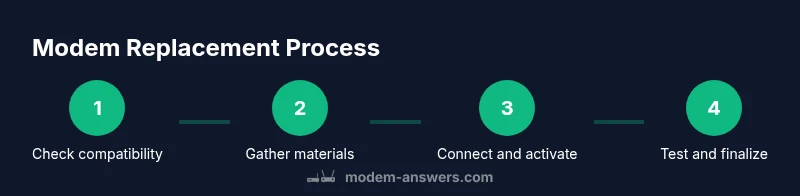
- 1
Verify compatibility with Comcast
Check Comcast’s official list to confirm your chosen modem is approved for your service tier. Ensure it supports DOCSIS 3.0 or 3.1 and that the model is compatible with your specific plan. This prevents activation failures and future issues.
Tip: Double‑check the exact model name and firmware support before purchasing. - 2
Gather materials and prep space
Collect the modem, coaxial cable, power adapter, Ethernet cable (if needed), and your account login. Clear a nearby workspace and place the modem in a ventilated area away from heat or moisture.
Tip: Having everything at hand speeds up the process and reduces trips to the router closet. - 3
Disconnect old modem and prepare the network
Unplug the current modem and any connected routers or extenders. If you plan to use a separate router, note its current settings so you can reconfigure quickly.
Tip: Take a quick photo of the current setup to guide reassembly. - 4
Connect the new modem and power it up
Connect the coaxial cable to the wall outlet and the modem, then plug in the power. Wait 2–5 minutes for the modem to boot and stabilize the connection.
Tip: Avoid moving the device during boot to ensure a clean start. - 5
Activate the new modem
Sign in to your Xfinity account and follow the activation prompts, or use the provided activation number if prompted. Have the modem’s MAC address handy if asked.
Tip: If activation stalls, try rebooting the modem and retrying activation. - 6
Test and finalize the setup
Test wired and wireless devices to confirm internet access. If using a separate router, connect it and verify DHCP and NAT settings are correct.
Tip: Run a speed test and compare results to your plan to confirm performance.
FAQ
Do I need to return a Comcast rental modem after buying my own?
Yes. When you replace a rental modem with your own device, return the rental to avoid ongoing charges and ensure your account reflects ownership.
If you replace a rental modem, return it to avoid monthly charges and keep your own device active.
Can I use any DOCSIS modem with Comcast?
No. Comcast maintains an approved modem list; using a non‑approved model may cause activation problems or limited support.
Only use modems on Comcast’s approved list to ensure compatibility.
What should I do if activation fails?
First verify the modem on the approved list and that your account is in good standing. Reboot the modem and retry; if problems persist, contact support.
If activation fails, check compatibility, reboot, and try again; contact support if needed.
Is owning a modem cheaper in the long run?
Owning a modem can reduce ongoing rental fees, but consider the upfront cost and potential upgrade cycles before deciding.
Owning can reduce ongoing fees, but weigh upfront costs and future upgrades.
Should I bridge my new modem to a separate router?
If you use a separate router, enable bridge mode or passthrough to avoid double NAT and simplify management.
Bridge mode can simplify your network when using a dedicated router.
Watch Video
Key Takeaways
- Choose an approved Comcast modem to ensure compatibility
- Decide between rental vs ownership based on usage
- Activate promptly after connection to avoid service gaps
- Test wired and wireless connections for stability