How to Get Modem IP Address: A Step-by-Step Guide
Learn how to locate your modem IP address quickly with practical, at-home steps. This Modem Answers guide covers IPv4/IPv6, admin pages, and safe practices for homeowners and renters.


You can find your modem IP address by checking the default gateway on a connected device, or by logging into the modem’s admin page. This quick method works for most home networks and covers both IPv4 and IPv6 addresses. Use a computer, smartphone, or tablet to access the router’s interface and verify the local IP assigned to your device.
Why Knowing Your Modem IP Address Matters
Knowing your modem IP address is essential for troubleshooting, configuring features like port forwarding, and managing your home network securely. The Modem Answers team has observed that most home users benefit from locating the IP address to access the modem’s admin interface or to confirm the gateway for connected devices. This knowledge helps you verify that you’re connecting to the correct device, distinguish it from a separate router or extender, and avoid misconfigurations that could disrupt internet access. Whether you’re setting up a new network, updating firmware, or checking parental controls, your modem IP acts as the gateway to control and visibility. Remember that the IP address can be IPv4 (4.x.y.z) or IPv6 (2600:1f:xxxx:xxxx:xxxx:xxxx:xxxx:xxxx), and many networks share common defaults while still supporting custom configurations. From a security perspective, knowing the IP allows you to review admin settings, check for exposed management options, and ensure strong authentication is in place. This awareness also helps when you need to document your network for future upgrades or when you contact support for help. In short, your modem IP is the fingerprint of the gateway that ties together devices, settings, and security rules on your home network.
tip
Tools & Materials
- A computer, tablet, or smartphone(Any device on the same network will work)
- Web browser (Chrome, Edge, Safari, etc.)(No special plugins needed)
- Modem or gateway label or manual(Useful for exact model defaults)
- Admin login credentials (username/password)(Needed to access the admin page in most cases)
- Ethernet cable (optional)(Helpful if Wi‑Fi is unstable)
- Notebook or digital note app(Record IPs for future reference)
Steps
Estimated time: 5-15 minutes
- 1
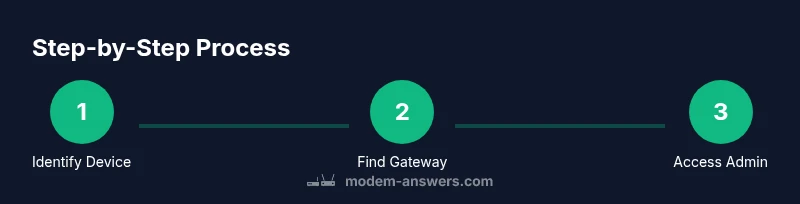
Identify the device you need to query
Determine whether you are trying to locate the IP for your modem/gateway or a connected router. In most homes the modem is the primary gateway. If you have a separate router behind the modem, you may need to check both devices.
Tip: If you’re unsure, start with the device that provides your internet connection directly. - 2
Check the device label or manual for defaults
Many modems list the default gateway address (for example, 192.168.0.1 or 192.168.1.1) on the bottom or back. This helps you quickly navigate to the admin page without guessing.
Tip: If you find two IPs, treat the one labeled as gateway for local management as the primary target. - 3
Find the IP via a connected device
On Windows, open Command Prompt and run ipconfig to see the Default Gateway. On macOS, open System Preferences > Network > Advanced > TCP/IP to view the Router field. These values are usually your modem IP.
Tip: Ensure your device is connected to the same network (Wi‑Fi or ethernet) as the modem. - 4
Open a browser and enter the gateway IP
Type the gateway IP into the browser address bar and press Enter. If prompted for credentials, enter the admin username and password. If you don’t know them, check the label, your ISP documents, or reset the device if you have physical access.
Tip: Be wary of entering credentials on unfamiliar networks or public kiosks. - 5
Locate the IP addresses in the admin interface
Once logged in, navigate to the LAN or Status page to see IPv4 and IPv6 addresses assigned to the modem or gateway. The information may be under sections labeled LAN, Local Network, or DHCP client list.
Tip: Document both IPv4 and IPv6 if available for future configurations. - 6
Verify the correct device and secure access
Cross-check the IP against other devices in your network to confirm you’re viewing the right gateway. Sign out when finished and consider changing the admin password if it’s weak or default.
Tip: If you cannot access the admin page, try a different browser or clear cookies and cache. - 7
Optional: static vs dynamic IP considerations
Some networks use DHCP to assign IPs dynamically. If you need a fixed address for port forwarding, you can assign a static IP within the modem’s LAN settings or reserve an IP for your device.
Tip: Follow the manual for exact steps to avoid IP conflicts on the network.
FAQ
What is a modem IP address, and how is it different from a router IP?
A modem IP address is the local gateway for managing the modem or gateway device on your home network. A separate router (if present) has its own IP address for accessing its settings. In many homes, the modem and router share the same local gateway, but a second device may have a distinct IP for management.
Think of the modem IP as the door to your device’s settings; the router, if present, may have its own door elsewhere on the network.
What should I do if I can’t find the gateway IP on my device?
If the label doesn’t help, check your computer’s network details or use a browser to try common defaults like 192.168.0.1 or 192.168.1.1. If you still can’t locate it, contact your ISP or reset the modem following the manufacturer’s instructions.
Try the common defaults first, then contact support if needed.
Can I change the modem IP address, and why would I?
You can change or reserve a local IP to improve stability for port forwarding or device access. Changes should be made carefully to avoid losing connectivity. Always save your new settings and reboot if required.
Yes, you can assign a fixed local IP for easier access and port forwarding.
Is there a difference between IPv4 and IPv6 addresses on my modem?
IPv4 addresses look like four numbers separated by dots (e.g., 192.168.1.5). IPv6 addresses are longer alphanumeric strings. Both can be shown in the modem interface, but most home access uses IPv4 for typical admin tasks.
IPv4 and IPv6 are two different formats for addresses; you may see both in the admin page.
What if my admin page asks for a password I don’t have?
Use the default credentials shown on the device label or in the manual. If you’ve changed them and forgotten, use the reset option on the device or contact your ISP for support.
If you forgot the password, try the default or reset the device following the manufacturer’s instructions.
How can I verify I found the right IP address?
Cross-check the IP against the gateway shown in the admin page with the value you see in your device’s network settings. You should see the same address across wired and wireless connections when connected to the same gateway.
Make sure the IP you see in settings matches the gateway shown on the admin page.
Key Takeaways
- Identify gateway IPs quickly using device labels or OS commands
- Access the modem admin page to view IPv4/IPv6 addresses
- Secure your admin credentials and document the IP data
- Understand the difference between local gateway IPs and WAN IPs