Where to Find a Modem in Your House
Learn where to locate your modem inside your house, how to distinguish it from router or gateway, and quick steps to secure the best placement for reliable home internet. A homeowner-friendly guide by Modem Answers.


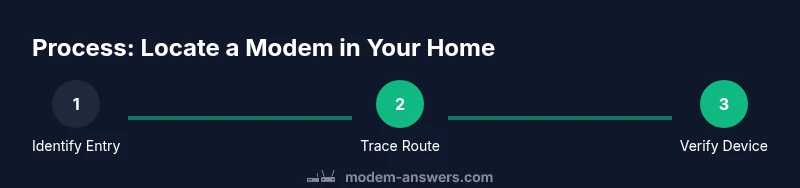
The quickest way to locate your modem is to trace the incoming ISP line from the street into your home and follow it to the first device that converts the signal for your network. In most homes that device sits near a utility area, a closet, or behind a media console. This guide helps you identify all likely spots and confirm the exact model. Remember: start at the service entry point and work toward the router.
How the network entry point usually looks
The concept of where to find modem in house begins with understanding the point where your service enters the building. In many homes, the path starts at an exterior utility box or a wall jack in a central location, then travels to a network termination device. Depending on your internet type, that device may be a cable modem (for cable service), an optical network terminal (ONT) for fiber, or a DSL modem for telephone-style service. Once the signal is converted to data for your home network, a separate device—often a router—distributes Wi‑Fi and wired connections. If you’re unsure which box is which, look for labels like “modem,” “gateway,” or the model number printed on a sticker. According to Modem Answers, tracing this entry point is the fastest way to identify the likely neighborhood of the modem’s location: a utility closet, a laundry room, a garage cabinet, or a media console near the central living area. The essential action is to follow the main power cable and the data cable (coax, fiber, or telephone line) from the point of entry toward the rest of the home network. In older homes, the route may zigzag through hallways, behind built‑ins, or under stairs; patience and methodical checking pay off.
Top hiding spots in apartment layouts
Apartment layouts vary widely, and the modem’s home base often hides in plain sight. In studios, the service entry may land behind a media cabinet, a bookshelf, or a closet used for cleaning gear. In one-bedroom layouts, a corridor closet behind a washer/dryer stack or a recessed cabinet in the living room can host the modem and gateway equipment. In multi-unit buildings, building closets or utility rooms that bundle several units’ lines are common, sometimes with access restricted to maintenance staff. Look for coaxial cables that split into several devices, or a small black or white box with a row of LEDs. If you can’t locate a modem in a typical living room or home office, search adjacent areas that host entertainment setups, such as behind the TV stand, within a wall‑mounted rack, or under a desk. The same approach applies to renters who may have access to shared utility areas; always respect building policies and avoid moving equipment in zones with restricted access. If you’re unsure, contact your landlord or service provider for guidance before moving any hardware.
House layout variants: single-family, townhouse, condo
Different housing configurations influence where the modem ends up. In single-family homes, the central hub is often in a front utility closet, garage, or basement, where the service line enters and can be traced toward the main router. In townhouses and condos, the central equipment may be in a hallway utility closet, a stacked‑laundry area, or inside a built‑in cabinet in living spaces. In every case, you want to identify the demarcation point (the provider’s entry) and the device immediately downstream of it. If the home has been renovated or has legacy wiring, you may find multiple boxes and splitters; the modem is typically the device closest to the provider line with ports configured for Ethernet or coax connections. Modem placement can affect cable length and Wi‑Fi reach, so plan a practical route to the main router. Modem Answers notes that a thoughtful layout reduces signal loss and simplifies future troubleshooting.
How to tell modem from router, gateway, or ISP box
Distinguishing the modem from other gear is essential to avoid confusion and ensure you’re managing the right device. A modem connects to the provider line (coax, fiber, or DSL) and has one or more data ports (coax or fiber input plus an Ethernet output). A router distributes IP addresses to devices on the network and usually has several Ethernet ports; it typically lacks a direct line for the service entry. A gateway combines modem and router functions in a single box, often branded by the internet service provider. When in doubt, compare the port layout and any model numbers printed on the device. If you can safely do so, power-cycle the suspected unit and watch which box reestablishes connectivity; this simple test helps confirm the correct device without unplugging the wrong component. Remember that the modem is the piece that speaks to your ISP, while the router creates your local network.
Quick physical clues: ports, LEDs, labels
Examine ports and LEDs to identify the modem quickly. A typical modem will have a coax input or fiber port and a single Ethernet output toward the router, plus a dedicated power jack. A gateway or combo device will often show multiple functions in one box, with both coax and Ethernet ports. LED indicators provide fast confirmation: a solid power light, a stable online signal, and a data activity light that flickers with traffic. Labels on the device can help: look for the word “modem,” “gateway,” or the brand/model printed on a sticker. If you encounter a box that looks unfamiliar or carries multiple roles, pause before swapping or moving anything. The goal is to identify clear signs of the modem without unplugging essential service components.
Tools and safety checks before moving equipment
Before you start moving equipment, gather the basics: a flashlight for dim spaces, a notepad and pen to document findings, and a smartphone or camera to capture the setup. If you’re working in a high cabinet or on a ladder, have a second person assist and wear appropriate footwear. Safety comes first: never unplug equipment that you’re not certain about, avoid pulling on cables stapled to walls, and avoid climbing on furniture to reach high boxes. Map the current setup on paper or with your phone, noting where the service entry and the presumed modem are located. This prep work minimizes disruption and makes it easier to relocate equipment later if needed.
Quick-check route: confirm the modem’s identity
Start by tracing from the service entry to the device with ports that match a modem’s profile. Confirm the label, model, and power status, then note the nearby connections to the router or switch. Use your camera to document the cables and their paths for future reference. If you find a gateway, router, or combined device, label it accordingly and separate the steps for any future adjustments. Record the exact location in your home network map so you can quickly locate the modem again if service changes occur.
After locating: securing location and documenting
Once you’ve identified the modem, decide on a stable, accessible location that minimizes cable tension and maximizes airflow. Centralizing the modem and router in a ventilated cabinet or dedicated media rack often improves service reliability. Label cables with color tags or simple wording, and create a map of the network layout for future maintenance. Take clear photos of the setup, note the model numbers, and store the information in a home inventory file. If the modem location must change, plan for a controlled move, test connectivity after relocation, and update your documentation.
Tools & Materials
- Flashlight(A handheld light helps inspect dark spaces like closets, cabinets, and basements)
- Notepad and pen(Document findings and map connections as you go)
- Smartphone or camera(Photograph cabling routes and label placements)
- Tape or cable labels(Mark cables to avoid confusion later)
- Step ladder or stable stool(Use for reaching high shelves or cabinets)
Steps
Estimated time: 25-45 minutes
- 1
Identify the service entry point
Locate where the external service line enters the building (coax, fiber, or DSL) and note the first device connected to that line inside the home.
Tip: If needed, check exterior walls or basement ceilings where cables enter the structure. - 2
Trace downstream to the first equipment
Follow the line from the service entry toward the interior; observe each box or panel it feeds.
Tip: Take a photo of each device to help with later identification. - 3
Identify the demarcation point and downstream device
Differentiate between the provider’s demarcation and the consumer equipment that follows it.
Tip: Look for model numbers and an electricity connection to guide your judgment. - 4
Find the device with modem-typical ports
Locate the device that has a coax/fiber input and an Ethernet output; that device is the likely modem.
Tip: If you’re unsure, inspect labeling and documentation on the panel. - 5
Power cycle to verify identity
Power off the suspected device, wait a few seconds, then power it back on and confirm service restoration.
Tip: Do not unplug other devices; focus on the suspected modem box. - 6
Document the location and connections
Record the exact room or cabinet, take photos, and sketch a simple map of where cables go.
Tip: Label each cable with a short description (e.g., 'modem to router'). - 7
Decide on a permanent, accessible location
Choose a central, well-ventilated spot for the modem and router to minimize cable length and maximize coverage.
Tip: If possible, place in a closet or rack with easy access for future maintenance.
FAQ
Is the modem always located near the service entry point?
Not always. The modem can sit in a utility closet, basement, or behind furniture, depending on space and building layout. Start at the entry point and work outward.
Not always—the modem may be in a closet or behind furniture. Start at the entry point and work outward.
What if I rent a modem from my provider?
Rented modems are common. Identify the device by its ports and label, then locate the corresponding router if present. You can still map and label the setup for future reference.
Rented modems are common; locate the device by its ports and label, then map the setup.
Can I move the modem to improve Wi‑Fi coverage?
Yes, moving the modem and router to a more central, open location can improve coverage. Ensure the cable length is sufficient and avoid obstructing vents or heat sources.
Yes—central placement can help Wi‑Fi. Check cable length and airflow.
How do I identify which device is the modem if labeling is unclear?
Look for the device that has a coax or fiber input and an Ethernet output. Compare model numbers and consider testing by power cycling and observing which device restores service.
Identify the device with a coax/fiber input and Ethernet output, then test by power cycling.
What should I do if there are multiple boxes near the entry?
The device closest to the provider line that handles data typically is the modem. Keep a map of the inputs and note any splitters or amplifiers that can affect signal.
Usually the closest-to-entry device handles the data; map inputs and note any splitters.
Do I need to power down before checking equipment?
Power down only what you’re sure about. If you’re unsure, stop and consult your provider or a professional to avoid service disruption.
Power down only if you’re sure what you’re touching; otherwise ask for help.
Watch Video
Key Takeaways
- Trace from the service entry to locate the modem
- Differentiate modem from router/gateway by ports and labeling
- Document placement and connections for future troubleshooting
- Choose a central, accessible location to improve reliability
- Respect building policies and safety when handling equipment