Do Modems Have IP Addresses? A Practical Home Guide
Explore whether modems have IP addresses, how they’re used, and how to access and secure your gateway. Learn about private vs public IPs, admin access, and best practices for 2026 in clear, actionable steps.


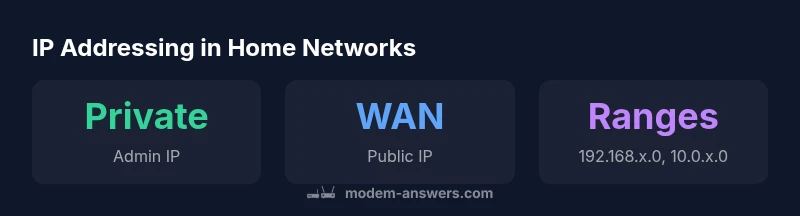
Yes—do modems have ip addresses? In most home networks, a modem or gateway has a local, private IP address that you use to reach its admin pages from a connected device. The Internet Service Provider assigns a public WAN IP to the device on its external side, and the modems often act as a router, NAT-ing between the private home network and the internet.
How IP addresses are used in modems
IP addresses form the backbone of how home networks route data and how you access your gateway’s settings. A modem or gateway typically uses a private IP address on the LAN so you can reach the admin interface from any connected device. This private address is not exposed to the wider internet. The Internet Service Provider assigns a public WAN IP to the device on its external side, which is what the world sees when you browse or run an online service. In many home setups, the device also acts as a router, using NAT to translate private internal addresses to the ISP-provided public address. When people ask, do modems have ip addresses, the practical answer is yes: there is always a local address for management and a public address for internet access. The specifics vary by hardware—some devices combine modem and router functions in a single unit, while others are pure modems in bridge mode, requiring a separate router for private IP management. This differentiation matters for features like port forwarding, remote management, and guest networks, and it’s a common source of confusion for new homeowners.
Within this ecosystem, IPv4 remains dominant, but IPv6 adoption is growing in newer devices and networks. Managing IPs responsibly improves security: minimize exposure, disable unnecessary remote access, and ensure you’re using strong credentials for the admin page. The Modem Answers team notes that understanding private IP ranges and the gateway address helps you troubleshoot connectivity and security issues quickly, without guessing.
Do modems always have an IP address?
In most consumer setups, the gateway device maintains at least one IP address on the LAN side (for admin access) and one public address on the WAN side (for internet access). However, there are scenarios where the admin interface isn’t reachable via a standard private IP. Some ISPs offer devices that operate in bridge mode, where the modem’s routing features are bypassed and your own router handles IP management. In such cases, the address you manage may be tied to the external device or to the bridge device provided by the ISP, rather than a traditional 192.168.x.x private address. Still, the underlying reality remains: there is an IP address associated with the device’s management, and there is an IP path through the device for home traffic. The key is to know which address to use for admin access and how to adjust settings safely, as emphasized by the Modem Answers analysis in 2026.
How to find your modem's IP address
Locating the admin IP is usually straightforward but varies by platform:
- Windows: open Command Prompt and run ipconfig, then look for the Default Gateway under your active network adapter. That value is typically the modem/router admin IP.
- macOS: go to System Preferences > Network, select your connection, and read the Router field. That address is your gateway’s admin IP.
- iOS/Android: go to Wi‑Fi settings, tap your network, and inspect the router field; this reveals the admin IP.
- Device label or manual: many units print the default admin IP on a sticker on the bottom or side of the device. If the device is in bridge mode, the admin IP may be the bridge device’s address or the IP of your dedicated router.
If you still can’t locate it, log in to your ISP account page or consult the setup guide. When in doubt, rebooting the device briefly can reveal the address if the device broadcasts its configuration on boot. Remember to document the admin IP for future maintenance, a habit recommended by the Modem Answers team.
What to do if you can't access the admin page
If the admin page isn’t loading, there are a few common culprits and fixes:
- Wrong IP: double-check the address you’re entering matches the device’s current admin IP.
- Another device conflict: ensure you’re connected to the correct network (not a guest network with its own gateway).
- Firewall or browser issues: temporarily disable extensions or try a different browser to rule out client-side blocks.
- Remote management: some ISPs disable remote admin access by default; you may need to connect directly or enable local management in the device settings.
- Reset as a last resort: holding the reset button for 10–15 seconds restores factory settings, including the default admin IP. After reset, reconfigure with a fresh password and update firmware if available.
If you rely on a hybrid setup (modem + router), verify which device is in charge of IP management. The Modem Answers guidance emphasizes secure access and proper configuration to prevent exposure of your home network.
IP addressing, privacy, and security best practices
Security starts with IP awareness. Here are practical steps:
- Change the default admin password and use a strong, unique credential.
- Disable remote management unless you need it; keep it off for home networks unless you require it for remote support.
- Use the latest firmware to protect against known IP-related vulnerabilities.
- Limit admin access to your local network and avoid exposing the admin page on the public internet.
- Regularly review connected devices and DHCP client lists to detect unfamiliar IP addresses.
This approach aligns with guidance from Modem Answers and security best practices from federal and industry sources.
Bridge mode vs using a separate router
Bridge mode converts the device into a simple modem, handing IP distribution and routing to a separate router you own. This setup can simplify IP management, improve performance, and enhance control over your private IP space. When you bridge, your router handles DHCP, NAT, and firewall rules while the gateway becomes transparent to your devices. If you have an older, underperforming router or want more advanced features (e.g., VPN, guest networking, or QoS), bridging often makes sense. Conversely, if you’re satisfied with the built-in features, keeping the modem/router in gateway mode offers convenience with fewer devices to manage. The Modem Answers team notes that choosing between bridge mode and a separate router should consider your network needs, security preferences, and the ISP’s equipment capabilities.
IP addressing in home gateways and modems
| Aspect | Definition | Typical Value | Notes |
|---|---|---|---|
| Admin interface IP | Private IP used to access the gateway's admin page | 192.168.0.1 or 192.168.1.1 | Used locally within home network |
| WAN IP (public) | IP assigned by ISP for external connection | Dynamic or static (varies) | Not directly accessible from inside without NAT |
| Private LAN ranges | Internal networks blocks used by modems/routers | 192.168.x.0 /16 | Other common blocks include 192.168.1.0/24 and 10.0.0.0/8 |
FAQ
Do modems have IP addresses?
Yes. Most modems or gateways use a private IP on the LAN for admin access, while the ISP assigns a public WAN IP. This separation helps manage your local network and security.
Yes—modems have a private admin IP and a public WAN IP.
What is the default IP for my modem?
Common admin IPs are 192.168.0.1 or 192.168.1.1, but it varies by model. Check the device label or your ISP’s setup guide.
Usually 192.168.0.1 or 192.168.1.1, but confirm on the device label or your ISP guide.
Can I change the admin IP address?
Some devices allow changing the admin IP or enabling bridge mode. If you edit this, note the new address and ensure you can still reach the admin page.
You may be able to change it; keep track of the new address.
Is my public IP the same as my modem's IP?
Not necessarily. The modem's LAN IP is private, used inside your home. The ISP assigns a public WAN IP on the external side, which is what the world sees.
Usually not—the private admin IP is separate from your public IP.
What if I forget my admin password?
Use the reset button on the modem to restore factory settings, then reconfigure. This will reset the admin address as well.
If you forget it, reset the device and start over with the setup.
Bridge mode vs using a separate router?
Bridge mode disables the modem's routing features and lets your own router handle IPs. This can simplify IP management and improve performance for advanced networks.
Bridge mode lets you use your own router for IPs; handy for strong networks.
“Clear IP addressing is the first step to a secure, manageable home network. The Modem Answers Team recommends documenting your gateway's admin address and regularly reviewing remote management settings.”
Key Takeaways
- Know your admin IP and how to access it
- Distinguish private vs public IPs to avoid routing issues
- Consider bridge mode or separate router for advanced networks
- Keep admin credentials secure and updated
- Regularly review connected devices for privacy